Your Logitech Tablet Keyboard is powered on, but the iPad will not type, pair, or respond. Start by matching the keyboard type to the right fix: the original Logitech Tablet Keyboard for iPad uses Bluetooth, while newer Logitech iPad cases such as Combo Touch and Folio Touch use the Smart Connector. Follow the fixes in the order below so you do not waste time pairing a keyboard case that connects by pins instead.
Match the keyboard to your iPad
Open Logitech’s iPad keyboards page and use Which iPad do you have? or Identify my iPad to match your exact iPad model with Logitech’s current keyboard cases.
Compare your keyboard with Logitech’s current iPad keyboard families, including Combo Touch, Flip Folio, Rugged Folio, Slim Folio, and Folio Touch.
Open Logitech Support and use Find your product when you have an older product name, model number, or part number.
Treat the original Logitech Tablet Keyboard for iPad as a Bluetooth keyboard because it is not listed among Logitech’s current retail iPad keyboard models.
Do this check first so a size or connector mismatch does not look like a software problem.
Pair the keyboard again
This fixes a Bluetooth Logitech keyboard that turns on but will not type on the iPad.
Move the keyboard power switch to ON.
Press the Connect button on the back of the keyboard until the Bluetooth LED blinks.
Open Settings on the iPad.
Tap Bluetooth.
Turn Bluetooth on.
Tap the Logitech keyboard name when it appears.
Type the onscreen PIN or passcode on the keyboard, then press Enter.
Check power and distance
Turn the Logitech keyboard off, then turn it back on. A power cycle clears a stuck Bluetooth attempt before you change iPad settings.
Make sure the accessory is on and fully charged or connected to power. If the keyboard uses batteries, replace or check the batteries.
Keep the keyboard and iPad close together while pairing. For the original Logitech Tablet Keyboard, move the switch to ON, press Connect until the Bluetooth LED blinks, then select it in Settings > Bluetooth.
Use the current iPadOS path: Settings > Bluetooth. The older Logitech support paths for iOS 6 and iOS 5 are legacy instructions for older iPads.
Forget the keyboard and reconnect
Use this when the iPad remembers the keyboard but the connection does not come back cleanly.
- 1.Open Settings and tap Bluetooth.
- 2.Tap the Actions Available or info button next to the Logitech keyboard.
- 3.Tap Forget This Device, then tap Forget Device.
- 4.Move the keyboard switch to ON and press Connect until the Bluetooth LED blinks.
- 5.Return to Settings > Bluetooth and pair the keyboard again.
Align Smart Connector cases
This method applies to Logitech Combo Touch, Folio Touch, Slim Combo, and similar Logitech iPad keyboard cases that connect through the iPad Smart Connector. These cases connect by alignment, not Bluetooth pairing.
Align the three Smart Connector pins on the keyboard with the three Smart Connector pins on the iPad.
Let the magnets guide the connector into place, then test typing.
Disconnect the keyboard if it still does not respond.
Clean the Smart Connector on the iPad and keyboard with a soft, lint-free cloth.
Seat the iPad properly in the case, reconnect the keyboard, and test again.
Remove any other iPad case or cover that blocks the connector.
Restart and update iPadOS
This fixes connection trouble that remains after Bluetooth pairing or Smart Connector alignment.
On an iPad without a Home button, press and hold the top button and either volume button until the power-off slider appears.
Drag the slider, then press and hold the top button until the Apple logo appears.
On an iPad with a Home button, press and hold the top button until the slider appears.
Drag the slider, then press and hold the top button to turn the iPad back on.
You can also open Settings > General > Shut Down, drag the slider, and turn the iPad back on.
Open Settings > General > Software Update.
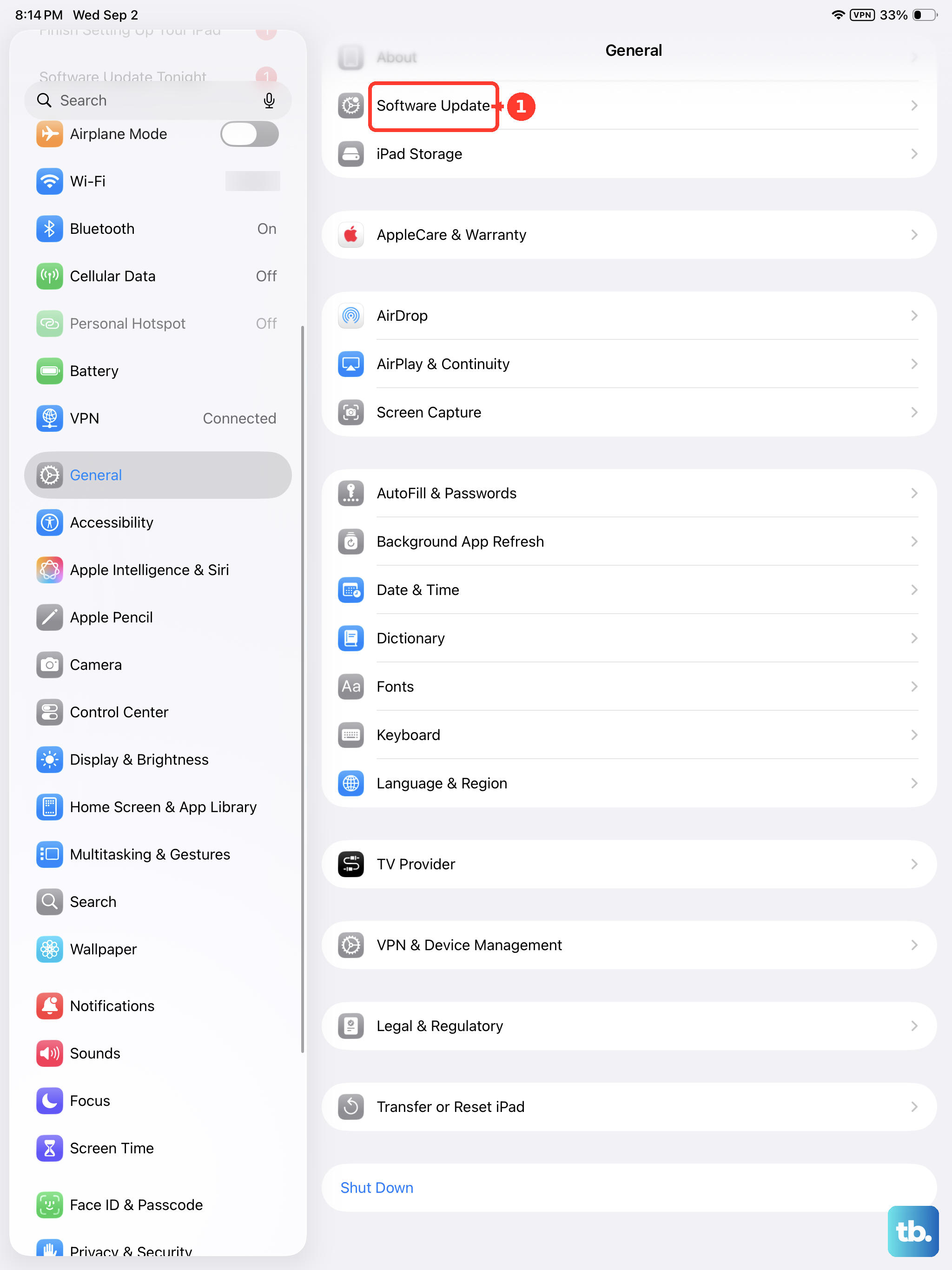
Tap Download and Install when an update is available.
Fix wrong keys and shortcuts
When the keyboard connects but keys, repeats, or shortcuts behave wrong, change the keyboard settings on the iPad.
- 1.Open Settings > Accessibility > Keyboards & Typing and check Key Repeat, Sticky Keys, and Slow Keys.
- 2.Open Settings > Accessibility > Keyboards & Typing > Full Keyboard Access and turn Full Keyboard Access on or off.
- 3.Open Settings > General > Keyboard > Hardware Keyboard, tap a language, and choose the layout you want.
- 4.Open Settings > General > Keyboard > Hardware Keyboard > Modifier Keys and choose the action for each modifier key.
- 5.In the app where shortcuts seem missing, press and hold Command to view that app’s available shortcuts.
Clear app and device conflicts
Unpair the Logitech keyboard from another iPad, iPhone, Mac, PC, or tablet when it connects there instead of this iPad.
Open Settings > Privacy & Security > Bluetooth and turn on Bluetooth access for the Logitech app you use with the keyboard, such as Logi Options+ Mobile, when app discovery or firmware updates fail.
Install or open Logi Options+ Mobile from the App Store on the iPad used with the keyboard. The app requires iPadOS 15 or later, and it handles firmware updates only for the Logitech keyboards it lists, including Combo Touch, Folio Touch, Slim Combo, Slim Folio, Slim Folio Pro, Rugged Folio, Rugged Combo, Rugged Lite, Keys-To-Go 2, and Flip Folio.
Follow the app’s firmware update prompts when an update appears for a supported Logitech iPad keyboard.
Open Settings > General > AirPlay & Continuity and turn off Cursor and Keyboard when Universal Control routes keyboard input between a Mac and iPad.
If the iPad already has the Logitech Control app, you do not need a different download: Logi Control was renamed Logi Options+ Mobile, so updating the app you have gets you the current one. Skip the older Logitech utilities such as Firmware Update Tool, Logitech Preference Manager, Logitech Control Center, Logitech Connection Utility, Unifying Software, and SetPoint; Logitech’s current support direction is Logi Options+ for supported devices.
Reset settings or contact Logitech
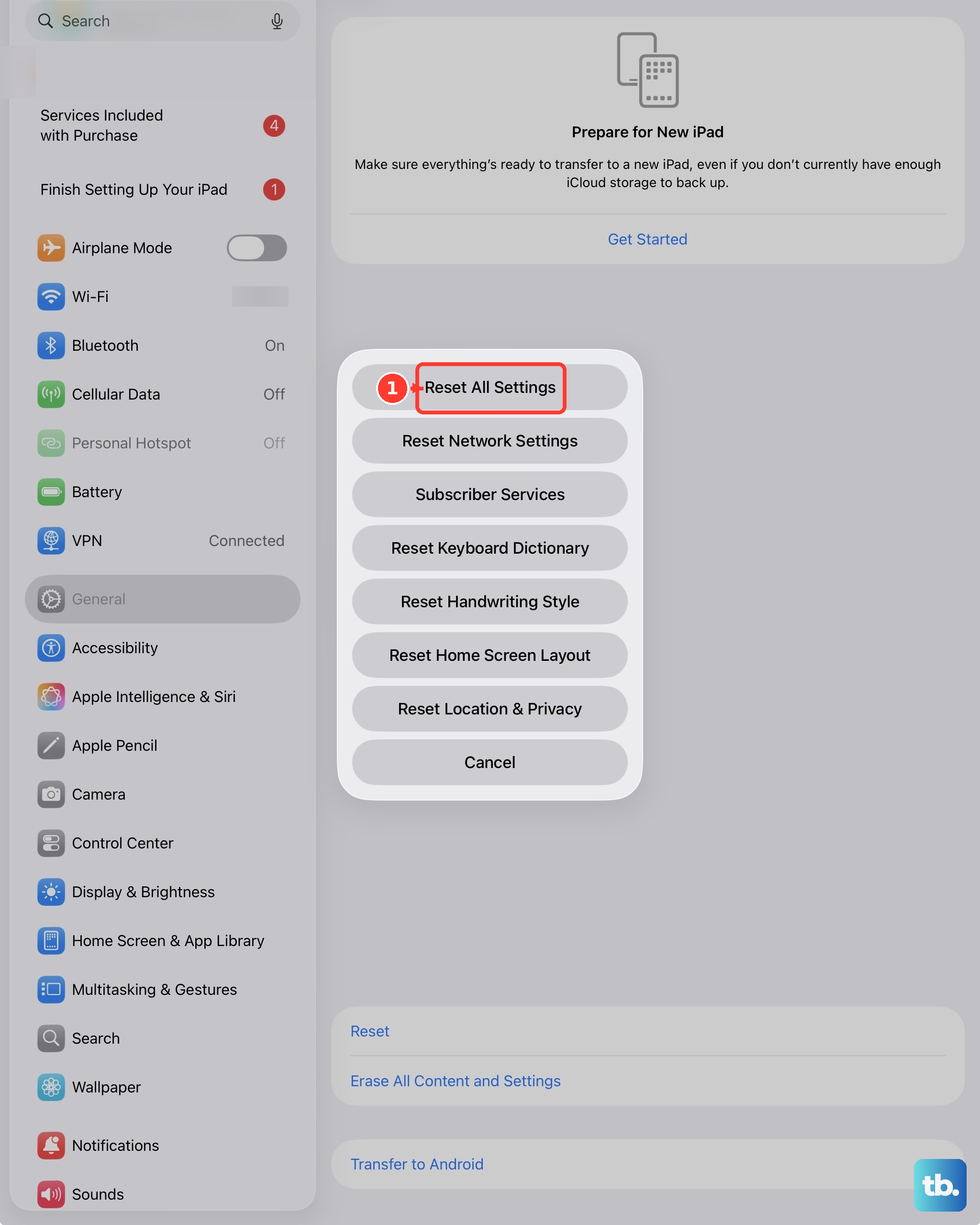
Use reset options only after pairing, power, connector, restart, update, and keyboard settings checks fail. Open Settings > General > Transfer or Reset iPad > Reset, then choose Reset Network Settings for a connection-focused reset.
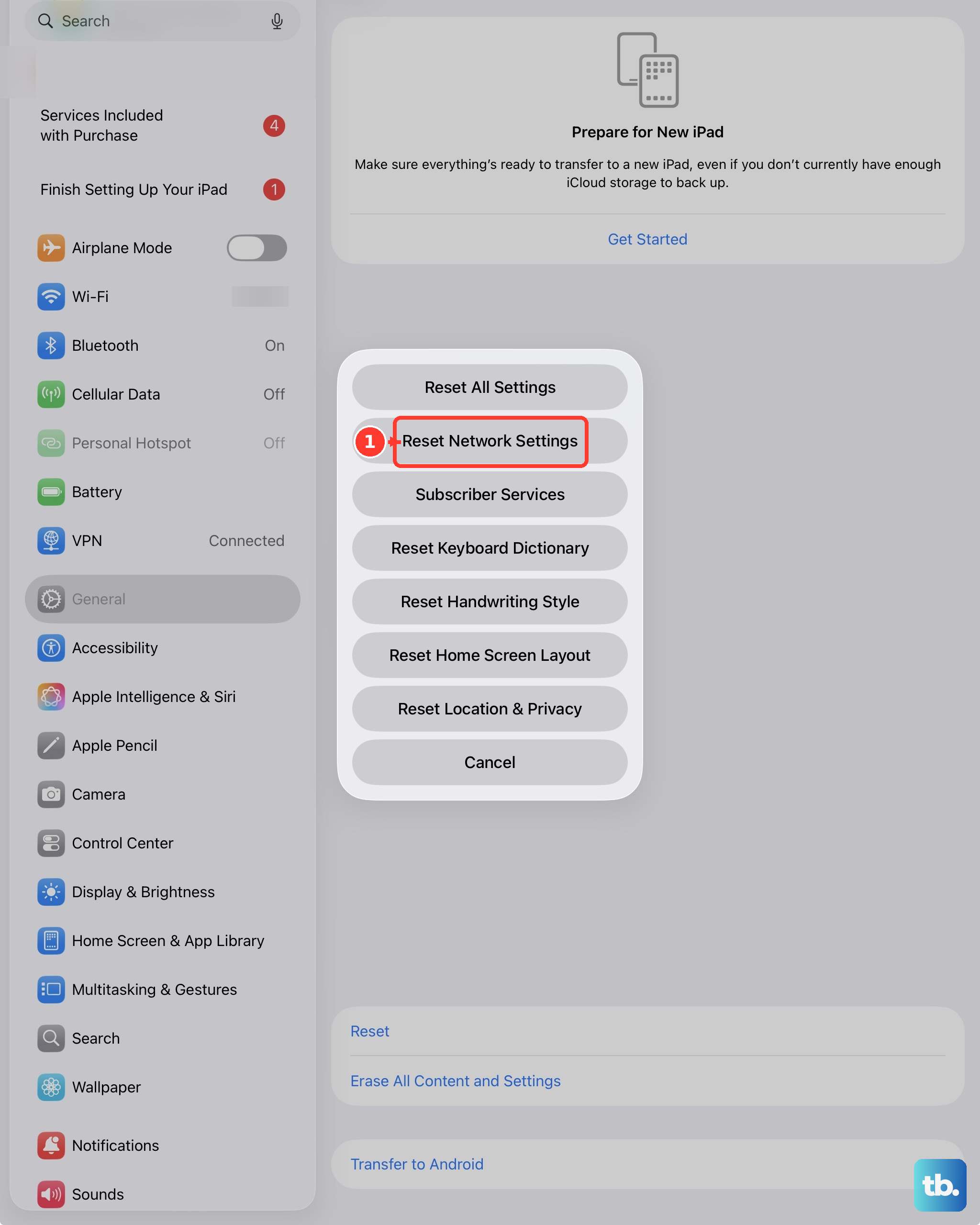
Choose Reset All Settings when the issue continues and you are ready to reset settings including network, keyboard dictionary, location, privacy, and Apple Pay settings without deleting media or data.
For a personally owned iPad with a removable profile, open Settings > General > VPN & Device Management, select the profile or management entry, then tap Remove Profile or Remove Management when the option appears.
For a school or work iPad, contact the organization’s administrator because managed restrictions can control Bluetooth changes and keyboard shortcuts.
If the Logitech keyboard still will not power on, enter pairing mode, connect to any device, or respond after these steps, open Logitech Support and use Find your product, phone, chat, or warranty claim options.
Frequently Asked Questions
Do I need Bluetooth for Logitech Combo Touch on iPad?
No. Logitech Combo Touch and other Smart Connector cases connect through the three Smart Connector pins. Align the pins, seat the iPad in the case, and test typing.
Why does my Logitech Tablet Keyboard ask for a PIN on iPad?
That PIN is part of Bluetooth pairing. Type the PIN shown on the iPad using the Logitech keyboard, then press Enter.
Can Logi Options+ Mobile update every Logitech iPad keyboard?
No. Logi Options+ Mobile shows firmware updates for supported Logitech iPad keyboards. The original Logitech Tablet Keyboard is not on that supported device list, so pair and use it as a standard iPad Bluetooth keyboard instead.
Can a school or work iPad block Logitech keyboard changes?
Yes. Managed iPads can restrict Bluetooth changes or keyboard shortcuts. Contact the organization’s administrator for a school, business, or institution-owned iPad.