Your Chromebook should stay connected after it joins a working Wi-Fi network. If it keeps dropping offline, the cause is usually a stale saved network, a router or guest Wi-Fi problem, a VPN, a DNS or proxy setting, or a ChromeOS issue. Start with the quick fixes below, then move to resets only after the connection and network settings are ruled out.
Refresh the Wi-Fi connection first
Use this when the Chromebook can see your network but keeps falling off it, or when Wi-Fi looks stuck after waking, moving rooms, or changing networks. A quick Wi-Fi refresh clears the current connection state without deleting saved settings.
Select the time at the bottom right, then select the Wi-Fi icon to turn Wi-Fi off.
Select the Wi-Fi icon again to turn Wi-Fi back on.
Open Settings, choose Network, open Wi-Fi, select your network, and choose Connect. For a secure network, enter the Wi-Fi password when ChromeOS asks for it, then choose Connect.
Forget the network and join again
Use this when the Chromebook connects briefly and then drops, especially after a router password change, DNS change, proxy change, or network sync problem. Forgetting the network removes the saved Wi-Fi profile so ChromeOS can build a clean one.
Sign in to the Chromebook and select the time at the bottom right.
Open Settings, choose Network, then open Wi-Fi.
Select Known networks, find the problem network, open More, and choose Forget.
Reconnect to the same Wi-Fi network and enter the password again.
If the Chromebook still disconnects after a fresh join, check whether it is switching away from the right network or failing to reconnect automatically.
Make ChromeOS choose the right network
Multiple saved networks nearby can make a Chromebook jump between connections. That can look like random Wi-Fi drops even when the router is working.
Select the time at the bottom right and open Settings.
Under Network, select Wi-Fi.
Choose the network you want to use.
Turn on Automatically connect to this network.
Turn on Prefer this network.
For a hidden Wi-Fi network, open Known networks, select the hidden network, turn on Hidden network, and select Save.
Use the hidden-network setting only for an unlisted SSID you have already joined.
Rule out router or public Wi-Fi trouble
Before changing more Chromebook settings, check whether the network is causing the disconnects.
- 1.Connect another computer to the same router. If other devices also fail, troubleshoot the modem, router, or internet provider first.
- 2.Restart the router or gateway you control, then reconnect the Chromebook after the network comes back.
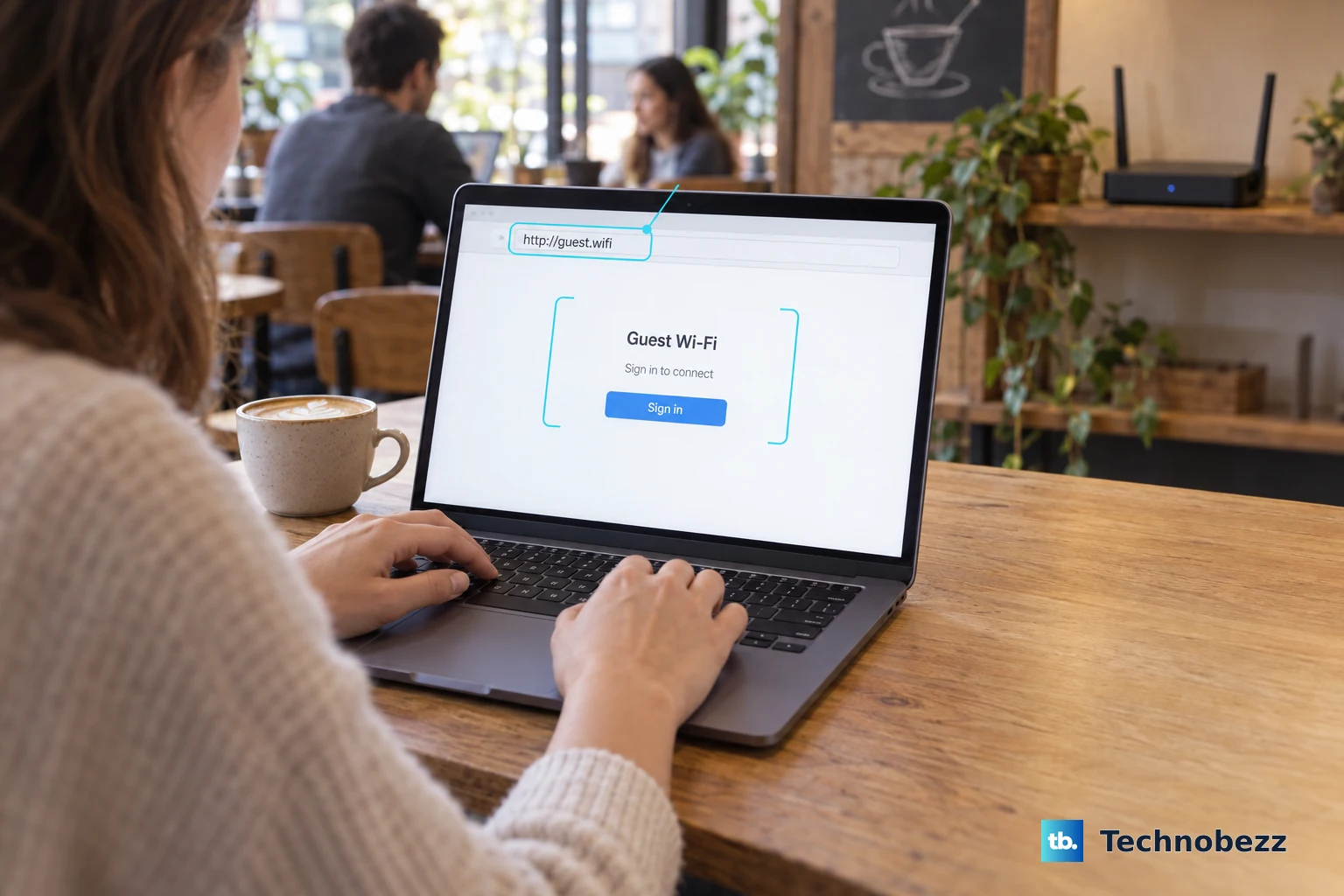
- 3.On hotel, school, or cafe Wi-Fi, open a website that starts with http:// so the sign-in page can load.
- 4.If the portal does not appear, open a private window with Ctrl + Shift + n if your administrator allows it, then try the http:// page again.
- 5.After signing in to a guest network, disconnect and reconnect to the Wi-Fi network if ChromeOS still says it is offline.
Remove VPN, extension, DNS, and proxy conflicts
The most common software cause is something that changes network traffic, such as a VPN, filtering extension, DNS setting, or proxy.
In Chrome, open More, choose Extensions, then select Manage extensions. On the extension you want to remove, select Remove, then confirm with Remove.
For Chromebook apps, open the Launcher, right-click the app, choose Uninstall or Remove from Chrome, then select Uninstall. Test VPN, filtering, captive-portal, and network-modifying apps first.
To check an Android VPN, select the time, open Settings, go to Apps, choose Manage Google Play preferences, open Android Settings, then go to Network & internet and VPN. Select Settings next to the VPN app and adjust or disconnect it.
For DNS trouble, connect to Wi-Fi, select the time, choose the Wi-Fi Network, select your wireless network name from the drop-down menu, open Network, and set Name servers to Google name servers. For proxy trouble on a home network, open the affected Wi-Fi network or its entry under Known networks, choose Proxy, and use Direct internet connection unless an administrator requires a proxy.
Restart and run Diagnostics
A restart is the clean break to try after the Wi-Fi profile checks. It also clears temporary network and app behavior before you run diagnostics.
Restart from the power menu.
As another restart method, hold the Power button until the Chromebook turns off, then turn it back on.
Select the time at the bottom right and open Settings.
Go to About ChromeOS, then open Diagnostics.
Use Connectivity to run the network checks.
Select Run again, Show details, IP Configuration, or Save test details when you need more detail to compare another network or share results with support.
Diagnostics is available on ChromeOS version 90 and up.
Fix router settings you control
Home routers and ISP gateways can cause Chromebook-specific drops even when the Chromebook itself is working.
Use your router manufacturer's admin app or web admin page to check for firmware updates, then install the update. On a dual-band router or mesh system, give the 2.4 GHz and 5 GHz bands different Wi-Fi names, reconnect the Chromebook, and test which band stays stable.
For older or problem routers, set Wi-Fi security to WPA2-PSK with AES and disable TKIP in the router's Wi-Fi security settings. If you are testing possible 2.4 GHz interference from nearby Bluetooth devices, select the time, open Bluetooth, and toggle it off temporarily.
On work or school Chromebooks, locked Wi-Fi, proxy, VPN, or filtering settings are managed by the administrator. Ask the school, employer, or network owner to check the Wi-Fi profile, proxy configuration, and required ChromeOS network access.
Use resets for stubborn Wi-Fi drops
This fixes deeper local settings, extension, hardware, and ChromeOS problems after the network and saved Wi-Fi profile have been ruled out.
Update ChromeOS first. Turn on the Chromebook, connect to Wi-Fi, select the time, open Settings, choose About ChromeOS, and select Check for updates.
Check the Auto Update Expiration information from About ChromeOS if the Chromebook is older. A device past its update period may no longer receive current Wi-Fi fixes.
Use Safety reset before a factory reset. Select the time, open Settings, choose System preferences, and under Reset, select Safety reset, then Done.
Review network and input settings afterward, then re-enable extensions selectively.
Reset the Chromebook hardware when the drops continue. For most Chromebooks, turn it off, press and hold Refresh, tap Power, then release Refresh when the Chromebook starts.
Use the alternate hardware reset shortcut by holding Back + Refresh + Power for at least 10 seconds. On a Chromebook tablet, hold Volume up + Power for at least 10 seconds, then release.
Powerwash only after safer steps fail, because it erases local data. Sign out, press and hold Ctrl + Alt + Shift + r, select Restart, choose Powerwash, select Continue, then follow the on-screen steps and sign in with your Google Account.
Use the Chromebook Recovery Utility extension only when recovery media is needed and internet recovery is unavailable or unsuitable. Do not follow older tutorials that point to the old Chromebook Recovery Utility Chrome app, the removed Keep Wi-Fi on during sleep setting, or Gemini and Google Assistant voice commands for Chromebook network fixes.
Frequently Asked Questions
Why does my Chromebook keep disconnecting from Wi-Fi while other devices stay connected?
The Chromebook may have a stale saved network, the wrong preferred network, a VPN, an extension, DNS or proxy settings, outdated ChromeOS, or a local hardware state that needs a hardware reset.
Why does my Chromebook disconnect from hotel or school Wi-Fi after I connect?
Guest networks often need a web sign-in page. Open a site that starts with http://, try a private window with Ctrl + Shift + n if your administrator allows it, turn off extensions if the page still will not appear, then disconnect and reconnect after signing in.
Will Powerwash fix Chromebook Wi-Fi disconnects?
Powerwash can help when software or account settings are the cause, but use it after safer steps such as forgetting the network, checking VPN or proxy settings, updating ChromeOS, Safety reset, and hardware reset.
What should I do if my school or work Chromebook keeps dropping Wi-Fi?
Contact the administrator if Wi-Fi, proxy, VPN, or filtering settings are locked. Managed Chromebooks can receive Wi-Fi profiles and proxy settings from the organization, so the fix may need to come from their side.