
Factory resetting your iPhone 17 Pro Max erases your content and settings and restores it to factory settings. It's a powerful tool for troubleshooting stubborn software glitches on iOS, preparing the phone for a new owner, or simply giving yourself a fresh start. Backing up first lets you restore your content, settings, and apps after the reset, while erasing the phone prepares it for setup by you or someone else.
Your First and Most Important Step: Back Up
Before you even think about the reset button, secure your data. On your iPhone 17 Pro Max, head to Settings > [Your Name] > iCloud > iCloud Backup. Tap Back Up Now and stay on Wi-Fi until it finishes. Double-check that your photos, contacts, and messages are syncing properly in their respective iCloud settings.
For a more robust local backup, connect your phone to a Mac or PC with a USB-C cable. On a Mac with macOS Catalina or later, open Finder, select your iPhone from the sidebar, and click Back Up Now. On a Windows PC, use the Apple Devices app or iTunes. This computer backup can be a lifesaver if you need to restore later and have a spotty internet connection.
Sign Out of Apple Account and iCloud
If you're giving the phone away, prepare it before you hand it over. Back up and transfer your information first, and unpair any Apple Watch paired with the phone. To sign out, go to Settings > tap your name at the top > scroll all the way down and select Sign Out.
Choose Erase this iPhone to erase during sign-out, or Sign Out But Don't Erase to continue with the Settings reset below. If asked which account to sign out of, tap Sign out of iCloud and Store. After preparing the phone for its new owner, remove it from your list of trusted devices.
Perform the Factory Reset from Settings
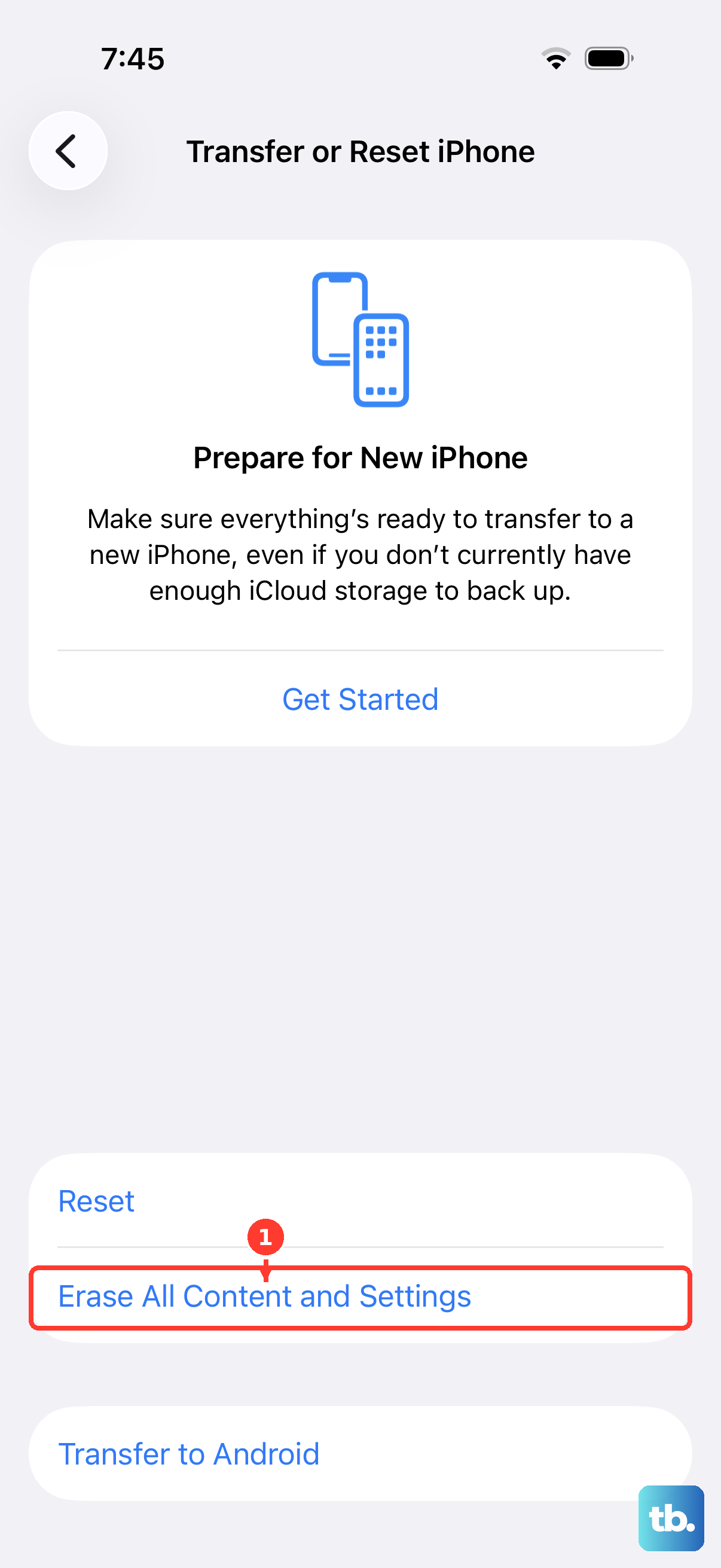
With your data safe and your account signed out, you're ready for the main event. On your iPhone 17 Pro Max, open Settings > General > Transfer or Reset iPhone. At the bottom, tap Erase All Content and Settings.
Tap Continue, then choose whether to keep or delete your eSIM. If you delete it, contact your carrier to reactivate your cellular plan. Enter your passcode, wait for any backup to finish, then enter your Apple Account password if prompted and tap the done button on the keyboard. Wait for the reset to finish and the "Hello" screen to appear.
Using a Computer to Restore Your iPhone
If your iPhone 17 Pro Max is unresponsive, stuck in a boot loop, or you've forgotten the passcode, you'll need to use a computer. This method, often called a "restore," installs the latest version of iOS. Update your computer and create a backup if possible, then connect your phone with a USB-C cable.
If you can access Settings and are still signed in, turn off Find My iPhone under Settings > [Your Name] > Find My > Find My iPhone, entering your Apple Account password and tapping Done. Open Finder on a Mac or the Apple Devices app or iTunes on a Windows PC. Select your iPhone, follow any passcode or Trust This Computer prompts, then click Restore iPhone and Restore to confirm. This erases the phone and installs the latest iOS, but does not delete your eSIM.
If the computer doesn't recognize the phone, first try another USB port or a USB-C cable that supports both data and charging. If the phone remains unresponsive or you cannot access it because of a forgotten passcode, you may need Recovery Mode. On the iPhone 17 Pro Max, quickly press and release the Volume Up button, then quickly press and release the Volume Down button. Immediately press and hold the Side button. Keep holding it until you see the recovery mode screen (a cable pointing to a computer icon).
Consider a Targeted Reset First
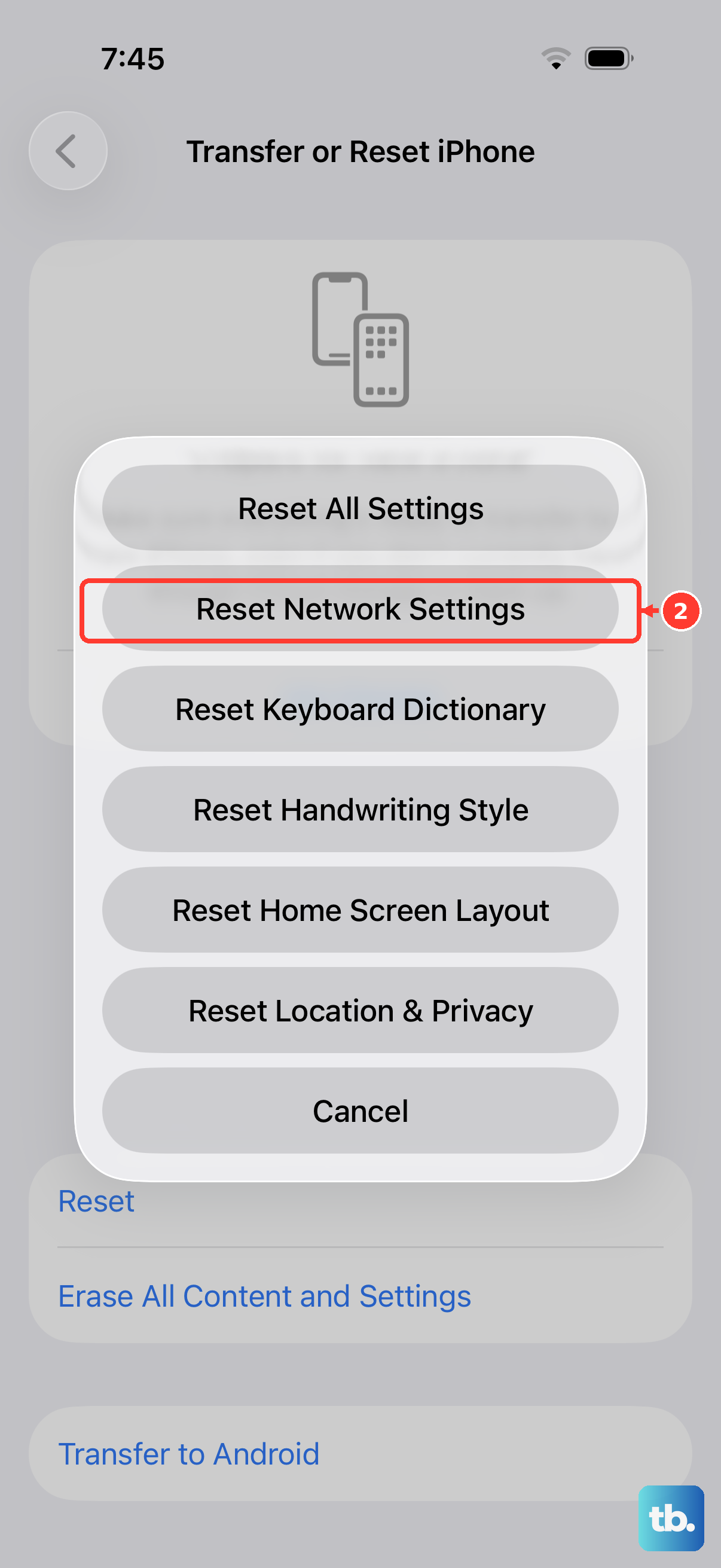
A full factory reset isn't always necessary. If you're dealing with Wi-Fi dropping, Bluetooth pairing issues, or general system sluggishness, a partial reset might do the trick. Go to Settings > General > Transfer or Reset iPhone > Reset.
Here, you have several options. Reset Network Settings clears Wi-Fi networks and passwords, cellular settings, and VPN and APN settings; use it only if other network fixes fail. Reset All Settings resets preferences without erasing your apps and data, but also removes Apple Pay cards and device pairings. Afterward, rejoin Wi-Fi, re-pair Bluetooth devices and your Apple Watch, and set up Face ID again.
Setting Up After the Reset
Once the reset is complete, you'll be guided through the setup assistant. Choose your language, connect to a Wi-Fi network, and set up Face ID. When you reach the "Apps & Data" screen, you have a choice. To get your life back on the phone, select Restore from iCloud Backup or Restore from Mac or PC.
Choose the most recent backup you created. The restoration process will begin, downloading your apps, photos, settings, and messages. A backup lets you restore your content, settings, and apps. Just plug in your 40W Dynamic Power Adapter or set it on a MagSafe charger, as this process can take a while and uses significant battery.
When a Factory Reset Makes Sense
Consider a factory reset for persistent, unexplainable problems like severe battery drain that diagnostics can't pinpoint, constant app crashes across multiple applications, or if the phone feels generally slow and buggy after all software updates are installed. It's also an important step in preparing your iPhone 17 Pro Max for sale, trade-in, or gifting, after backing up and transferring your information.
For more minor issues, always try a simple force restart first. On the iPhone 17 Pro Max, that's done by pressing and quickly releasing the Volume Up button, then the Volume Down button, then pressing and holding the Side button until the Apple logo appears. This restarts the phone and can fix temporary glitches without erasing your data.