
Resetting your iPad Air M3 to factory settings removes all your personal data and restores the original iPadOS configuration. It's a big step, whether you're handing down the device or troubleshooting a frustrating issue. Let's run through how to do it properly and what quirks to watch for on this model.
The iPad Air M3 uses USB-C charging and supports fast charging up to 30W, but it's picky about low-power adapters and uncertified cables. You'll want a 20W or higher USB-C PD adapter handy, especially during setup. I'll point out where these details matter as we go.
Back up your data first
Go to Settings > [Your Name] > iCloud > iCloud Backup and tap Back Up Now. Keep the iPad connected to Wi-Fi and plugged into power while it finishes. You can also back up to a computer by connecting with a USB-C cable and selecting Back Up Now in Finder (Mac) or iTunes (Windows).
Before wiping anything, confirm your photos and contacts are synced to iCloud or another service. Once the reset starts, that data is gone if it only existed on the device.
Sign out of your Apple ID
Open Settings and tap your name at the top. Scroll to the bottom and tap Sign Out, then enter your Apple ID password when prompted. This disables Find My iPad and removes Activation Lock, which is essential if you're passing the tablet to someone else. Skipping it leaves the device locked to your account.
Erase everything from the Settings app
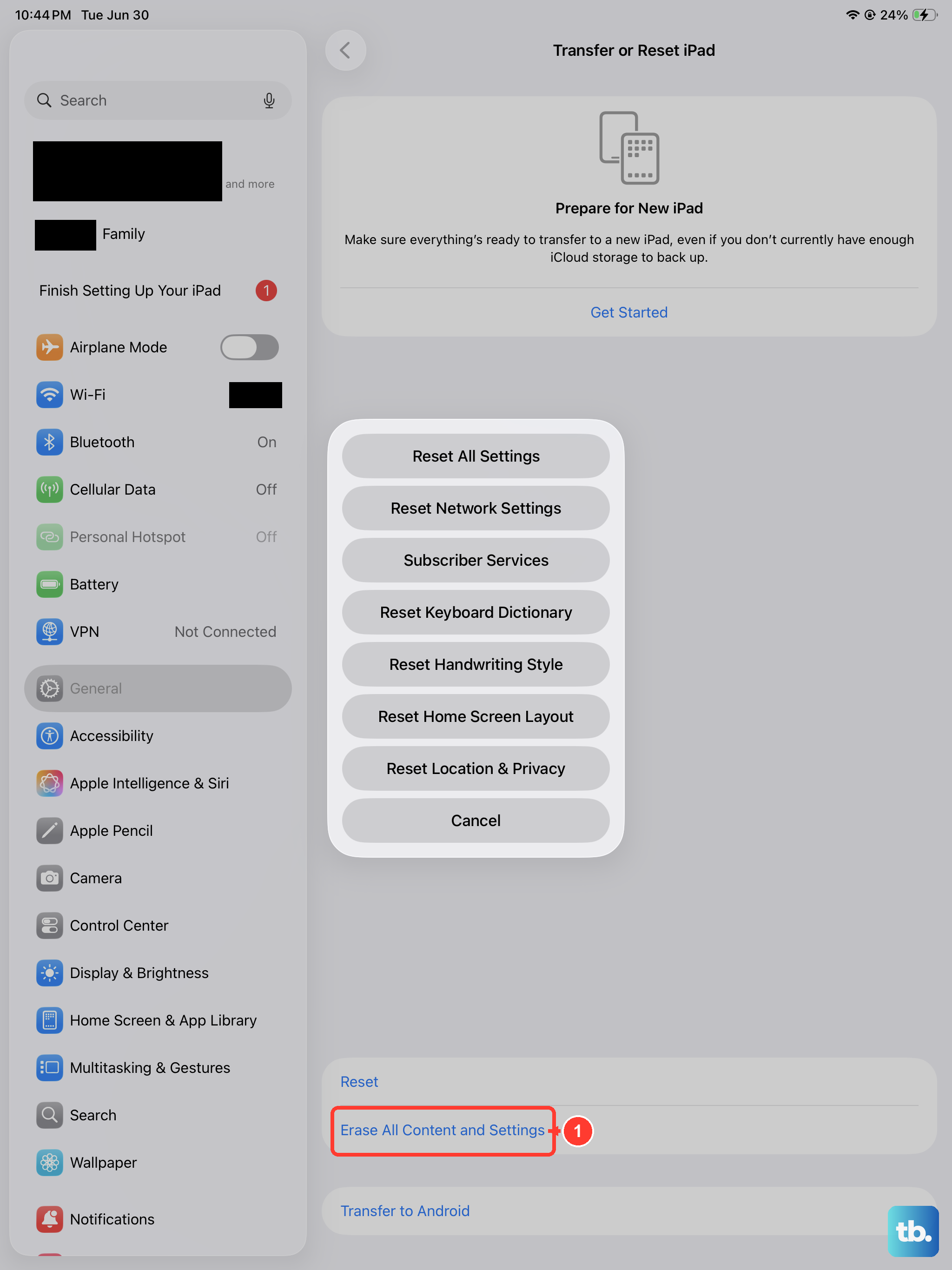
Head to Settings > General > Transfer or Reset iPad > Erase All Content and Settings. The iPad will ask for your passcode and then your Apple ID password to confirm. Tap Erase iPad and let it run, it usually takes a few minutes.
When the process finishes, the tablet restarts to the Hello screen, just like when you first bought it.
Use recovery mode if the iPad is frozen
If your iPad Air M3 is stuck on a black screen, a logo loop, or won't respond to touch, you can still force a reset through a computer. Connect it to a Mac or PC with a USB-C cable and open Finder or iTunes.
Now put the device into recovery mode. Press and quickly release Volume Up, then Volume Down, then press and hold the Top button. Keep holding, don't let go when you see the Apple logo. Wait until a computer icon and a cable appear on the screen instead.
When Finder or iTunes detects a device in recovery mode, click Restore iPad. It will download the current version of iPadOS and wipe the tablet completely. If the restore takes longer than 15 minutes, force restart the iPad and try the process again.
Try a partial reset for smaller problems
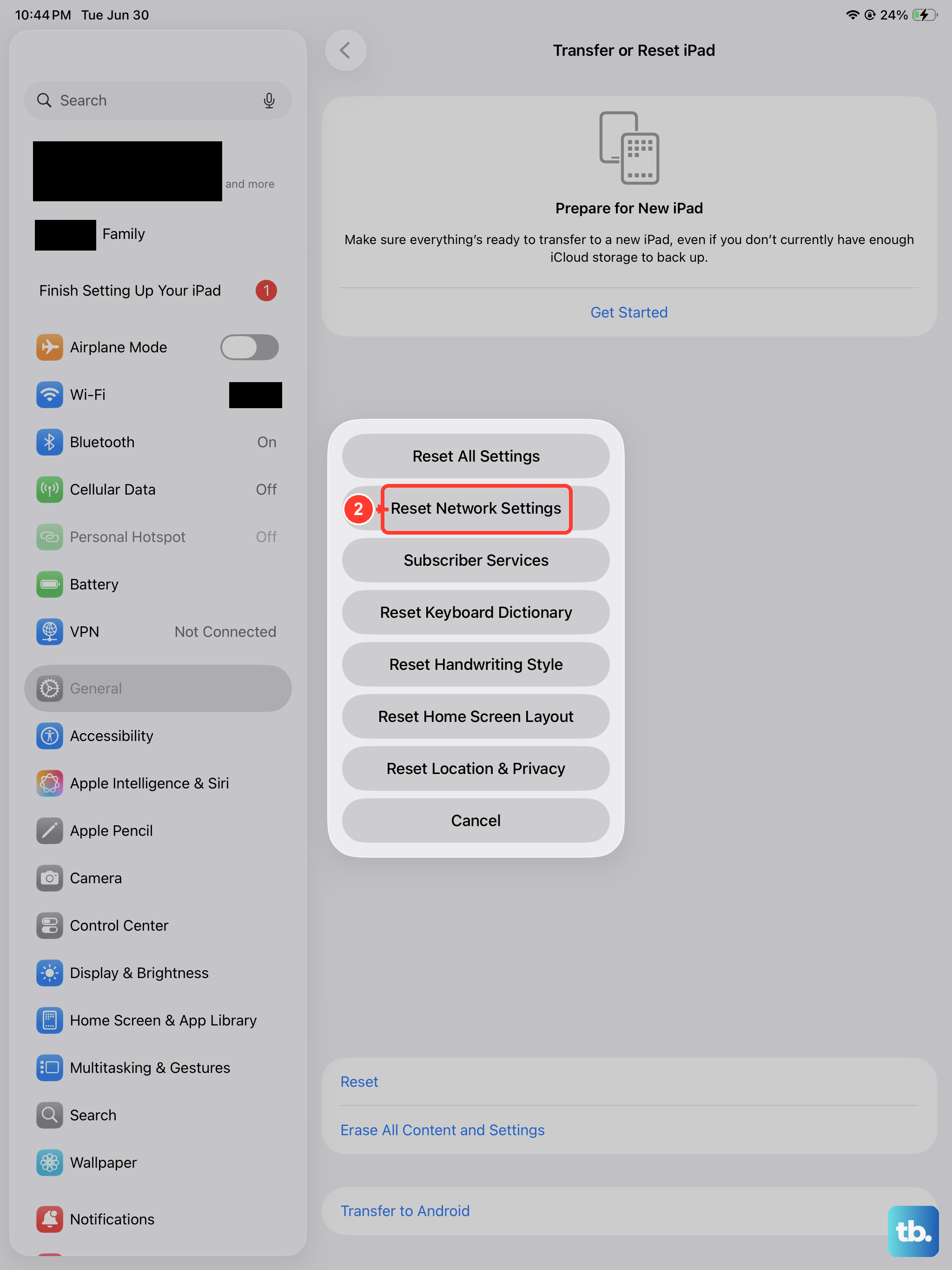
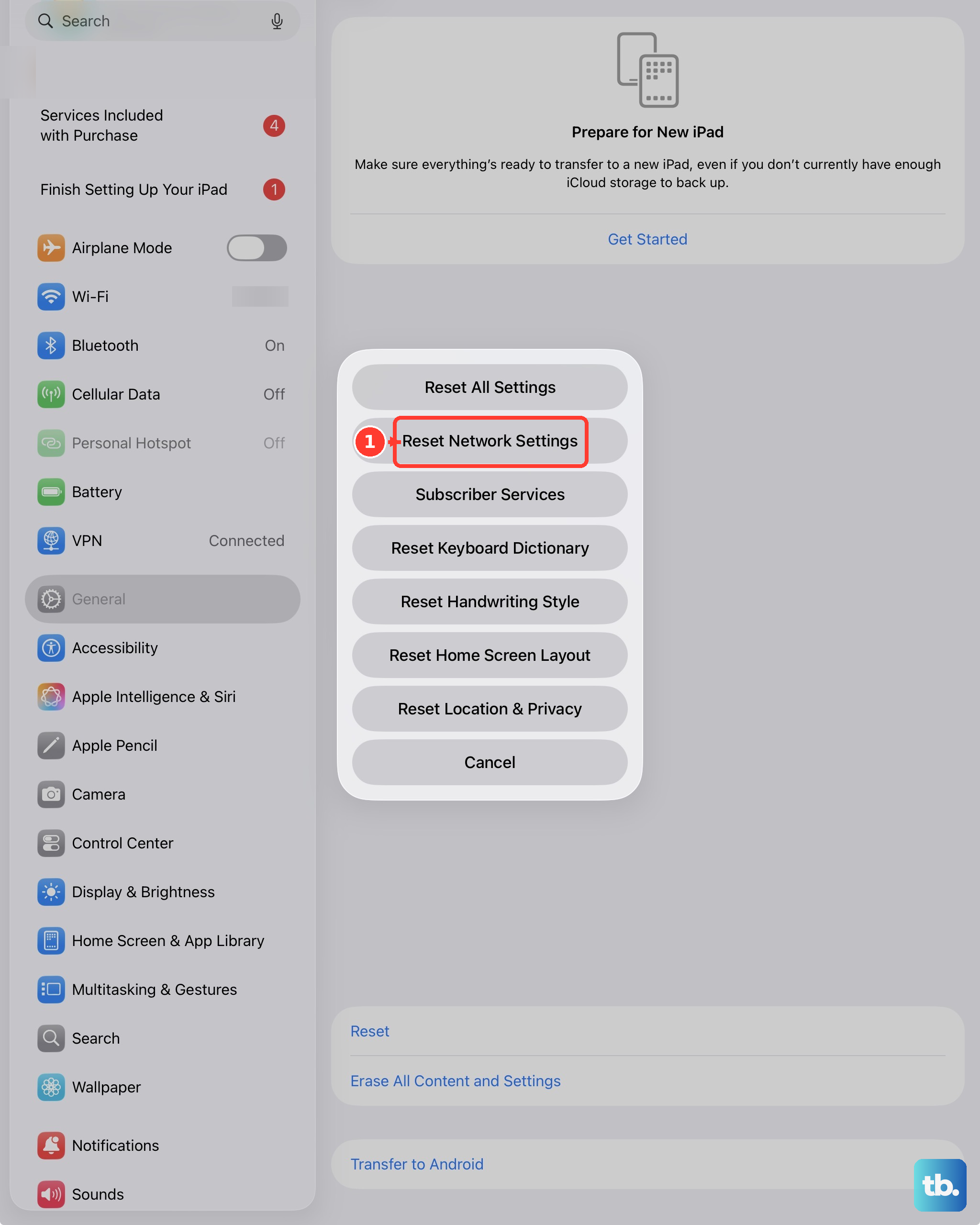
A full wipe isn't always necessary. In Settings > General > Transfer or Reset iPad > Reset, you can reset specific parts of the system individually. Reset Network Settings fixes Wi-Fi and Bluetooth drops without touching your apps. Reset Home Screen Layout puts all your icons back to default. Reset Keyboard Dictionary clears misbehaving autocorrect. None of these options delete your personal data, so they're worth trying before going nuclear.
Set up and restore after the reset
The Hello screen means the wipe was successful. Follow the on-screen prompts to connect to Wi-Fi and sign into your Apple ID. When you reach the Apps & Data screen, choose Restore from iCloud Backup or restore from a computer backup to pull everything back.
Keep the iPad plugged into a 20W or higher USB-C power adapter during setup. Low-power adapters may show "Not Charging" on the lock screen, which can delay the restore. If you see that message, swap the cable for a certified Apple or USB-IF cable before continuing.
If the battery percentage looks off after the restore, let the iPad drain completely once, then charge it to 100% without interruption. This recalibrates the battery reading. For scheduled or optimized charging, plug the iPad into power first, then connect the cable to the outlet. Plugging into a live outlet can prevent the schedule feature from activating immediately on iPadOS 18.