
If you're playing The Sims 4 on an older computer or laptop, you might notice the game running slower than you'd like. This can really impact your gameplay experience, especially when you're trying to build houses or manage multiple Sims at once.
Fortunately, The Sims 4 includes a laptop mode specifically designed to improve performance on less powerful hardware. This setting reduces the game's graphics intensity to help it run more smoothly.
What Laptop Mode Does
Laptop mode optimizes The Sims 4 for better performance by lowering the graphics quality and reducing rendering demands.
This can make a significant difference if you're playing on older laptops.
It can also help computers with integrated graphics.
Systems with limited RAM may benefit from the setting as well.
Lower-end gaming setups are another case where laptop mode can make a significant difference.
Some players report that with laptop mode enabled, they can still enjoy medium graphics settings while maintaining stable performance.
How to Enable Laptop Mode
Follow these simple steps to turn on laptop mode in The Sims 4.
Launch The Sims 4 and wait for the game to load.
Look for three dots in the top right corner of the screen. You can access this menu at any point during gameplay.
Click on Game Options from the dropdown menu.
Navigate to the Graphics tab.
Scroll down to find the Laptop Mode option at the bottom of the window.
Click the checkbox to enable laptop mode.
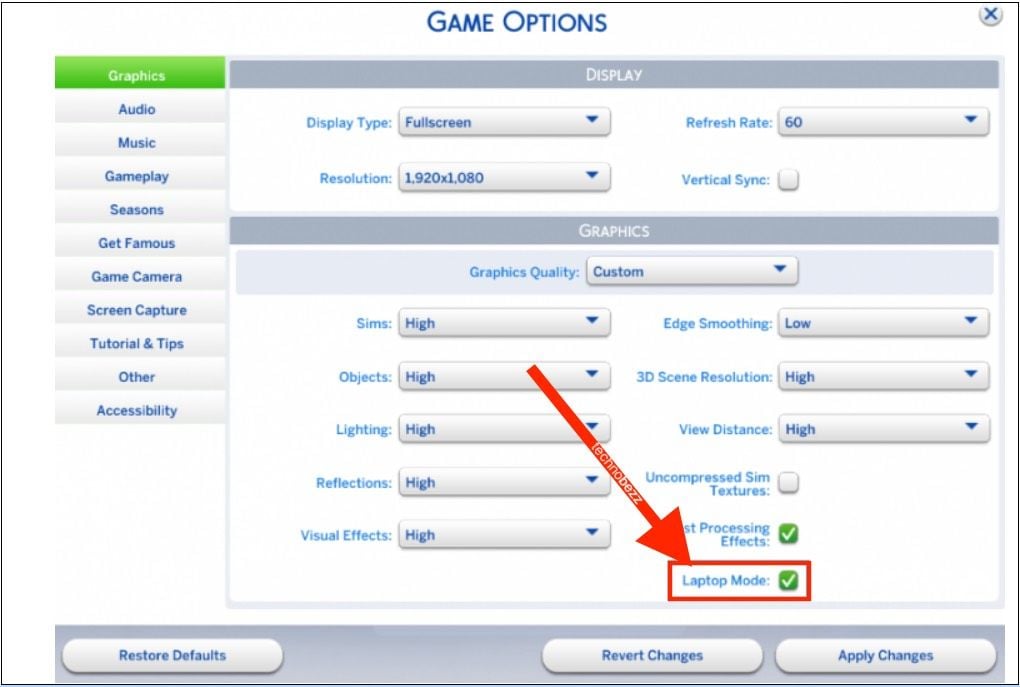
Click Apply Changes at the bottom of the window to save your settings.
That's it! The game will now run in laptop mode, which should improve performance and reduce lag. You may need to restart the game for all changes to take effect.
Performance Tips
While laptop mode helps significantly, you can further optimize your game by closing other applications while playing.
Keeping your graphics drivers updated can also help.
Reducing the number of active mods and custom content is another way to optimize your game.
If fullscreen causes issues, try playing in windowed mode.
Remember that laptop mode automatically sets graphics to lower levels, so you might notice some visual quality differences. However, the trade-off for smoother gameplay is usually worth it, especially on older hardware.