
Your Galaxy Z Flip 6 builds up temporary files and cached data as you use it. When your storage gets full or apps start to feel sluggish, clearing out this digital clutter can free up space and get things running smoothly again. I'd start with the quick Device Care option, as it handles most of the work for you.
Use Device Care for a Quick Cleanup
Open your Settings and go to Battery and device care. At the bottom, tap Optimize now. This single tap will close background apps and clear cached data across your system. It's the fastest way to give your phone a quick refresh without digging into individual apps.
For a deeper storage clean, go to Battery and device care > Storage and tap Clean now. This tool scans for and removes temporary files, app caches, and residual data from uninstalled apps. You can also review the Apps section here to see which ones are using the most space.
Clear Cache for Specific Apps
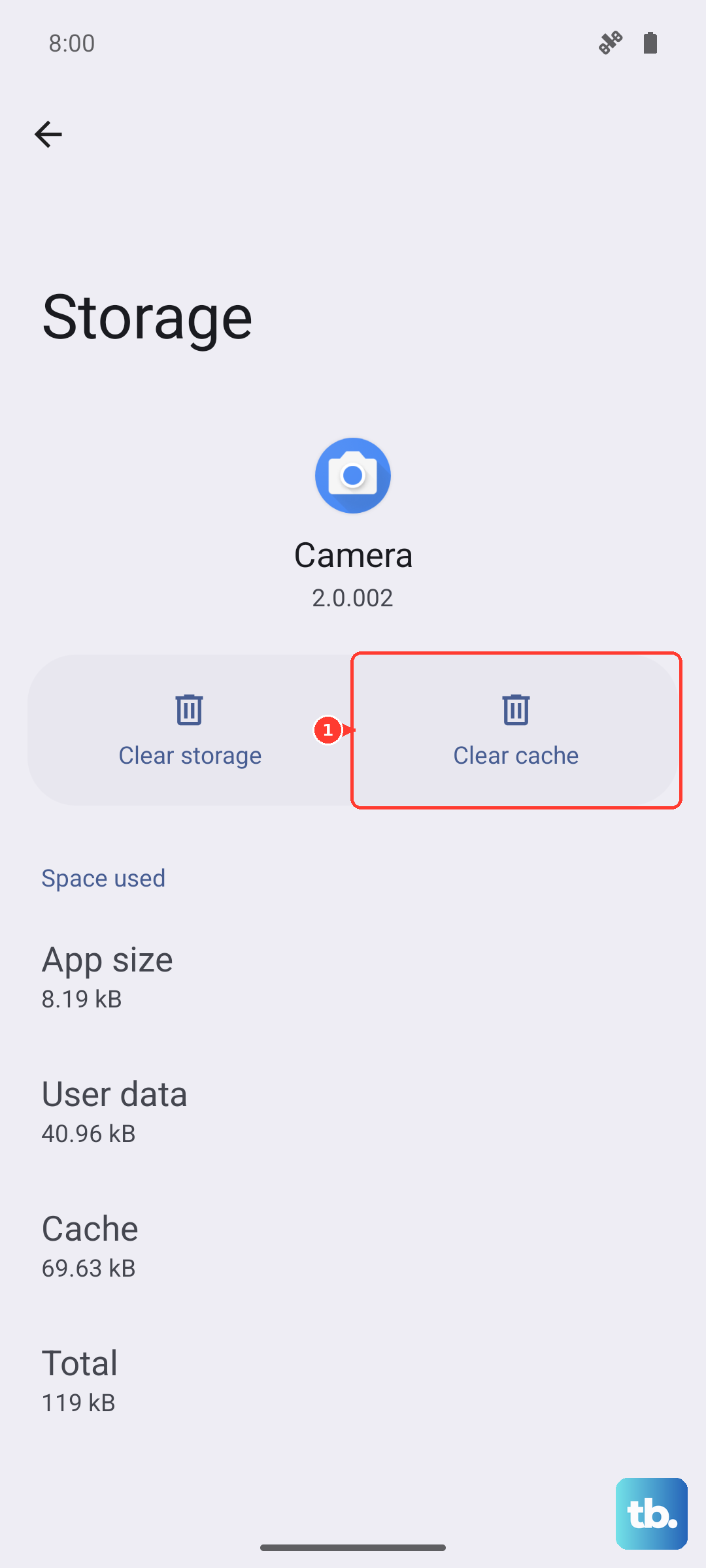
If one app is acting up, like your social media feed not loading or a game stuttering, you can target it directly. Go to Settings > Apps, select the problematic app, and tap Storage. On this screen, tap Clear cache.
This only deletes temporary files the app uses to load faster. Your login information and saved data within the app will remain untouched. Focus on data-heavy apps like Instagram, TikTok, Chrome, or Spotify, as they tend to build up the largest caches.
Clear Your Browser Cache
If you use Samsung Internet, open the app and tap the menu (three lines). Go to Settings > Personal browsing data > Delete browsing data. Make sure Cached images and files is selected, then tap Delete data.
For Google Chrome users, tap the three dots in the top right, go to Settings > Privacy and security > Clear browsing data. Select Cached images and files and choose your time range before clearing.
Wipe the System Cache Partition
This clears a deeper, system-level cache that can sometimes cause lag or glitches, especially after a software update. First, power your Z Flip 6 completely off. Connect it to your computer with a USB-C cable.
Press and hold the Volume Up + Side button simultaneously. When the Samsung logo appears, release both buttons. You'll boot into Recovery Mode. Use the volume buttons to highlight Wipe cache partition and press the side button to select it. Confirm the action, then select Reboot system now.
Manage Messages and Media Storage
Text threads filled with photos and videos can quietly eat up gigabytes. Open your Samsung Messages app, tap the three dots for the menu, and go to Settings > More settings > Delete old messages. You can set messages to auto-delete after a certain period here.
For a more hands-on approach, go through conversations and long-press on media-heavy threads to delete them. Also, check your Gallery app's recycle bin to permanently delete any photos you've recently removed.
Set Up Automatic Cleanup
You can make your Z Flip 6 manage some storage for you. Go to Settings > Battery and device care > Storage. Look for the Auto delete or similar automation options. This can be set to periodically remove backed-up photos or temporary files.
Consider using Samsung Cloud or Google Photos to back up your pictures and videos. Once they're safely in the cloud, you can use the "Free up space" feature within these apps to remove the full-resolution versions from your phone's internal storage.
Restart Your Phone Regularly
A simple restart clears your phone's active memory (RAM) and flushes temporary system caches. Just press and hold the side button, then tap Restart on the screen. I make a habit of doing this once a week, and it really helps keep the interface on both the main and cover screens feeling snappy.
If your phone is completely frozen and won't respond to the screen, you can force a restart. Press and hold the Volume Down + Side button together for about 10 seconds until you see the Samsung logo.