
Your OnePlus Nord 4 stores temporary cached data to make apps and the system load faster. Over time, this cache can become bloated or corrupted, leading to sluggish performance, app crashes, or strange glitches. Clearing it out is a safe way to free up space and often resolves these issues without touching your personal data.
Clear an Individual App's Cache
Start with the app that's giving you trouble. Head to Settings > Apps > See all apps. Find and tap on the problematic app, then select Storage & cache. You'll see two buttons: Clear storage and Clear cache. Tap Clear cache.
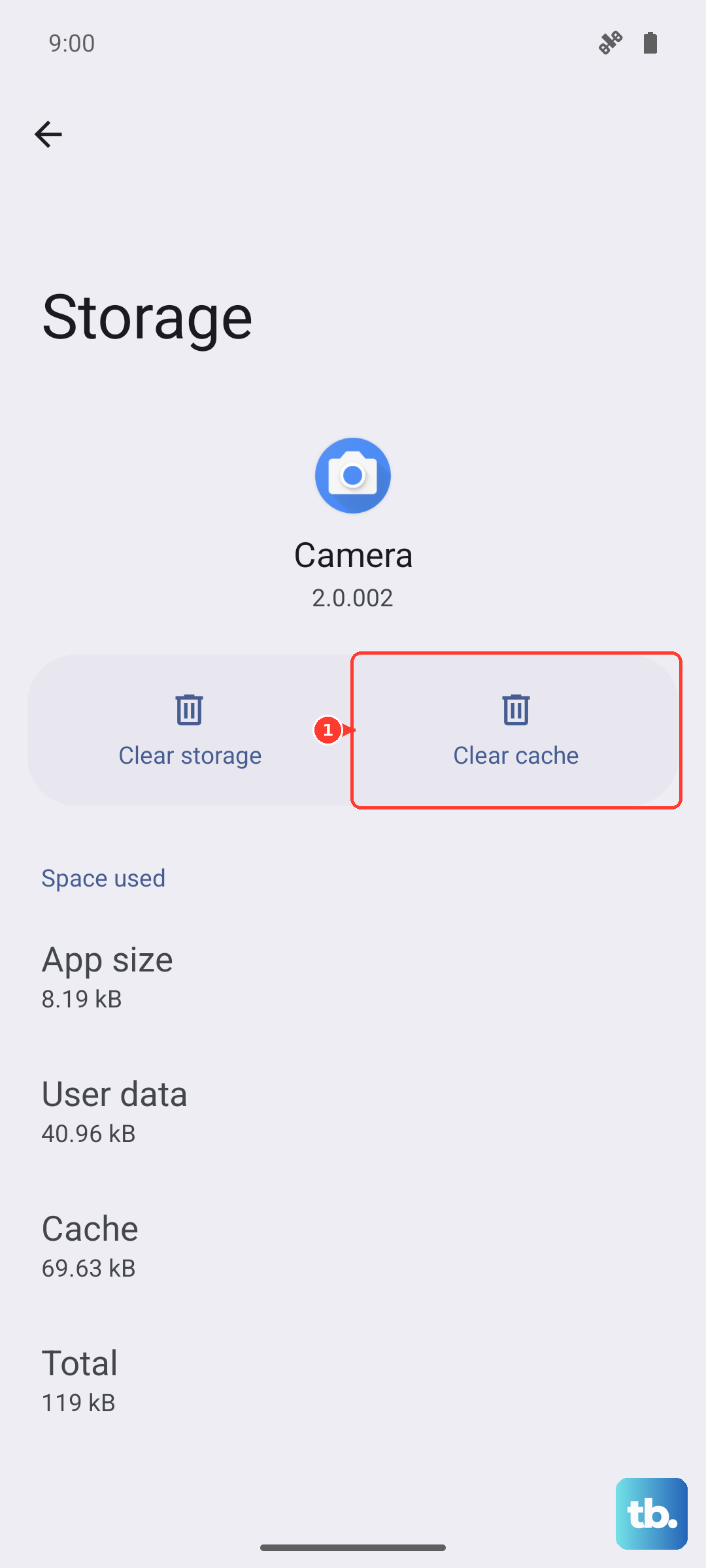
This only deletes the temporary files the app has stored. Your login information, saved preferences, and downloaded content within the app will remain intact. I'd focus on data-heavy apps like Chrome, Instagram, YouTube, or Spotify first, as they build up the largest caches.
Use the Built-in Storage Cleaner
OxygenOS on your Nord 4 includes a handy tool for this. Go to Settings > Storage > Clean & Optimise. The phone will scan and show you categories like App cache, Temporary files, and Duplicate files. You can review what it finds and tap to clear them with a single confirmation.
This is the quickest method to clear cache across multiple apps and the system at once. It's a good habit to run this every couple of weeks to keep storage in check.
Clear Your Browser Cache in Chrome
If web pages are loading slowly or behaving oddly, your browser cache is a likely culprit. Open Chrome, tap the three-dot menu in the top right, and go to Settings > Privacy and security > Clear browsing data.
Under the Basic tab, make sure Cached images and files is selected. You can choose a time range, but "All time" gives you the cleanest slate. Tap Clear data. Remember, this won't log you out of websites unless you also clear cookies and site data.
Wipe the System Cache Partition
This is a deeper clean for system-level cached data, which is useful if you're experiencing general lag or bugs after a software update. First, power off your Nord 4 completely.
Press and hold the Power button and Volume Down button together until the OnePlus logo appears, then release. You'll enter Recovery Mode. Use the volume buttons to navigate to Wipe data and cache and press the power button to select it. Then, choose Wipe cache and confirm. Finally, select Reboot.
This process is safe and won't delete any of your photos, messages, or apps. It just clears out old system update files and temporary data.
Manage Files with Google's Tool
For a more comprehensive clean-up, the "Files by Google" app is excellent. If it's not pre-installed, get it from the Play Store. Open the app and tap the Clean tab on the bottom left.
It will intelligently identify junk files, large old downloads, duplicate photos, and unused apps. It gives you full control to review what it finds before you delete anything, making it a powerful ally for managing your Nord 4's storage.
Clear Out Old Messages and Downloads
Don't forget about manual clean-up. Old text message threads, especially group chats with lots of videos and photos, can consume gigabytes. Open your Messages app and delete conversations you no longer need.
Also, check your Downloads folder. You can access it through the Files app. It's easy to forget about PDFs, APK files, or images you downloaded once and no longer need, and they just sit there taking up space.
Perform a Regular Restart
One of the simplest maintenance tasks is often the most effective. A full restart clears the phone's active memory (RAM) and flushes various temporary system caches. Just press and hold the power button until the menu appears, then tap Restart.
Making this a weekly habit can prevent many minor performance hiccups from ever starting. With the Nord 4's fast 100W charging, even if the battery is low, you can be back to 100% in under 30 minutes after the reboot.
Analyze Your Storage Breakdown
To understand what's really filling up your phone, go to Settings > Storage. Here, you'll see a detailed breakdown by category: Apps, Images, Videos, Audio, and more. Tap into each section to see the largest files.
This view can reveal surprises, like a single 4K video file or an offline music playlist you forgot about. For photos, consider using Google Photos to back them up to the cloud, then use its "Free up space" feature to remove the local copies from your device safely.