
Your iPad builds up temporary files and cached data as you use it, just like any computer. When you notice apps getting sluggish or your storage space mysteriously shrinking, clearing out this digital clutter can make a noticeable difference. The process is a bit different from a Mac or PC, but it's straightforward once you know where to look.
Clear Safari Cache on iPad
Safari is often the biggest culprit for cached data. To wipe it clean, open the Settings app and go to Safari. Scroll down and tap Clear History and Website Data. Confirm your choice. This will delete your browsing history, cookies, and all cached website files.
You'll be signed out of most websites after doing this, so it's a good idea to have your passwords handy. If you want to keep your browsing history but still clear the cache, go to Settings > Safari > Advanced > Website Data and tap Remove All Website Data instead.
Offload Apps to Clear Their Cache
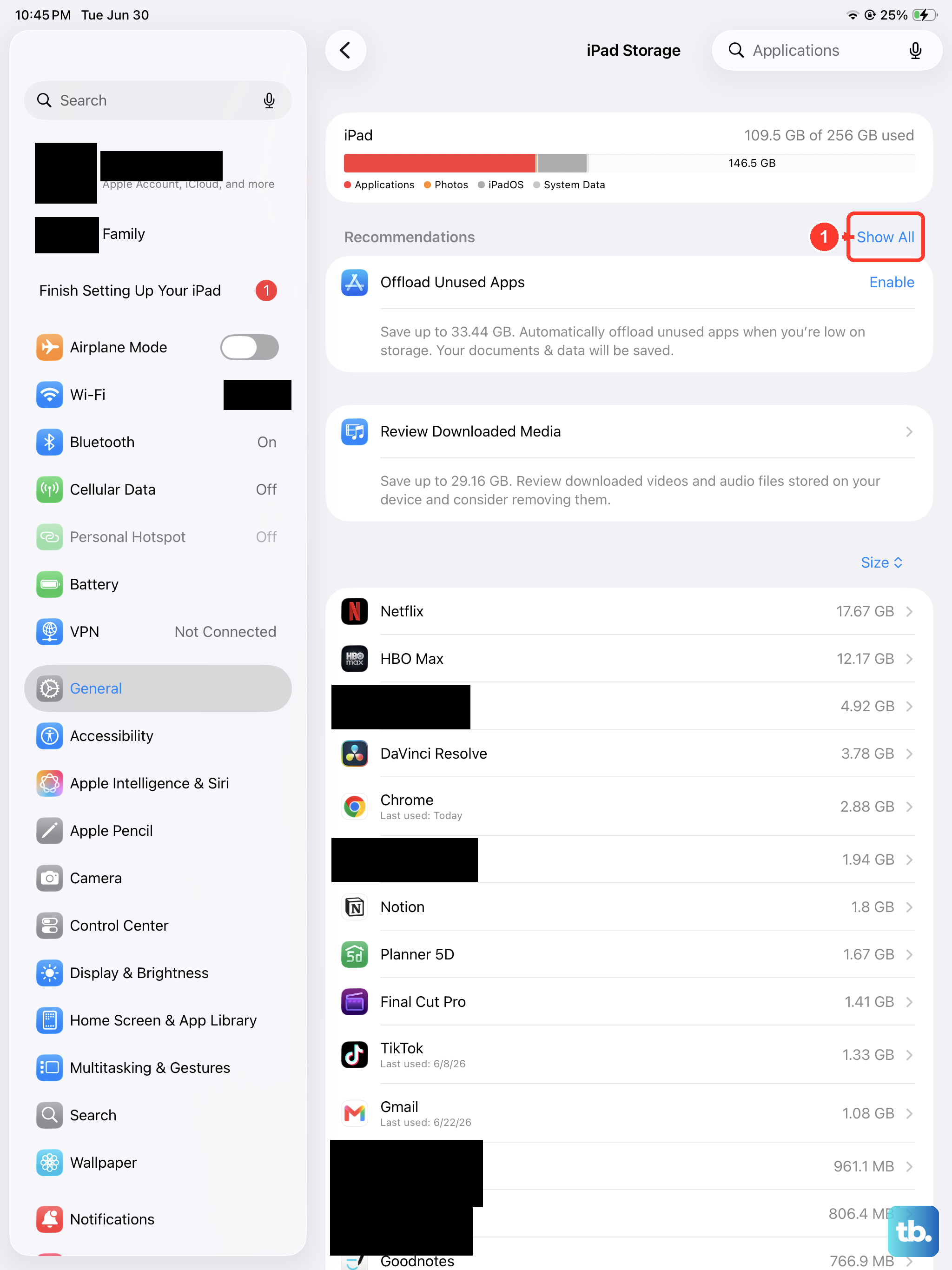
iPadOS doesn't give you a simple "clear cache" button for most apps, but offloading is an effective workaround. Head to Settings > General > iPad Storage. You'll see a list of all your apps and how much space they're using.
Tap on any app, like a social media or streaming app that tends to hoard data. Select Offload App. This removes the app itself but keeps all your documents and data. You can then reinstall it from the App Store, which gives you a fresh app without its accumulated cache.
Delete and Reinstall Problem Apps
For a more thorough clean, you can delete an app completely. Press and hold its icon on your Home Screen until the menu appears, then tap Remove App and choose Delete App. Go to the App Store to download it again. This erases everything, including cache, downloaded content, and login information.
I'd use this for apps that are consistently buggy or taking up a surprising amount of space. Just remember you'll need to sign back in and set up any preferences again.
Manage Messages Storage
The Messages app can silently consume gigabytes with photos, videos, and sticker packs. To clean it up, go to Settings > General > iPad Storage and tap on Messages. You'll see a detailed breakdown by category.
Tap into sections like Photos, Videos, or Other Attachments to review and delete items you don't need. You can also set messages to auto-delete by going to Settings > Messages > Keep Messages and changing it from Forever to 30 Days or 1 Year.
Restart Your iPad
Never underestimate a simple restart. It clears out temporary system caches and resets the software, which can fix minor glitches and slowdowns. The method depends on your iPad model.
For iPads without a Home button, quickly press and release the Volume Up button, then the Volume Down button. Immediately press and hold the Top button until you see the Apple logo. For iPads with a Home button, just press and hold both the Home button and the Top button until the Apple logo appears.
Use iPad Storage Recommendations
Your iPad has built-in tools to help manage space automatically. Go to Settings > General > iPad Storage and look at the recommendations at the top of the screen. You might see suggestions to enable Offload Unused Apps, which does the offloading process for you automatically.
It may also suggest reviewing large attachments or clearing out your "Recently Deleted" album in Photos. These automated tips are a great way to keep your storage in check without having to dig through every app manually.
Check for iPadOS Updates
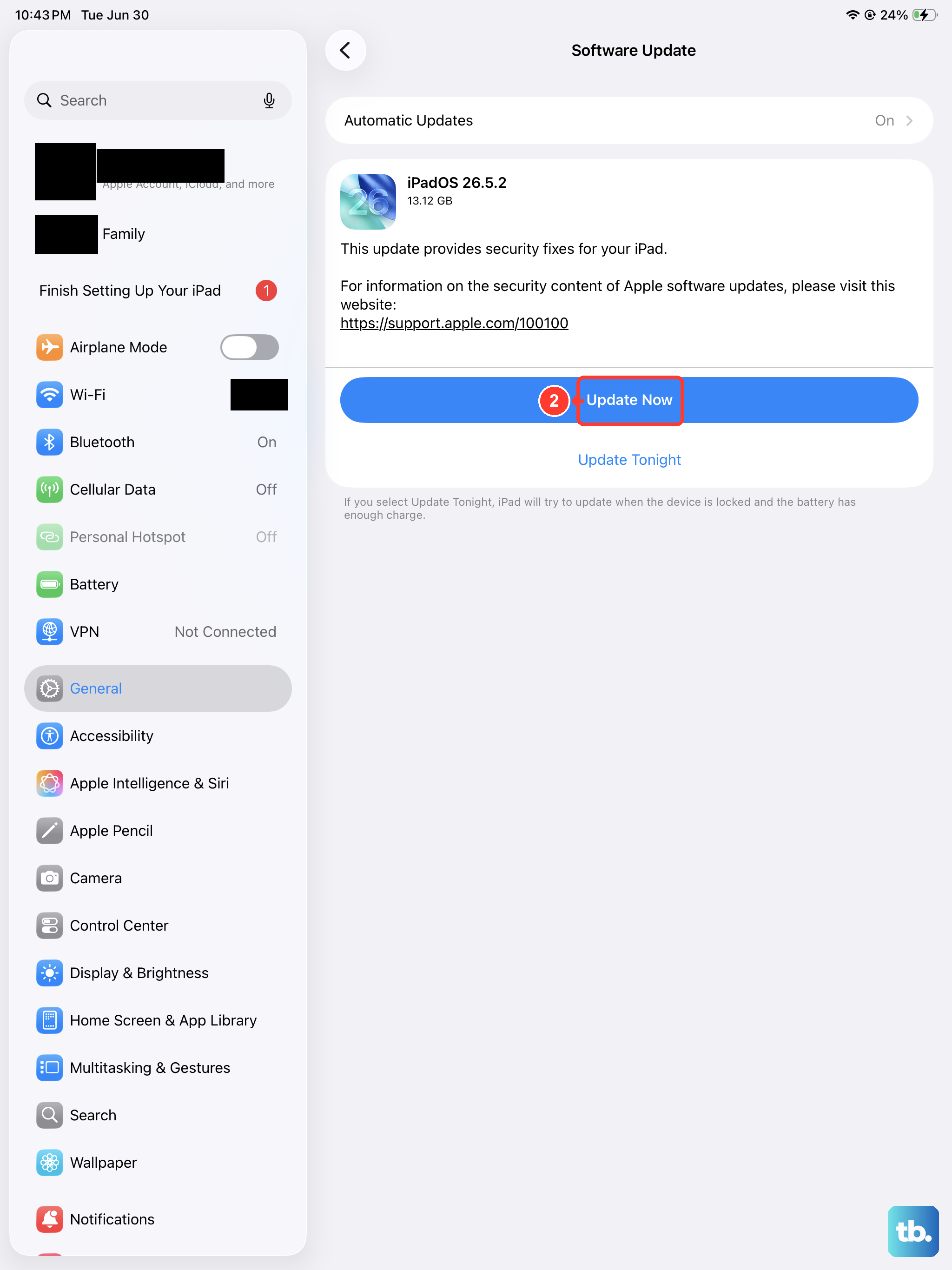
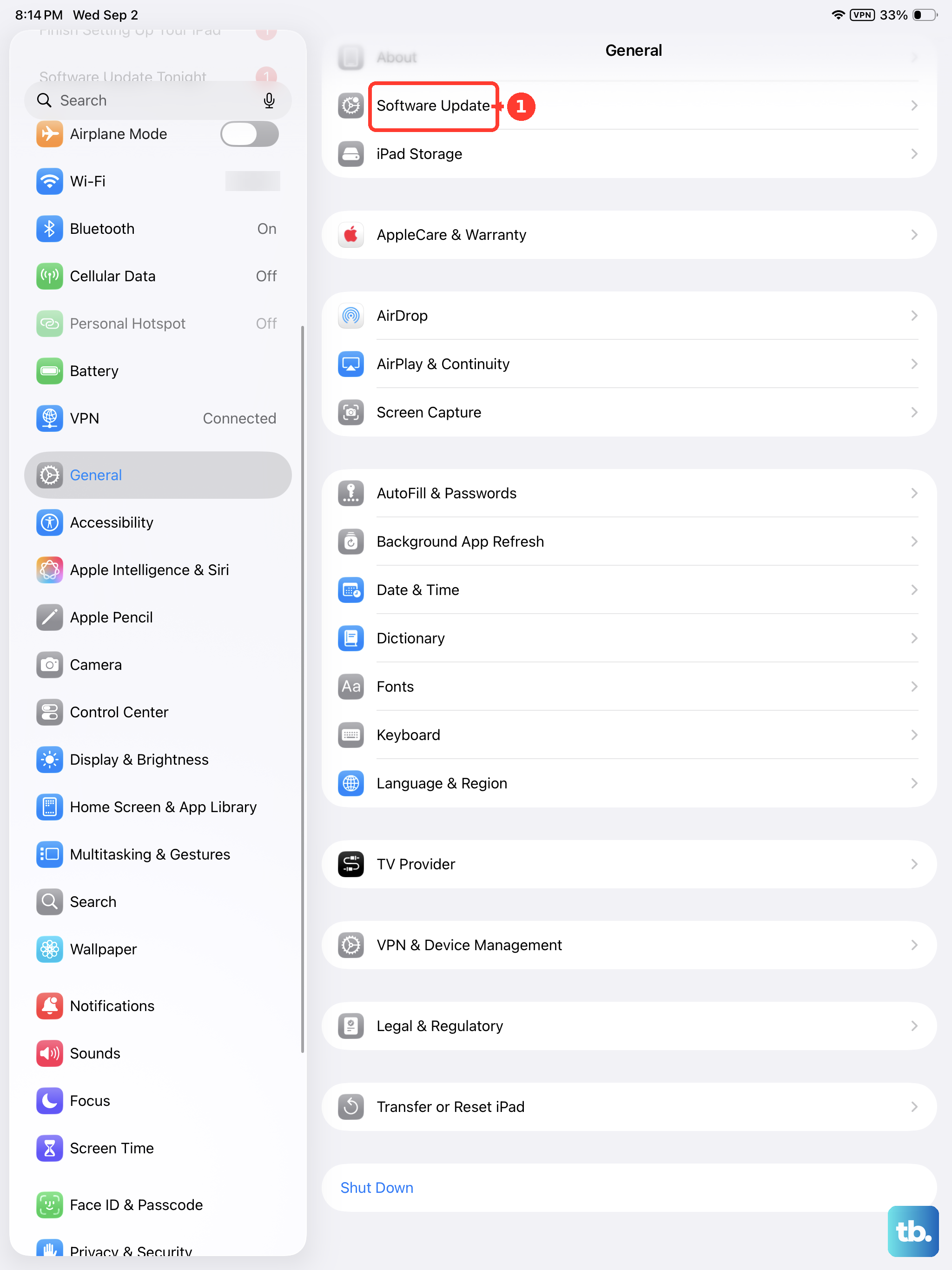
Sometimes, performance issues related to caching or storage are actually minor software bugs. Apple often addresses these in updates. Go to Settings > General > Software Update to see if a newer version of iPadOS is available.
Installing the latest update can resolve underlying system issues and sometimes even includes optimizations for storage management. It's a good final step if you've tried other fixes and things still feel off.