Chrome’s deletion controls separate cookies from cached files, so selecting just one category leaves the other in place. Use the steps for your device below to clear both, or remove one website’s stored data.
Clear cache and cookies on your computer
Use this method in Chrome on Windows, Mac, Linux, or Chromebook. The cleanup applies to your active Chrome profile.
Open Chrome’s More menu.
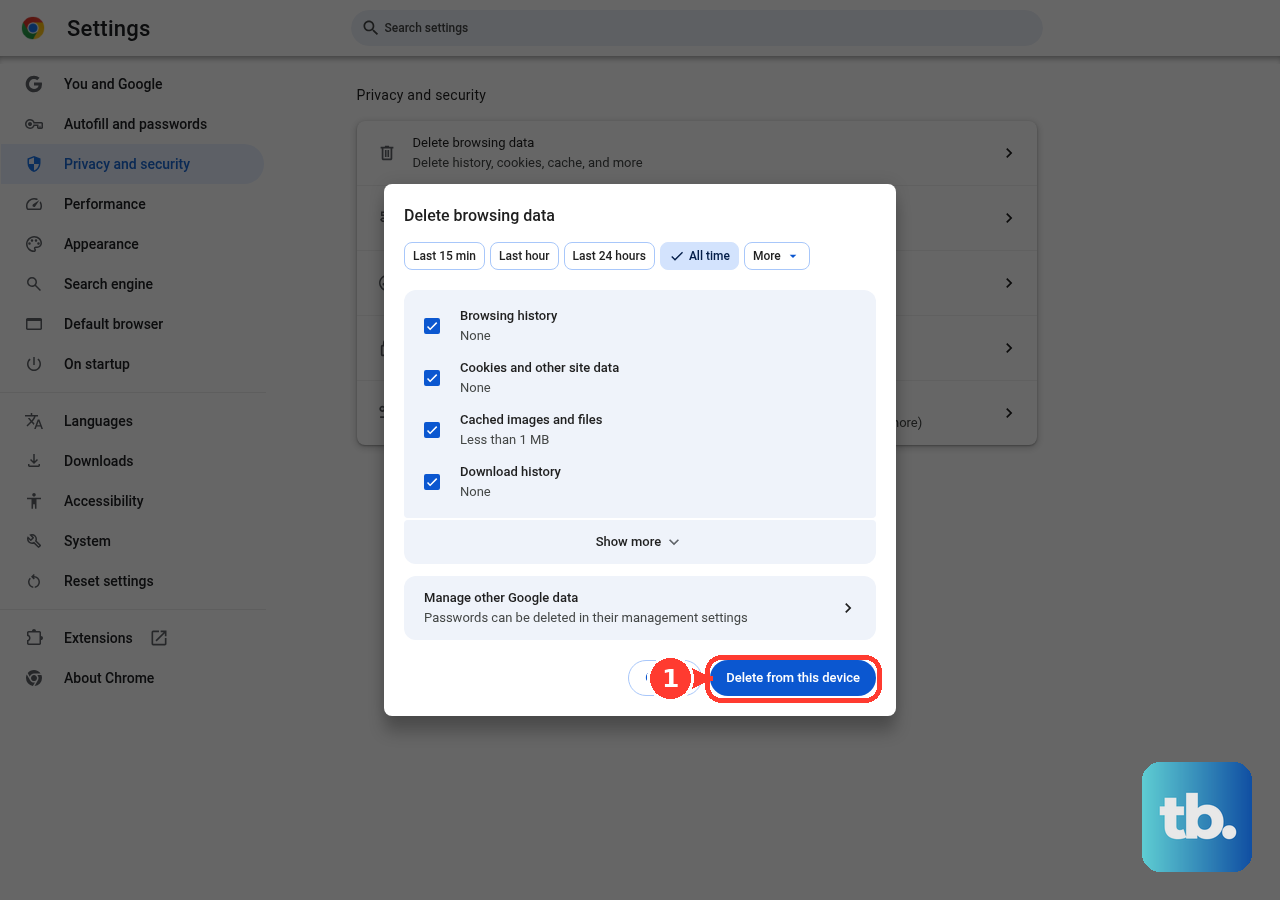
Select Delete browsing data.
Choose All time to cover the full time range, or a shorter range to delete only data from that period.
Select Cookies and other site data.
Select Cached images and files as well.
Deselect unrelated categories to keep other browsing data.
Click Delete data to finish.
Check the time range on Android
Open Chrome on your phone or tablet.
Tap More.
Choose Delete browsing data.
Tap More options to access the data categories and time range.
Set Time range to All time for a complete cleanup, or select a shorter duration.
Select Cookies and site data.
Select Cached images and files.
Deselect the other categories you want to keep.
Tap Delete data.
Check the duration before confirming, because Android’s initial quick-deletion window defaults to 15 minutes.
Choose both categories on iPhone and iPad
Chrome on iPhone and iPad puts the category choices inside Browsing Data.
- 1.Open Chrome’s More menu and tap Delete Browsing Data.
- 2.Set Time Range to All time for a full cleanup, or choose a shorter period.
- 3.Tap Browsing Data.
- 4.Select Cookies, Site Data and Cached Images and Files, and deselect unrelated categories.
- 5.Tap Confirm.
- 6.Tap Delete Browsing Data to complete the deletion.
Remove just one website’s data
This removes one site’s cookies and stored data without clearing the entire browser’s image and file cache.
On a computer, open Chrome’s More menu.
Go to Settings.
Open Privacy and security.
Select Third-party cookies.
Open See all site data and permissions.
Search for the website you want to clear.
Select its Delete icon.
Click Delete to confirm.
On Android, start by opening the website in Chrome.
Tap Page info to the left of the address.
Open Cookies and site data.
Tap Delete next to the stored data.
Know what gets removed and what stays
Cookies and cached files are separate categories. Selecting only Cached images and files leaves cookies in place. Select the cookie category too when you want to remove both.
Be ready to sign back into websites and set site preferences again after deleting cookies. Keep unrelated categories deselected to preserve other browsing data.
The time range matters as much as the categories. Choose All time for a complete time-range cleanup; the iPhone and iPad dialog defaults to 15 minutes.
Account-saved history and local cookies and cache are different datasets. Clearing this device’s cache and cookies does not clear every other device signed in to your Google Account.
Frequently Asked Questions
Is there a keyboard shortcut to clear Chrome’s cache and cookies?
On Windows or Linux, press Ctrl+Shift+Delete. On Mac, press Command+Shift+Delete. The shortcut opens the deletion controls without immediately deleting anything. Choose All time, select Cookies and other site data and Cached images and files, then select Delete data.
Does a hard refresh delete cache and cookies?
No. A hard refresh bypasses the cache without emptying it, and it does not delete cookies. Use Chrome’s Delete browsing data controls to remove both.
Can Chrome automatically delete cookies when I close it?
Yes. On desktop, go to More > Settings > Privacy and security > Site settings > Additional content settings > On-device site data. Select Delete data sites have saved to your device when you close all windows. Close every Chrome window to trigger deletion. This removes site data; it does not clear the complete Cached images and files category.
Does closing Incognito clear my regular Chrome cookies?
No. Closing every Incognito window on desktop removes that Incognito session’s temporary cookies and site data. It does not clear the existing data in your regular Chrome profile.