
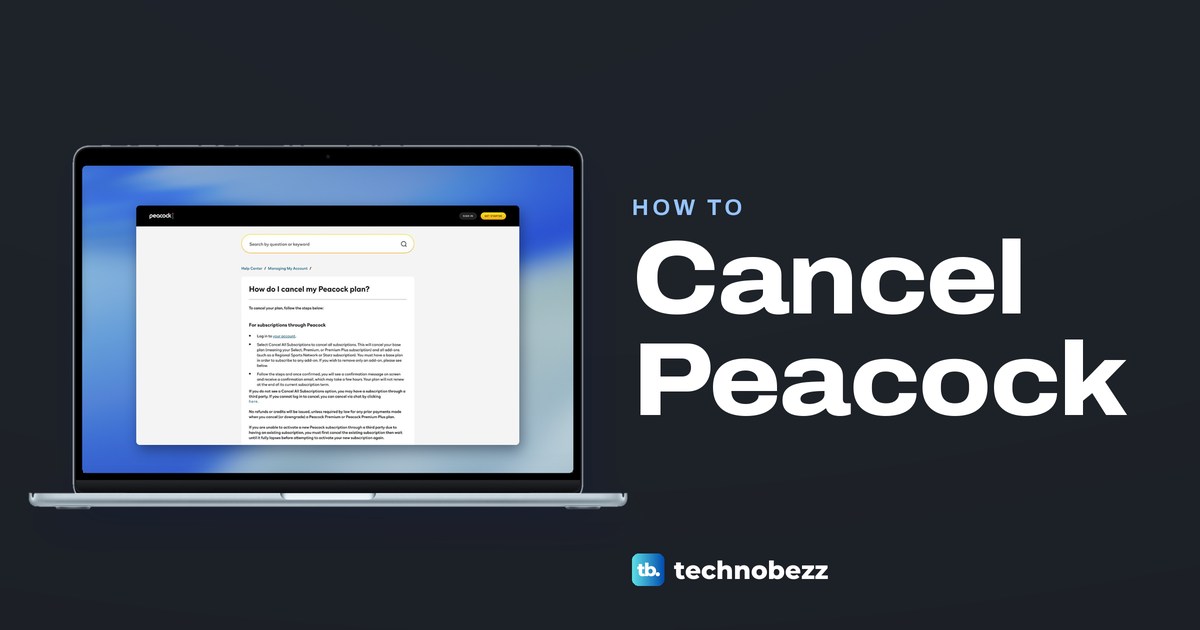
If Peacock bills you, sign in at peacocktv.com, open your Account and select Cancel All Subscriptions, then follow the steps until a confirmation message appears; otherwise, cancel with the company on your receipt. That company can be Apple, Google Play, Roku, Amazon or a TV provider such as Xfinity, and Peacock says it cannot cancel those plans for you.
Peacock's own help sorts its cancel steps by who bills you, so that is the question to answer first. The phone or TV you watch on does not settle it, but the payment method on your Peacock Account page, the receipt or your card statement does.
The short version
- Peacock bills you: sign in at peacocktv.com > Account > Cancel All Subscriptions, then finish the steps.
- Apple bills you: on an iPhone or iPad, Settings > your name > Subscriptions > Peacock, or the bundle on your receipt > Cancel Subscription.
- Google Play, Roku, Amazon or a TV provider bills you: cancel in that company's subscription settings, because Peacock cannot do it for you.
- Only dropping STARZ or another add-on: select it on the Subscriptions tab and choose Remove Add-On.
- After you cancel: a paid plan Peacock bills keeps Premium content to the end of the billing cycle, and the confirmation email can take a few hours.
Find out who bills your Peacock plan
Peacock's help says to sign in, open your Account and look at the Payment Method section under the Subscriptions tab, which shows how you pay. If a third party bills you, the Account screen says so, for example with Billed by Apple next to the plan.
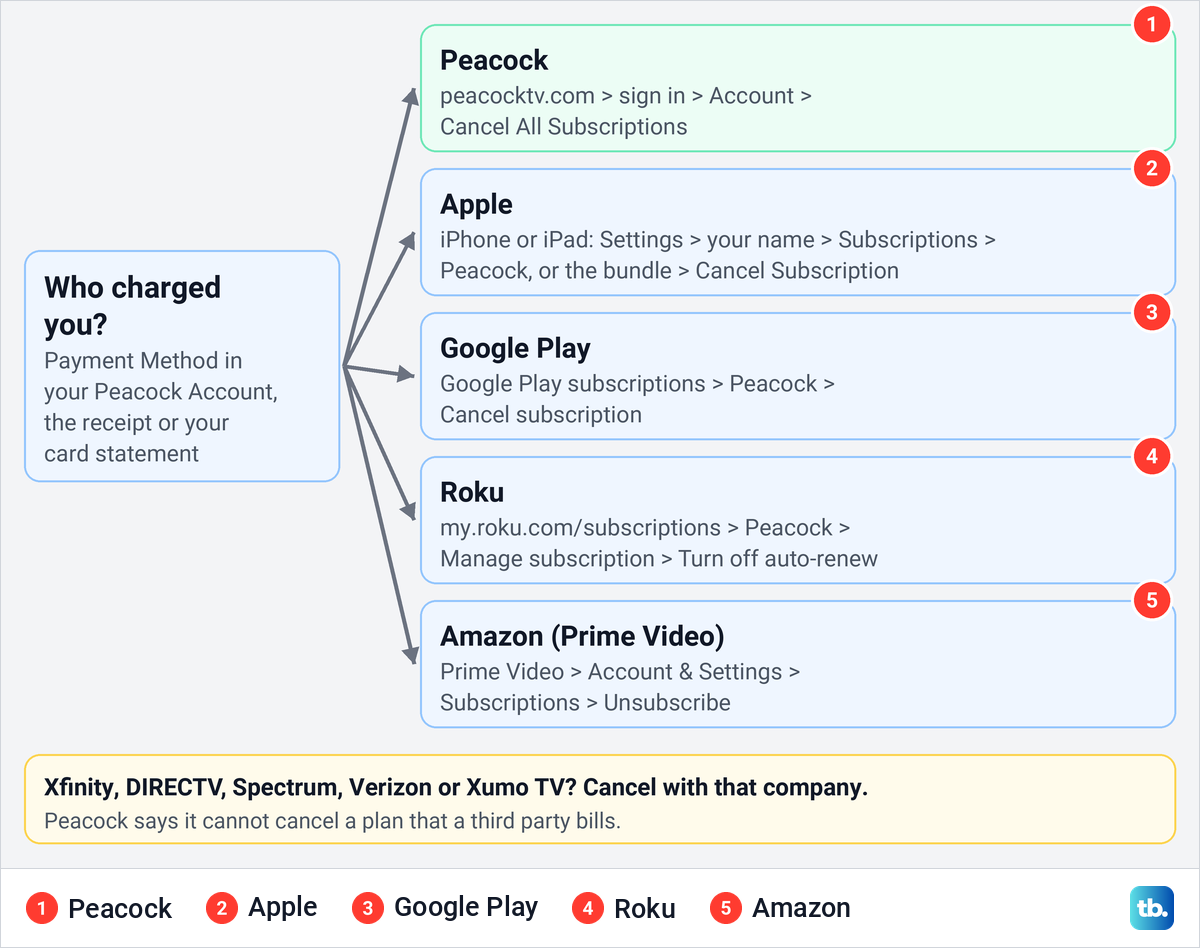
Can't get into the account, or don't recognize what it shows? Go by the receipt instead. Apple's help suggests searching your email for "receipt from Apple", and it says your bank or card statement shows which company bills you. If the name there means nothing to you, find the recurring charge on your statement and match it to a company before you cancel anything.
Peacock that came with something else follows the same rule. Peacock's help says a subscription included with another company's service or product is canceled with that company. If that is the Apple TV and Peacock bundle and you would rather keep it, but Peacock has stopped working inside it, fix the Peacock and Apple TV bundle instead of canceling.
Where to cancel Peacock at a glance
Find the row that matches the company that charged you, then use its section below for the full steps. The last column is what each company documents as the sign that the cancellation went through.
| Who bills you | Where to cancel | What to select | How to check |
|---|---|---|---|
| Peacock directly | peacocktv.com > sign in > Account | Cancel All Subscriptions, then the remaining steps | A confirmation message on screen and a confirmation email |
| Apple | iPhone or iPad Settings > your name > Subscriptions > Peacock, or the bundle on your receipt | Cancel Subscription, then read the sheet before you confirm | No Cancel button, or an expiration message in red |
| Google Play | Google Play subscriptions > Peacock | Cancel subscription, then the instructions | The subscription's status in Google Play, where Resubscribe may appear |
| Roku | my.roku.com/subscriptions, or the Star button on the Peacock app | Manage subscription, then Turn off auto-renew | Reopen Manage subscription and check the renewal status |
| Amazon, for a Prime Video subscription | Prime Video > Account & Settings > Subscriptions | Unsubscribe, then confirm | The end date on the confirmation screen |
| Xfinity, for a sign-up on an X1, Xumo Stream Box or Flex box | Settings > Apps & Subscription on the box | Unsubscribe, then Unsubscribe again on the second page | Reopen Apps & Subscription and look for Resubscribe |
| DIRECTV, Spectrum, Verizon, Xumo TV or another provider | That company's account or customer support | Whatever that company asks for | That company's confirmation and no Peacock charge on its next bill |
Cancel Peacock on the website
This is the route for a plan Peacock bills directly. Peacock's help on changing plans says a direct subscriber has to visit the Account on the web to make changes, so use a web browser on a computer or phone even if you only watch on a TV.
Go to peacocktv.com and sign in with the email address and password you subscribed with. Opening the account page while signed out takes you to the Sign in page first.
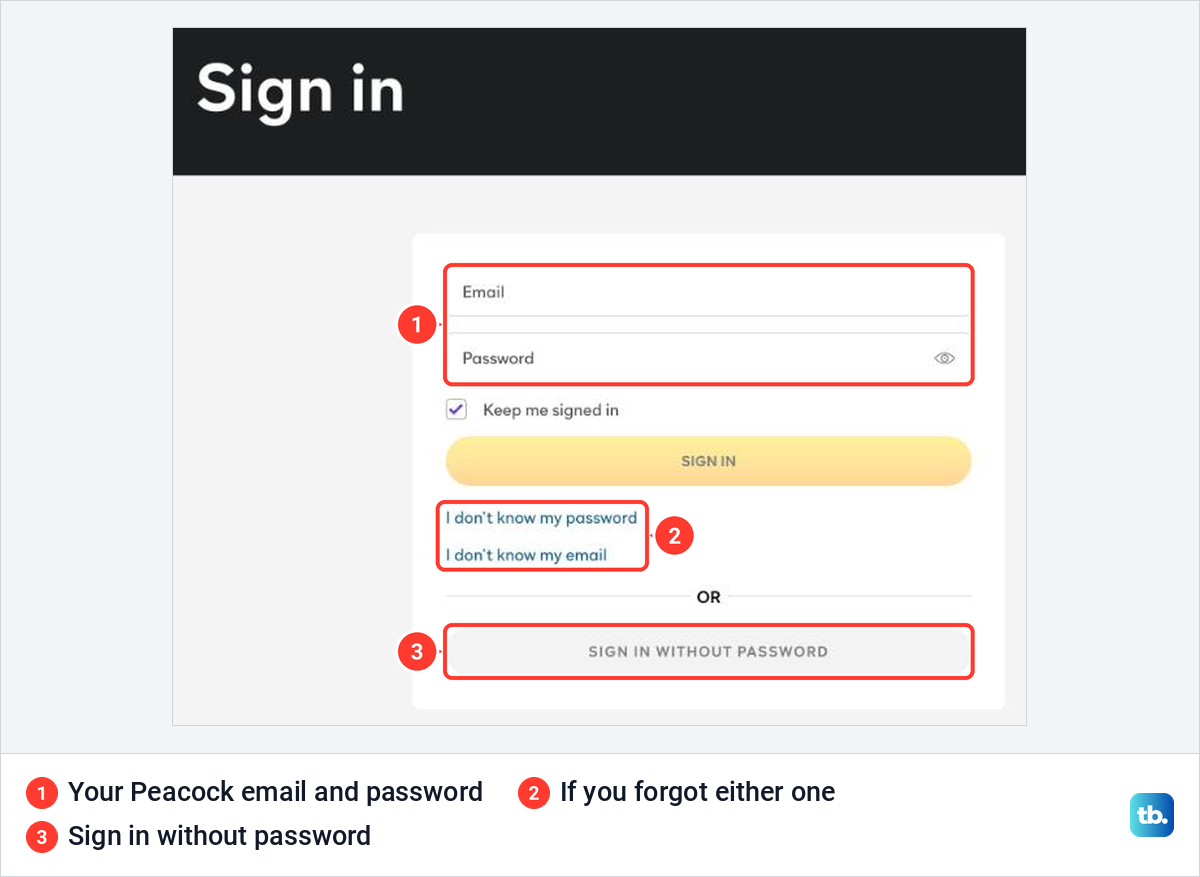
Forgot the password, or even which email you used? The page has a link for each, with Sign in without password below them. If you still cannot get in, Peacock's cancellation help page says you can cancel through its chat instead, using the chat link on that page.
Once you are signed in, open Account. Peacock's pages name the billing tab two ways, Subscriptions in its cancellation help and Plans & Payment in its other help articles and its own picture of the Account page, so open whichever one your page shows.
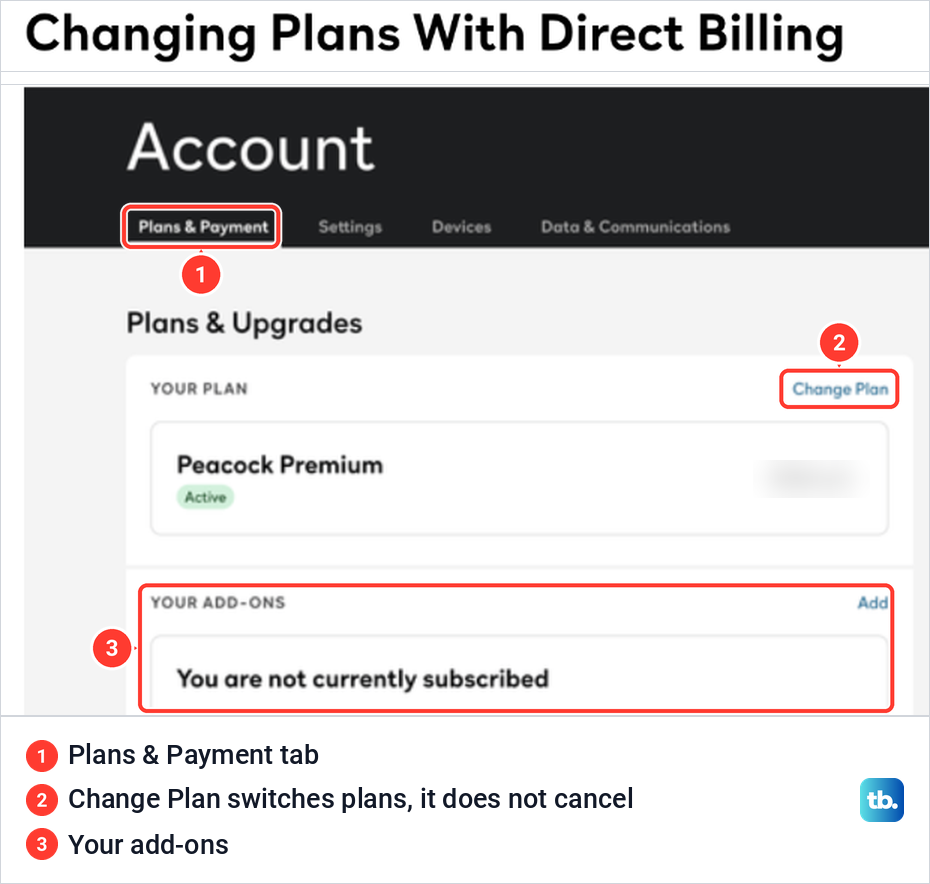
That tab holds your plan under Your Plan and any add-ons under Your Add-Ons. Change Plan is not the way out, because Peacock's help says it switches between Premium and Premium Plus. Peacock's help does not say where on the Account page Cancel All Subscriptions sits, and its picture shows no cancel button, so look through the page and its tabs.
Peacock's cancellation help gives the rest. Select Cancel All Subscriptions, which ends the base plan, meaning Select, Premium or Premium Plus, together with every add-on such as STARZ or a regional sports network. Then follow the steps that appear until you confirm.
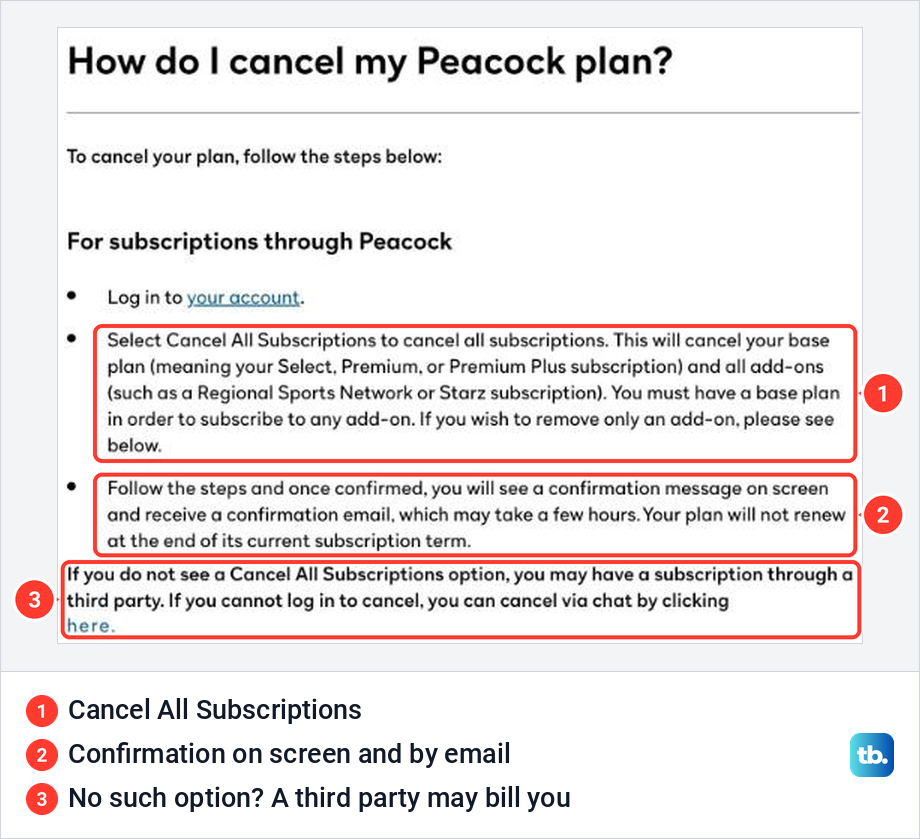
Peacock's help does not describe the screens between that button and the confirmation, so read each one before you click and finish every step it asks for. The cancellation is done when a confirmation message appears on screen, and Peacock says a confirmation email follows, which may take a few hours.
If Cancel All Subscriptions is not there at all, Peacock says you may have a subscription through a third party. Check the Payment Method again and use the matching section below. If Peacock does bill you and the button still is not there, ask Peacock through the chat on its cancellation help page.
Cancel Peacock billed by Apple
If the Account page says Billed by Apple, or an Apple receipt shows the charge, the plan ends in Apple's settings. On an iPhone or iPad, open Settings, tap your name, tap Subscriptions, tap the subscription named on your Apple receipt and tap Cancel Subscription.
Read what the confirmation sheet says will end before you confirm, because Apple sells Apple TV and Peacock as one bundled subscription in the United States. If Peacock bills that bundle instead, Apple says to manage it through Peacock. Apple's help adds that a missing Cancel button or an expiration message in red text means the subscription is already canceled.
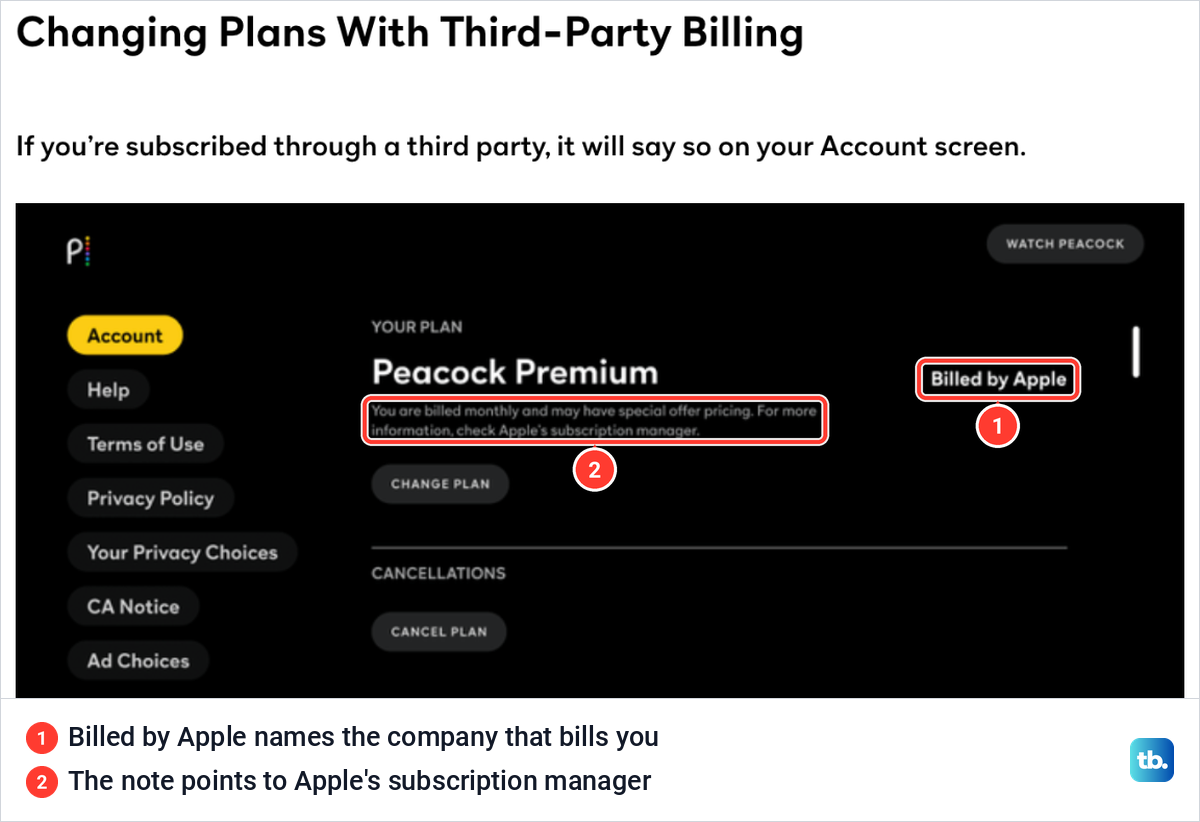
Peacock's own picture of its app shows why this trips people up. An Apple-billed plan still appears on Peacock's Account screen, with a Cancel Plan button under Cancellations. Peacock's cancellation help, though, says it cannot cancel a plan a third party bills, and the note under the plan points to Apple's subscription manager, so use Apple's settings.
On a computer, Apple's help says to go to account.apple.com, sign in and follow the onscreen instructions. For every tap on the phone, see how to cancel an App Store subscription on iPhone.
Peacock will not appear if a different Apple Account paid for it, so check which Apple Account is named on the receipt. If it is another account of yours that you cannot get into, reset your Apple Account password first. If the receipt names a family member's Apple Account, Apple says only that person can cancel it, so ask them to.
Cancel Peacock through Google Play
If Google Play bills you, Google's subscription page is the place. On an Android phone or tablet, Google's steps are to go to your subscriptions in Google Play, select Peacock, tap Cancel subscription and follow the instructions. On a computer, open Google Play subscriptions, click Manage next to Peacock, click Cancel subscription, choose a reason in the pop-up and click Continue.
Sign in with the Google Account that pays, because Google says a subscription you cannot find may be on a different account. If that account will not let you in, fix Google Play Store login problems first. Uninstalling the Peacock app does nothing to the bill, and Google says so plainly.
After you cancel, Google says you can keep using the subscription for the time you have already paid. Check the subscription's status in Google Play afterwards; a Resubscribe option may appear, though Google says some subscriptions cannot be resubscribed to. Google lets some apps offer Pause payments under Manage, but Peacock's help does not say it is one of them, so if the option is not there, canceling is the way to stop the charge.
Cancel Peacock on Roku
Roku can only cancel a plan you bought through Roku. Its help says that if you subscribed directly through a streaming service, you cancel with that service, so check that the charge really is from Roku before you start.
On the web, go to my.roku.com/subscriptions, select Peacock under Active subscriptions, select Manage subscription and then Turn off auto-renew. On the Roku itself, press Home, highlight the Peacock app and press the Star button on the remote. Choose Manage subscription to see the renewal date, select Turn off auto-renew, and enter your Roku PIN if you set one for purchases.
If Manage subscription is missing, Roku says some options are not available from Quick Access, so scroll down to the Apps section, highlight Peacock there and press Star again. Roku says the subscription stays active until the end of the billing cycle and that it gives no partial-term refunds.
Cancel Peacock through Amazon
Amazon sells Peacock Premium Plus inside Prime Video, where Prime members can subscribe without a separate app. That subscription is canceled in Prime Video, not on Peacock's site. Amazon's steps are to open Account & Settings from the profile icon in Prime Video, select the Subscriptions tab, find the subscription, then select Unsubscribe and confirm. Amazon notes that the button may read Withdraw instead.
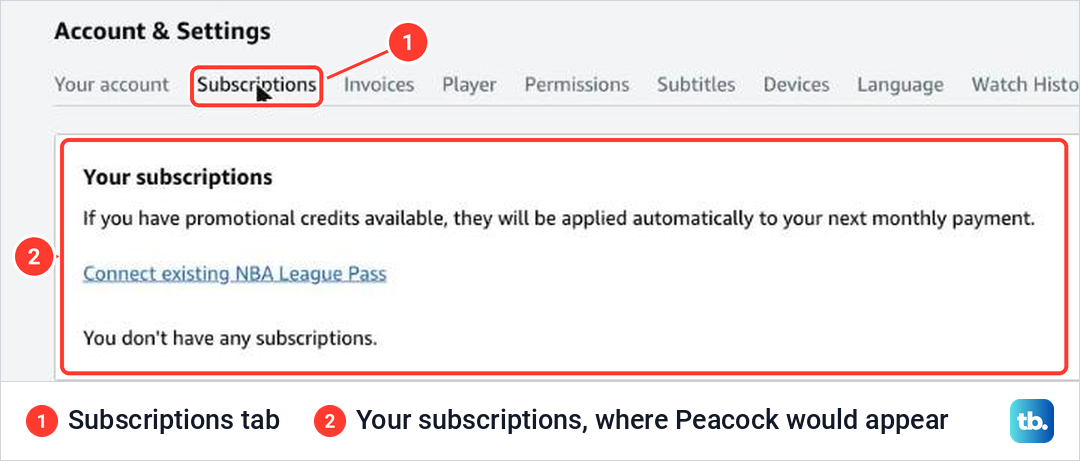
On the Prime Video account we used, with no channel added, the Subscriptions tab read You don't have any subscriptions. That tab lists the channels and add-ons bought through Prime Video, so Peacock appears there only if you bought it that way.
Amazon says the end date appears on the confirmation screen and that you can reverse the cancellation until then. After that date you are not charged and lose access to that subscription, and canceling does not refund earlier charges. The full Amazon route is in the guide to manage a Prime Video add-on.
An Amazon charge that is not in that list may come from somewhere else. Peacock's list of third-party billers links Amazon to Amazon Pay's help, so read the Amazon receipt to see what was bought before you follow any one route.
Cancel Peacock through Xfinity or another provider
Xfinity's help says that if you sign up for Peacock on an Xfinity X1, Xumo Stream Box or Xfinity Flex box, Xfinity bills you. Open Settings on the box and go to Apps & Subscription, or say "Manage Peacock" into the Xfinity Voice Remote. Select Unsubscribe, then select Unsubscribe again on the second page.
Xfinity says that once you select Unsubscribe on that second page, you keep access through the date it displays and are no longer charged. To check, reopen Apps & Subscription, where Xfinity says a Resubscribe option is available until the billing cycle ends. If you signed up with Peacock directly and only watch on the box, Peacock bills you, and Xfinity sends you to peacocktv.com to manage it.
Peacock Premium that comes with an Xfinity promotion, such as a NOW TV or Gigabit Internet offer, is a different case. Xfinity says the box steps do not apply to it and that upgrades go through your online Xfinity account, so check that account or ask Xfinity. If you are not sure the included Peacock was ever activated, see how to fix an Xfinity Peacock activation problem.
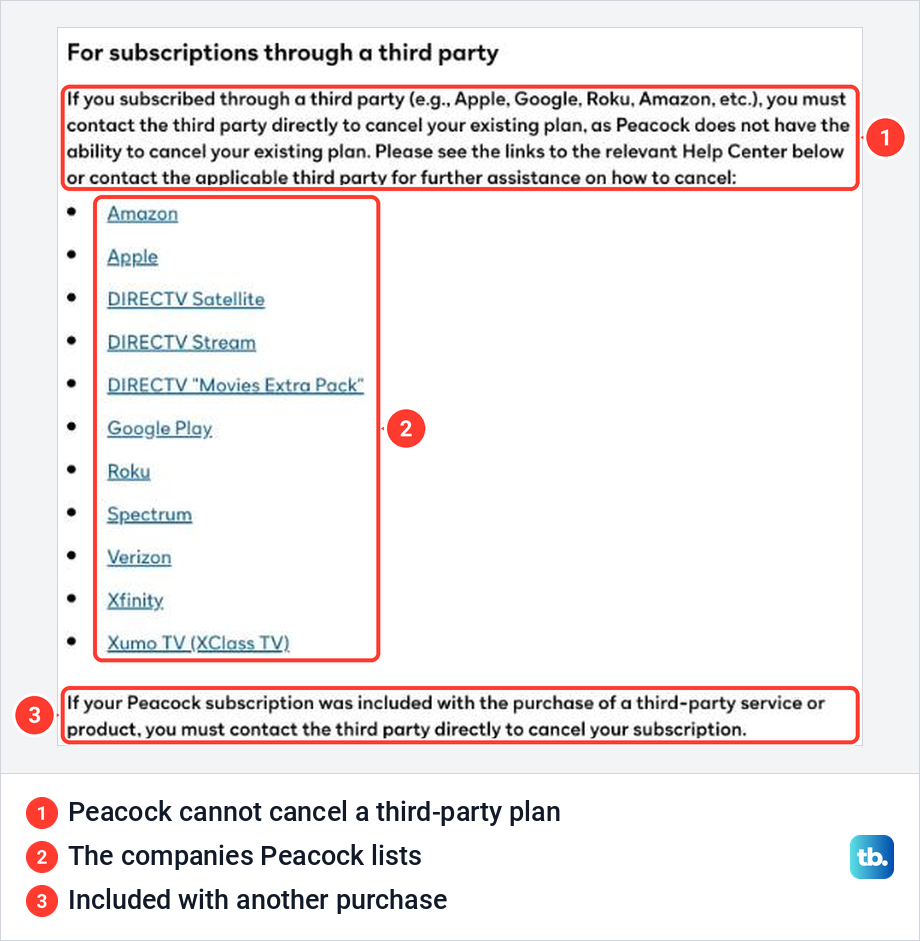
DIRECTV, Spectrum, Verizon and Xumo TV work like any other provider. Peacock's help lists them among the third parties whose plans it cannot cancel, so sign in to that company's account or contact its support, and keep the confirmation it gives you.
Cancel the plan, remove an add-on or delete the account
Peacock treats these as three different things. Cancel All Subscriptions ends the base plan and every add-on, while Remove Add-On ends only the add-on you pick and leaves the base plan renewing. Peacock's help says to select the add-on on the Subscriptions tab, choose Remove Add-On and follow the steps to the same on-screen and email confirmation.
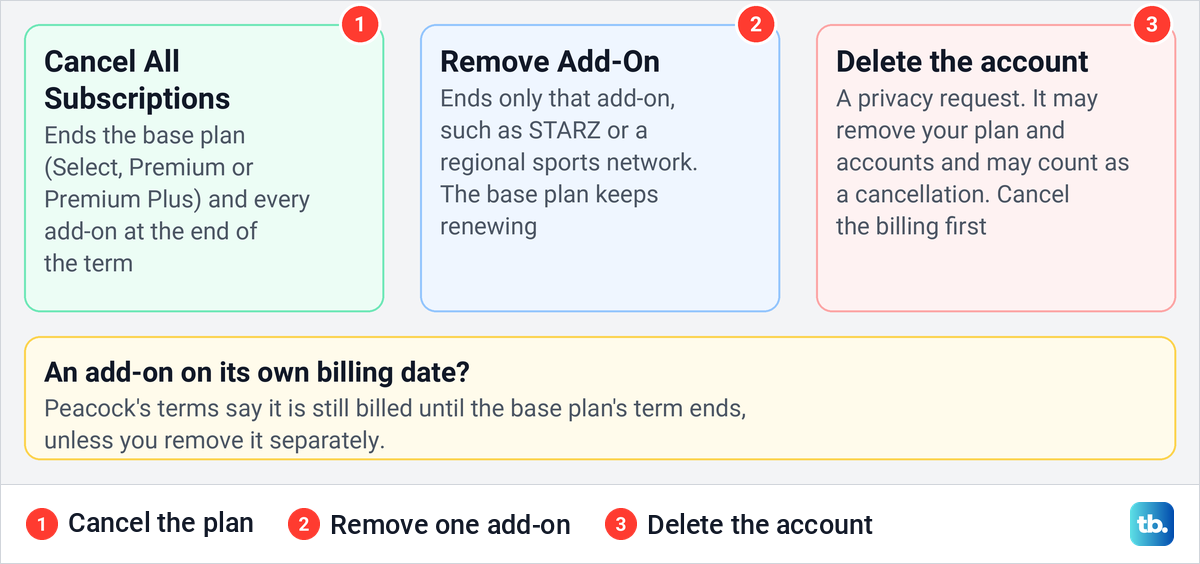
Watch the add-on's billing date. Peacock's help says canceling the plan sets add-ons to auto-cancel, but its terms add that an add-on with a different billing date is still billed until the base plan's term ends unless you cancel the add-on separately. To keep an add-on with its own billing date from renewing, remove it separately and look for its own confirmation.
Deleting the account is a separate request, not the cancel button. Peacock's deletion help sends you to NBCUniversal's privacy page and says a deletion request may remove your plan and accounts, may affect other NBCUniversal brands and may be treated as a cancellation. Cancel the billing first, wait for the confirmation, and only then ask for deletion if you still want it.
What happens after you cancel
For a plan Peacock bills directly, canceling stops the next renewal, not your viewing today. Peacock's terms say to cancel no later than the day before the next billing date to avoid the next charge. Its help says Premium content stays available until the end of the billing cycle, after which you can still watch a limited amount of content for free.
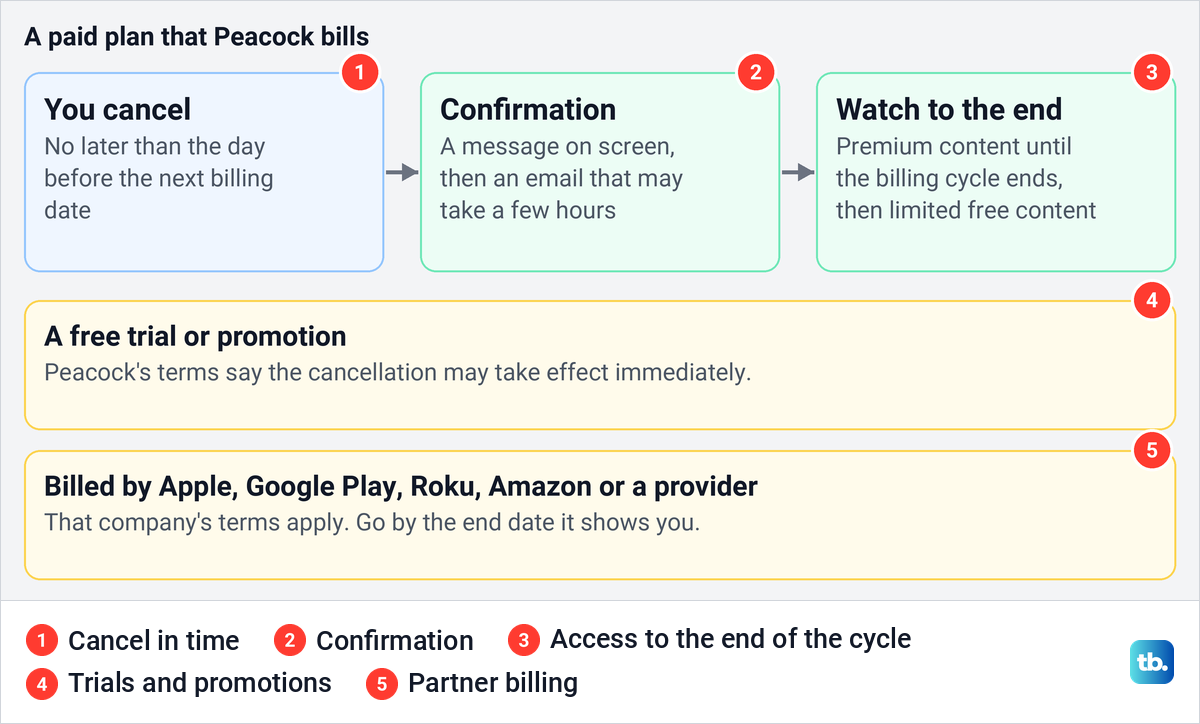
There are exceptions. The terms say a cancellation may take effect immediately for a free trial or promotion, or if Peacock refunds the unused days or lets you put them toward something else. If a partner bills you, Peacock says that partner's terms may differ, so go by the end date it shows.
Peacock's help says no refunds or credits are issued for earlier payments when you cancel or downgrade, unless the law requires them, although its terms keep the right to make exceptions. Gift card credit already applied to a subscription is not refunded either, unless the law requires it. For a plan a partner bills, ask that company, since its refund rules apply.
If playback trouble is why you are leaving, you can first fix Peacock when it is not working and then decide. Peacock's help says you can upgrade to a paid plan again from your account at any time.
Check that it worked or find a missing cancel button
Each company shows the result in its own place. For a plan Peacock bills, keep the confirmation email, which Peacock says may take a few hours to arrive. Apple removes the Cancel button or shows the expiration in red, Google Play shows the subscription's status, sometimes with Resubscribe, Prime Video shows the end date on its confirmation screen and Xfinity offers Resubscribe in Apps & Subscription. On Roku, reopen Manage subscription and check the renewal status.
If the cancel button is missing, check the Payment Method again, then the receipt. Peacock says a missing Cancel All Subscriptions option may mean a third party bills you, and that if you cannot sign in to cancel, you can cancel through its chat.
Moving Peacock from one biller to another has a catch. Peacock says that if a new third-party subscription will not activate because of an existing one, you must cancel the existing subscription and wait until it fully lapses before trying again.
If the account page will not open at all, fix Peacock not loading in your browser first. And if Peacock is one of several charges you want gone, the same who-bills-you check helps you stop other recurring subscriptions too.
Frequently Asked Questions
Can I still watch Peacock after I cancel?
Usually, yes. For a plan Peacock bills directly, Premium content stays until the end of the billing cycle and a limited amount of free content remains after that. A free trial or promotion may end immediately, and a partner-billed plan follows that partner's end date.
Why is there no Cancel All Subscriptions button?
Peacock says that may mean a third party bills you. Check the Payment Method under the Subscriptions tab and cancel with the company it names, and if Peacock bills you but you cannot sign in, Peacock's help says you can cancel through its chat.
Will deleting the Peacock app stop the charges?
No. Google says uninstalling an app does not cancel its subscription, and none of the cancel steps from Peacock or its partners involve removing the app. Cancel with whoever bills you.
Can I pause Peacock instead of canceling?
Peacock's help documents no pause for a plan it bills directly, so canceling is how you stop that charge. If Google Play bills you, look for Pause payments under Manage, which Google offers only for some apps.
I paid through Amazon. Why is Peacock not in my Prime Video subscriptions?
Only a Peacock subscription bought in Prime Video is listed under Account & Settings > Subscriptions. Peacock's list of billers links Amazon to Amazon Pay's help, so read the receipt to see what was bought and which Amazon account paid.
How do I know Peacock really canceled?
For a plan Peacock bills, look for the confirmation message on screen and the confirmation email, which Peacock says may take a few hours. A partner shows its own sign, such as Apple's red expiration message or the end date on Prime Video's confirmation screen.
Does deleting my Peacock account cancel the subscription?
It may, but do not count on it. Peacock says a deletion request may be treated as a cancellation and may remove more than the plan, so cancel the billing first and keep the confirmation.