You set your Google Pixel 9a down on a wireless charging pad expecting that familiar charge indicator, and nothing happens. The screen stays dark, the battery percentage does not budge, or the phone trickles power so slowly it never seems to fill. The good news is that the Pixel 9a genuinely does support wireless charging, so this is almost always a fixable setup issue rather than a missing feature. Below are nine practical fixes, ordered from the quickest and safest to the official reset and repair paths, so you can get your phone charging on the pad again.
Make Sure Wireless Charging Is Really the Problem
Before you blame the charging pad, confirm that the fault is specific to wireless charging and not something affecting all charging. The Pixel 9a charges wirelessly through its Qi-certified coil at up to 7.5W, but it charges much faster over USB-C, so it is worth comparing the two.
- 1.Plug the phone in with a USB-C cable and a known-good power adapter.
- 2.Watch for the charging indicator and a rising battery percentage.
- 3.If it charges fine over the cable but not on the pad, the issue is specifically with wireless charging, and the fixes below apply.
Keep in mind that higher-wattage adapters can charge faster, but only at the speed the phone itself supports. If even wired charging fails, the problem is broader than the pad, and you will want to jump ahead to the restart and support steps.
Confirm You Are Using a Compatible Qi 1.x Charger
The single most common cause of a Pixel 9a refusing to charge wirelessly is the wrong type of charger. Google's guidance is direct: "Make sure that you use a Qi 1.x wireless charger or a Pixel Stand that works with your phone."
The Pixel 9a uses the older Qi 1.x standard and lacks the Qi2 magnetic alignment feature. For that reason, Google does not recommend Pixelsnap or Qi2 magnetic chargers for this model, noting that earlier Pixel models that lack Qi2 alignment "may result in inconsistent or no charging" on those accessories. If you are using a magnetic Qi2 charger, swap it for a standard Qi 1.x pad or a compatible Pixel Stand.
Take Off a Thick, Metal, or Magnetic Case
What is between your phone and the pad matters more than you might think. Google warns that "Thick or metallic cases like those with magnets or ring holders can affect charging or stop it completely."
If your charging is slow or unsteady, remove the case entirely and place the bare phone on the pad to test. Google also suggests peeling off any metallic stickers stuck to the phone, since these can interfere with the charging coil the same way a metal case does.
Center the Phone and Watch the Charging Indicator
Because the Pixel 9a has no Qi2 magnets to snap it into position, you have to line it up by hand. Even a small offset between the phone's coil and the pad's coil can stop charging completely. Google's advice is to confirm placement by watching the screen: "To make sure that you've correctly placed your phone on a wireless charger that works with it, check your phone's charging indicator."
- 1.Set the phone in the middle of the pad so its charging coil lines up with the pad's coil.
- 2.Look for the charging indicator to appear, confirming a connection.
- 3.If nothing shows, nudge the phone slightly until the indicator lights up.
If you are using a Pixel Stand (2nd gen), note that the phone only charges while standing upright in portrait orientation, so seat it accordingly.
Keep the Phone Still and Out of the Heat
Once the phone is charging, leave it alone. Google notes: "Try not to move or use your phone too much while charging wirelessly. This can break the connection." Picking the phone up for notifications or shifting it on the pad can interrupt the link between the coils and stop the charge.
Temperature plays a role too. Google advises that you "Avoid charging in very hot places like under direct sunlight. This can affect the battery and charging performance." If your charging spot gets warm from sun or a nearby heat source, move the pad somewhere cooler and try again.
Power the Pad With an Adequate Adapter
A wireless charger is only as good as the power adapter feeding it. If your pad is plugged into an underpowered or incompatible adapter, charging can be painfully slow or stop entirely. Google recommends one of the following for wireless charging:
- 1.Any Programmable Power Supply (PPS) power adapter rated for 30W or more.
- 2.Other USB Power Delivery (PD) adapters rated for 15W or more.
- 3.A Google 30W, 45W, or 67W USB-C Fast Charger.
Google also warns that an incompatible adapter may deliver only 5W, which results in very slow charging. Whenever possible, use the cable and adapter that came with your wireless charger rather than a random spare.
Force Restart a Frozen Pixel 9a
If wireless charging still will not start and the phone seems unresponsive or frozen, a restart can clear a temporary software glitch. According to Google, if the phone is frozen with the screen on, "hold down the power button for about 30 seconds to restart."
If that does not work, Google's turn on and off guidance describes holding the Power button for up to 60 seconds until the "G" logo appears, then releasing. Either way, keep holding until the phone restarts, then place it back on the pad to test charging.
Install Any Pending Software Update
Out-of-date software can occasionally cause charging quirks, and Pixel phones receive regular updates that include fixes. To check for one, open Settings > System > Software updates (some Pixels label this "System update"), then tap to check for an update.
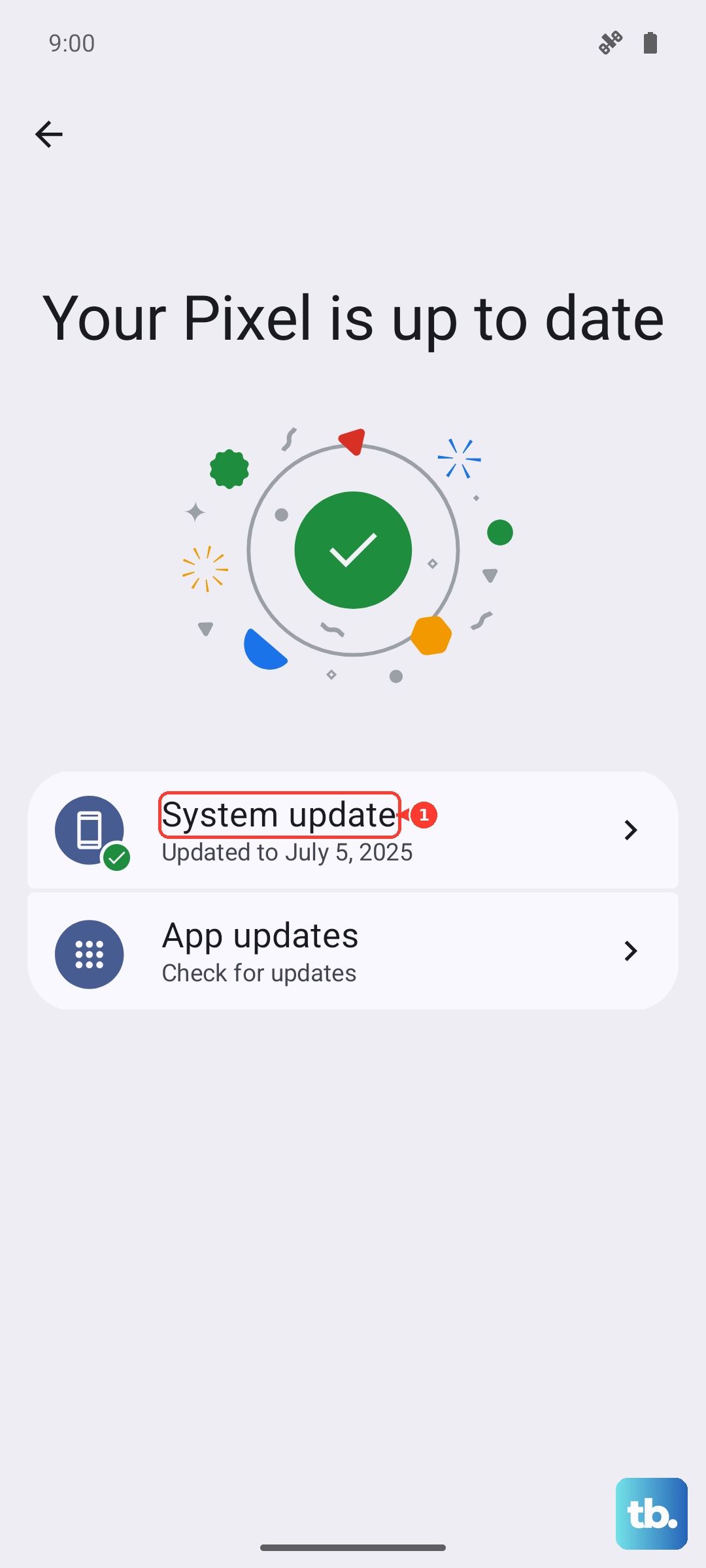
Pixel phones download Android updates in the background and apply them on the next restart, so installing one may require a reboot. You can confirm what you are running under Settings > About phone > Android version, which shows your Android version, Android security update, Google Play system update, and build number.
Back Up and Factory Reset, Then Reach Out for Repair
If none of the above restores wireless charging, a factory reset is the last software step to try before treating this as hardware. Back up your data first, then go to Settings > System > Reset options > Erase all data (factory reset).
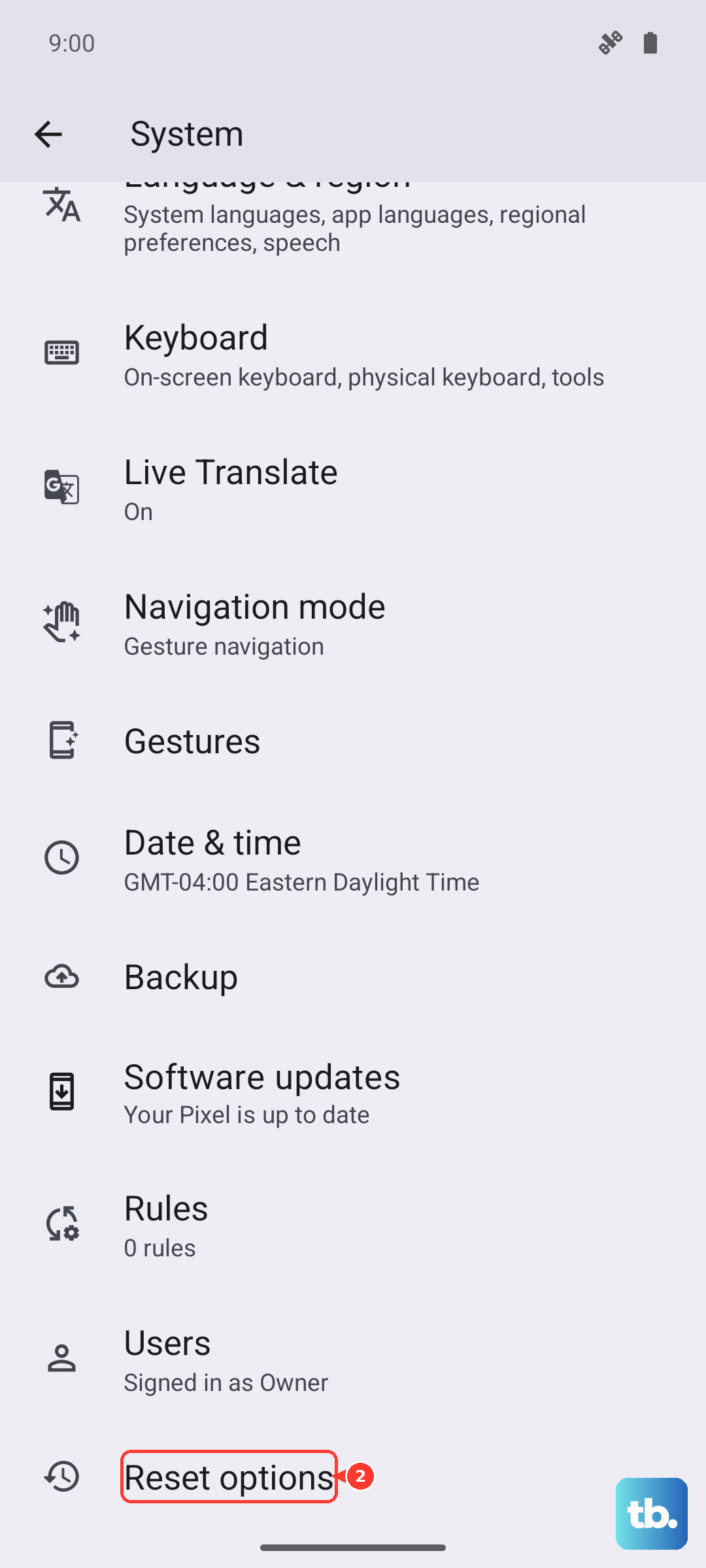
Be aware of what this does. Google warns that "A factory reset erases all your data from your phone." Data tied to your Google Account can be restored afterward, but your apps and their data are uninstalled, so make sure anything important is backed up before you proceed.
If wireless charging still does not work after a reset, the cause is likely a hardware fault. Use the My Pixel app, which is preinstalled on Pixel phones and offers device health, troubleshooting, and repair options, and go to Tips & support > Contact us to describe your issue and choose chat or a call.
Frequently Asked Questions
Does the Google Pixel 9a actually support wireless charging?
Yes. Google's official hardware tech specs list the Pixel 9a as supporting "Wireless charging (Qi-certified)." It is not among the Pixel models excluded from wireless charging, so if it will not charge on a pad, it is a setup or hardware issue rather than a missing feature.
Why is my Pixel 9a charging so slowly on the wireless pad?
The Pixel 9a uses the Qi 1.x standard and charges wirelessly at up to 7.5W, which is much slower than its USB-C wired charging. Slow charging can also come from an underpowered adapter (an incompatible one may deliver only 5W), a thick or metal case, or the phone being off-center on the pad.
Can I use a Qi2 or Pixelsnap magnetic charger with the Pixel 9a?
Google does not recommend it. The Pixel 9a uses Qi 1.x and lacks the magnetic alignment of Qi2, so Qi2 or Pixelsnap magnetic chargers may result in inconsistent or no charging. Use a Qi 1.x wireless charger or a compatible Pixel Stand instead.
How do I know my phone is correctly placed on the charger?
Check the charging indicator on screen. Because the Pixel 9a has no magnets to snap it into place, you align it manually, so center the phone on the pad and watch for the indicator. If it does not appear, nudge the phone slightly until charging begins.
What should I do if wireless charging still fails after a factory reset?
At that point it is likely a hardware fault. Open the My Pixel app and go to Tips & support > Contact us to start a chat or request a call so Google can help you arrange a repair.