The screen on your Google Pixel 9a should hold a steady, even image, so when it starts flickering, pulsing, or briefly showing faint lines or a tint, it is hard to ignore. The good news is that some flicker is caused by a display setting or a temporary software glitch you can fix yourself in a couple of minutes. The harder truth is that the Pixel 9a uses a real OLED (pOLED) panel, and a screen that keeps flickering after the obvious checks can point to a hardware fault that needs a repair.
If the fault comes and goes, an online online monitor test helps you reproduce it on demand with solid colors and gradient patterns.
This guide walks you through the safe, reversible fixes first, in order, and saves the official reset and support paths for the end. Every step below uses Google's own settings paths and button sequences for the Pixel 9a, so you are never guessing at a force-restart or reset. Work through them in order and stop as soon as the flickering disappears.
Start with brightness, because auto-dimming can look like flicker
The Pixel 9a ships with Adaptive brightness turned on, which means the phone constantly adjusts screen brightness based on the light around you. That automatic adjusting can show up as a brightness "pulse" that is easy to mistake for true flicker, especially in changing light. Ruling it out first takes seconds and tells you a lot.
Open Settings > Display & touch.
Tap Brightness level and move the slider to set the brightness manually.
Toggle Adaptive brightness off.
Watch the screen for a few minutes in the same lighting where the flicker usually appears.
If the flickering stops once brightness is fixed and Adaptive brightness is off, you have found a comfortable workaround. You can leave Adaptive brightness off, or turn it back on later if you prefer the automatic behavior and the flicker does not return.
Switch off Smooth Display to test the refresh rate
The Pixel 9a's Smooth Display feature automatically varies the screen's refresh rate up to 120Hz for smoother scrolling. Because that refresh rate changes on the fly, some flicker can be tied to the adaptive refresh behavior, so it is worth ruling out next. Google notes that Smooth Display "increases battery usage," which means turning it off is harmless to try.
Open Settings > Display & touch > Smooth Display.
Turn it off.
Use the phone normally for a while and watch for flicker, especially while scrolling.
If the flicker clears with Smooth Display off, the adaptive refresh rate was likely the trigger. You can keep it off for a steadier display, with the trade-off of slightly less smooth scrolling.
Force restart the Pixel 9a to clear a temporary glitch
A force restart clears temporary software glitches that a normal day of use can build up, and it is one of the most reliable quick fixes for an unexpected flicker. The button sequence below is Google's instruction for the Pixel 6 and later, which includes the Pixel 9a.
Press and hold the Power button for up to 60 seconds.
Once your phone begins to reboot and the screen displays the "G" logo, release the Power button.
If the screen is unresponsive and a normal force restart will not take, use the alternate method instead. With your phone plugged in, press and hold both the Volume up button and the Power button at the same time for at least 20 seconds.
Install any waiting software update
This is the key one. Google's dedicated guidance for a Pixel screen that flickers, shows a green tint, or shows lines is to update the system software. Updates can carry display fixes, so do not skip this even if your phone feels current.
Open your phone's Settings app.
Select System and then System update.
Install any updates.
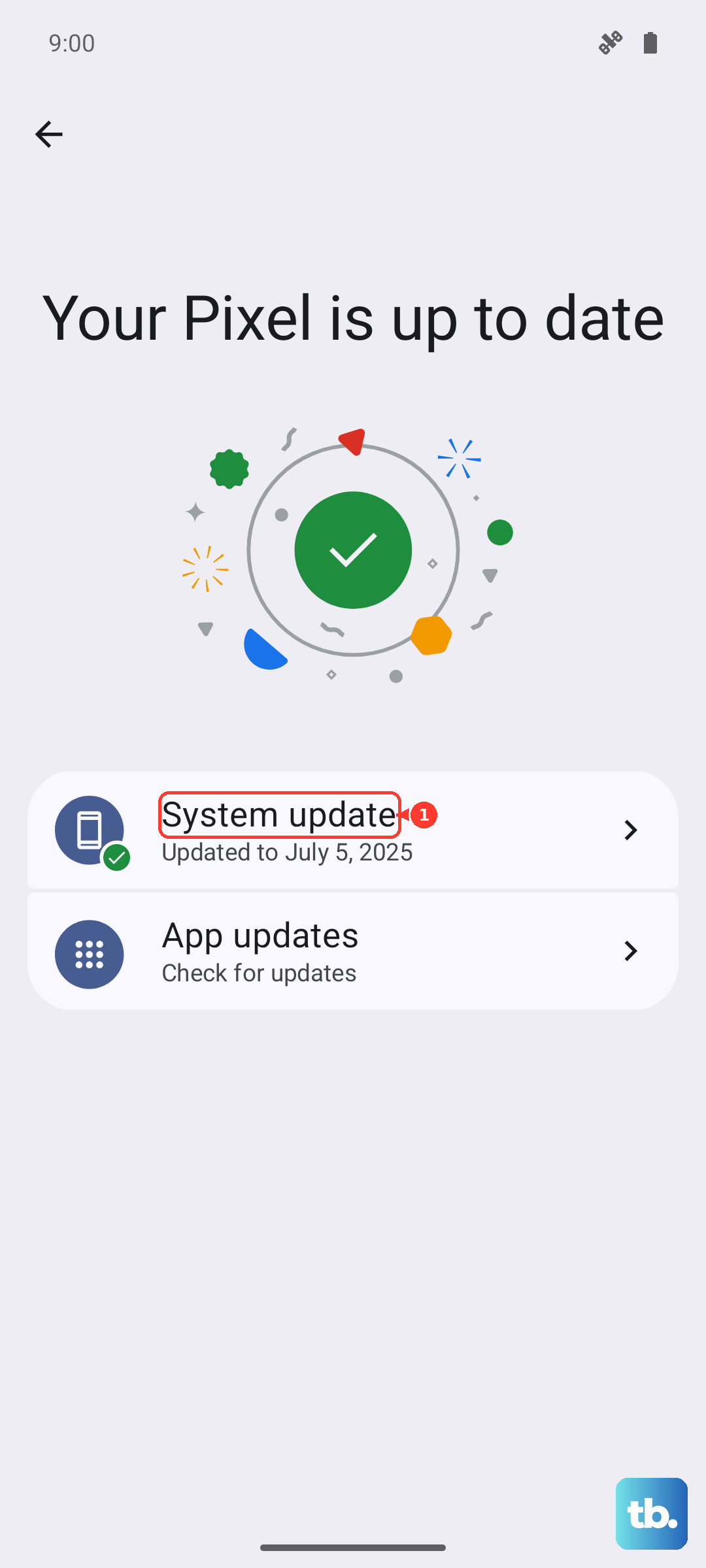
Let the update finish and the phone reboot before you judge whether the flicker is gone. If an update was available and applied, give the screen a normal stretch of use afterward to confirm. Updating the OS is, by Google's guidance, the main software fix for flicker, lines, and tint, so it is the most important step on this list.
Check for physical interference around the screen
Cases, screen protectors, gloves, and stickers can all interfere with how the display and touch layer behave, and the fix can be as simple as taking something off. This costs nothing to try and rules out a whole category of causes.
Remove the case or screen protector and see if the screen improves.
If you are wearing gloves, take them off.
Peel off any stickers placed over the screen or the sensors.
Make sure the screen itself is clean.
If the flicker eases once a protector or case is off, that accessory was likely the culprit. A poorly fitted screen protector is a common offender, so consider replacing it with one that sits flush.
Run the built-in Touch diagnostics
The Pixel 9 series, including the Pixel 9a, includes a built-in screen diagnostic that lets you check how the display and touch layer are behaving. It is a quick way to see whether the panel is responding as it should before you move on to heavier steps.
Go to Settings > Display & touch > Touch diagnostics and follow the prompts to check screen behavior. Pay attention to any area that behaves oddly during the test, since that can point you toward a hardware problem and help if you later contact support.
Boot into Safe mode to rule out a misbehaving app
Safe mode temporarily disables every app you have downloaded, leaving only the software that came with the phone. If the flicker disappears in safe mode, a third-party app is the likely cause. Note that safe mode removes some Home screen widgets and automatically turns on Airplane mode while it is active.
Press and hold the Power and Volume Up buttons for a few seconds.
On your screen, tap and hold either the Power off or Restart button.
Tap OK.
If the flicker stops in safe mode, exit and then uninstall recently added apps one at a time, testing after each one until the flicker no longer returns. To exit safe mode, press and hold the Power button + Volume up button for a few seconds and tap Restart.
Factory reset as the final software step
If the flicker continues and you suspect software rather than hardware, a factory reset wipes the phone back to a clean state. This is a heavy step, so treat it as a last resort and back up your phone first. Important: a factory reset erases all your data from your phone. Data in your Google Account can be restored, but apps and their data are uninstalled.
- 1.Back up your phone first.
- 2.Go to Settings > System > Reset options > Erase all data (factory reset).
- 3.Tap Erase all data.
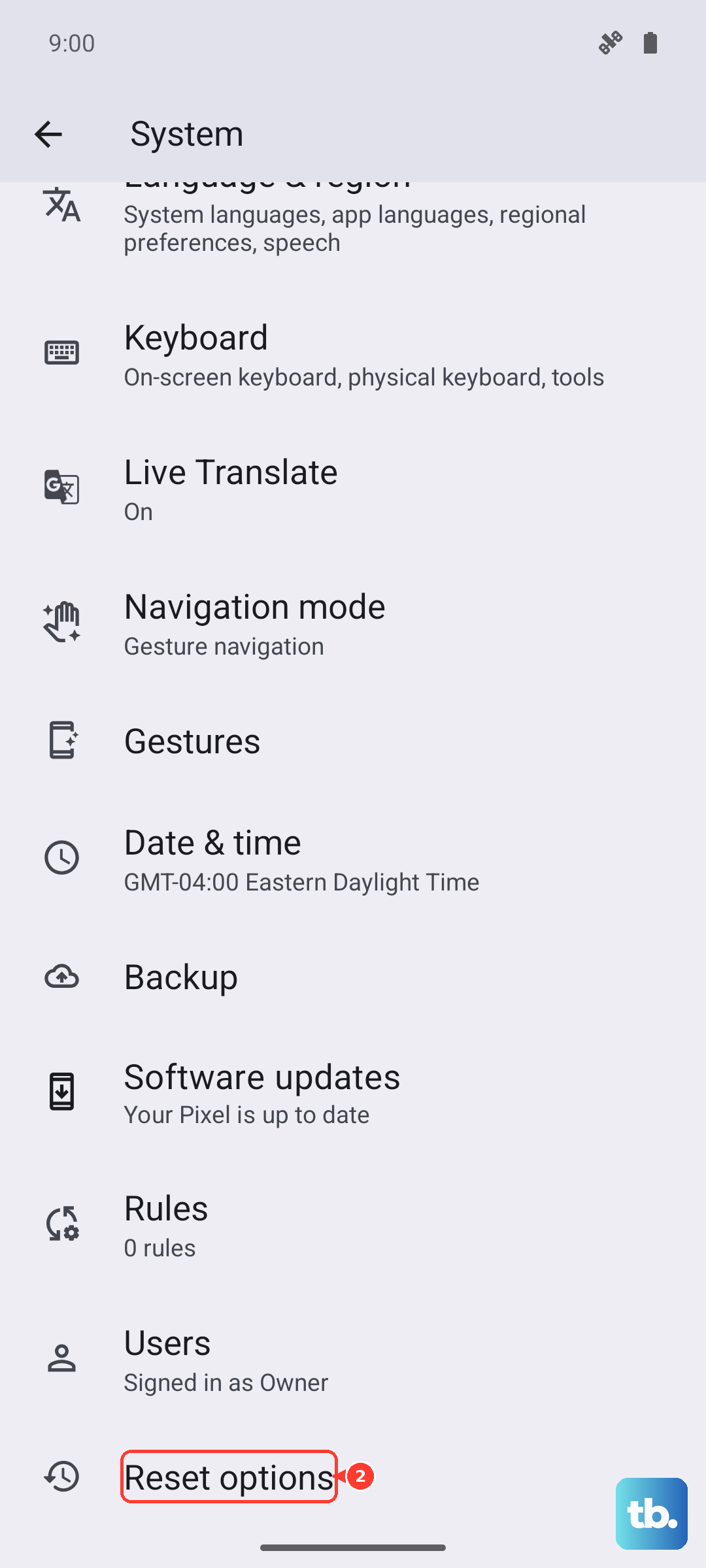
After the reset finishes and you restore your account, watch the screen before reinstalling everything. If the flicker is gone with a clean system, reintroduce your apps gradually so any future return is easier to trace.
When flicker that won't quit means a repair
If you have updated the software and worked through the steps above and the screen still flickers, Google's own guidance treats this as a likely hardware issue. The same applies if the display shows a green tint, horizontal or vertical lines, will not turn on, or is cracked. Dead pixels and physical cracks also require repair rather than a settings change.
At this point, the right move is to contact Google or get your phone repaired through the official Pixel support and repair path. Because the Pixel 9a's OLED panel can show these symptoms as a genuine hardware tendency, there is no further software toggle that fixes it once updating the OS has not worked. Reaching out to support sooner rather than later protects you while the phone is still within any applicable coverage.
Frequently Asked Questions
Is Pixel 9a screen flickering always a hardware problem?
No. Flicker can come from Adaptive brightness, the adaptive refresh rate, a temporary software glitch, an old software version, or a case or screen protector, all of which you can address yourself. Google only points to a hardware issue when the flicker, green tint, or lines persist after you update the software, in which case the phone should be repaired.
Will turning off Smooth Display hurt my phone?
No. Smooth Display raises the refresh rate up to 120Hz and, in Google's words, "increases battery usage," so turning it off is harmless to try and can actually save a little battery. You only lose some of the smoothness while scrolling, and you can turn it back on at any time from Settings > Display & touch > Smooth Display.
How do I force restart a Pixel 9a if the screen is frozen?
For a normal force restart, press and hold the Power button for up to 60 seconds, then release it once the "G" logo appears as the phone reboots. If the screen is unresponsive, plug the phone in and press and hold both the Volume up button and the Power button at the same time for at least 20 seconds.
Does updating the software really fix screen flicker?
It can, and it is Google's main recommended software fix for a Pixel screen that flickers, shows a green tint, or shows lines. Open Settings, select System and then System update, and install any updates, then let the phone reboot and watch the screen before deciding whether the issue is resolved.
Will a factory reset delete everything on my Pixel 9a?
Yes. A factory reset erases all your data from your phone, so back up first. Data in your Google Account can be restored afterward, but your apps and their data are uninstalled and must be set up again.