You tap send on a text from your Google Pixel 9a and nothing happens, or the message hangs with a stubborn red exclamation mark and a "Not sent" label underneath. Maybe regular texts go through fine but picture messages and group threads refuse to leave, or one specific contact never seems to get anything you write. Texting is the kind of thing you only notice when it breaks, and on a phone you rely on every day, a stalled SMS can mean a missed plan or a missed reply that mattered.
The good news is that most Pixel 9a texting failures come down to a handful of fixable causes, such as a stale network connection, a default-app mix-up, leftover settings from an old phone, or carrier-side message routing that just needs a nudge. The fixes below are ordered from the quickest and safest to the most involved, so start at the top and stop as soon as your messages start flowing again.
Start With the Quick Network Resets
Before changing any deeper settings, rule out the simplest culprit. Your Pixel 9a needs an active cellular connection to push out SMS and MMS, and a brief connectivity hiccup is often all that stands between you and a sent message.
The fastest way to force a fresh connection is to clear airplane mode, or toggle it on and off. This makes the phone drop and re-establish its link to the carrier network, which clears up many stuck-message situations.
Open Settings > Network & Internet and turn off airplane mode.
If it was already off, turn it on, wait a few seconds, then turn it off again to force the Pixel 9a to reconnect to the cellular network.
Google's own Messages troubleshooting guidance lists confirming that airplane mode is off as one of the first things to check, so this is not a step to skip.
Confirm Your SIM Is Active and You Have Signal
SMS and MMS travel over your carrier connection, so if your SIM is not switched on for service, your texts have nowhere to go. The Pixel 9a supports dual SIM, with one physical SIM card plus one eSIM, which makes it worth double-checking that the right line is enabled.
- 1.Go to Settings > Network & Internet > SIMs.
- 2.Tap your carrier's name.
- 3.Make sure "Mobile data" and "Use SIM" are both turned on.
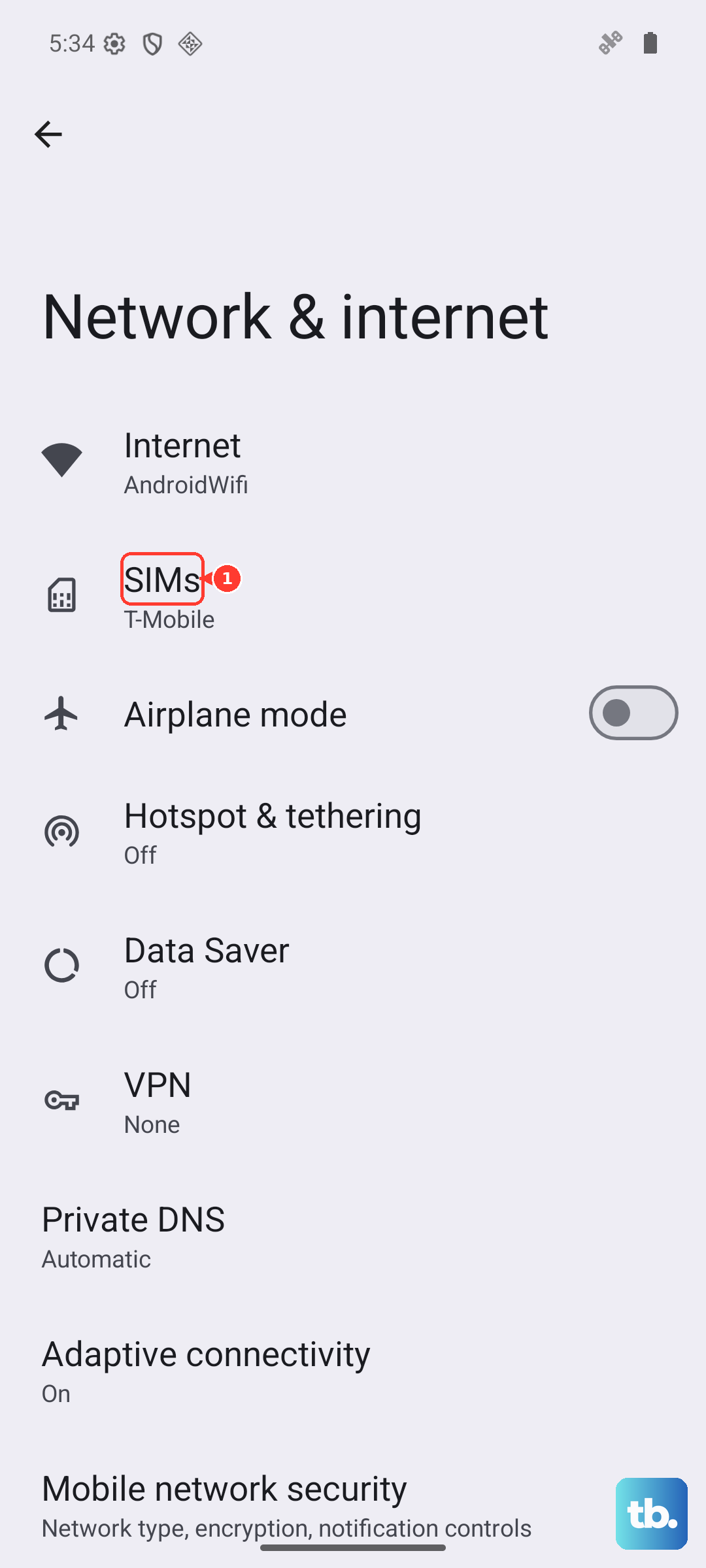
Then glance at the signal indicator. If you have no bars, no text will send regardless of your settings. Keep in mind that your carrier itself must support SMS, MMS, and RCS messaging for those features to work on your line.
Make Sure Google Messages Is the Default Texting App
Texts can fail silently if no app is set as the default messenger, or if a different app has quietly taken over that role. Google Messages is the standard texting app on Pixel, and it needs to be set as the default to send and receive normally.
The simplest route is to open Google Messages and follow the onscreen prompt to make it your default app if one appears. If you would rather set it manually, use the settings path instead.
Go to Settings > Apps, tap Google Messages > SMS > Google Messages.
Alternatively, go to Settings > Apps > Default apps > SMS app and choose Google Messages there.
Rule Out a Problem With the Recipient
If everything sends fine except for one person, the issue may be tied to that specific contact rather than your phone. A typo in the saved number, a missing country code, or an accidental block can all stop messages to a single recipient while everyone else hears from you normally.
For the contact you cannot reach, try deleting the contact and adding it again from scratch. Confirm the phone number is correct and includes the country code (for example, +1 for the United States), and check that you have not blocked them.
Restart the Pixel 9a or Force It If Frozen
A restart clears out temporary glitches in the system and the messaging service, and it is one of the most reliable fixes for texts that suddenly stop going through. On the Pixel 9a, the restart sequence differs slightly from older Android phones, so use the method below.
Press and hold the Power button and the Volume up button for a few seconds.
Tap Restart. This is the method for Pixel 6 and later, which includes the Pixel 9a.
If your phone is completely frozen and not responding to that combination, you can force a restart instead by holding down the Power button for about 30 seconds until the phone restarts.
Switched From an iPhone? Turn Off iMessage
This one trips up a lot of new Pixel owners. If you moved to the Pixel 9a from an iPhone and never deactivated iMessage for your number, texts sent to you from iPhone users can stay trapped in Apple's iMessage system and never arrive as regular SMS.
Make sure you have deactivated iMessage tied to your phone number before you assume the problem is on the Pixel side. Until that link is removed, certain incoming messages may simply vanish into the old service rather than reaching your new phone.
Turn Off RCS Chats After a Phone, SIM, or App Change
RCS chats power the richer messaging features in Google Messages, but they can get tangled if you recently changed messaging apps or moved your number to the Pixel 9a. In those situations, turning RCS chats off can restore normal texting.
Open Google Messages and tap your Profile picture or Initial.
Go to Messages settings > RCS chats.
Google adds an important caution here: "It's not advised to turn RCS chats on and off. If you do, you'll be removed from group chats." Only flip this setting when you have a genuine reason, such as a recent switch. If you no longer have access to your old phone, use the Google Messages deactivation web portal at messages.google.com/disable-chat to turn off RCS for your number remotely.
When Only Picture and Group Messages Fail
If your plain text messages send fine but picture messages (MMS) and group texts will not go through, the problem usually lives in your carrier data settings rather than the Messages app itself. MMS rides on your mobile data connection through settings called the APN, or Access Point Name.
First, make sure you have an active data connection, since MMS cannot send over Wi-Fi alone the way an SMS sometimes can.
Then, in your device's settings app, reset your APN settings to default. This restores the carrier data path that MMS depends on and clears out any misconfigured values.
Update Google Messages and Android
Outdated software can carry bugs that quietly break messaging, and keeping both the app and the system current often resolves lingering issues. The Pixel 9a launched on Android 15 and is supported for seven years of updates, so there is usually a fresh version waiting.
Update Google Messages to the latest version from the Play Store.
Check for system updates at Settings > System > Software updates, then follow the on-screen instructions.
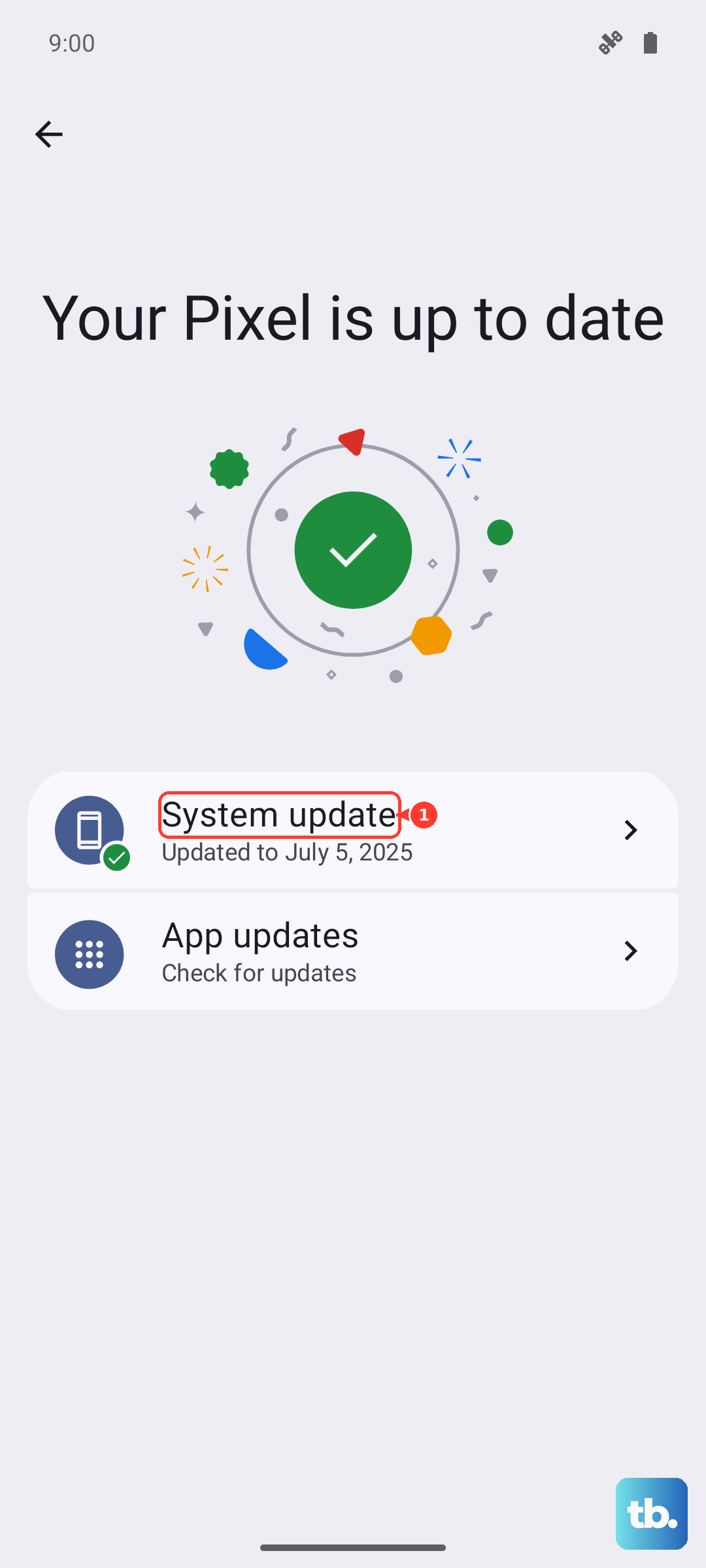
If you want to confirm what you are running, you can view your current Android version, security update, and build number under Settings > About phone > Android version.
Reset the Phone's Network Settings
If texts still will not send after the steps above, resetting your network configuration wipes out any corrupted carrier or connection settings and lets the phone rebuild them cleanly. This is more thorough than toggling airplane mode and often catches problems the lighter fixes miss.
Go to Settings > System > Reset options > Reset mobile network settings.
If needed, also use Settings > System > Reset options > Reset Bluetooth & Wi-Fi.
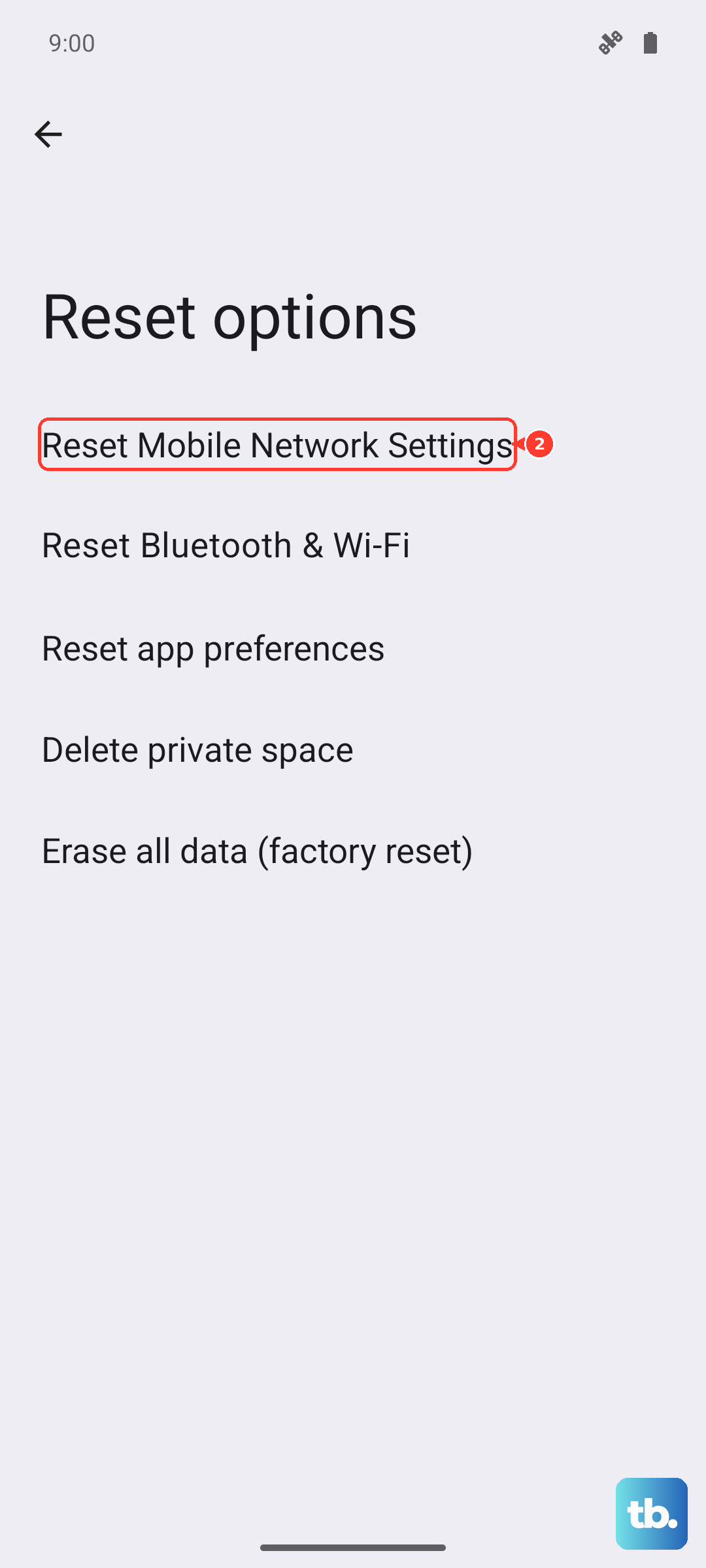
Be aware that this clears saved networks and pairings, so you will need to reconnect to your Wi-Fi networks and re-pair Bluetooth devices afterward. Your personal data and messages stay intact, and only the network configuration is reset.
The Last Resort and When to Call for Help
If none of the previous fixes work, a factory reset returns the Pixel 9a to its original software state and clears out any deep-seated software fault that has been blocking your texts. Because this is a destructive step, treat it as a true last resort and prepare first.
Back up your data before you begin. The official warning is clear, as a factory reset erases all of your data from your phone. Charge the phone to at least 70 percent first before you start the process.
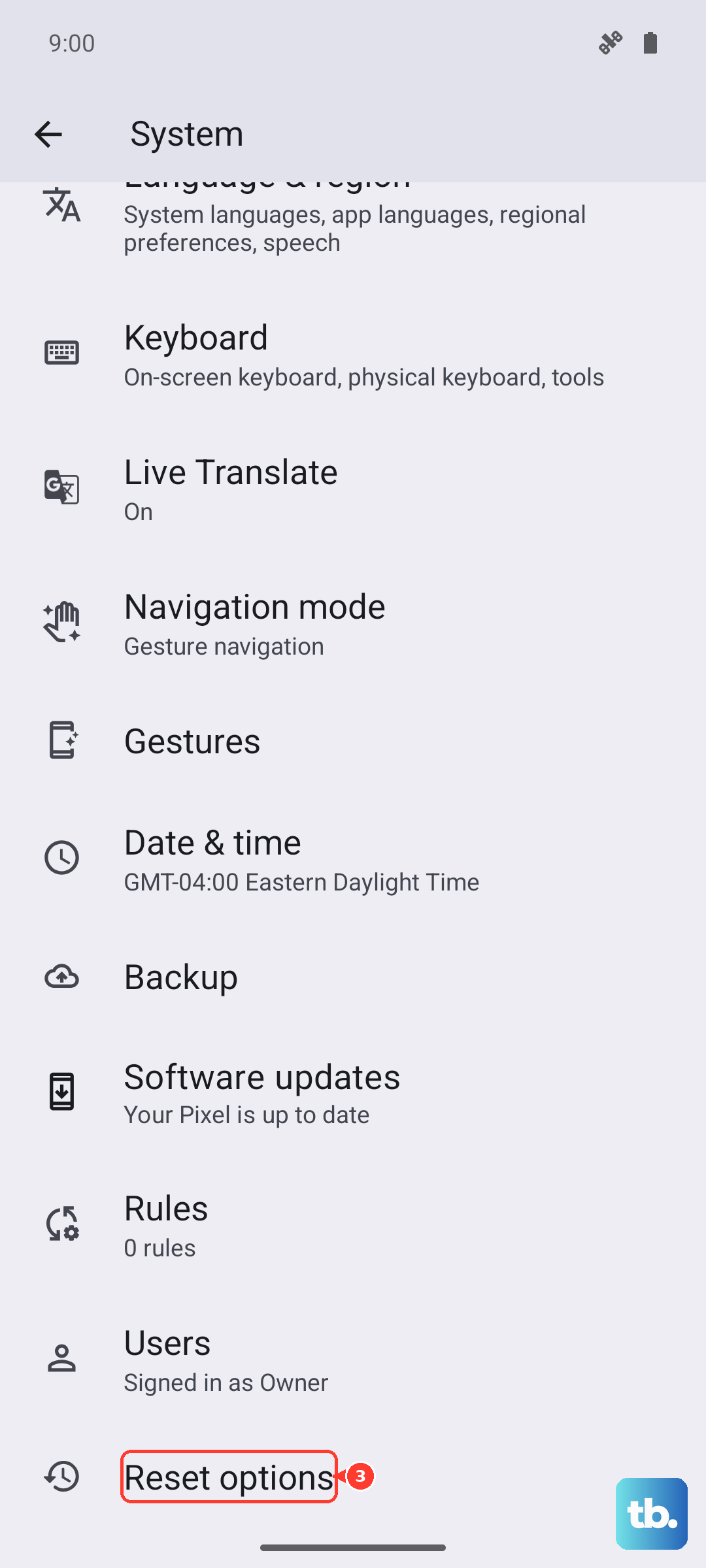
Go to Settings > System > Reset options > Erase all data (factory reset).
Follow the on-screen prompts to confirm and complete the reset.
If texting still fails even after a clean factory reset, the trouble is almost certainly on the carrier's side rather than your phone. At that point, contact your carrier or Google support so they can check your account, line provisioning, and message routing directly.
Frequently Asked Questions
Why do my regular texts send but picture messages fail on my Pixel 9a?
Picture messages and group texts use MMS, which travels over your mobile data connection rather than the basic SMS channel. Make sure you have an active data connection, then reset your APN settings to default in your device's settings app to restore the carrier data path that MMS relies on.
I switched to the Pixel 9a from an iPhone and people say their texts vanish. What is wrong?
If iMessage was never deactivated for your number, texts sent from iPhone users can stay stuck inside Apple's iMessage system and never arrive as standard SMS. Deactivate iMessage for your phone number so those messages route to your Pixel 9a as normal texts.
Should I turn RCS chats off to fix my texting?
Only turn RCS chats off if you recently changed messaging apps, moved your number, or switched phones. Google advises against toggling RCS chats on and off, noting that doing so will remove you from group chats, so leave it alone unless one of those situations applies.
Will resetting my network settings delete my messages or photos?
No. Resetting mobile network settings, or Bluetooth and Wi-Fi, only clears saved networks and pairings, not your personal data or message history. You will simply need to reconnect to Wi-Fi and re-pair Bluetooth devices afterward.
What should I do if texts still will not send after a factory reset?
If texting fails even after a full factory reset, the issue is almost certainly carrier-side rather than a problem with the phone. Contact your carrier or Google support so they can review your account, line provisioning, and message routing.