You shared your Pixel 9a's mobile data with a laptop or tablet last week without a second thought, and now the Wi-Fi hotspot either refuses to switch on, drops the moment a device connects, or shows up but hands out no internet at all. It is a frustrating spot to be in when you need a connection on the move and your phone is supposed to be the backup. The good news is that most hotspot trouble on the Pixel 9a comes down to a handful of settings, a carrier plan detail, or a temporary network glitch, all of which you can sort out yourself.
The Pixel 9a can absolutely share its connection. Google's tethering guidance confirms it supports a Wi-Fi hotspot for up to 10 other devices, plus USB tethering and Bluetooth tethering as alternatives. The fixes below start with the quickest, safest checks and only move toward a network reset or factory reset at the very end, so work through them in order and stop as soon as your hotspot comes back.
Start By Confirming Your Carrier Actually Allows Tethering
Before you change a single setting on the phone, rule out the most common non-phone cause. The hotspot shares your phone's mobile data, and Google notes plainly that "Some mobile carriers limit or charge extra for tethering." If your plan blocks tethering or you have used up your monthly tethering allowance, the hotspot will switch on and broadcast a network, but connected devices simply will not get internet.
Contact your carrier (or check your account details) to confirm that hotspot and tethering are included on your current plan and that you have data left to use. Sorting this out first saves you from chasing a phone problem that does not exist.
Switch the Wi-Fi Hotspot Off and Back On
A simple toggle clears a surprising number of temporary hiccups. Head to Settings > Network & internet > Hotspot & tethering > Wi-Fi hotspot, turn off Wi-Fi hotspot, wait a moment, then turn it back on.
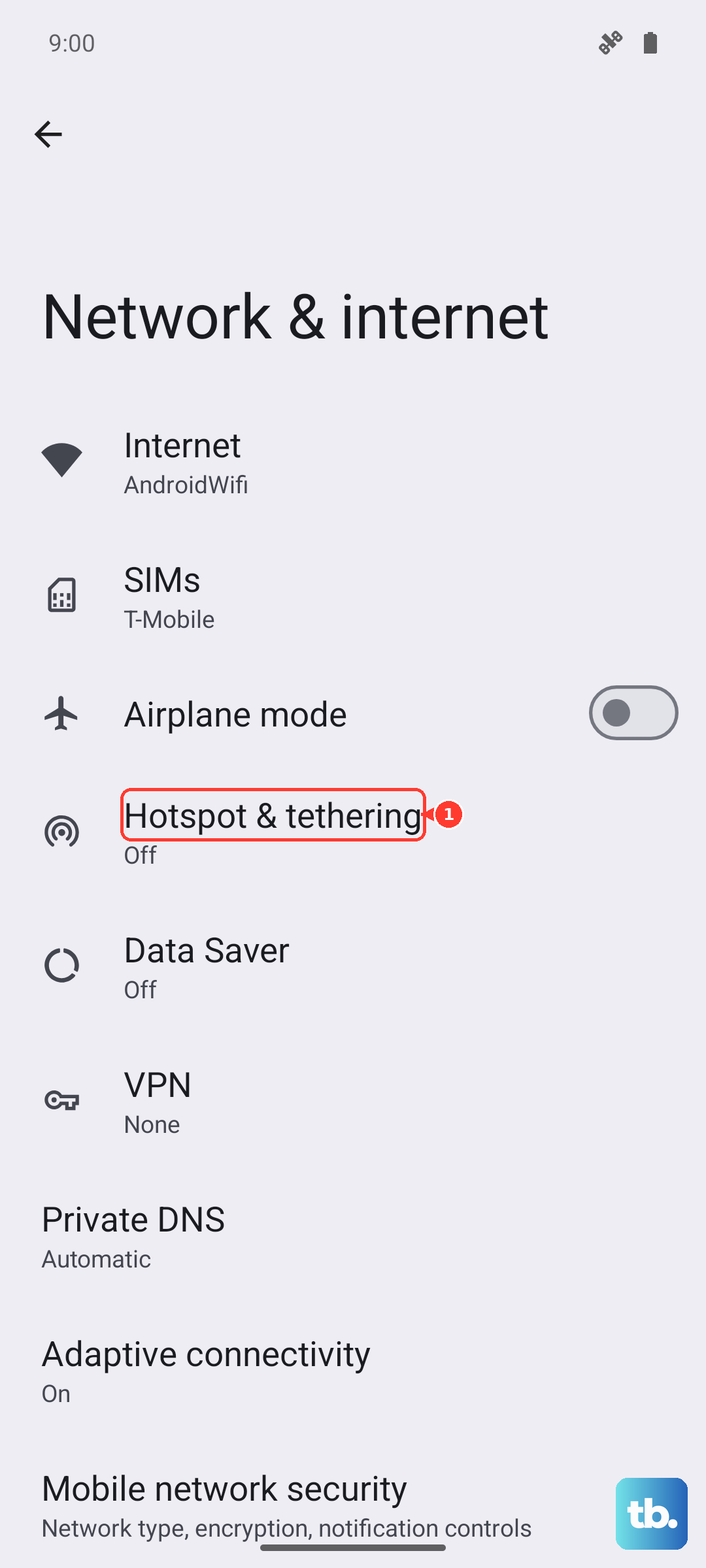
Keep one behavior in mind here. Google states "To save battery, your hotspot turns off when no devices are connected," so connect your laptop or tablet promptly after you switch it on rather than leaving it idle, or it may appear to have failed when it has simply powered down to conserve battery.
Turn Off Data Saver So Tethering Can Work
Data Saver is designed to cut background data use, but it can also stop your hotspot from sharing a connection. Google's guidance is direct on this point: "If you've turned on Data Saver, turn it off to tether by Wi-Fi."
If Data Saver is enabled, disable it and then try connecting a device again. This single toggle resolves cases where the hotspot looks active but no data passes through to the devices joining it.
Check or Reset the Hotspot Name and Password
A mistyped password is one of the most common reasons a device refuses to join. In Settings > Network & internet > Hotspot & tethering > Wi-Fi hotspot, you can review your network details, since Google explains that to find or change a hotspot setting, like the name or password, you tap it.
Re-type the password carefully on the connecting device, or change it on the phone and try again. If you want to rule the password out entirely while testing, you can open the security setting and select 'None', which removes the password requirement so the device can connect without one.
Make Sure the Phone Itself Has Working Mobile Data
A hotspot has nothing to broadcast if your Pixel 9a is not online to begin with. Open Settings > Network & Internet and turn off airplane mode, since airplane mode cuts the mobile data the hotspot depends on.
Next, go to Settings > Network & Internet > SIMs and make sure 'Mobile data' is on. Tap your carrier name and confirm 'Use SIM' is on as well. If the phone cannot load a webpage on its own, fix that first, because the hotspot cannot share a connection that is not there.
Restart Your Pixel 9a to Clear Network Glitches
A clean restart wipes out temporary network states that can break tethering. On Pixel 6 and later, which includes the Pixel 9a, the sequence is straightforward.
- 1.Press and hold the Power button and Volume up button for a few seconds.
- 2.Tap Restart.
Once the phone is back up, switch the hotspot on and try connecting again. This often resolves a hotspot that had been working fine until a recent glitch.
Force a Restart if the Phone Is Frozen
If your screen is frozen or completely unresponsive and the normal restart will not register, you can force the phone to reboot. This is safe and does not erase any data.
- 1.Press and hold the Power button for up to 60 seconds.
- 2.Once your phone begins to reboot and the screen displays the "G" logo, release the Power button.
After it powers back on, return to your hotspot settings and test the connection again.
Try USB or Bluetooth Tethering as a Workaround
If the Wi-Fi hotspot still will not cooperate, your Pixel 9a offers two other ways to share its connection, which can keep you online while you diagnose the Wi-Fi side. For a wired connection, plug your phone into the device with a USB cable, then go to Settings > Network & internet > Hotspot & tethering > USB tethering and turn it on.
For a wireless alternative, pair the two devices first, then go to Settings > Network & internet > Hotspot & tethering > Bluetooth tethering and turn it on. Both methods route the same mobile data the Wi-Fi hotspot would use, so they are a reliable fallback while you sort out the wireless side.
Install Pending Pixel Software Updates
System and security updates often include fixes for connectivity and network behavior, so an out-of-date phone can be the root of a stubborn hotspot. Go to Settings > System > Software update (the menu may read 'Software update' or 'System update') and follow the on-screen instructions to install anything that is waiting.
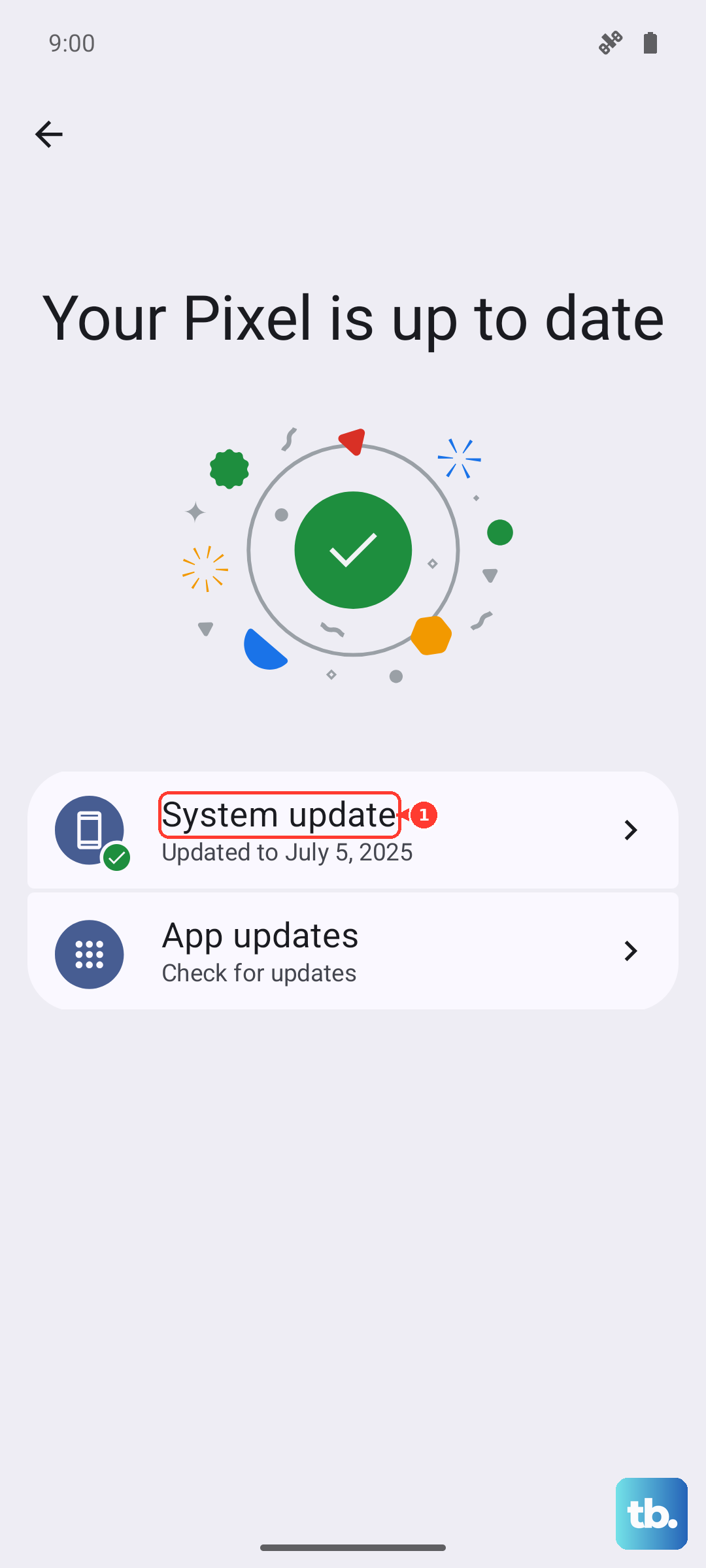
If you want to confirm what you are running, you can check your current Android version under Settings > About phone > Android version, which also shows your security update status and build number. Install everything available, then test the hotspot once more.
Reset the Mobile Network Settings
If the mobile data behind your hotspot keeps acting unreliable even after the steps above, a targeted network reset can clear the underlying state without touching your files. Go to Settings > System > Reset options > Reset mobile network settings.
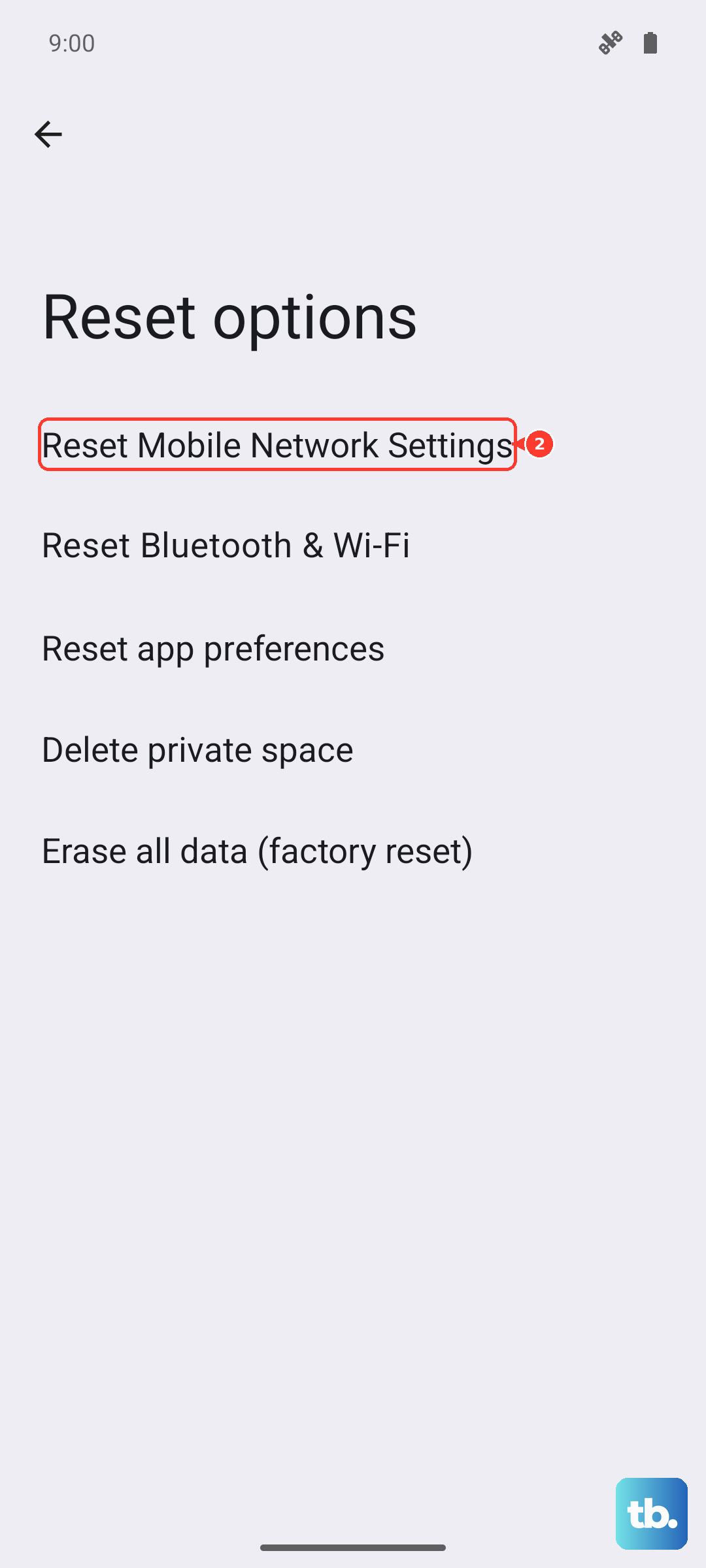
This resets your phone's mobile network state, which is exactly what helps when the hotspot's underlying data connection refuses to behave. It is far less drastic than a full reset, so try it before considering the final option.
Factory Reset as a Last Resort, Then Reach Out for Support
If you have worked through every fix and the hotspot still fails, a factory reset is the final do-it-yourself step. Be careful here, because Google warns "A factory reset erases all your data from your phone," so back up everything you care about first.
Once your backup is complete, follow the official path below.
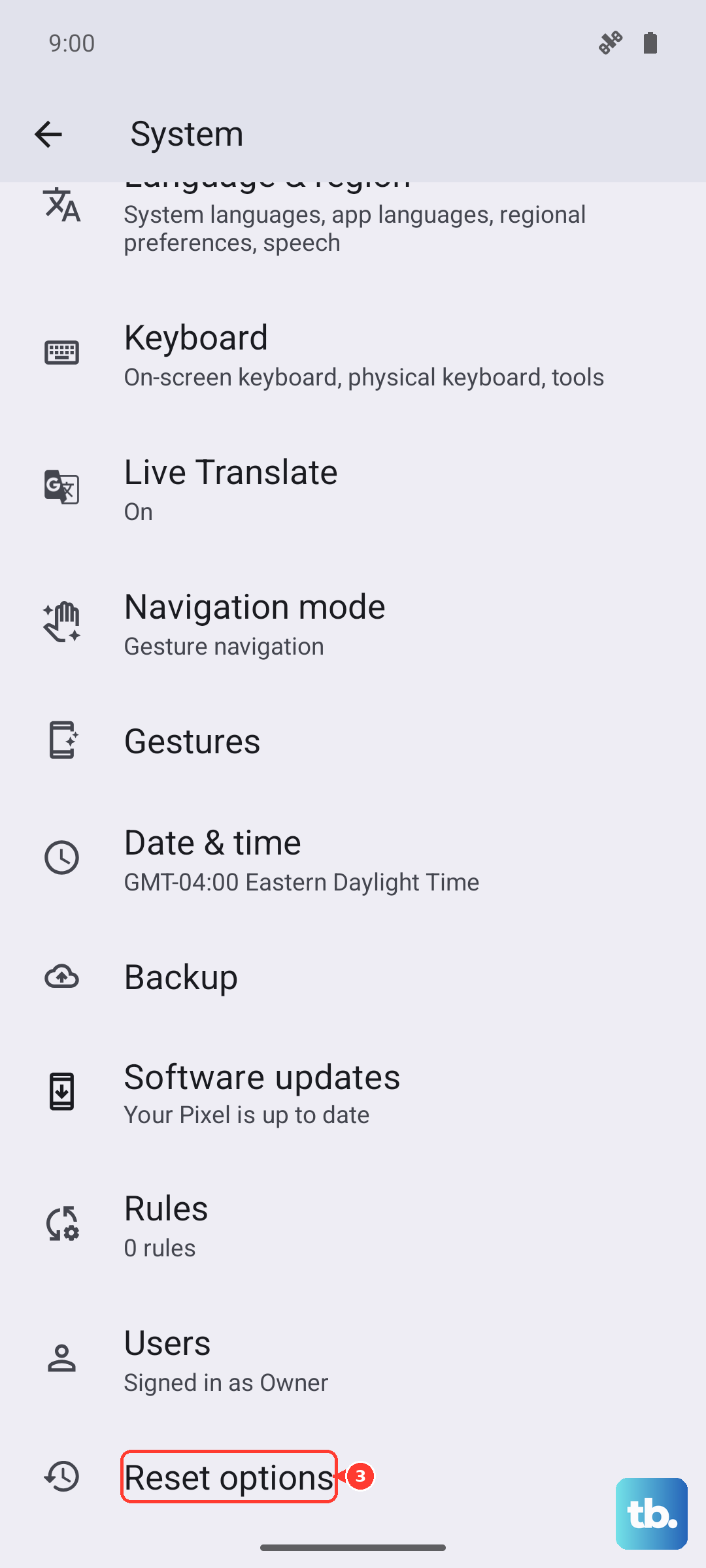
- 1.Go to Settings > System > Reset options > Erase all data (factory reset).
- 2.Tap Erase all data.
- 3.Enter your PIN if you are asked for it.
- 4.Tap Erase all data to confirm.
If the hotspot still will not work after the reset, the issue is likely beyond a settings fix. Contact your carrier for a plan or outage check, or reach out to Google or Pixel support for possible hardware service.
Frequently Asked Questions
How many devices can the Pixel 9a hotspot support?
According to Google's tethering guidance, you can share your Pixel 9a's mobile data with up to 10 other devices over a Wi-Fi hotspot. The phone also supports USB tethering and Bluetooth tethering as alternatives.
My hotspot keeps turning itself off. Is that normal?
Yes, that is expected behavior. Google states "To save battery, your hotspot turns off when no devices are connected," so connect a device soon after you switch the hotspot on rather than leaving it running idle.
Why does my hotspot turn on but devices get no internet?
This usually points to either a carrier or a data issue rather than the hotspot itself. Confirm your plan allows tethering, since some carriers limit or charge extra for it, and make sure your phone has working mobile data with airplane mode off and 'Mobile data' switched on under Settings > Network & Internet > SIMs.
Will resetting mobile network settings delete my photos or apps?
No. Resetting mobile network settings via Settings > System > Reset options > Reset mobile network settings only resets your phone's network state and does not erase your personal data. A factory reset is the only option here that erases everything, which is why it is the last resort.
Can I use the Pixel 9a hotspot without a password?
You can. In Settings > Network & internet > Hotspot & tethering > Wi-Fi hotspot, open the security setting and select 'None' to remove the password requirement. This is useful for testing a connection, though keeping a password is the more secure choice for everyday use.