
A frozen Google Pixel 9a that won't respond to touch or button presses is incredibly frustrating. The screen might be stuck on an app, the lock screen, or just black. The good news is that most of these freezes are temporary software glitches you can fix yourself without losing any photos or messages.
Force Restart Your Pixel 9a
This is almost always the first thing you should try. Just press and hold the Power button for a full 30 seconds or more. Keep holding it even if the screen stays black. You should eventually feel a vibration and see the Google logo as the phone reboots. This is a safe, data-free way to clear a temporary software hang.
Let the Phone Finish Its Task
Sometimes your Pixel 9a isn't truly frozen. It might be processing a large system update, installing several apps, or indexing files after a backup. If the phone feels warm to the touch, that's a good sign it's still working. Give it 5 to 10 minutes to finish before you decide to force restart it.
Plug It Into a Charger
A completely drained battery can make the phone seem dead or unresponsive. Grab a good USB-C cable and a charger that supports USB-PD. Plug it in and wait at least 15 minutes. If the battery was critically low, the phone needs to build up a small charge before it can even power on the screen properly.
For the fastest charging, use a 30W or higher USB-PD charger to hit the Pixel 9a's maximum 23W speed. If you're charging overnight, plugging it in will trigger Adaptive Charging, which is better for your battery's long-term health.
Close the Problem App
If your home screen and other apps work, but one specific app is frozen, you can force close it. Swipe up from the bottom and hold to enter the recent apps view. Find the frozen app's preview and swipe it all the way up off the screen. Then, tap the app icon again to reopen it fresh.
If the same app keeps freezing, head to the Google Play Store and check for an update. As a last resort, you can uninstall and reinstall it, which often clears corrupted app data.
Check Your Available Storage
When your phone's storage is completely full, the operating system has no room to create temporary files, which can cause freezing and crashes. If you can get into Settings, go to Settings > Storage to see how much space is left.
Try to keep at least 5-10 GB free. You can quickly free up space by clearing cached data from apps or offloading old photos and videos to Google Photos.
Install the Latest Android Update
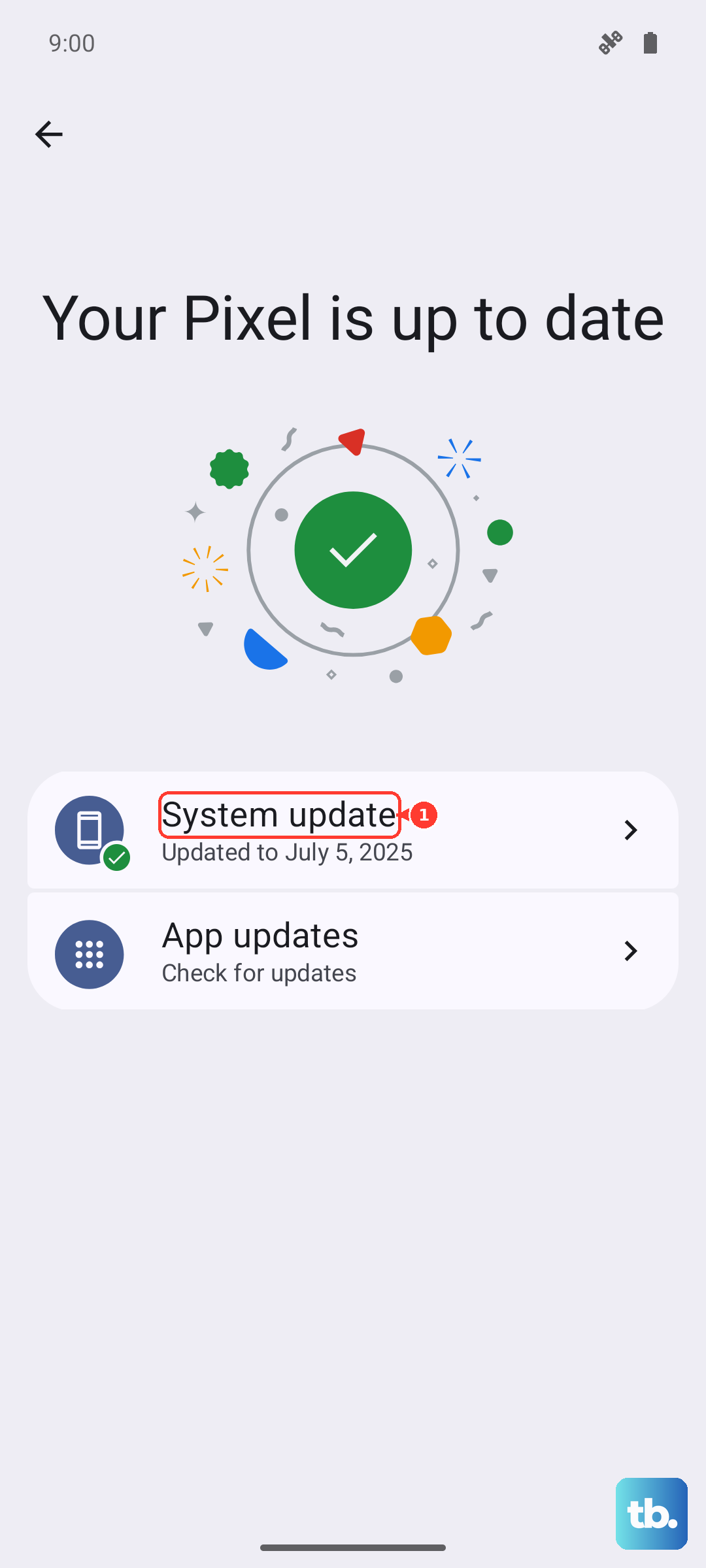
Software bugs that cause freezing are often patched in updates. After you've restarted your phone, go to Settings > System > System update and tap "Check for update." Download and install any available update. Keeping your Pixel 9a on the latest available version of Android is one of the best ways to ensure stability.
Reset Your Phone's Settings
If freezes keep happening after a restart, a system setting might have become corrupted. You can reset them without touching your personal data. On OnePlus, go to Settings > Additional settings > Back up and reset > Reset phone > Reset all settings; Pixel, Motorola, Nothing, and ASUS phones have no Reset all settings option, so go to Settings > System > Reset options and use Reset app preferences or Reset Bluetooth & Wi-Fi instead.
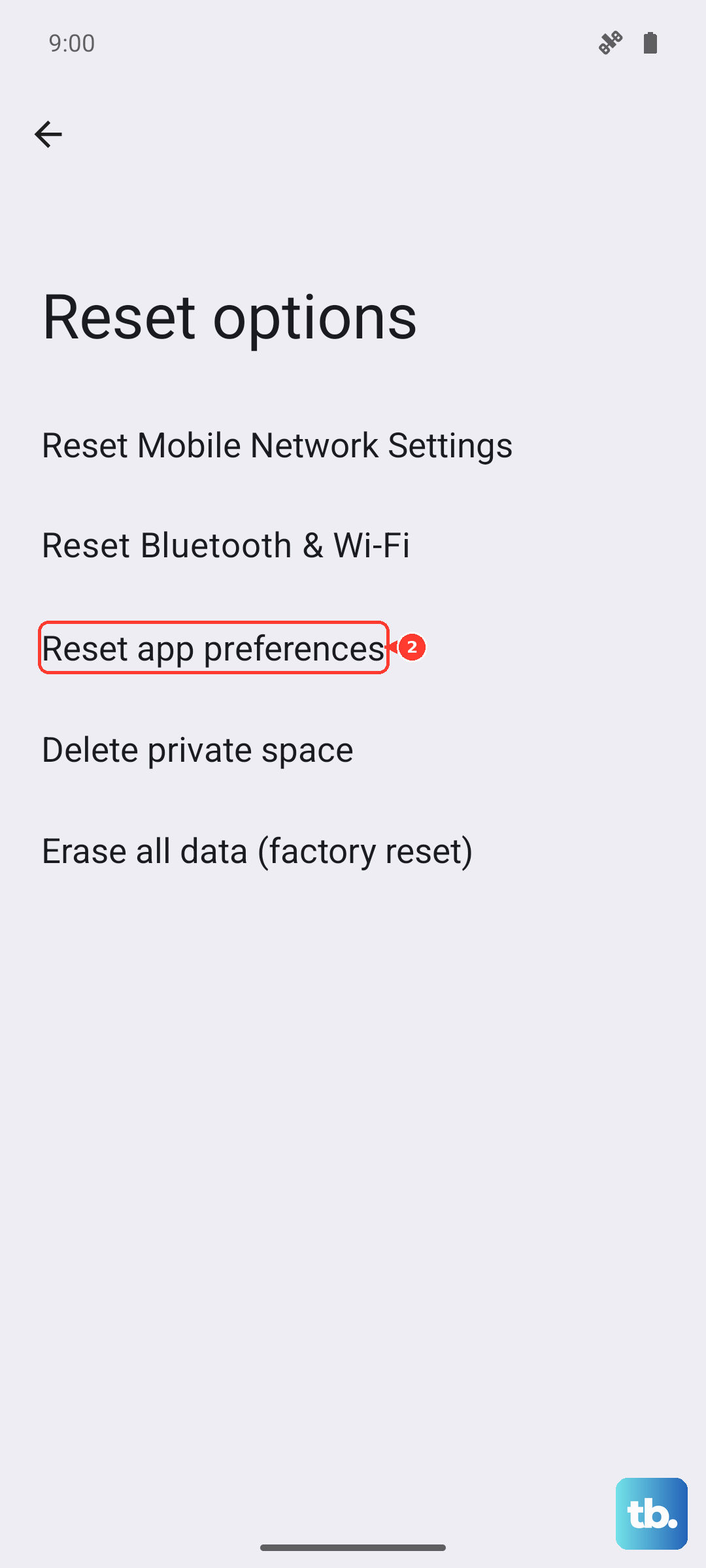
This will revert your Wi-Fi passwords, Bluetooth pairings, and display preferences back to default, but your apps, photos, and accounts will remain intact. It's a very effective deep clean for persistent glitches.
Use a Computer to Restore the Software
For a phone that is completely unresponsive and won't force restart, you'll need to use a computer. First, install Android Flash Tool on a Chrome browser or use the official Pixel Repair Tool. Connect your powered-off Pixel 9a to the computer with a USB-C cable.
Then, press and hold the Volume Down button and the Power button together until the bootloader screen appears. Follow the on-screen instructions on your computer to re-flash the device software. This process can fix the issue without a full wipe, but backing up first is always wise.
Let an Overheated Phone Cool Down
The Tensor G4 chip will throttle performance or freeze the phone if it gets too hot to prevent damage. If your Pixel 9a feels very warm, take it out of its case and move it away from direct sunlight. Let it sit, powered off, for 15-20 minutes to cool down completely.
Avoid using demanding apps or wireless charging while the phone is hot, as the 7.5W wireless charging can generate additional heat. I've found that letting the phone cool before trying to restart it often resolves the freeze immediately.
If you're in an area with very weak cellular signal, the modem can also work harder and contribute to heat. Toggling on Extreme Battery Saver or switching to Airplane Mode temporarily can help reduce this strain while you get the phone working again.