
If your Google Pixel 9a is taking forever to charge, you're not alone. The phone supports 23W wired charging, which should be fairly quick, but a few common issues can bring it to a crawl. The good news is most of them are easy to fix yourself.
Start with the Right Charger and Cable
For the Pixel 9a to hit its 23W peak, you need a USB-C Power Delivery (PD) charger rated for 30W or higher. The phone will negotiate the fastest speed it can handle. That old 5W or 10W brick from an older device will charge it, but painfully slowly. I'd start by checking the wattage printed on your adapter.
You also need a good USB-C to USB-C cable. The one that came in the box is fine, but aftermarket cables can work if they support USB-PD. A worn-out or cheap cable that only handles basic charging will be your bottleneck. If you have a spare, try it.
Clean the USB-C Port
This is a very common culprit. Pocket lint gets packed into the port over time, preventing the cable from seating fully. That poor connection can limit power flow. Power the phone off first, then use a wooden toothpick or a plastic flosser to gently scrape out any debris. Avoid metal tools that could damage the pins.
After cleaning, plug the cable back in. It should click in firmly without any wobble. A clean, secure connection is essential for fast charging to work properly.
Check for Overheating
The Pixel 9a, like all phones, will throttle charging speed if it gets too hot. Using the phone for gaming or navigation while it's plugged in is a surefire way to slow things down. Feel the back of the device. If it's warm, take it off the charger for a few minutes to cool down.
Also, remove any thick case while charging. Cases trap heat, which the phone's safety systems interpret as a need to slow down. Charging on a cool, hard surface like a table is better than on a soft bed or couch.
Restart Your Pixel 9a
A simple reboot can clear up temporary software glitches that might be interfering with the charging system. Just press and hold the Power button for about 30 seconds. You'll see the screen go black and the Google logo reappear as it restarts. This is the force restart method and it takes less than a minute.
Review Your Charging Settings
Go to Settings > Battery. Look for an option called Adaptive Charging. This is a great feature for battery health if you plug in at night, as it slows charging to finish just before you wake up. However, if you need a fast top-up during the day, it might be holding things back. You can temporarily disable it.
While you're there, check if Extreme Battery Saver is on. This mode severely limits background activity and can affect charging behavior. Turn it off for a normal, faster charge.
Test Wireless Charging Separately
The Pixel 9a supports Qi wireless charging, but it's capped at 7.5W, which is inherently slower than wired. If your wireless charger seems exceptionally slow, make sure you're using a compatible Qi charger and that the phone is centered correctly on the pad. Any misalignment can reduce efficiency.
Remember, wireless charging generates more heat. If the phone or the charger feels hot, the speed will drop even further as a safety measure. For the fastest possible charge, wired is always the way to go.
Update Android
Google releases updates that can improve power management and fix bugs. Go to Settings > System > Software update (labeled System update on some phones, including Nothing devices) to check for and install any available updates. Sometimes a charging performance issue is addressed directly in a software patch.
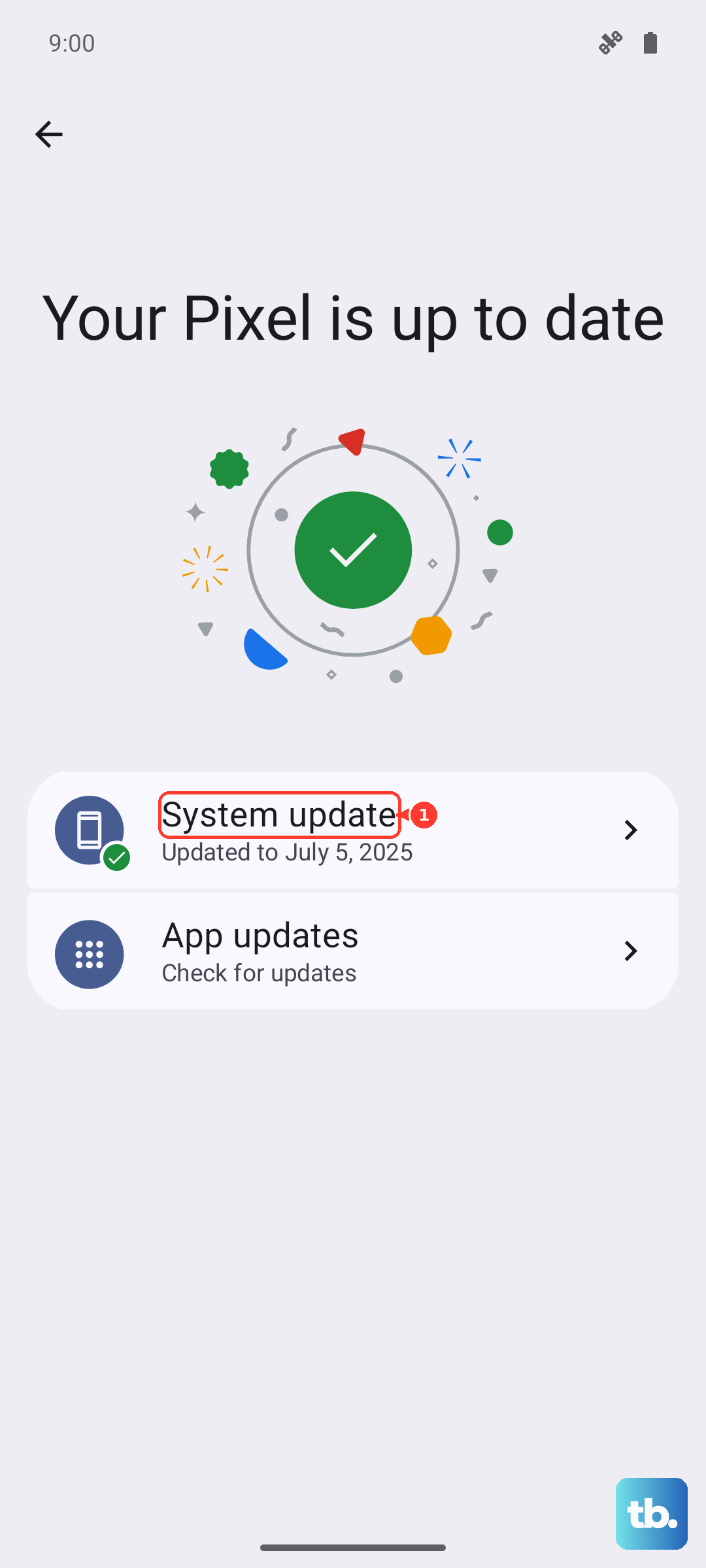
Try a Different Outlet and Power Source
It sounds simple, but the problem might not be your phone. Plug your charger into a different wall outlet. Some power strips or older outlets don't deliver consistent power. Also, avoid charging from low-power sources like your laptop's USB port, as those are usually limited to very slow charging speeds.
Inspect Your Hardware
Look closely at your charging cable for any fraying, kinks, or damage near the connectors. Even slight damage inside the cable can restrict power. Try your friend's known-good 30W+ USB-PD charger and cable with your phone. If fast charging works, you've found your faulty component.
Similarly, check the phone's USB-C port for any physical damage, like bent or missing pins. If the port itself is damaged, it may need repair to restore full functionality.
Consider the Battery's Age
If your Pixel 9a is older and has been through many charge cycles, the battery's maximum capacity naturally degrades. A degraded battery won't accept a charge as quickly as a new one. You can check general battery health in Settings > Battery > Battery health, though the diagnostics are more limited on Android.
Heavy usage in areas with weak cellular signal can also strain the battery and cause more heat, as the Tensor G4 modem works harder. This indirect effect can contribute to slower overall charging experiences over time.