Your Google Pixel 9 should show off crisp, smooth visuals on its 6.3-inch Actua OLED display, so watching the screen jitter, strobe, or flash is unsettling, especially when you paid for a flagship. Flickering can show up as a faint pulse in dim rooms, a stutter when scrolling, or a brief flash when the brightness shifts, and it usually traces back to either a software hiccup or a genuine display fault. The good news is that Google treats screen-appearance problems like flickering as something you can often fix yourself before assuming the worst. Work through the steps below in order, starting with the safest and easiest, and you will know fairly quickly whether you are dealing with a fixable glitch or hardware that needs attention.
Before adjusting cables and settings, run a quick monitor test in your browser. Its fullscreen patterns make problems like flicker, banding, and uniformity issues much easier to spot and describe.
Install the latest software before anything else
Google's official screen-appearance guidance is direct on this point, in that the first thing to try for flickering, a green tint, or lines on the screen is a system update. Display bugs are frequently patched in operating system and security updates, and your Pixel 9 is entitled to seven years of OS, Pixel Drops, and security updates, so there is a strong chance a fix is already waiting for you.
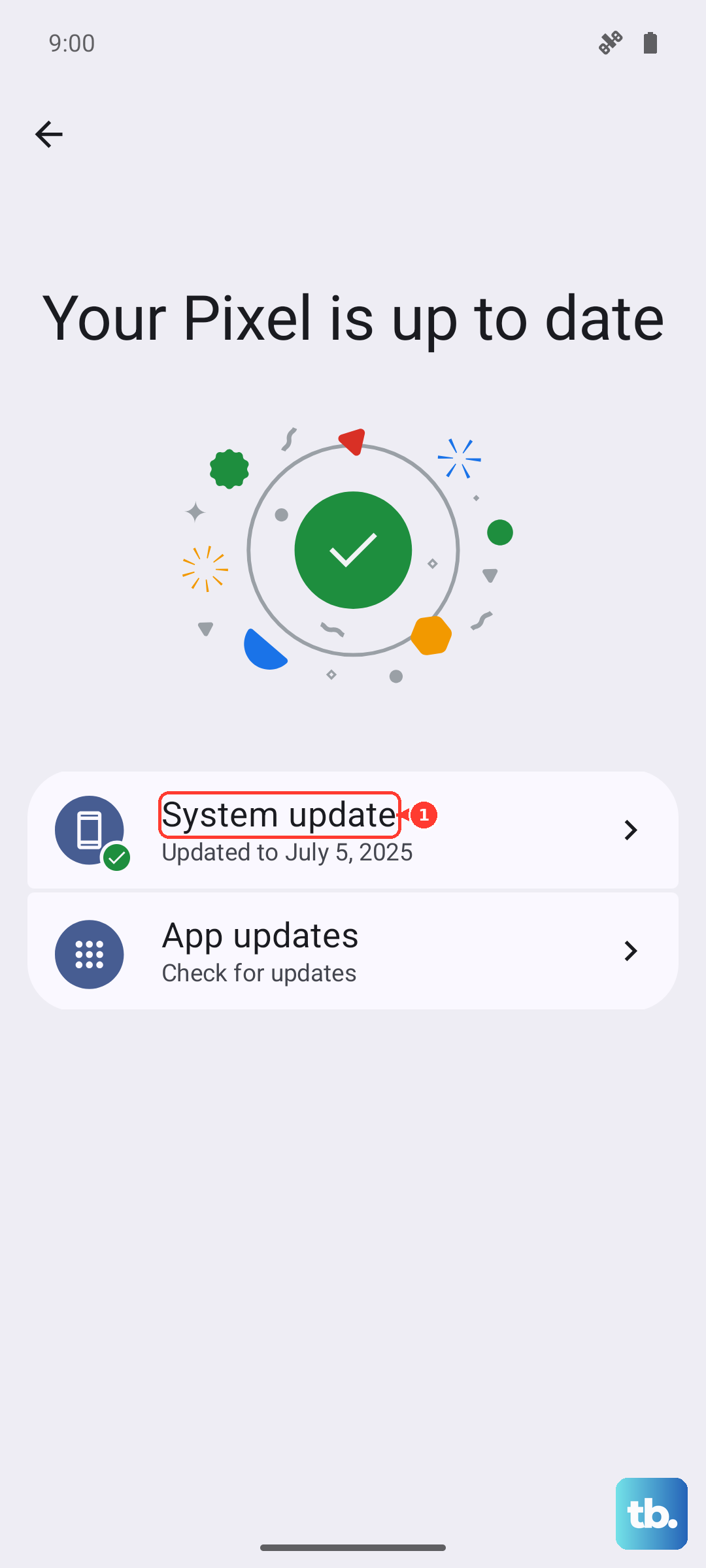
Connect to Wi-Fi and put the phone on a charger first, then update.
Open the Settings app.
Tap System.
Tap Software updates (this is called System update on some Pixel devices).
Follow the on-screen instructions to download and install anything available.
If you want to confirm where you currently stand, go to Settings > About phone > Android version, which shows your Android version, security update level, Google Play system update, and build number. The Pixel 9 shipped with Android 14 and updates onward to Android 15 and later, so most owners will already be past the launch software.
Reboot to clear a temporary glitch
A plain restart wipes out the temporary software states that can make a screen flicker, and it costs you nothing but a minute. On the Pixel 6 and later, which includes the Pixel 9, the sequence is specific, so use exactly these buttons.
Press and hold the Power button and the Volume up button together for a few seconds.
When the menu appears, tap Restart.
Let the phone come fully back to the lock screen, then use it normally for a while to see whether the flicker returns.
Force a reboot when the screen is flickering badly or frozen
If the flickering is so severe that the screen is unresponsive, or a normal restart will not go through, you can force the phone to reboot. This method is the verified one for the Pixel 6 and later, including the Pixel 9, so do not substitute a different timing you may have seen elsewhere.
Press and hold the Power button for up to 60 seconds.
Once the phone begins to reboot and the screen displays the "G" logo, release the Power button.
If the phone is off afterward and will not wake, press and hold the Power button until you feel a buzz, which can take up to 7 seconds in some situations.
Rule out brightness changes that mimic flicker
Brightness that shifts on its own can look a lot like flickering, particularly when you move between a bright and a dim space. Your Pixel 9 has Adaptive brightness on by default, which auto-fits the screen to the light around you, and that constant adjusting is sometimes the "flicker" you are noticing.
Head to Settings > Display & touch > Brightness level.
From there you can toggle Adaptive brightness, or move the brightness slider to set a steady manual level.
Setting a fixed brightness for a while is a quick way to tell whether the screen is actually faulty or just responding to the room.
Switch display modes to separate software from hardware
Changing how the screen renders can help you tell a software rendering issue apart from a true hardware fault, and it eases eye strain while you investigate. Turning on Dark theme is a low-effort way to do this.
Go to Settings > Display & touch > Dark theme to enable it, and you can also schedule it to switch on and off at set times.
Watch whether the flicker behaves differently in dark mode versus light mode, since a difference points toward how the screen is being drawn rather than the panel itself.
Boot into Safe mode to expose a problem app
Sometimes a downloaded app, not the phone, is behind the flicker. Safe mode temporarily disables third-party apps so you can test that theory in isolation, and it is one of Google's recommended on-device troubleshooting tools.
To enter Safe mode on the Pixel 6 and later, including the Pixel 9:
Press and hold the Power button and Volume Up for a few seconds.
Tap and hold either the Power off or Restart option.
Select OK.
You will see "Safe mode" at the bottom of the screen.
If the flickering stops while you are in Safe mode, a downloaded app is most likely the cause, so uninstall recently added apps one at a time until the problem is gone.
To leave Safe mode, press and hold Power and Volume Up briefly, then tap the Restart icon.
Erase all data as the last software step
If updating, restarting, and Safe mode all come up empty, a factory reset clears deeper software problems that ordinary troubleshooting cannot reach. This is a heavy step with a clear warning, in that a factory reset erases all your data from your phone.
Before you start, back up everything you care about, charge the phone to at least 70 percent, connect to Wi-Fi or mobile data, and make sure you know your Google Account username and password so you can restore your data afterward.
- 1.Open Settings > System > Reset options.
- 2.Tap Erase all data (factory reset).
- 3.Tap Erase all data.
- 4.If prompted, enter your PIN.
- 5.Tap Erase all data to confirm.
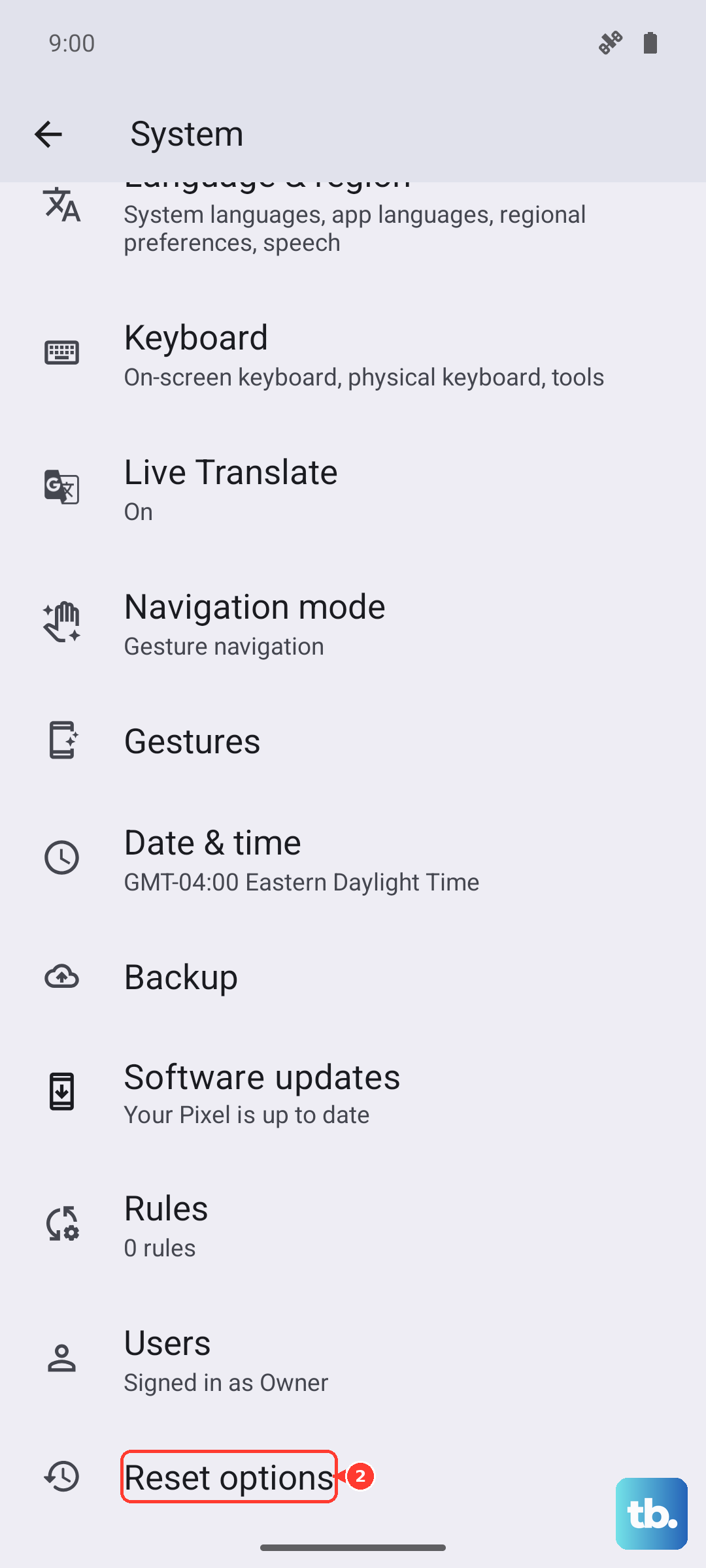
Set the phone up again afterward and watch for the flicker before reinstalling all your old apps, so you can be sure a clean system is stable.
Get help from Google or arrange a repair
If the flickering, a green tint, or lines continue after you have updated and worked through these steps, Google's own screen-appearance guidance says it is time to contact Google or get the phone repaired. Persistent screen-appearance problems that survive a software update typically indicate a hardware or display fault, which is not something you can fix from Settings.
You can start a repair through the Google Store at store.google.com/repair, where mail-in and walk-in authorized repair is available in supported countries.
Before you send the phone in, back up your data and remove the SIM card.
You can also reach a Pixel support agent through Google's Pixel support if you want to talk it through first.
Frequently Asked Questions
Is Pixel 9 screen flickering always a hardware problem?
No. Google treats flickering as either a software or a hardware display issue, which is why the official advice is to try a system update first and only move toward repair if the problem persists. Many cases clear up after an update, a restart, or removing a misbehaving app, so work through the software steps before assuming the panel is faulty.
Should I update before trying anything else?
Yes. Installing the latest software is the first fix Google lists for flickering, a green tint, or lines, because display bugs are commonly resolved in OS and security updates. Open Settings > System > Software updates while on Wi-Fi and charging, then follow the on-screen instructions.
How do I know if a downloaded app is causing the flicker?
Boot into Safe mode, which temporarily disables third-party apps. If the flickering stops in Safe mode, a downloaded app is most likely the cause, so uninstall recently added apps one at a time after you exit. If the flicker continues even in Safe mode, the cause is more likely the system or the hardware.
Will a factory reset fix flickering?
It can resolve deeper software problems when updates, restarts, and Safe mode do not help, but it erases all your data from the phone, so treat it as a last software step. Back up first, charge to at least 70 percent, connect to Wi-Fi or mobile data, and have your Google Account login ready before you begin.
Where do I go if the flickering will not stop?
If flickering, a green tint, or lines persist after updating and the other steps, contact Google or arrange a repair, since that usually points to a hardware issue. Start a repair through the Google Store at store.google.com/repair, and remember to back up your data and remove the SIM card before sending the phone in.