Wireless charging not working on your Pixel 9 Pro XL is usually a simple fix. The phone supports Qi charging up to 23W, but a few common things can trip it up. Here’s how to get it working again.
Start With the Alignment
Place your phone in the center of the charging pad. The charging coil in the Pixel 9 Pro XL is roughly in the middle of the phone's back. If you're off by even a centimeter, it might not charge. Look for the charging indicator on the screen, you should see the battery icon with a lightning bolt or a wireless charging symbol.
Remove the Case
Thick cases, especially ones with metal plates, magnets, or card slots, can block the Qi signal. Pop the case off and set the phone directly on the charger. If it starts charging, your case is the culprit. You'll need a slim, non-metallic case that's compatible with wireless charging.
Restart the Phone
A quick force restart clears up software hiccups that can interfere with charging. Press and hold the Power button and Volume up button simultaneously until the Restart option appears on screen, then tap Restart. After the phone boots up, place it on the charger again.
Update the Software
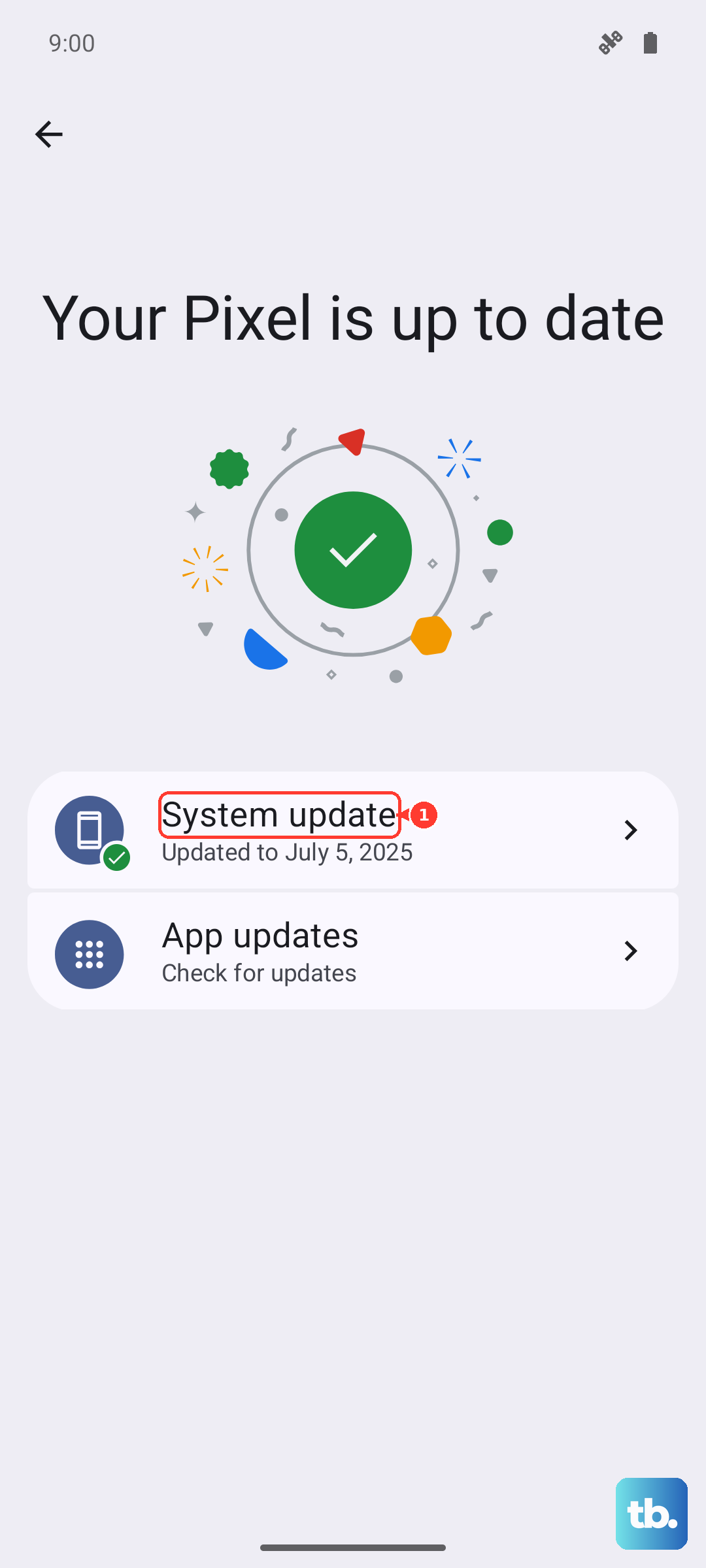
Google has released patches that fix wireless charging bugs in past Android 14 updates. Go to Settings > System > System update and install any available updates. Doing this over Wi-Fi is usually fastest. A reboot after updating is also a good idea.
Watch for Overheating
Wireless charging generates heat, and the Pixel 9 Pro XL will stop charging if it gets too hot. This can happen if you're using the phone while it's on the pad, if it's in direct sunlight, or if the charger itself is running hot. Let both the phone and the charger cool down for 10‑15 minutes, then try again.
Turn Off Adaptive Charging
Your Pixel has smart charging features that can interfere with normal wireless charging behavior. Go to Settings > Battery > Adaptive charging and toggle it off. This setting learns your routine and may delay charging to preserve battery health, but it can sometimes prevent the phone from starting to charge at all.
Try a Different Wireless Charger
Not all Qi chargers play nice with every phone. If you have another wireless charger, test that one. The Pixel 9 Pro XL supports up to 23W on compatible Qi chargers, but even a basic 5W pad should work. If it charges on another pad, the first charger may be faulty or incompatible.
Use a Stronger Power Adapter
Wireless chargers need enough power from the wall to work properly. Plug the charger into a USB‑C adapter rated for at least 15 20W (ideally a USB‑C PD adapter). A weak 5W phone adapter may not provide enough juice, causing the charger to blink or do nothing. The Google 45W charger that came with your phone works great for this.
Reset the Phone’s Settings
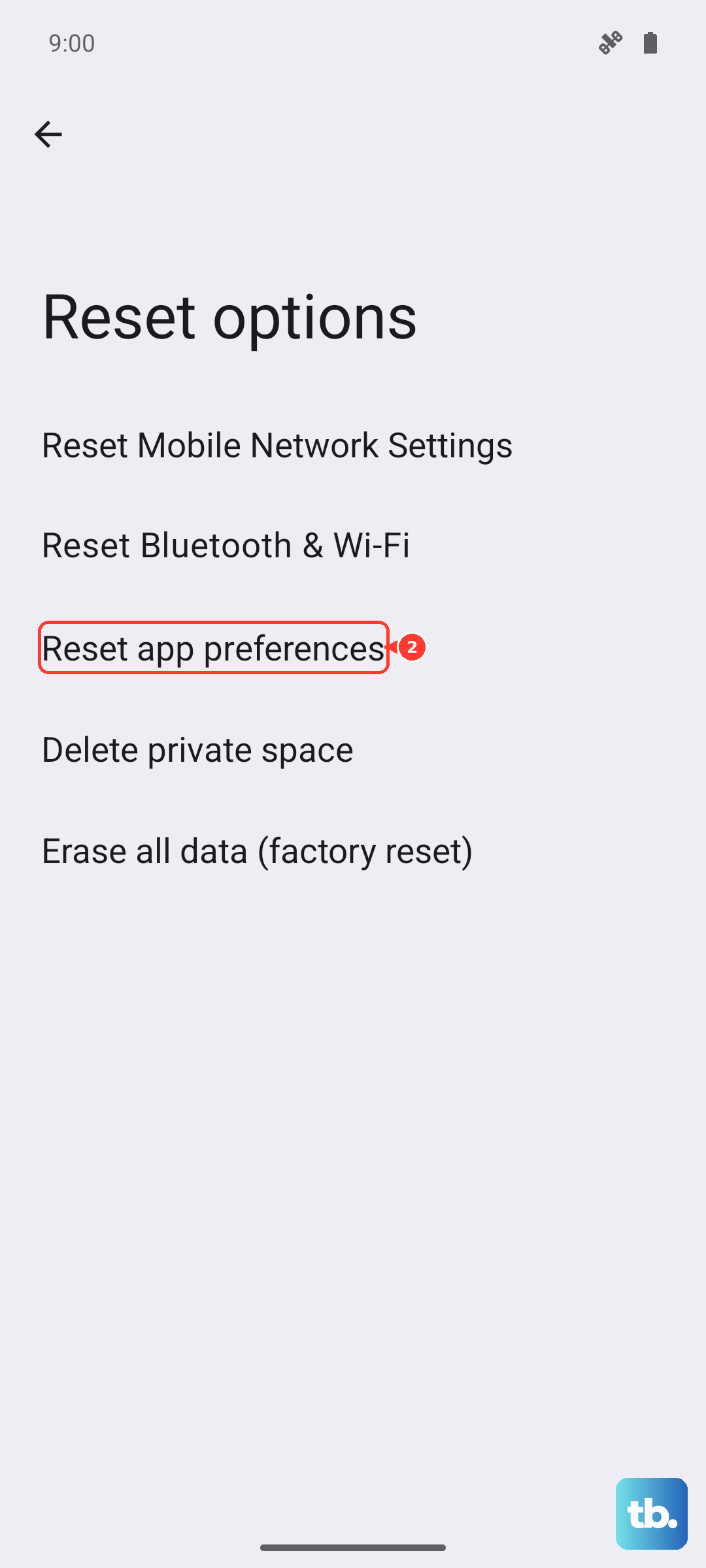
If nothing else has worked, a settings reset can fix deeper software issues without erasing your data. On OnePlus, go to Settings > Additional settings > Back up and reset > Reset phone > Reset all settings; Pixel, Motorola, Nothing, and ASUS phones have no Reset all settings option, so go to Settings > System > Reset options and use Reset app preferences or Reset Bluetooth & Wi-Fi instead. This resets network settings, display preferences, and other system configurations but keeps your photos, apps, and accounts. After the reset, test wireless charging again.