
If your Google Pixel 9 Pro XL videos are stuttering, freezing, or buffering during playback, it's a frustrating experience. The good news is most causes are easy to diagnose and fix without any complicated tools.
Start with a Force Restart
Before getting into settings or storage, try a quick force restart. This clears out temporary system glitches that often mess with video playback.
Press and hold the Power button and the Volume up button at the same time. Keep holding until the Restart option appears on screen, then tap it. Your phone will reboot and should feel snappier.
Free Up Storage Space
The Pixel 9 Pro XL needs a decent amount of free space to handle video files smoothly. When storage gets tight, videos can drop frames and stutter.
Open Settings and tap Storage. If you're down to under 1GB, it's time to clean house. Delete old downloads, offload unused apps, or move photos and videos to Google Photos to free up room.
Check Your Internet Connection
Streaming lag is usually a network problem. Weak Wi‑Fi or slow mobile data will cause video apps to buffer constantly.
Toggle Wi‑Fi off and switch to cellular data to see if the issue follows the connection. If it's only on Wi‑Fi, restart your router or forget the network and reconnect.
Update Android and Your Apps
Running outdated software can introduce video codec conflicts. Google frequently pushes fixes for media playback in system updates.
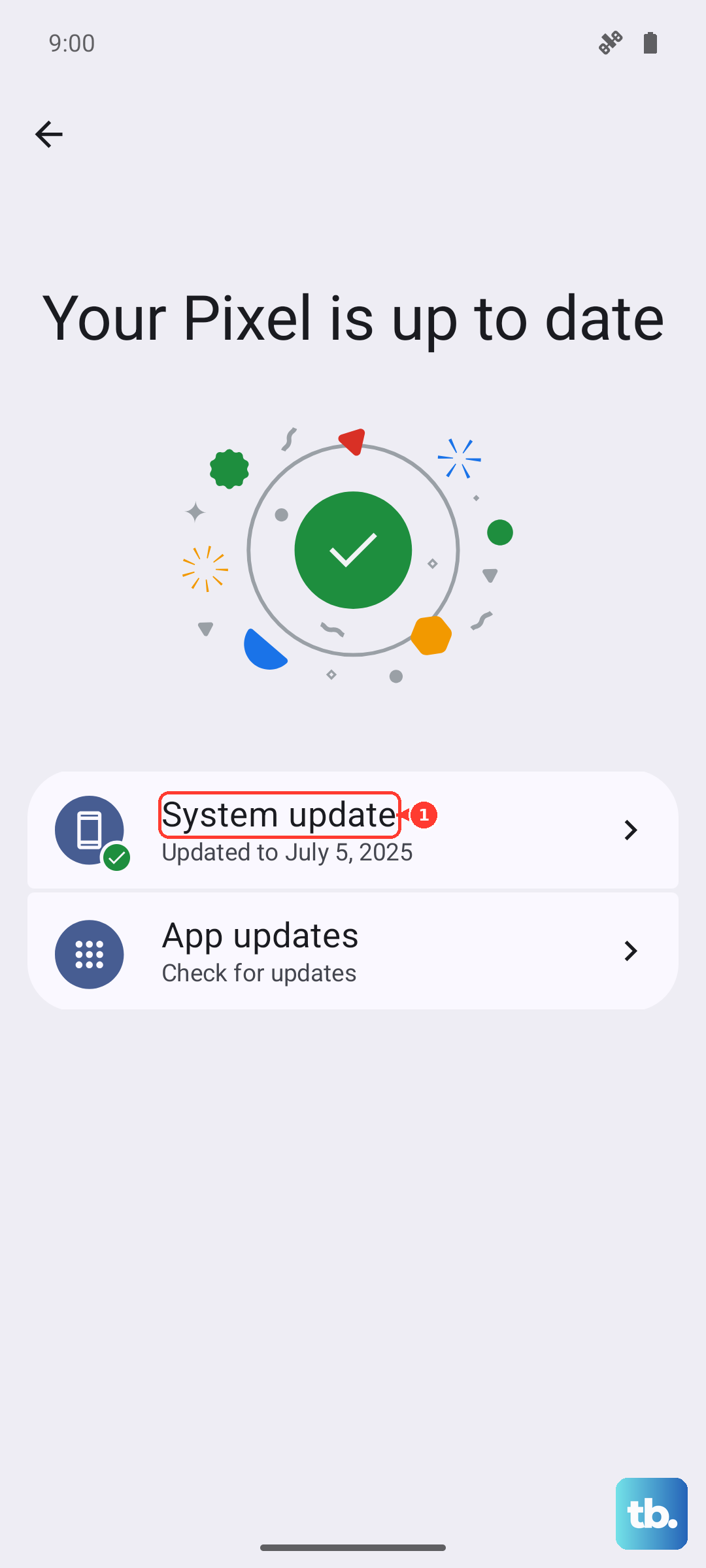
Go to Settings > System > Software update and install anything pending. Also update your video apps from the Play Store, old app versions often lag behind Android optimizations.
Close Background Apps and Clear Cache
Too many apps running in the background can choke the processor, causing video stutter. Recent apps, especially games or streaming apps, are the main culprits.
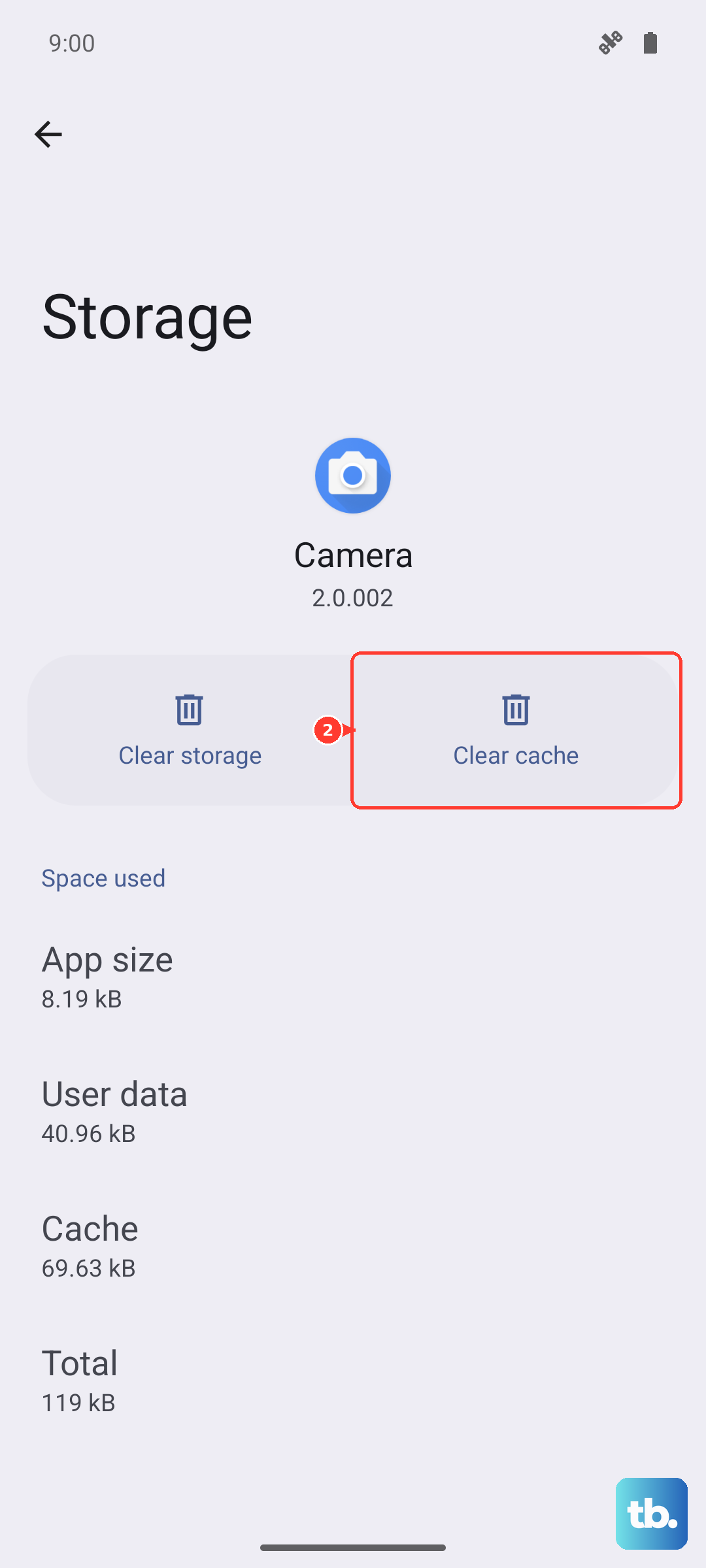
Swipe up from the bottom and swipe away recent apps you don't need. For a deeper clean, go to Settings > Apps > find the video app, then tap Storage & cache and choose Clear cache. This won't delete your data, just temporary files.
Reset Settings Without Losing Data
If you've tried everything and videos still lag, a settings reset can fix deeper software gremlins. Your photos, messages, and accounts will stay safe.
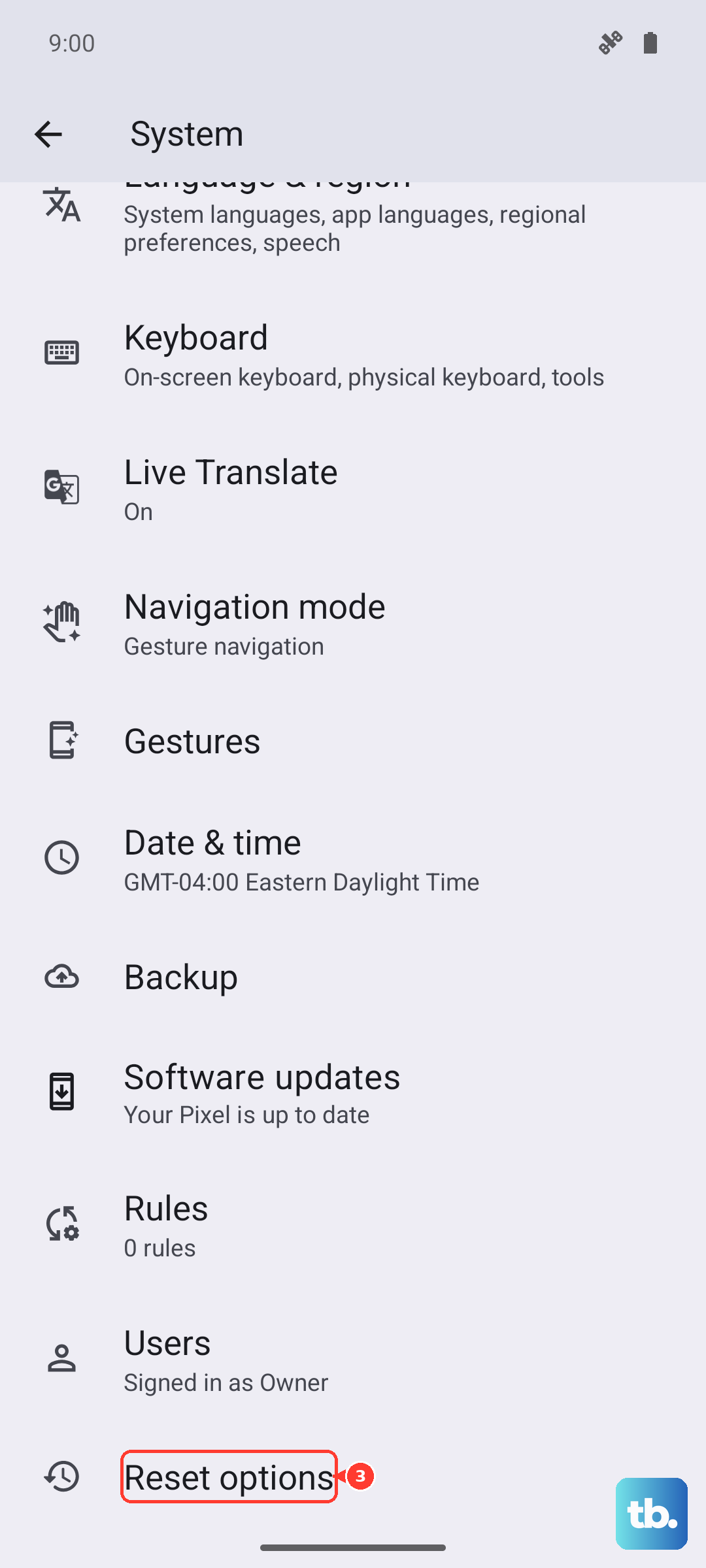
Head to Settings > System > Reset options and tap Reset all settings. You'll need to redo things like Wi‑Fi passwords and wallpapers, but it's worth a shot.
Factory Reset as a Last Resort
When nothing else works, a full factory reset can wipe out persistent software issues. Back up your data first, this erases everything.
Go to Settings > System > Reset options > Erase all data (factory reset). After the reset, restore from your backup and test video playback before adding apps back.
A Quick Note on Charging and Accessories
Some Pixel 9 Pro XL users have found that using a damaged or third‑party cable can cause the phone to throttle performance, leading to lag. If you've been noticing stutter, try switching to a high‑quality USB‑C cable, like the one from an iPad or a certified USB‑C PD cable. Also check that you're using a compatible charger; the phone supports up to 37W wired charging with the right charger. You can also go to Settings > Battery > Charging optimization and turn off smart charging if you suspect power management is interfering with performance.