
So you're expecting your Pixel 9 Pro XL to buzz and it just isn't happening. The phone's haptics are usually pretty solid, so when vibration goes silent, it's worth looking into. Most of the time it's a setting that got flipped or a temporary software hiccup that clears up fast.
Force Restart First
Start with the quickest fix possible. Press and hold the Power button and the Volume up button at the same time until the restart menu shows up. Tap Restart and wait for the phone to come back.
This clears out any minor glitches in the system that might have killed vibration. I'd try this before digging into menus because it takes about 30 seconds and fixes the issue more often than you'd expect.
Check Your Sound Mode
Your Pixel might be set to completely silent, which turns off vibration entirely. Swipe down from the top of the screen twice to open Quick Settings and look at the sound icon. If it shows a bell with a line through it or a silent icon, tap it until you see the bell icon for Sound mode.
You can also check in Settings > Sound and vibration and make sure the phone isn't stuck on Silent or Vibrate only. The Pixel 9 Pro XL needs to be in Sound mode for vibration to work with ringtones and notifications.
Toggle Vibration Settings
Somewhere along the way, vibration can accidentally get turned off in the deeper menus. Open Settings > Sound and vibration and check a few key toggles.
Make sure Vibrate for calls is turned on. While you're there, tap Vibration and haptics and check the sliders for calls, notifications, and touch feedback. If any slider is all the way down, bump it up to a medium or high level.
The Pixel 9 Pro XL has adjustable haptic strength, so sometimes it's just set too low to notice. Try turning each slider up and sending yourself a quick text to test.
Enable System and Touch Vibrations
Your phone might have system vibrations disabled, which affects keyboard feedback and navigation gestures. In Settings > Sound and vibration > Vibration and haptics, look for Keyboard vibration and Touch feedback. Turn both on if they're off.
This won't affect incoming call vibration, but it confirms the vibration motor is working. If the keyboard buzzes but calls don't, you know it's a notification routing issue rather than a hardware problem.
Check App-Specific Notification Settings
If vibration only fails for specific apps, those apps might have their own notification settings overriding the system. Open Settings > Apps and find the app that isn't vibrating. Tap Notifications and look for a specific category like "Messages" or "Alerts."
Tap into that category and make sure Vibrate is enabled. Some apps like WhatsApp or Telegram have separate vibration settings inside the app itself, so check the app's own notification settings too.
Try Safe Mode
Safe Mode tells you whether a third-party app is causing the problem. To enter Safe Mode, press and hold the Power button, then press and hold the Power off option on screen. Tap OK when asked to restart in Safe Mode.
Once your Pixel boots up, test vibration. If it works in Safe Mode, you've got a rogue app interfering. Start uninstalling recently added apps one by one until vibration comes back on a normal boot.
To exit Safe Mode, just restart the phone normally.
Update Your Software
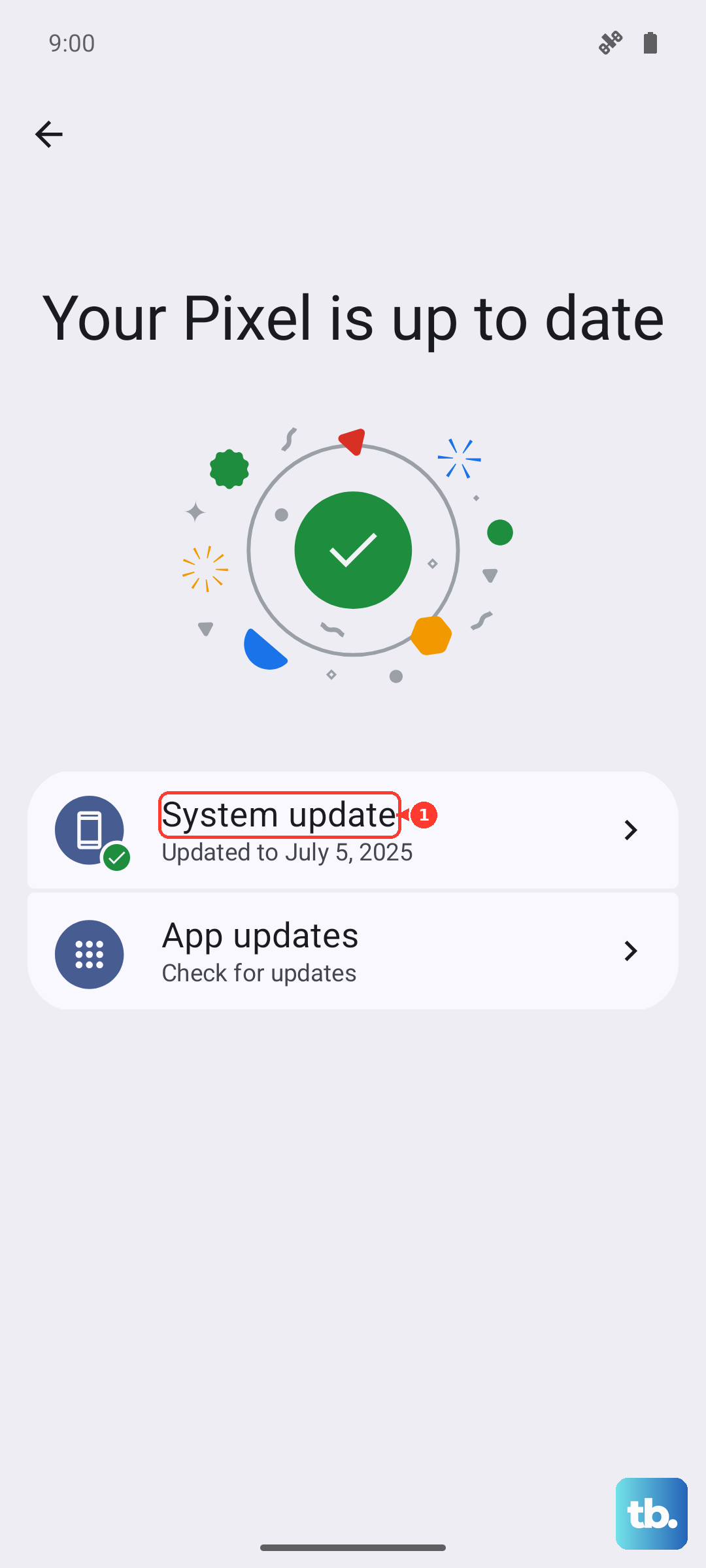
Google pushes regular updates for the Pixel 9 Pro XL, and sometimes bugs affecting haptics get patched. Go to Settings > System > Software update and check for any pending updates. If there's one waiting, install it and reboot.
System updates are a common fix for weird vibration behavior on Pixel devices, especially if the issue started after a previous update introduced a bug.
Reset App Preferences
If vibration works in some apps but not others, corrupted app preferences might be the culprit. Go to Settings > Apps > See all apps. Tap the three-dot menu in the top right and select Reset app preferences. Confirm the reset.
This won't delete any data, but it will reset disabled apps, notification permissions, and default app settings. You'll need to re-grant any special permissions for apps you use.
Hardware Test
You can check if the vibration motor itself is working using the Pixel's built-in diagnostic mode. Open the Phone app and dial *#*#7288#*#* (or check your specific carrier variant if that code doesn't work). Alternatively, go to Settings > About phone and tap Diagnostics if available.
If the phone vibrates during the test, the motor is fine and the issue is software-based. If nothing happens even after trying the earlier steps, the vibration motor might need a physical replacement. Since the Pixel 9 Pro XL is a 2024 model, it should still be under warranty if that's the case.
The last software option is a full factory reset, but that's a nuclear option that wipes everything. Back up your data first if you go that route. Most people find their fix in the settings or a force restart long before that point.