
Press and hold the Power button and Volume up button together for about 10 seconds. Keep holding until you see the power menu pop up, then tap Restart. That force restart is the first thing to try when your Pixel 9 Pro XL screen suddenly stops responding to touch.
A browser based online touch test paints the screen as you touch it, which makes dead zones and ghost touches easy to see and document.
Most of the time, a stuck or unresponsive screen is just a software hiccup. The phone itself is still running, but the touch input has frozen up temporarily. A forced reboot clears that out without losing any of your data.
Clean the Screen and Your Hands
This sounds obvious, but give the screen a good wipe with a soft, dry cloth. Dirt, oil, or moisture on your fingers or the display can interfere with the capacitive touch sensors on the Pixel 9 Pro XL.
If you've been using the phone with wet hands or just came inside from the cold, condensation can build up on the screen surface. Dry everything off completely and try again.
I've seen cases where a thin layer of grime or a greasy fingerprint made the bottom third of the screen unresponsive. A quick clean with a microfiber cloth fixed it immediately.
Remove Any Screen Protector or Case
The Pixel 9 Pro XL has a curved display, which means not all screen protectors fit perfectly. If you recently applied a new protector or your current one has lifted at the edges, it can block touch input along the affected areas.
Peel off the screen protector completely and test the screen without it. Do the same with your case if it wraps tightly around the front edges. Some cases apply pressure in spots that can interfere with touch sensitivity.
This is especially common with thick tempered glass protectors or older protectors that have started to bubble or peel at the edges.
Boot Into Safe Mode
Hold down the Power button, then press and hold the Power off option on screen until you see the Safe Mode prompt. Tap OK to restart into Safe Mode. In this mode, only the system apps and services load, so any third-party app causing touch issues will be inactive.
If the screen works perfectly in Safe Mode, you know a downloaded app is the culprit. Start uninstalling recently added apps, especially ones that overlay other apps or modify system behaviors like launchers or gesture control apps.
Restart the phone normally after you've removed the suspect app. If the touch response is back to normal, you've found your problem.
Check for Overheating
The Pixel 9 Pro XL uses thermal throttling to protect itself. If the phone gets too hot, it can disable touch input entirely to prevent accidental actions while also protecting the internal components.
Feel the back of the phone near the camera bar. If it's noticeably warm, set the phone down on a cool surface and let it rest for 20 to 30 minutes. Avoid direct sunlight, hot car interiors, or heavy gaming sessions right before the issue started.
Once the phone cools down, the touchscreen should come back on its own. If you keep running into this, check if recent software updates or specific apps are causing excessive heat.
Update the Software and Pixel Touch Firmware
Open Settings > System > System update and check for any pending updates. Google regularly pushes out fixes for touch responsiveness through both security patches and Pixel-specific updates.
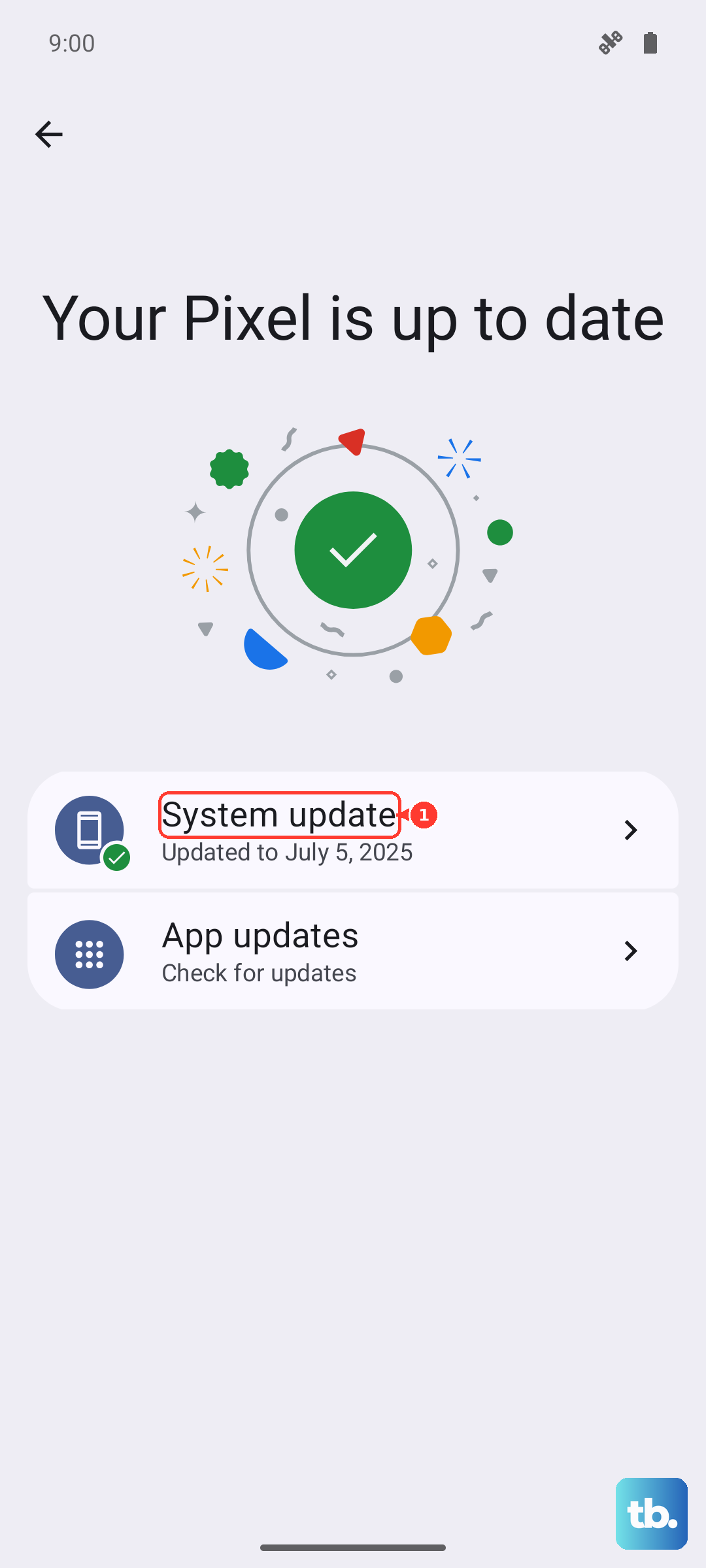
The Pixel 9 Pro XL also has a separate touch firmware that can be updated as part of system updates. If you're behind by a month or two, the fix for your screen issue might already be in the queue waiting to install.
I'd recommend checking for updates even if you think you're current. A small incremental patch sometimes carries the exact fix for unresponsive areas of the display.
Check Your Charging Setup
If the screen becomes unresponsive while plugged in, your charger or cable might be the problem. Some third-party chargers and cables can introduce electrical noise that interferes with the Pixel 9 Pro XL's touch digitizer.
Try unplugging the phone and see if the screen works fine on battery. If it does, swap to a different charger and cable. Google recommends using the 45W USB-C charger or any high-quality USB-C PD charger.
Wireless charging via Qi shouldn't cause touch issues, but if you're using a wireless charger that also has a USB cable attached, the cable could still be the source of interference.
Factory reset as a last resort
Back up everything first. A factory reset erases all your data, apps, and settings. Go to Settings > System > Reset options > Erase all data (factory reset) and follow the prompts.
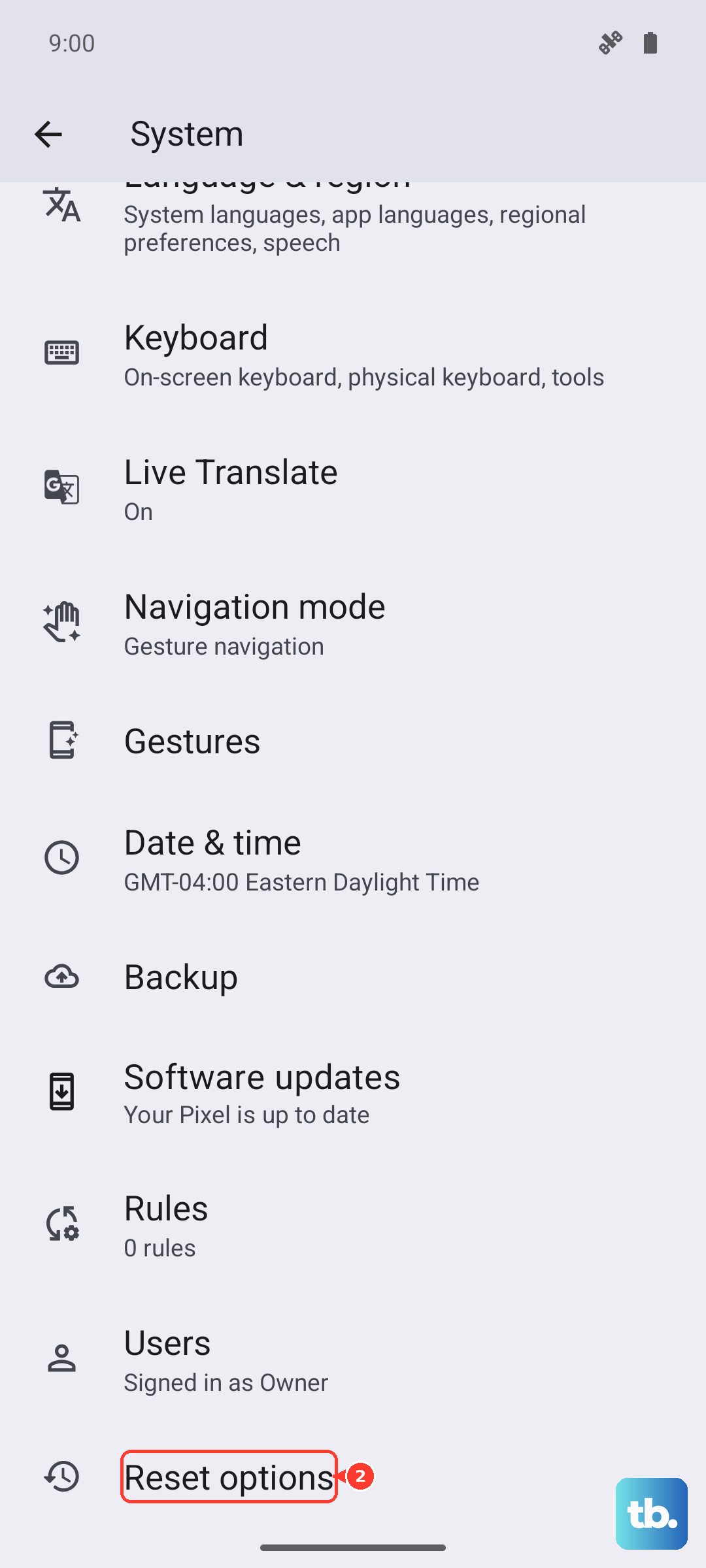
This step wipes out any deep software corruption that might be causing the touchscreen to freeze or become unresponsive. It's a nuclear option, but it works when nothing else has.
If the screen is still unresponsive after the factory reset, the issue is almost certainly hardware-related. That means the digitizer or the display assembly itself may need to be replaced.