
When your Google Pixel 9 Pro XL stops receiving calls, it usually comes down to a software setting or a network glitch. The good news is that most of these causes are easy to track down and fix without a trip to the store. Let's work through them from the quickest checks to the more involved ones.
Start With the Obvious Checks
Before you dig into menus, rule out the simple stuff. Swipe down from the top of the screen and make sure Airplane Mode is off. If it's on, your phone won't connect to the cellular network at all.
Take a look at the signal strength indicator in the top-right corner. If you're in an area with weak reception, move to a different spot or step outside. Low signal is a perfectly normal reason calls don't come through.
You should also restart the phone before anything else. On the Pixel 9 Pro XL, press and hold the Power button and the Volume up button at the same time until the power menu appears, then select Restart. This clears out temporary software hiccups that might be blocking calls.
Check if Do Not Disturb Is Silencing Calls
Do Not Disturb is one of the most common culprits for missed calls on any Pixel. It's easy to accidentally turn on, especially if you use the Quick Settings toggle.
Open Settings > Notifications > Do Not Disturb and make sure the toggle is off. While you're there, tap Schedules and check if any automatic rules are enabled. A common one is "Bedtime mode," which can silence calls during certain hours without you remembering you set it up.
If you want to allow calls from certain contacts while DND is on, you can set exceptions under the "People" section. But for testing purposes, just turn DND off entirely and see if calls come through.
Check Call Screening and Spam Protection
Pixel phones have a built-in Call Screening feature that can quietly handle incoming calls without ringing your phone. If you've set it to automatically screen unknown callers, some legitimate calls might get filtered out.
Open the Phone app, tap the three-dot menu in the top-right corner, and go to Settings > Spam and Call Screen. Tap Call Screen and check what mode it's on. If it's set to "Automatically screen. Never ring" for unknown callers, switch it to a less aggressive option like "Automatically screen. Ring at the same time."
While you're in the Phone app settings, also tap Blocked numbers and review the list. It's possible you accidentally blocked someone or that a number you want to hear from ended up on that list.
Disable Call Forwarding
Call forwarding can redirect your incoming calls to another number without any obvious indication on your phone. This sometimes gets enabled by accident, or through a carrier setting you didn't set yourself.
In the Phone app, tap the three-dot menu and go to Settings > Supplementary services > Call forwarding. Check each option (Forward when busy, Forward when unanswered, Forward when unreachable) and make sure they're disabled. If any of them show a phone number, tap it and select "Disable."
While you're in that menu, also check Call barring to make sure incoming calls aren't being blocked at the network level.
Reset Network Settings
If none of the above helps, a network settings reset can clear out corrupted data related to your cellular connection. This won't delete your personal files, but it will remove saved Wi-Fi networks, Bluetooth pairings, and VPN settings.
Go to Settings > System > Reset options > Reset Wi-Fi, mobile & Bluetooth. Tap Reset settings and confirm. Your phone will restart and reconnect to your carrier's network fresh.
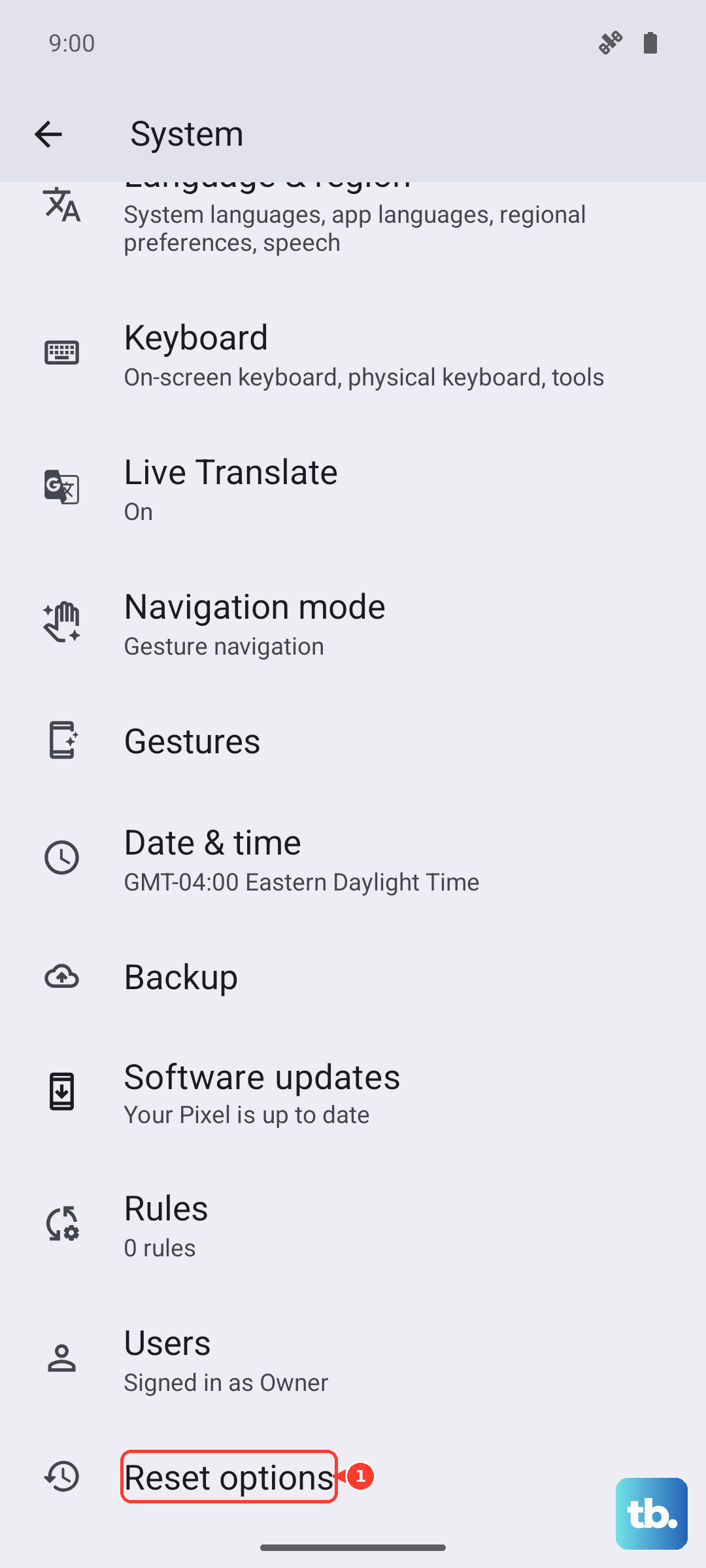
After the reset, let the phone sit for a minute to re-register on the network. Try making a test call from another phone to see if it rings now.
Remove and Reinsert the SIM Card
A loose or misaligned SIM card can cause intermittent call failures. This is especially true if you've recently dropped your phone or taken the SIM tray out for any reason.
Power down your Pixel 9 Pro XL, then use the SIM eject tool (or a paperclip) to pop out the tray on the left side of the phone. Remove the SIM card, check the metal contacts for any dirt or damage, and reinsert it firmly. Make sure the card sits flat in the tray before sliding it back in.
Power the phone back on and check if calls come through. If you have another phone handy, you can also test the SIM in that device to see if the problem follows the card.
Check for Software Updates
Google regularly releases Pixel Feature Drops and security updates that include fixes for network and calling bugs. If you're behind on updates, that could be the reason calls aren't coming through.
Go to Settings > System > Software update > System update. If an update is available, tap Download and install. The phone will restart during the process, so save any work first.
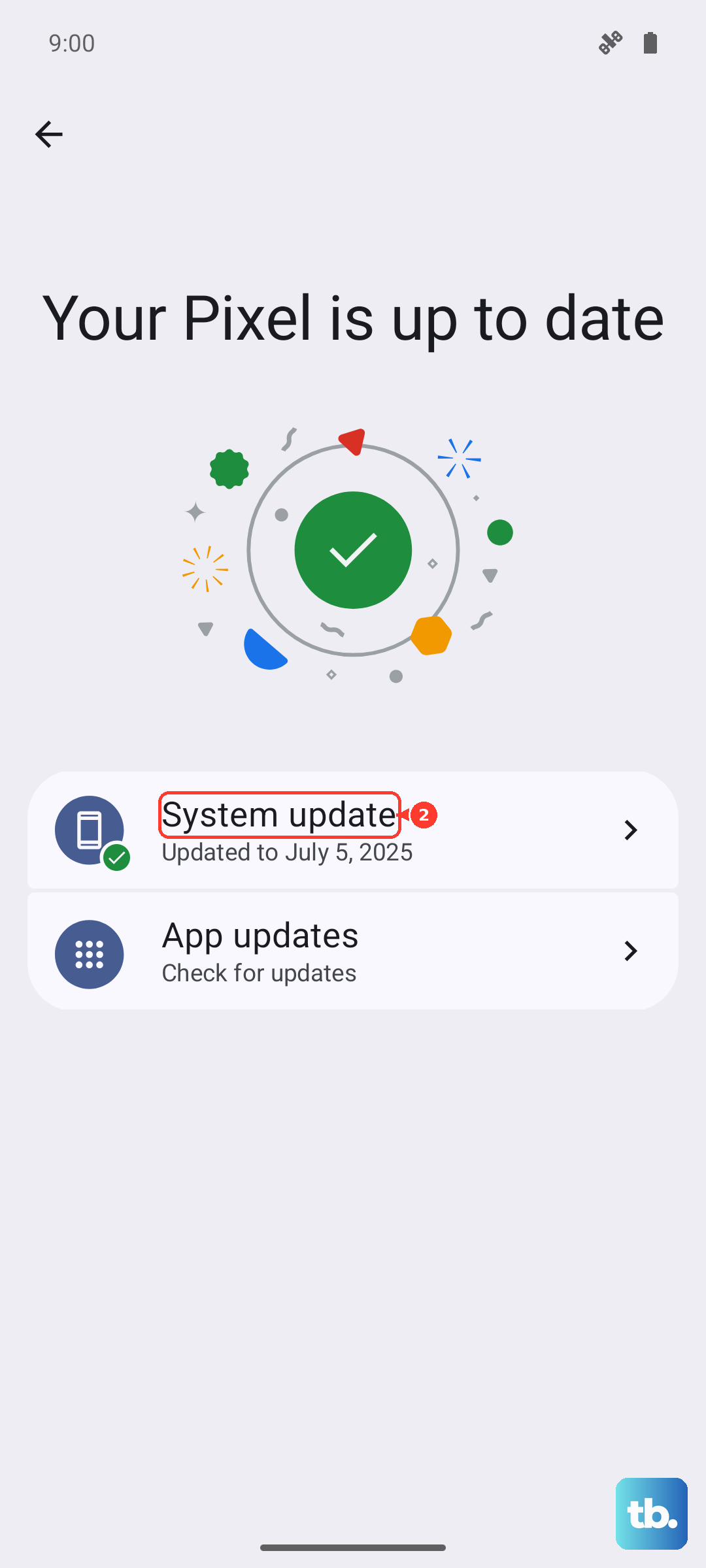
After the update, your cellular modem will have the latest radio firmware, which can resolve carrier-specific compatibility issues.
Clear the Phone App's Cache and Data
The Phone app itself can accumulate corrupted cache data over time that messes with call handling. This is a quick fix and doesn't affect your contacts or call history.
Go to Settings > Apps > See all apps > Phone. Tap Storage & cache, then tap Clear cache. You can also tap Clear storage (this will reset your call history and voicemail settings, but not your contacts).
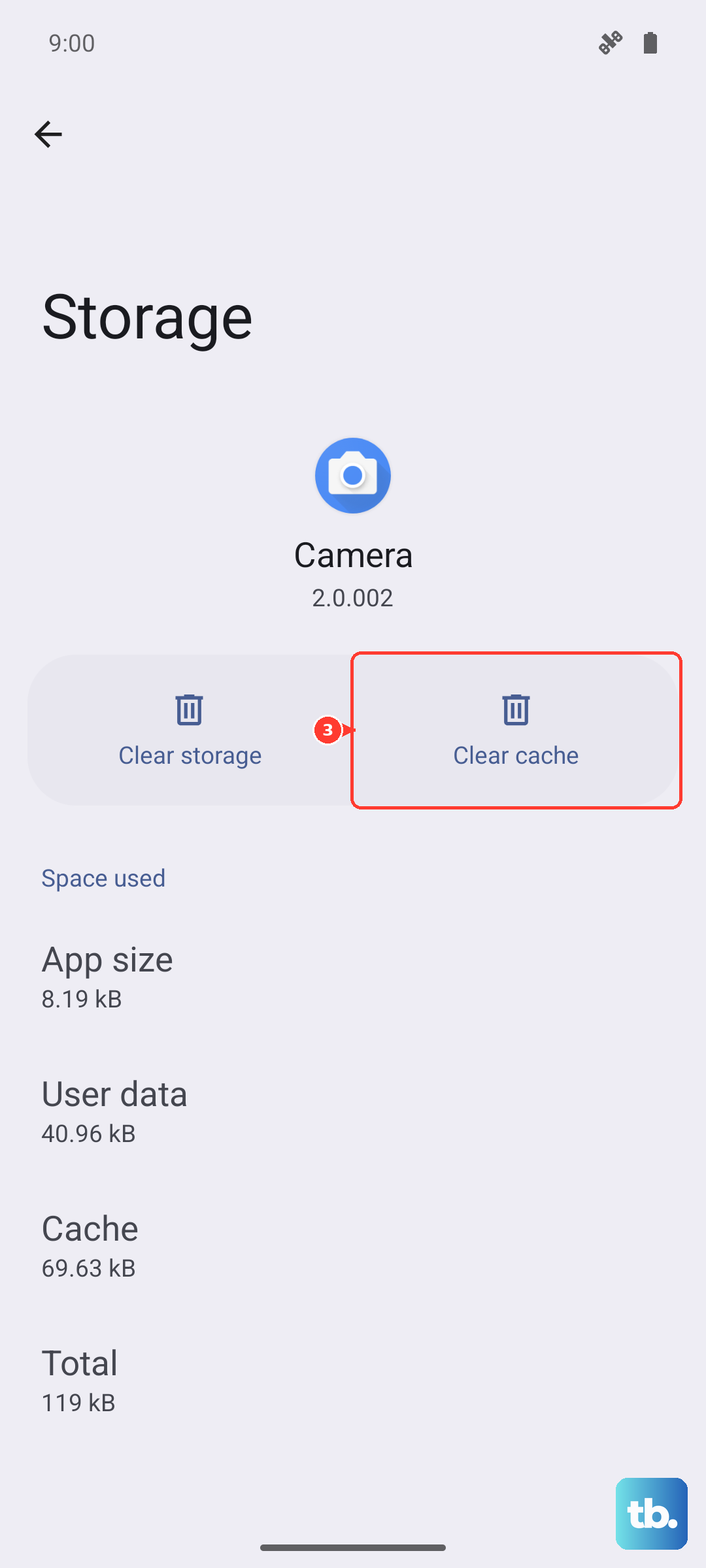
Restart the phone afterward and test incoming calls again.
Contact Your Carrier
If you've tried everything above and calls still aren't coming through, the issue could be on your carrier's end. Network outages, account suspensions, or provisioning errors can all prevent incoming calls.
Call your carrier from another phone or check their website for service alerts in your area. They can also verify that your account is active and that your line is properly provisioned for voice service.
Factory Reset as a Last Resort
A factory reset wipes everything on your phone and restores it to out-of-box state. Only do this if you've exhausted all other options and backed up your photos, messages, and files.
Go to Settings > System > Reset options > Erase all data (factory reset). Tap Reset phone and follow the prompts. After the reset, set up the phone without restoring a backup at first, and test incoming calls right away. If they work, the problem was likely a software conflict that got wiped clean.