
When your Google Pixel 9 Pro XL microphone acts up on calls, it's usually something simple you can fix in a few minutes. Let's start by figuring out whether the mic is actually broken or if it's a software glitch or an app permission issue.
Open the Google Recorder app (it comes pre-installed on your Pixel) and record a short voice memo. Play it back. If your voice sounds clear, the hardware is fine and the problem is specific to the phone app or call settings. If the recording is muffled or silent, keep reading.
You can also test by making a quick call to a friend and asking how you sound, or by leaving yourself a voicemail. That tells you if the issue is on your end or theirs.
Restart Your Pixel 9 Pro XL First
Nine times out of ten, a quick restart clears up temporary glitches that kill the mic during calls.
Press and hold the Power button and the Volume up button at the same time. Keep holding until the menu pops up, then tap Restart. That's it. Your phone reboots and reloads all the audio drivers fresh.
If the screen won't respond, hold Power and Volume up for about 10 seconds. The phone will force restart without needing to tap anything. This is the same force-restart method Google recommends for unresponsive Pixels.
Disconnect Bluetooth Devices
Your Pixel 9 Pro XL might be sending audio to a Bluetooth device you forgot was connected. That includes wireless earbuds, a car kit, or even a smartwatch.
Swipe down from the top of the screen twice to open the Quick Settings panel. Tap the Bluetooth icon to turn it off entirely for a minute. Now make a test call. If your voice comes through clearly, you found the culprit. Turn Bluetooth back on and unpair the device that's interfering under Settings > Connected devices > Bluetooth.
Check for Dirt in the Microphone Openings
The Pixel 9 Pro XL has multiple microphones. One sits at the bottom next to the USB-C port, another is in the top bezel near the front camera, and a third lives on the back near the camera bar for noise cancellation during calls.
Take a look at each opening with a bright light. Pocket lint, dust, or debris can block the tiny holes. Gently brush them clean with a soft-bristled toothbrush or a dry cotton swab. Don't poke anything sharp or metal into the holes. That can damage the internal membrane and turn a simple cleaning into a costly repair.
Check App Permissions for the Phone App
Sometimes an Android update or a permissions reset can revoke the Phone app's access to the microphone. Without that permission, you won't be heard on calls.
Go to Settings > Apps > Phone > Permissions > Microphone. Make sure it's set to Allow only while using the app or Ask every time. If it's set to Deny, the mic won't work no matter what else you try.
While you're there, check the same permission for your preferred dialer app if you use a third-party one, or for any call-recording app that might be conflicting with the native microphone access.
Remove Your Case and Screen Protector
Some third-party cases cover the bottom microphone opening by accident. Screen protectors, especially thicker glass ones, can also cover the top microphone slit near the earpiece.
Pop the case off and peel off the screen protector if you have one. Make a test call bare. If your voice comes through, the accessories were blocking the microphones. Look for cases with precise cutouts, or trim the protector slightly if you're confident doing so.
Turn Off Adaptive Sound and Call Features
Your Pixel has smart audio features that occasionally cause microphone trouble during calls. Adaptive Sound adjusts the earpiece volume based on your environment, but it can interfere with voice pickup.
Go to Settings > Sound & vibration > Adaptive Sound and toggle it off. Also check Settings > Accessibility > Sound Amplifier. If that's on, it might be competing with the phone app for microphone access. Turn it off and test another call.
Some users have reported that Clear Calling (available on the Pixel 9 series) can introduce mic issues on certain networks. If you have it enabled under Settings > Sound & vibration > Clear Calling, try turning it off temporarily.
Update the Phone App and Android System
Both the Phone app and Android 14 itself get regular patches that fix call-related bugs. If you haven't updated in a while, that could be the whole reason your mic acts up.
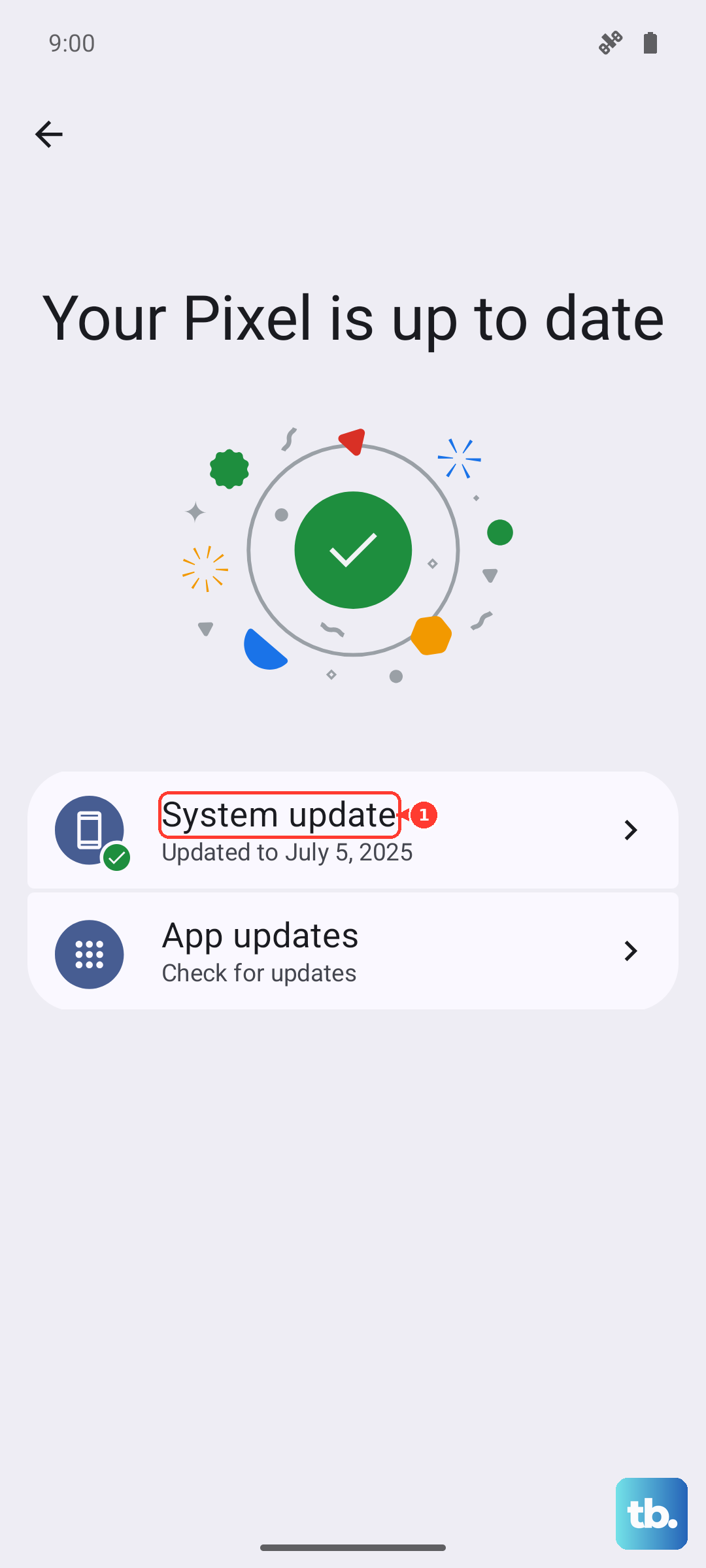
Open the Play Store, tap your profile picture, then tap Manage apps and device. Look for updates for the Phone app specifically. Then go to Settings > System > System update and install any pending Android updates. A single update often resolves microphone complaints across multiple devices.
Boot Into Safe Mode
Safe mode temporarily disables every third-party app. If the microphone works fine in safe mode, a downloaded app is causing the conflict.
To enter safe mode, press and hold the Power button, then press and hold Power off on the screen until the safe mode prompt appears. Tap OK. The phone will reboot with "Safe mode" at the bottom of the screen.
Make a call. If the other person can hear you, start uninstalling recently added apps one by one. Focus on call recorders, audio mods, and launcher apps first. When the problem disappears, you've found the troublemaker. Reboot normally to exit safe mode.
Reset Network Settings
A corrupted network setting can cause the phone to misroute audio during calls, especially on VoLTE or Wi-Fi calling connections.
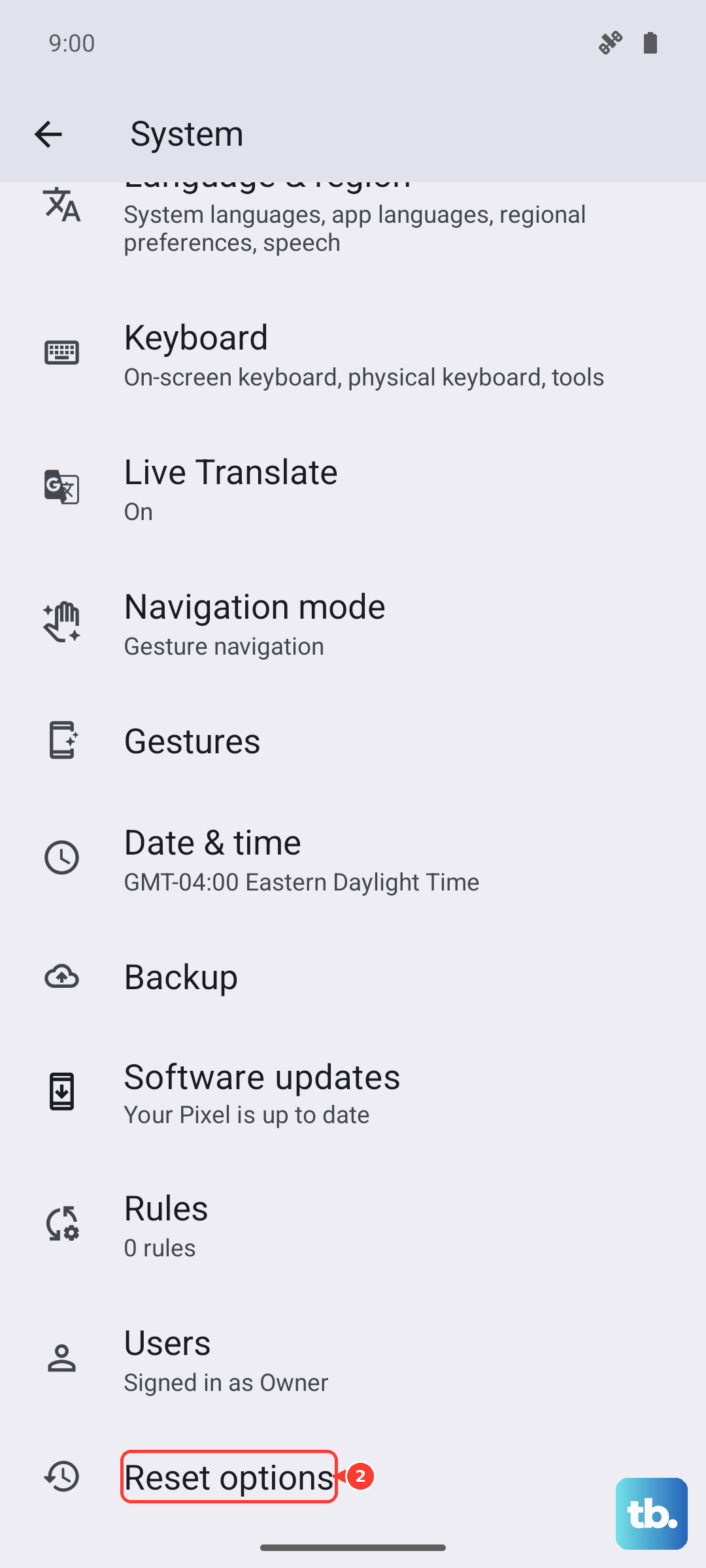
Go to Settings > System > Reset options > Reset Wi-Fi, mobile & Bluetooth. This clears saved Wi-Fi networks, paired Bluetooth devices, and mobile network settings. It doesn't delete your photos, messages, or accounts. You'll need to re-enter Wi-Fi passwords afterward, but it's a small price for working calls.
Factory Reset as a Last Resort
If you've tried everything above and the mic still refuses to work on calls, a factory reset can fix deep software corruption that doesn't show up in normal troubleshooting.
Back up your photos, contacts, and anything else you don't want to lose first. Then go to Settings > System > Reset options > Erase all data (factory reset). Enter your PIN when prompted and confirm.
The phone wipes itself clean and reboots like new. Set it up without restoring a backup at first, then test a call. If the mic works, restore your data from the cloud backup knowing the issue is resolved. If the mic still doesn't work after a full reset, the hardware is likely damaged and the microphones need physical repair.