
Your Pixel 9 Pro XL camera was working fine yesterday, but now it won't open or shows a black screen. This usually comes down to a software glitch, a problematic app, or a recent update that didn't play nice. Let's walk through the fixes that actually work for this phone.
Start With a Force Restart
Hold down the Power button and the Volume up button at the same time. Keep holding until you see the restart menu on screen, then tap Restart. This clears out temporary system glitches without losing any data.
I've seen this fix the camera more often than you'd expect. Give the phone a full minute to reboot before opening the camera app again.
Check for System and Camera App Updates
If your Pixel recently installed an Android update, the camera issue might be a known bug that a newer patch fixes. Open Settings > System > Software update and tap Check for update. Install any available updates and restart your phone afterward.
Also head to the Google Play Store, search for "Google Camera," and tap Update if one's available. App updates often include compatibility fixes for the latest OS version.
Clean the Camera Lens and Sensors
Smudges, dust, or fingerprints on the camera lens can make the app think something's wrong and refuse to launch. Wipe the lens area with a microfiber cloth. Pay attention to the sensor cluster next to the rear cameras dirt there can confuse the camera system.
Your Pixel 9 Pro XL has a big camera bump, so it's easy for gunk to collect in the crevices. A quick clean takes about ten seconds and fixes a surprising number of "camera stopped working" errors.
Clear the Camera App Cache and Data
Corrupted temporary files can cause the camera to crash or freeze. Go to Settings > Apps > Camera > Storage & cache and tap Clear cache. If that doesn't help, tap Clear storage (this resets your camera settings but won't delete photos).
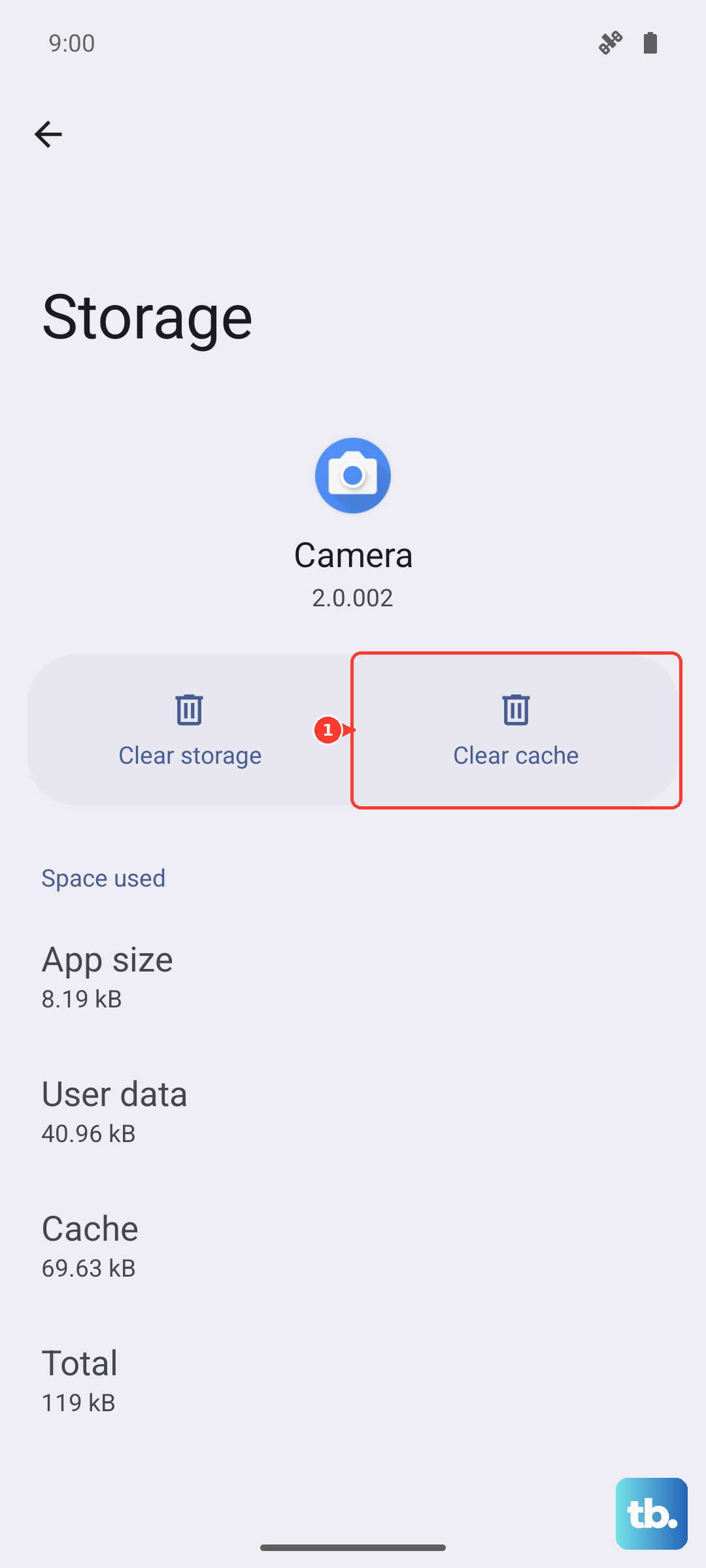
Restart the phone after clearing, then test the camera. This is one of the most reliable fixes for software-related camera failures on Pixel phones.
Boot Into Safe Mode to Find Problematic Apps
Sometimes a third-party app interferes with the camera hardware. Boot your Pixel 9 Pro XL into Safe Mode: press and hold the Power button, then on the screen tap and hold the Restart option until you see "Reboot to safe mode." Tap OK.
In Safe Mode, only system apps run. If the camera works normally here, a downloaded app is causing the conflict. Uninstall recently installed apps one by one, testing the camera after each removal, until you find the troublemaker.
Try a Third-Party Camera App
If the default Google Camera app still won't open, download a different camera app from the Play Store, like Open Camera or Camera MX. If a third-party app works, the problem is specific to the Google Camera app, not your hardware.
This helps you rule out a physical issue with the camera module. If no app works at all including third-party ones the problem might be hardware-related.
Factory Reset as a Last Resort
If none of the above work and the camera still won't function, a factory reset can wipe out stubborn software corruption. Go to Settings > System > Reset options > Erase all data (factory reset). This will delete everything on your phone, so back up your photos and files first.
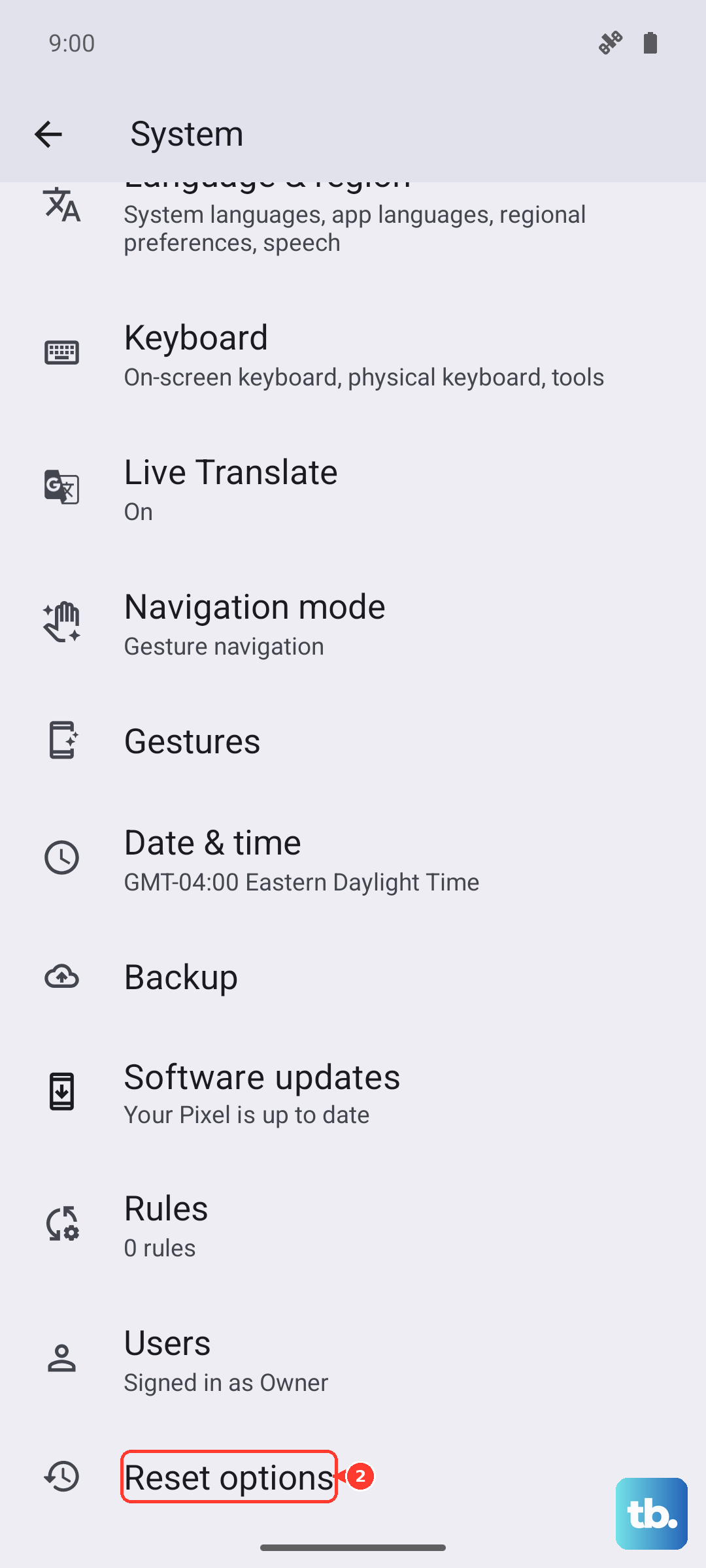
After the reset, set up your phone as new and test the camera before restoring any apps. If the camera works, you can slowly bring back your data. If it still doesn't, the camera hardware may need professional attention.