
A blurry camera on your Google Pixel 9 Pro XL turns every photo into a disappointment. The blur might hit only one lens, show up in certain shooting modes, or make the whole frame look hazy. Before you assume the hardware's shot, run through these fixes.
Clean the Camera Lens
This is the number one cause of blurry photos, and it's the easiest one to fix. Use a soft, lint-free microfiber cloth to gently wipe the camera lens on the back of the phone. Fingerprints, smudges, and dust create that foggy, out-of-focus look. Don't use your shirt or a paper towel, they can leave scratches on the lens coating.
Remove Your Case
A lot of phone cases, especially the cheap ones, don't line up perfectly with the camera bump and can partially cover or fog the lens. Pop the case off and take a test shot. If the photo comes out clearer, the case is your culprit. Also check that no screen protector or camera lens film is overlapping the glass.
Tap to Focus
Open the Google Camera app and tap directly on the subject you want sharp. A white circle with a focus indicator shows where the camera is locking on. If you're shooting something close, the phone might focus on the background instead. Tap your subject to force focus, or press and hold to lock focus and exposure (AE/AF lock).
Switch Between Lenses
If one camera lens is blurry but another is crystal clear, the problem is isolated to that specific lens. In the Camera app, try switching between 0.5x (ultrawide), 1x (main), and 5x (telephoto). Only one giving you trouble? That lens might need a deeper clean or have a hardware issue.
Close and Reopen the Camera App
From the bottom of the screen, swipe up and then swipe the Camera app away to force close it. Wait a couple seconds, then reopen it. The camera software can glitch sometimes, causing autofocus to act up or image processing to produce soft, blurry results.
Restart Your Pixel
Press and hold the Power button and Volume up button simultaneously until the power menu appears. Tap Restart. This clears out any stuck processes in the camera software stack and gives the sensors a fresh start.
Disable Macro Mode (If You're Shooting Close Up)
Your Pixel 9 Pro XL automatically switches to the ultrawide lens for close-up shots to enable Macro Focus. This shift can sometimes cause unexpected blur at certain distances. You can control when macro kicks in: open the Camera app, tap the little flower icon in the bottom left to toggle Macro Focus on or off manually.
Check for Moisture or Condensation
Condensation inside the camera lens or on the sensor creates foggy, hazy images. This happens when you move from a cold environment to a warm one, or in humid weather. Let the phone sit at room temperature for 15 20 minutes. Don't blow on the lens, that just adds more moisture.
Update the Google Camera App
Open the Google Play Store, tap your profile icon, then Manage apps & device. Look for Google Camera and install any pending update. Camera tuning and bug fixes come through these updates regularly. A known blur issue may already be patched.
Clear the Camera App Cache
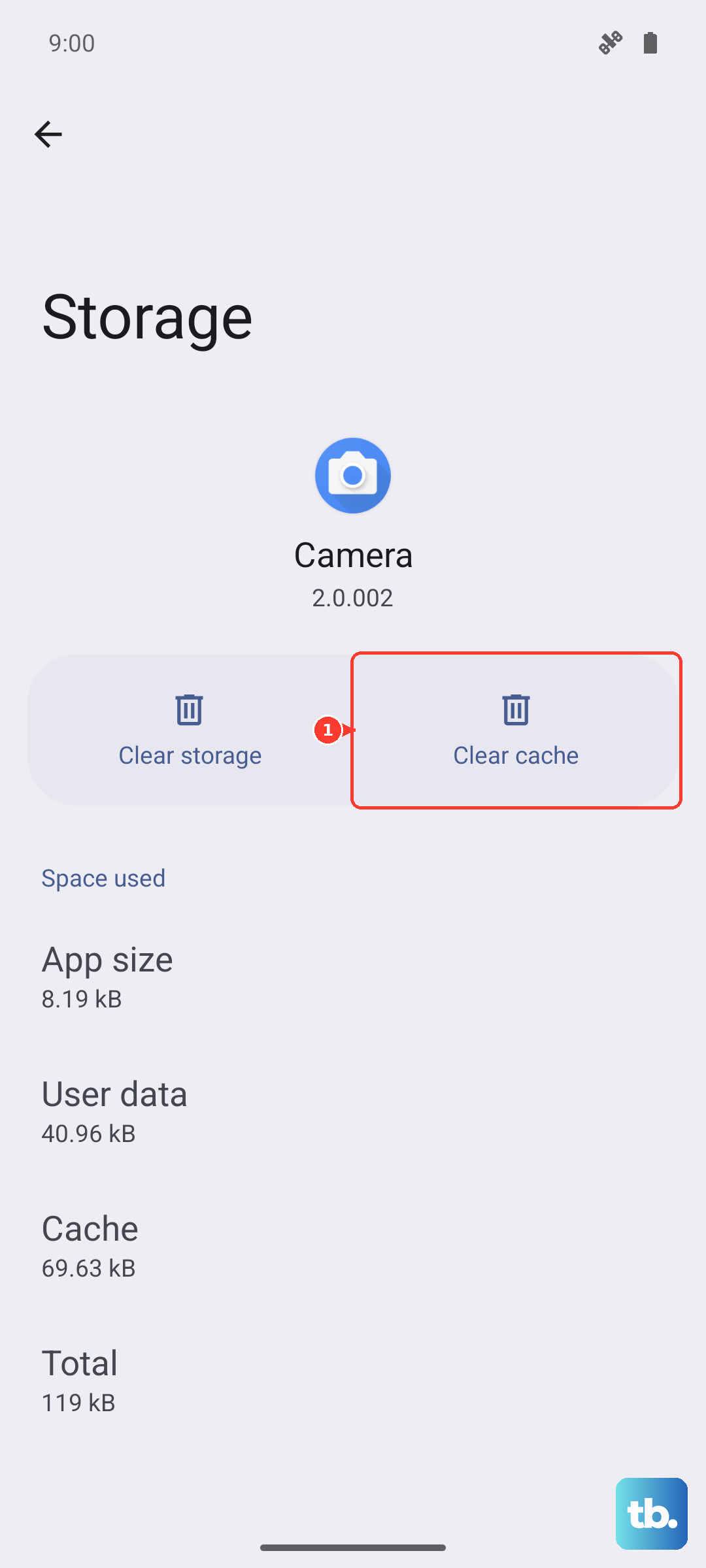
Go to Settings > Apps > See all apps > Camera > Storage & cache. Tap Clear cache (not Clear storage, that resets all your camera settings). This wipes out any corrupted temporary files that might be messing with focus or processing.
Use Photo Unblur (If the Blur Is on an Existing Photo)
If the blur is already baked into a photo you took, open it in Google Photos, tap Edit, and look for the Unblur tool (it looks like a squiggly line). This uses on-device AI to sharpen blurry faces and details. It works best on motion blur, not on hard out-of-focus shots, but it's worth a try.