Apps freezing or crashing on your Google Pixel 9 Pro XL can grind your day to a halt. The usual culprits are low storage, outdated software, or corrupted cache files. Most of the time, a few quick steps get things running smoothly again.
Give Your Pixel a Quick Restart
A simple restart clears out temporary glitches better than any other fix. On the Pixel 9 Pro XL, press and hold the Power button and Volume up button at the same time. When the menu appears, select Restart and let the phone come back up.
Keep Apps Current
Developers push updates to squash bugs, so an outdated app is a common crash cause. Open the Google Play Store and tap your profile icon in the top right. Select Manage apps & devices, then tap Update next to any apps with pending updates. Doing this weekly keeps most problems at bay.
Force Stop and Clear Cache
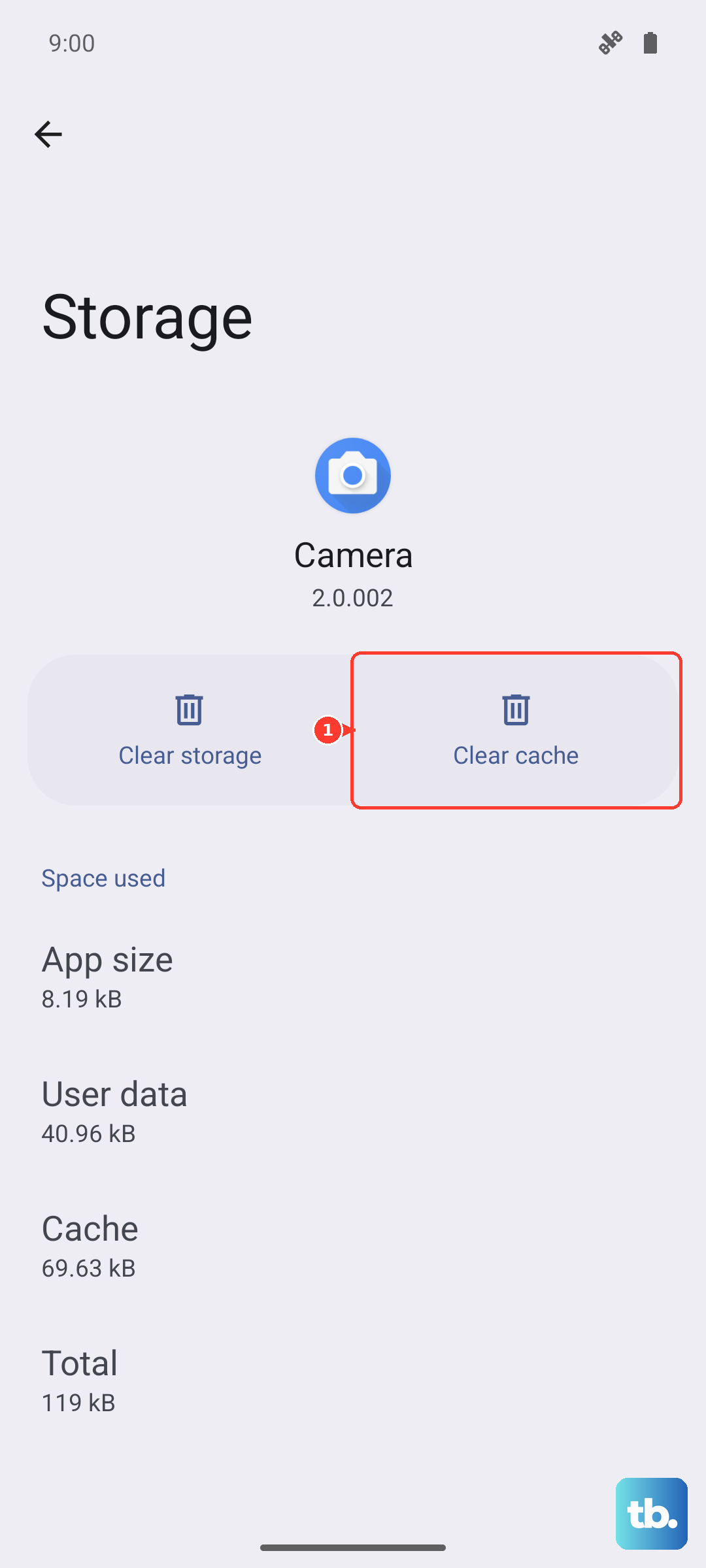
If an app keeps freezing mid-use, force stopping it gives you a clean break. Head to Settings > Apps, find the problem app, and tap Force Stop. Then tap Storage and choose Clear Cache. This wipes the temporary data that might be corrupted without deleting your login info or settings. Relaunch the app afterward.
Check Your Internet Connection
Many apps crash when the connection drops or gets flaky. If you're on WiFi, restart your router and reconnect. Try switching to mobile data or vice versa to see if that stabilizes things. A weak signal can make apps time out and close unexpectedly.
Clear App Data (Only If Needed)
Clearing cache didn't work? Clear Data instead. This removes everything saved in the app, so you'll have to sign back in. Go to Settings > Apps, pick the app, tap Storage, then Clear Data. Only do this for apps that still crash after a cache wipe.
Free Up Storage Space
Your Pixel 9 Pro XL needs breathing room to run apps. If storage is below 10%, apps can choke on temporary files. Delete unused apps, old photos, and downloaded files. Moving media to cloud storage like Google Photos frees up space fast.
Reinstall Problem Apps
When a single app just won't cooperate, uninstall and reinstall it. Long-press the app icon on your home screen or in the app drawer, then drag to Uninstall. Grab a fresh copy from the Play Store and see if that resolves the crashing.
Update Android System
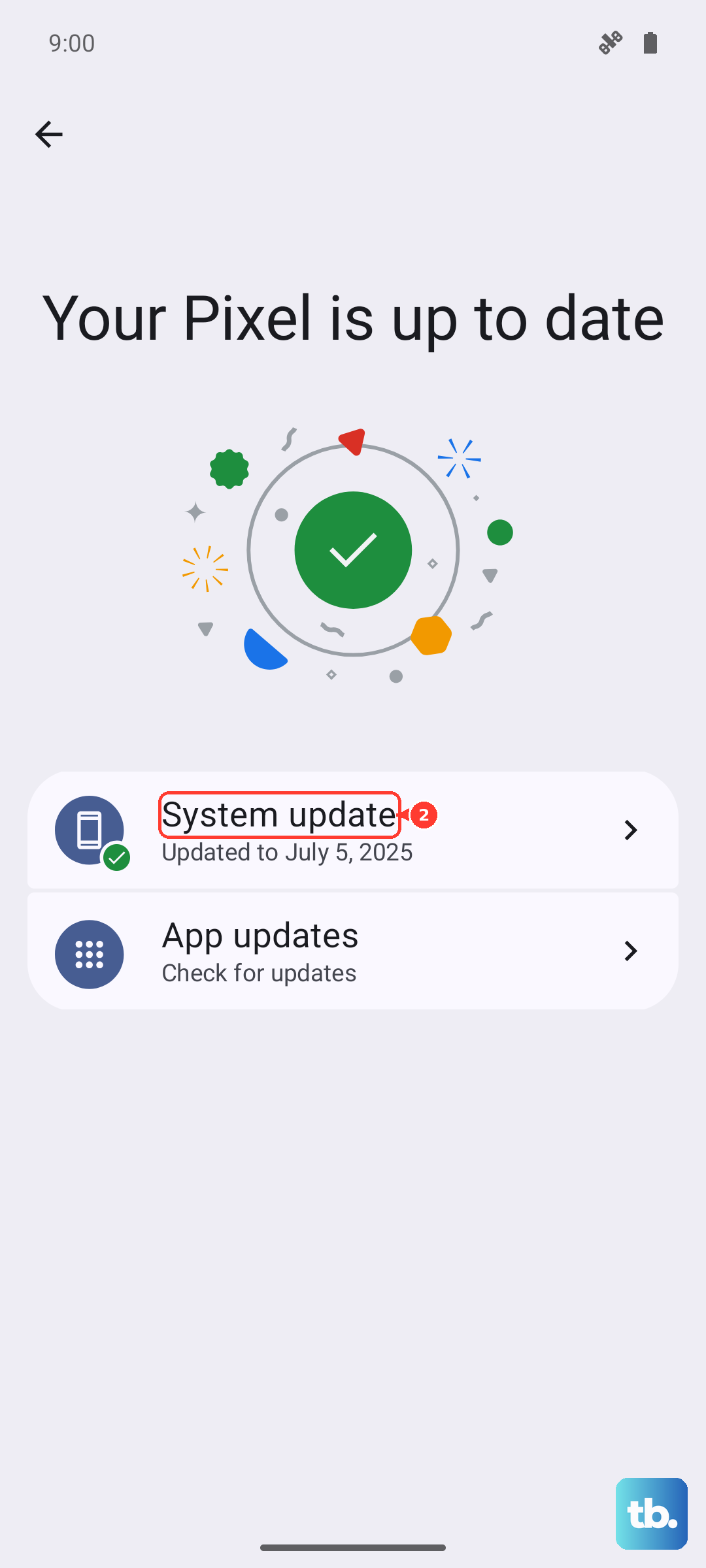
System-level bugs can cause widespread app crashes. Go to Settings > System > System update. If an update is available, download and install it. Keeping Android 14 current on your Pixel 9 Pro XL prevents many compatibility issues.
Factory Reset as Last Resort
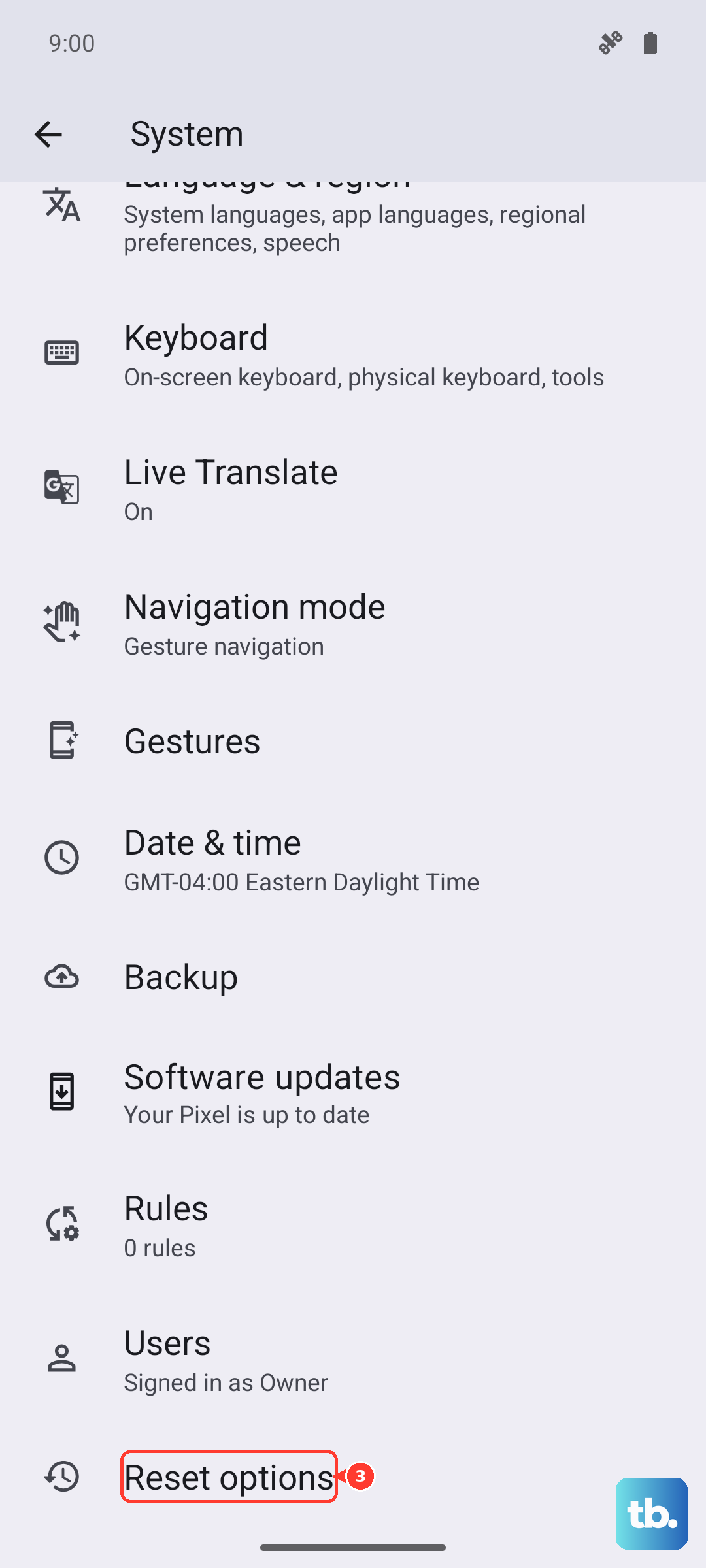
If you've tried everything and apps still crash, a factory reset wipes the slate clean. Back up your photos, contacts, and files first because this erases everything. Then head to Settings > System > Reset options > Erase all data (factory reset). Your Pixel will restart fresh, and most app problems disappear.