Your Google Pixel 9 Pro keeps telling you it is up to date, or the download stalls at the same percentage every time, and the new Android build you were expecting still has not landed.
A phone that refuses to update is frustrating, but on the Pixel 9 Pro the cause is almost always something simple, such as a missing Wi-Fi connection, a low battery, full storage, or an update that has not reached your device in Google's staged rollout yet. Work through the fixes below in order, starting with the quickest and safest, and save the factory reset for the very end.
Start With Wi-Fi and a Charged Battery
Before you do anything else, check the two things Google requires for every Pixel update. Connect your Pixel 9 Pro to Wi-Fi, and charge the device to at least 75%. If either of these conditions is not met, the update will not proceed, no matter how many times you tap the button.
It is also worth knowing that updates do not arrive everywhere at once. Pixel updates roll out gradually and are dependent on carrier and device, and it may take a few weeks for the update to arrive on your device. That means a "missing" update may simply not have reached your phone yet, which means the problem is not your handset at all.
Check for the Update Manually in Settings
Even if your phone has not prompted you, you can ask it to look for a new build right away. A manual check often pulls down an update that the automatic background check has not yet flagged.
- 1.Open the Settings app.
- 2.Tap System.
- 3.Tap Software updates.
- 4.Follow the on-screen instructions.
To confirm exactly which build you are running, go to Settings > About phone > Android version. That screen shows your Android version, security update status, and Google Play system update, so you can see at a glance whether you are actually behind.
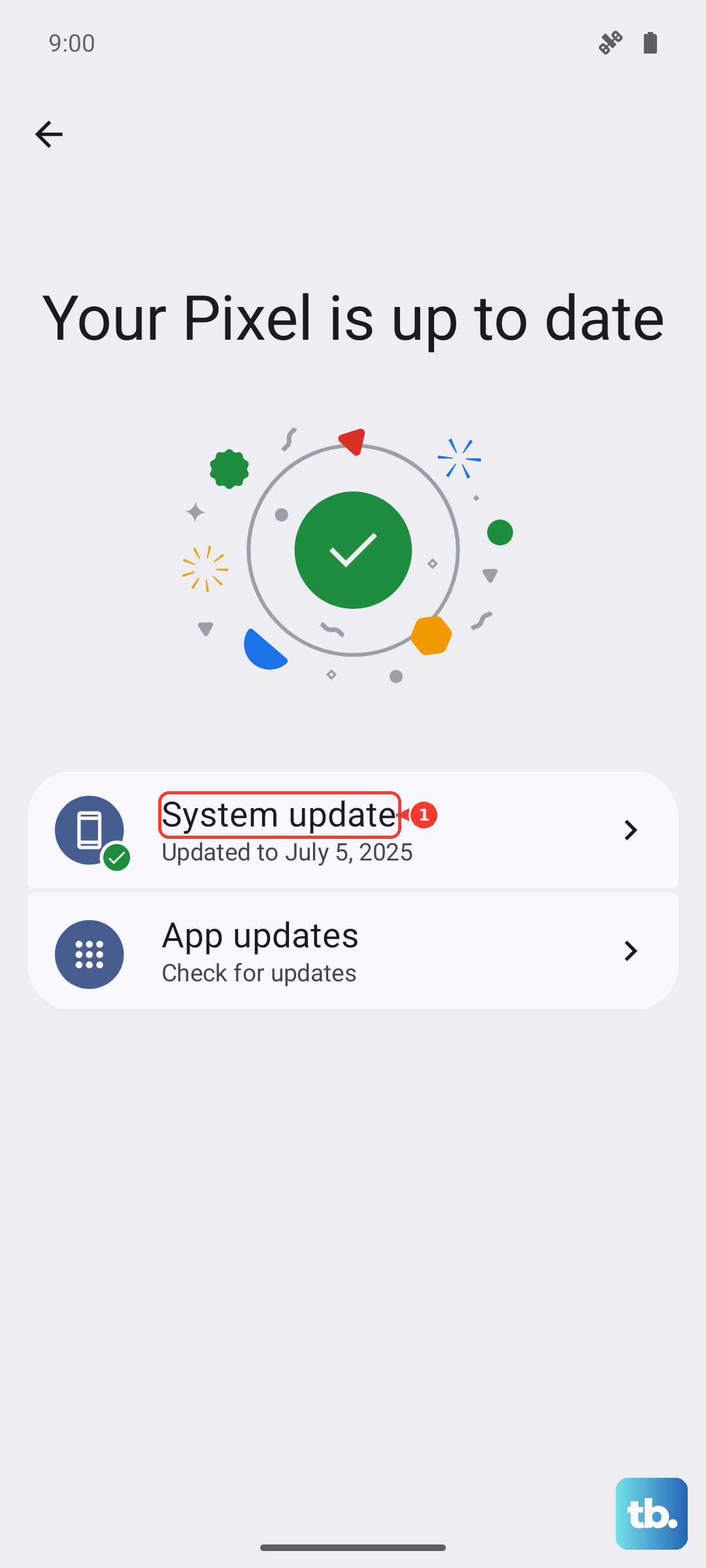
Force Restart the Pixel 9 Pro
A stuck or unresponsive phone is one of the most common reasons an update will not download or install. A force restart clears that temporary state without touching any of your data, and it is the right move before you start changing settings.
For the Pixel 6 and later, including the Pixel 9 Pro, press and hold the Power button for up to 60 seconds. Once your phone begins to reboot and the screen displays the "G" logo, release the Power button. When the phone is back up, head to Settings > System > Software updates and try the update again.
Free Up Storage Space So the Update Can Install
An update needs room to download and install, and it can fail outright when space runs low. Google notes that the phone can have issues when less than 10% of storage is available, so clearing out files is one of the most reliable fixes for a download that never finishes.
Open the Settings app, then tap Storage and tap Free up space. Choose the files you want to remove, then confirm.
Once you have freed up a meaningful amount of space, return to Settings > System > Software updates and retry. Photos, videos, and large downloads are usually the quickest wins here.
Give the Staged Rollout a Few Days
If your Pixel 9 Pro is connected, charged, and has plenty of free space but still reports no update, patience is often the real fix. Because Pixel updates roll out gradually and depend on your carrier and device, it can take a few weeks for a new build to reach your specific phone.
There is also an automatic safety net built in. If a download starts but does not finish, the device will automatically try again over the following days, so a half-completed update will frequently sort itself out without any further action from you.
Boot Into Safe Mode to Rule Out a Problem App
Sometimes a downloaded app interferes with the update process. Safe mode starts your Pixel 9 Pro with only its built-in software running, which lets you test whether one of your installed apps is the culprit.
Press and hold the Power and Volume Up buttons for a few seconds. On your screen, tap and hold either the Power off or Restart buttons, then tap OK. With the phone in Safe mode, try the update again from Settings > System > Software updates.
If it installs cleanly in Safe mode, a downloaded app was interfering, and you should consider uninstalling recently added apps once you are back to normal. To exit Safe mode, press and hold the Power button + Volume up button for a few seconds, then tap Restart.
Work Through the Freeze Checklist
If the phone feels frozen or behaves erratically while you are trying to update, run through this short sequence designed to isolate the problem. Restart the phone after each step to check whether updating works before moving on.
Check for the update at Settings > System > Software updates and follow the on-screen steps. Verify your available space at Settings > Storage, remembering that issues can occur below 10% free.
Force stop any app that seems to be misbehaving, then try the update again. Taking these one at a time, with a restart between each, makes it much easier to spot the exact step that gets the update moving again.
Enter Fastboot Mode When Settings Will Not Cooperate
If your screen is stuck or you simply cannot reach the update controls from within Settings, the Pixel 9 Pro has a hardware-level entry point. Fastboot mode is the manual recovery path for situations where you cannot update or reset from inside the operating system.
For the Pixel 6 and later, press and hold the Volume down and Power buttons at the same time for up to 30 seconds until the Fastboot mode screen shows. This is intended for manual recovery when the Settings app is unavailable, so reach for it only when the on-screen options are genuinely out of reach.
Factory Reset as a Last Resort
If nothing above works, a factory reset clears out whatever software fault has been blocking the update. This is the final step for a reason. Important: a factory reset erases all your data from your phone, so back up everything you care about first.
Once your backup is complete, prepare the phone by charging it to at least 70% and connecting it to Wi-Fi or your mobile network. The reset can take up to an hour, so set the phone aside while it works.
Open the Settings app, then tap System. Tap Reset options, tap Erase all data (factory reset), and follow the prompts to confirm.
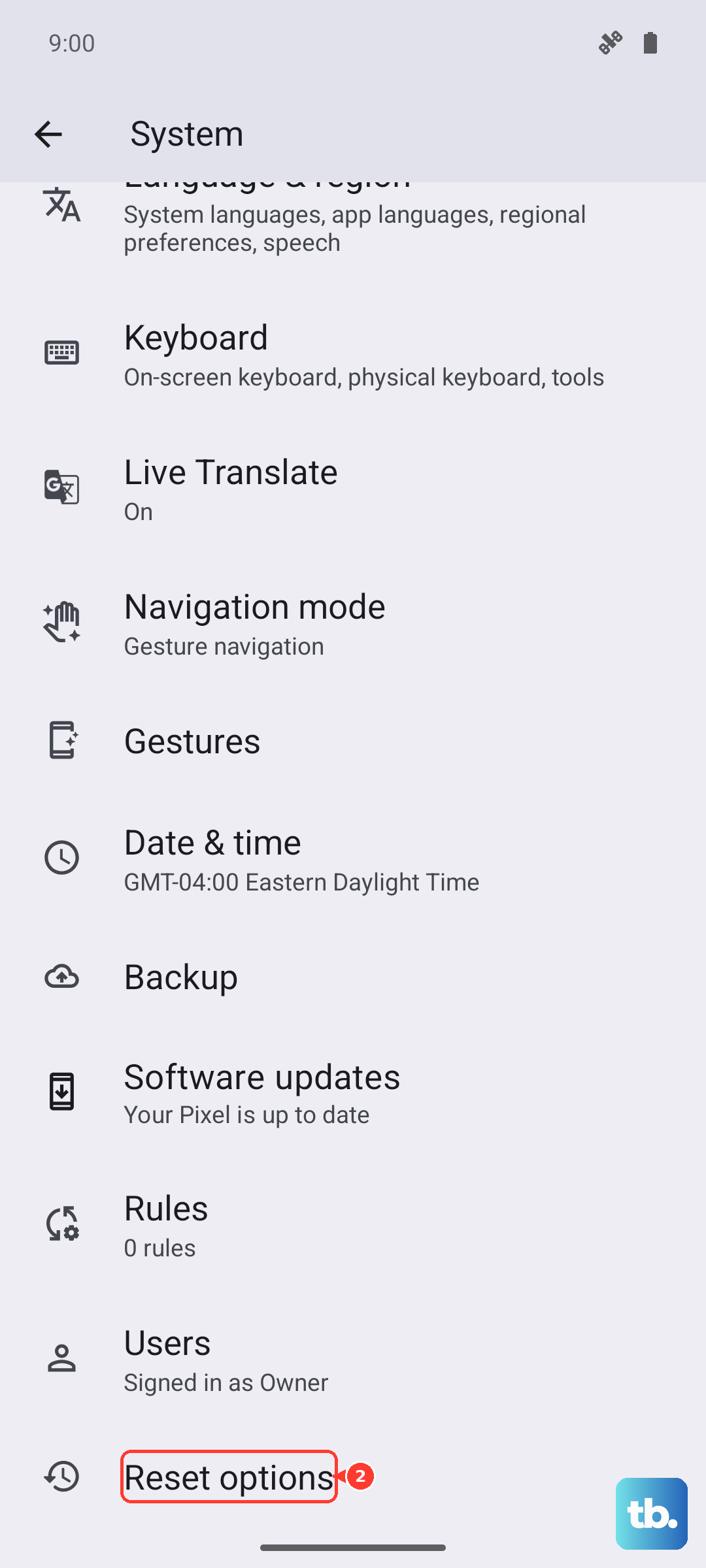
If you cannot reach this menu because the screen is unusable, use the manual Fastboot method instead. Press and hold the Volume down and Power buttons at the same time for up to 30 seconds until the Fastboot mode screen shows, then follow the on-screen options from there. Remember that a factory reset erases all your data, so use this path only when you have a backup and no other option.
Frequently Asked Questions
Why does my Pixel 9 Pro say it is up to date when a newer version exists?
Pixel updates roll out gradually and depend on your carrier and device, so it may take a few weeks for a new build to reach your phone. Until it does, your Pixel 9 Pro will correctly report that it is up to date, even though a newer version has been released elsewhere.
How long will the Pixel 9 Pro keep getting updates?
Google commits to 7 years of OS and security updates for the Pixel 8 and later, which includes the Pixel 9 Pro, counted from when the device first became available on the Google Store in the US. That means many years of system and security updates ahead, so it is worth keeping the update process working.
How do I check which Android version my Pixel 9 Pro is running?
Go to Settings > About phone > Android version. That screen shows your Android version, security update status, and Google Play system update, so you can confirm exactly where your phone stands before troubleshooting.
Will freeing up storage delete my photos or apps?
Only the items you select. Using Settings > Storage > Free up space lets you choose specific files before you confirm, so nothing is removed without your approval. Because the phone can have issues when less than 10% of storage is available, clearing some space is often what allows a stalled update to install.
What should I do before a factory reset?
Back up your data first, because a factory reset erases all your data from your phone. Then charge the device to at least 70% and connect to Wi-Fi or your mobile network, and allow up to an hour for the reset to complete.