
Missing calls on your Google Pixel 9 Pro is a real headache, especially when you're sure the phone should be ringing. You check your screen and see the missed call notification, but you never heard a sound. The good news is this is usually a simple setting or a quick software fix.
On Android 15, the most common culprits are Do Not Disturb modes, volume settings that got turned down, or the phone connecting to a Bluetooth device. I'd start by checking the physical buttons and your notification settings, as that solves the issue most of the time.
Check the Physical Buttons and Volume
First, make sure your phone isn't physically muted. On the Pixel 9 Pro, press the volume up button on the right side a few times while the screen is on. You should see the volume slider appear, and you want the ring icon above it, not the media or alarm icon.
If you see the media icon, tap on the three-dot menu next to the slider and select "Ring" to adjust the correct volume. You can also go directly to Settings > Sound & vibration and drag the "Ring & notification volume" slider all the way to the right.
Turn Off Do Not Disturb and Focus Modes
Do Not Disturb and Digital Wellbeing's Focus modes are incredibly useful, but they will silence your ringer. Swipe down from the top of your screen twice to open the full Quick Settings panel and look for the "Do Not Disturb" tile. If it's highlighted, tap it to turn it off.
You should also check for any scheduled or automatic rules. Go to Settings > Sound & vibration > Do Not Disturb. Here, make sure the main toggle at the top is off. Then, scroll down and review any schedules under "Schedules" and rules under "Automatic rules" to ensure one isn't accidentally activating.
Disconnect from Bluetooth Accessories
If your Pixel 9 Pro is connected to a Bluetooth speaker, headphones, or your car, incoming calls will often route audio there instead of your phone's speaker. The quickest fix is to swipe down and tap the Bluetooth icon in your Quick Settings to turn it off temporarily.
You can also go to Settings > Connected devices and tap the settings icon next to a recently connected device. Look for a "Call audio" option and make sure it's disabled if you want calls to ring on your phone instead.
Verify Your Ringtone and Notification Settings
Sometimes a corrupted or missing ringtone file can cause silence. It's easy to test by simply changing it. Head to Settings > Sound & vibration > Phone ringtone.
Choose a different default tone like "Pixel 9 Pro" or "Chime" and then have a friend call you to test. If the new ringtone works, you can switch back to your preferred one, or keep the new one to ensure the issue doesn't return.
Check for Blocked Numbers and Call Screening
Google's Call Screening is fantastic for filtering spam, but it can sometimes be too aggressive. Open your Phone app, tap the three-dot menu in the top right, and go to Settings > Blocked numbers. Make sure the person trying to reach you isn't on this list.
Also, go to Settings > Spam and Call Screen within the Phone app. You can see if "Call Screen" is enabled for unknown, first-time, or private callers. If it is, those calls won't ring through normally; you'll just get a notification that a call was screened.
Disable Flip to Shhh and Other Gestures
The Pixel has a handy feature called "Flip to Shhh" that mutes notifications when you place the phone face down. If your phone is on a table or in a bag screen-down, it will be silent. Go to Settings > System > Gestures and tap "Flip to Shhh" to turn it off.
While you're there, it's worth checking "Tap to check phone" and "Lift to check phone" to ensure a gesture isn't interfering with the phone's normal state when a call comes in.
Review App-Specific Notification Permissions
This is crucial if you're missing calls from apps like WhatsApp, Skype, or Discord. The Phone app and other calling apps need specific notification permissions. Go to Settings > Apps > See all apps and find your dialer app (often called "Phone").
Tap on it, then go to Notifications. Ensure notifications are turned on. Then, tap on "Incoming calls" and make sure the toggle is enabled and the sound setting is correct. Repeat this process for any other communication apps you use.
Force Restart Your Pixel 9 Pro
A simple reboot can clear out temporary glitches in the modem or audio system. Press and hold the Power button on the right side of your phone for about 30 seconds. Keep holding it even after you see the Google or "power off" logo appear.
The screen will go black and the phone will vibrate as it forces a restart. This is different from a normal restart and can resolve deeper software hiccups that might be affecting call functions.
Check for a Software Update
Google frequently releases updates that fix bugs, including audio and calling issues. Since the Pixel 9 Pro runs Android 15, make sure you're on the latest version. Connect to Wi-Fi, then go to Settings > System > System update.
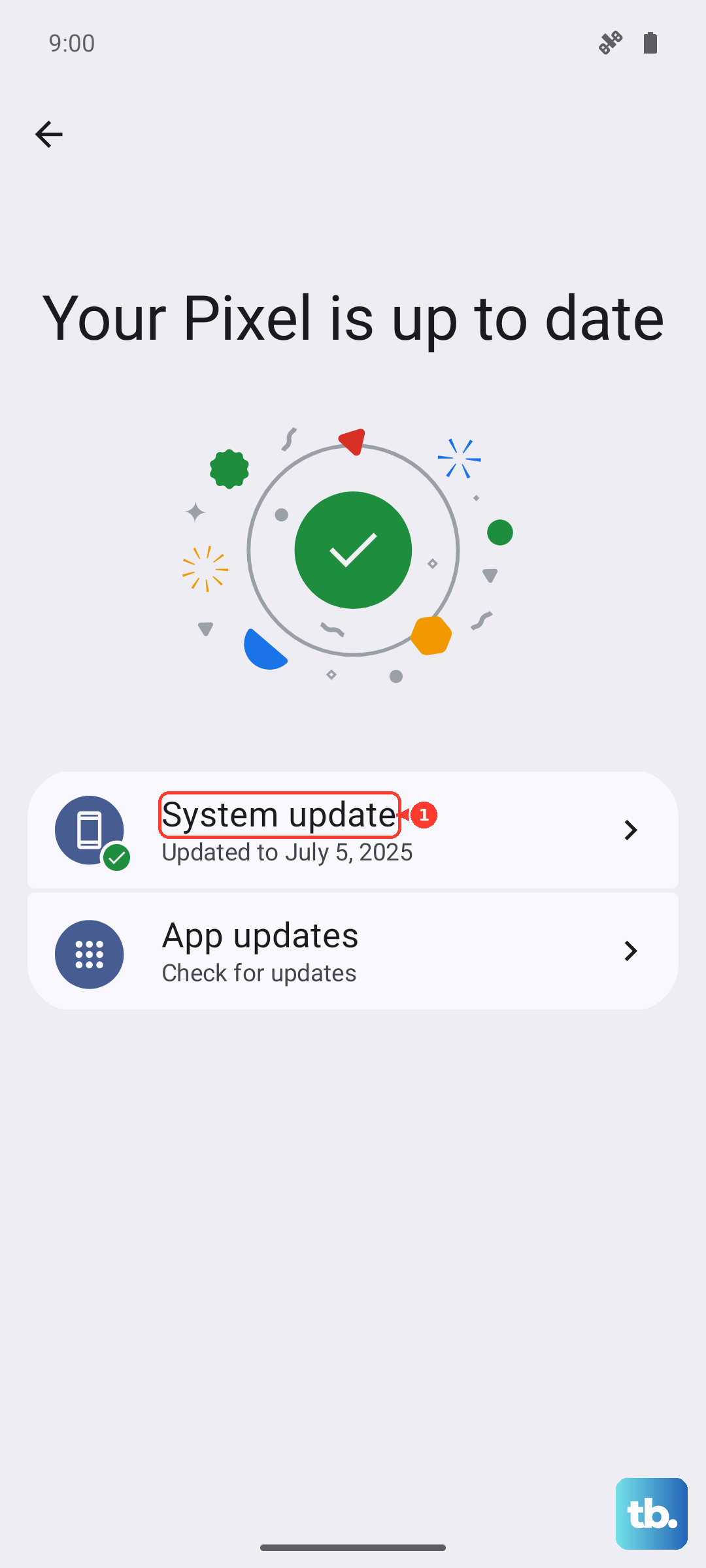
Tap "Check for update" and install any available updates. This is especially important given the Tensor G4 modem can have occasional software optimizations released by Google to improve connectivity.
Reset App Preferences
This is a safe reset that won't delete your app data. It resets notification permissions, default apps, and background data restrictions. Go to Settings > System > Reset options.
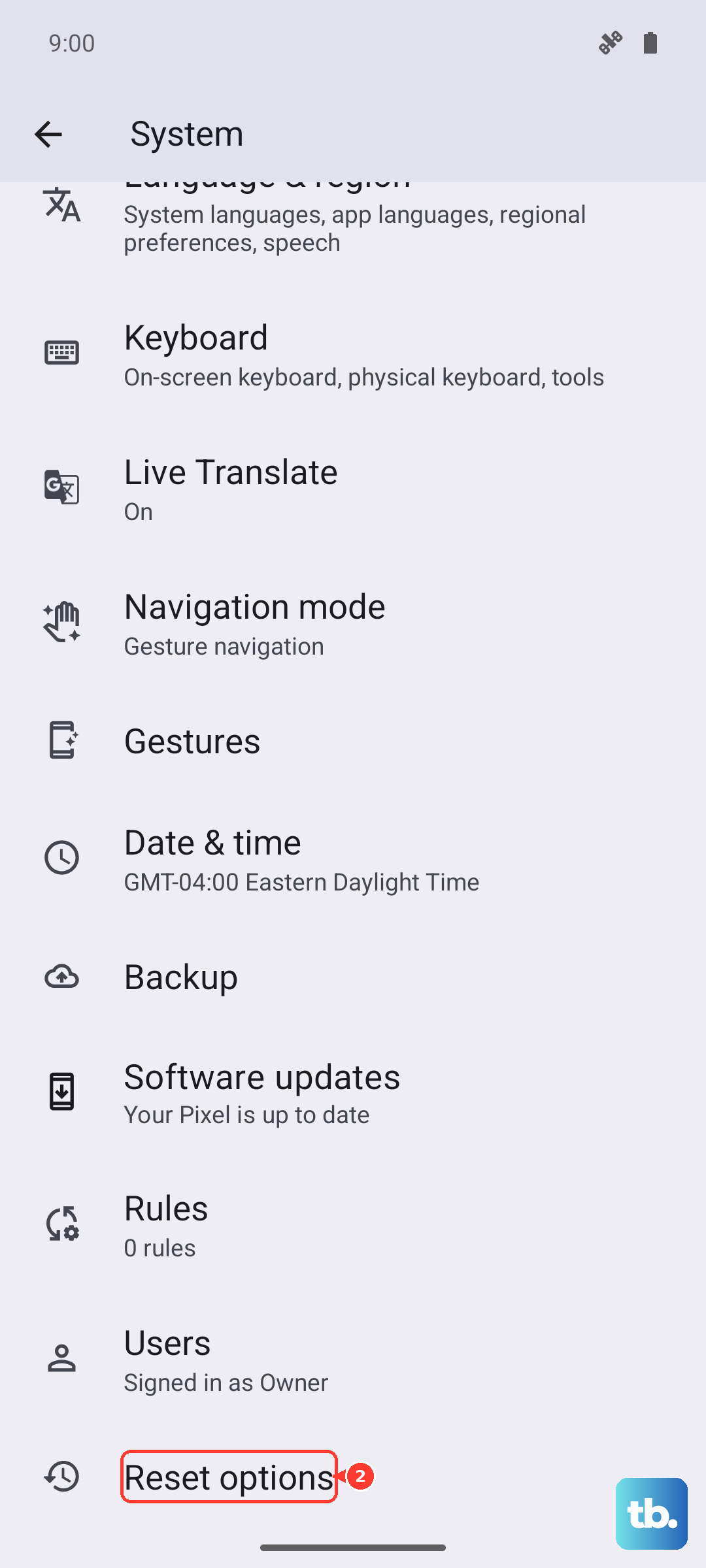
Tap "Reset app preferences" and confirm. Afterward, you'll need to re-grant notification permissions for your apps, but this often clears up conflicting settings that silence calls.
Try Safe Mode
Booting into Safe Mode temporarily disables all third-party apps. If your ringer works in Safe Mode, a recently installed app is likely causing the conflict. To enter Safe Mode, press and hold the Power button and Volume Up button together until the power menu appears.
Then, press and hold the "Power off" option on your screen. A prompt will ask if you want to reboot to Safe Mode; tap "OK". Test a call in this mode. To exit, just restart your phone normally.
Reset Network Settings
If you're having issues with carrier calls specifically, resetting network settings can help. This clears Wi-Fi, mobile data, and Bluetooth connections. Go to Settings > System > Reset options.
Tap "Reset Wi-Fi, mobile & Bluetooth". You'll need to re-enter Wi-Fi passwords and re-pair Bluetooth devices, but it can resolve network-related calling problems.
Check Your SIM Card
A loose or faulty SIM card can cause call reception issues. Power off your Pixel 9 Pro completely. Use the SIM eject tool (or a small paperclip) to open the SIM tray on the bottom edge of the phone.
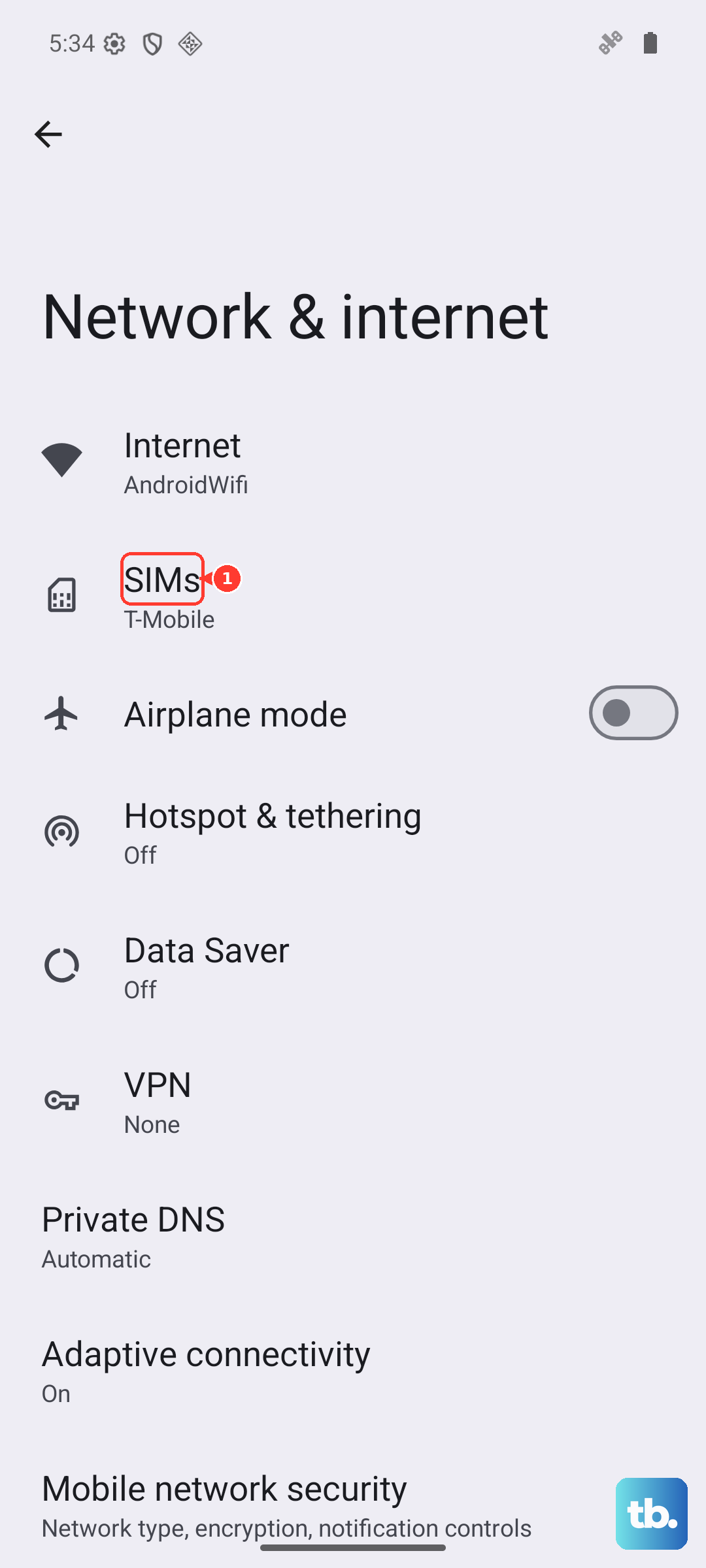
Remove the SIM card, gently clean the metal contacts with a soft, dry cloth, and re-insert it firmly. Power the phone back on. If you have an eSIM, you can try removing and re-adding it in Settings > Network & internet > SIMs.
Factory Reset (Last Resort)
If nothing else has worked, a factory reset will wipe the phone back to its original state. This is a last resort. First, ensure all your data is backed up to your Google Account. Go to Settings > System > Reset options.
Tap "Erase all data (factory reset)" and follow the prompts. After the reset, set up the phone as new without restoring a backup immediately to see if the ringer works on a clean system.