
Seeing that "No SIM" message on your Google Pixel 9 Pro is a real roadblock. You can't make calls, send texts, or use mobile data. The good news is this is usually a simple glitch you can fix yourself, often in just a few minutes.
Start With a Force Restart
This is the single most effective first step for any weird Pixel behavior, including SIM detection problems. It clears temporary software hiccups without touching your data. Just press and hold the Power button for a solid 30 seconds or more, until you see the Google logo appear and the phone restarts.
Check Airplane Mode and Your SIM Status
Swipe down twice from the top of your screen to open the full Quick Settings panel. Tap the Airplane Mode icon to turn it on, wait about ten seconds, then tap it again to turn it off. This forces your phone's modem to reconnect to the network from scratch.
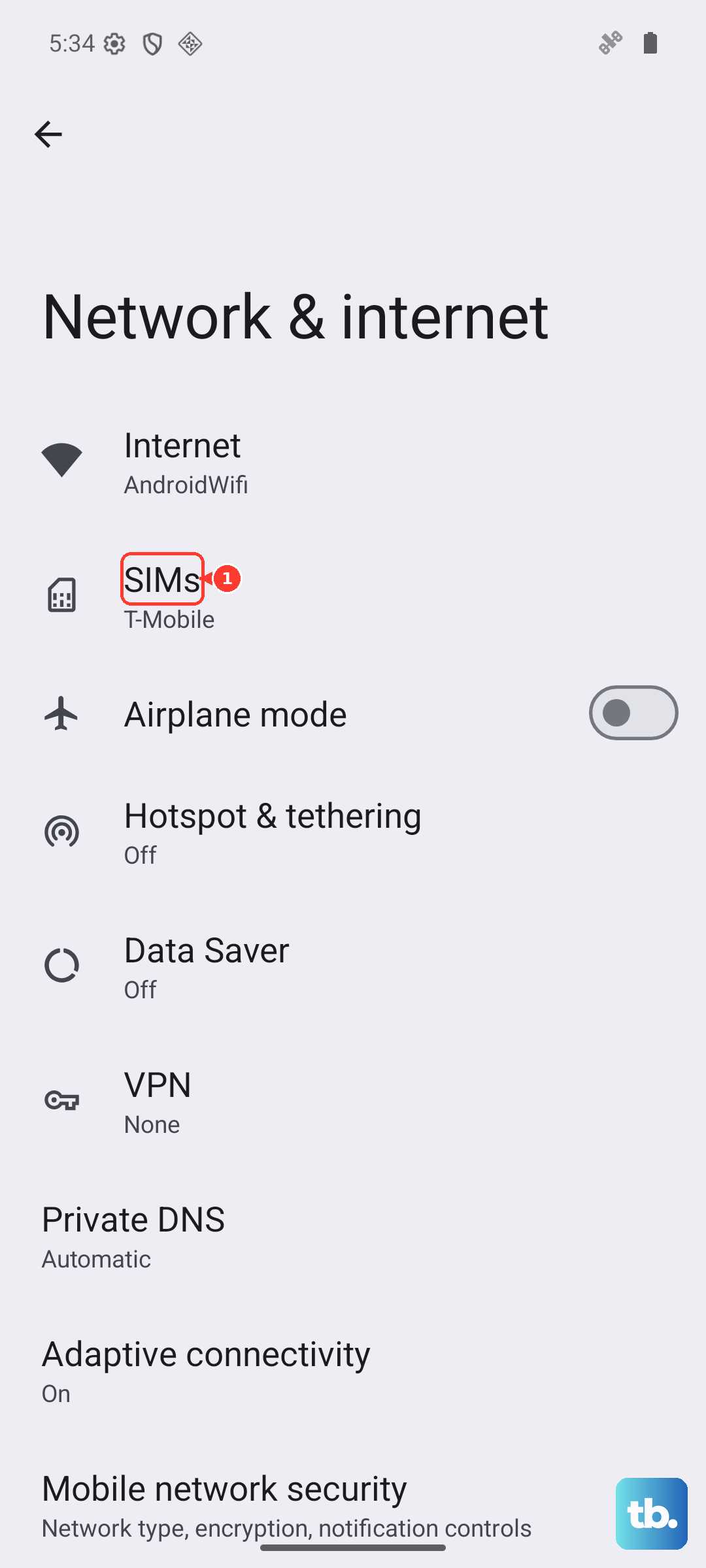
Next, verify your SIM is actually enabled in the settings. Go to Settings > Network & internet > SIMs. Make sure the switch next to your SIM card is toggled on. If you see an option for "Preferred SIM" for calls or data, ensure it's set correctly.
Inspect and Clean the Physical SIM
If the software steps didn't work, it's time to check the hardware. Power your Pixel 9 Pro off completely. Use the SIM ejector tool (the small pin that came in the box) to pop open the SIM tray on the bottom edge of the phone.
Carefully remove the SIM card and look at the gold contacts. You're checking for any visible scratches, dirt, or corrosion. Gently wipe the contacts with a clean, dry microfiber cloth. Blow any dust out of the SIM tray slot on the phone itself. When reinserting, make sure the card is seated correctly in the tray and the tray slides in smoothly.
The best way to rule out a dead SIM card is to test it in another phone. If it doesn't work there either, you'll need to contact your carrier for a replacement. They can often activate a new one for you in a store or ship it out.
Update Your Pixel's Software
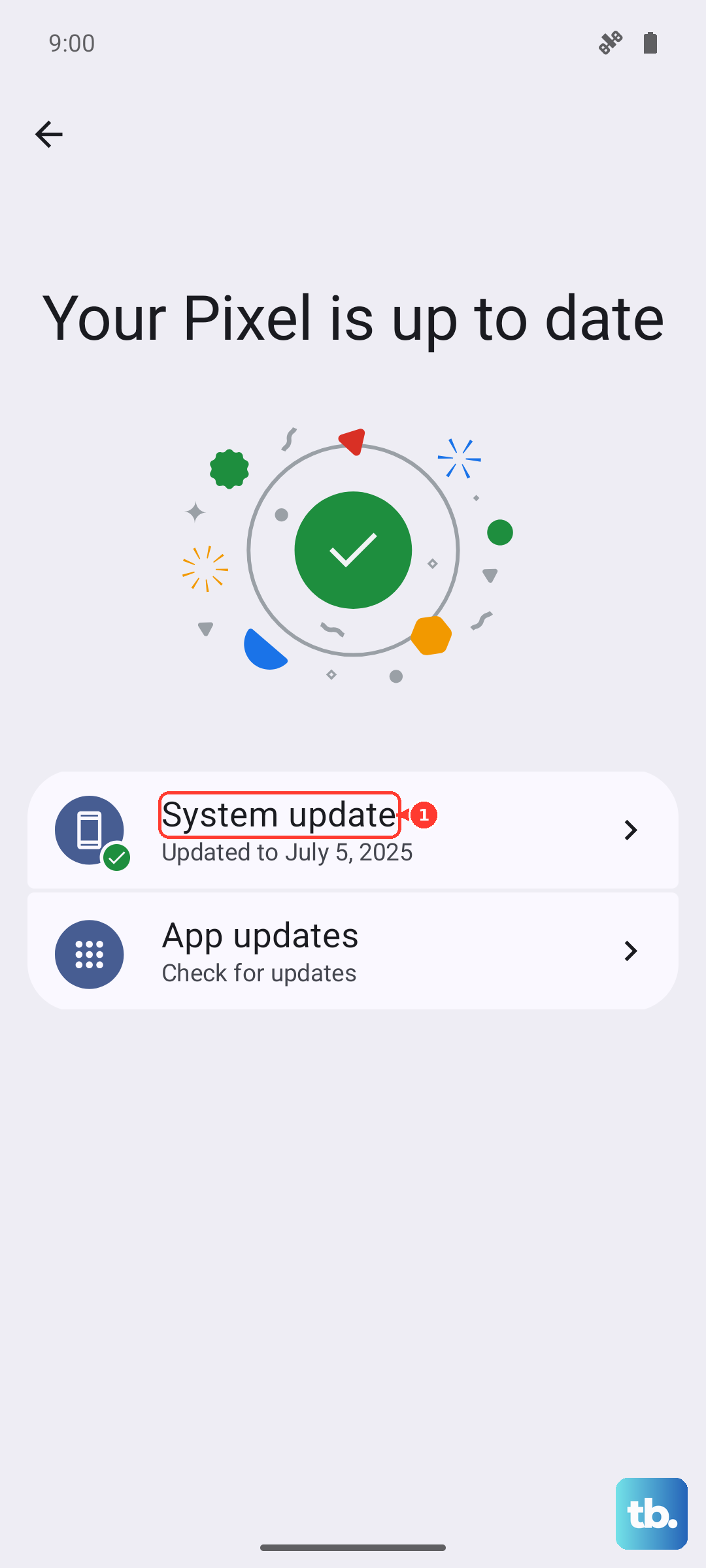
Google releases monthly updates that frequently include modem and connectivity improvements. Given the Pixel 9 Pro uses a Tensor G4 chip, these updates are crucial for network stability. Go to Settings > System > System update and tap "Check for update." Download and install anything available, then restart your phone.
Reset Your Network Settings
This is a deeper clean for network-related software issues. It will erase all your saved Wi-Fi networks, Bluetooth pairings, and cellular settings, but it won't touch your photos, apps, or personal files. You'll just have to reconnect to Wi-Fi and re-pair Bluetooth devices afterward.
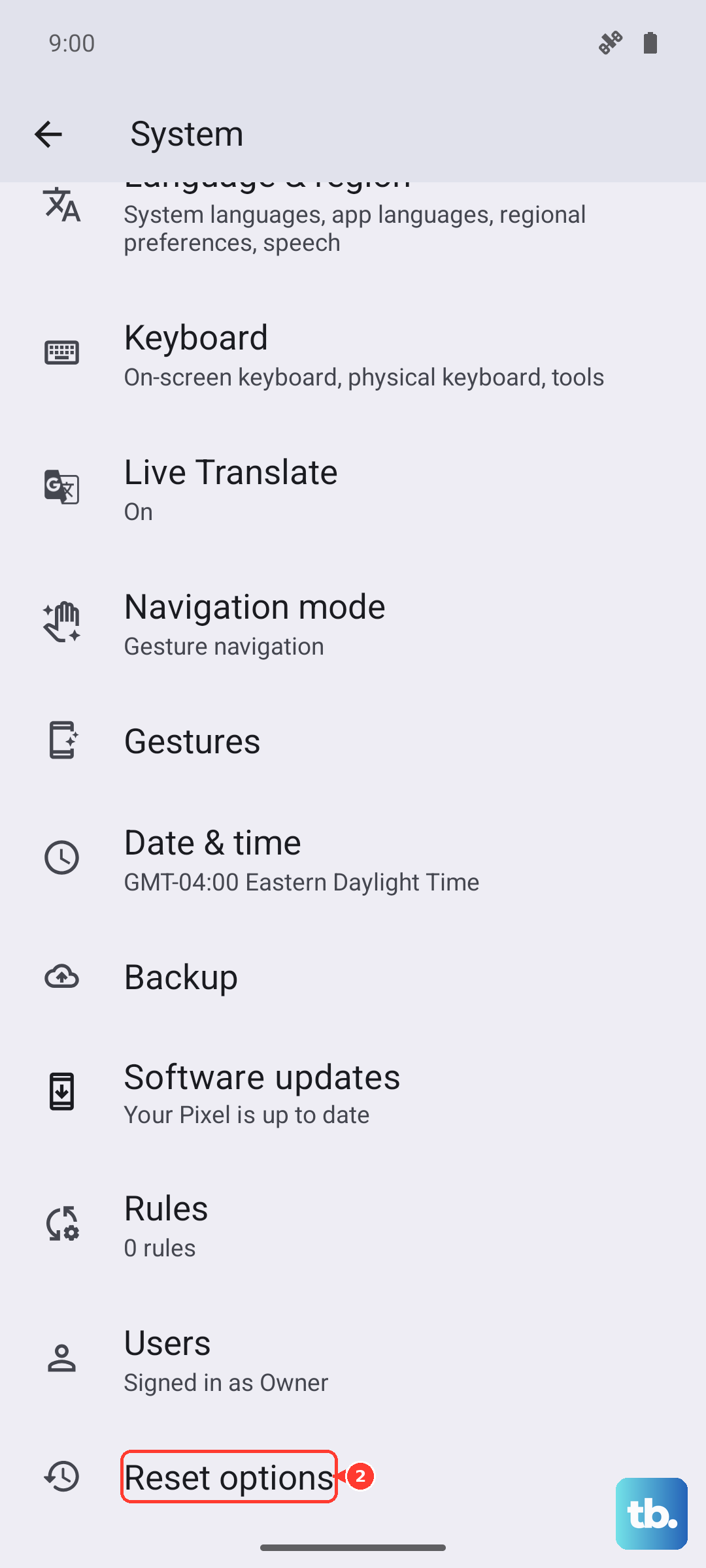
To do this, navigate to Settings > System > Reset options. Tap on Reset Wi-Fi, mobile & Bluetooth and confirm. Your phone will reboot, and you can then check if your SIM is detected.
Manually Select Your Network Operator
Sometimes the automatic network selection gets stuck. You can force it to look again and lock onto your carrier. Head to Settings > Network & internet > SIMs. Tap on your active SIM, then select Carrier or Network operators.
Tap "Choose automatically" to turn it off. The phone will search for available networks. When the list populates, select your specific carrier (e.g., T-Mobile, Verizon, AT&T) from the list. Wait a moment, then turn "Choose automatically" back on.
Reset Your APN to Default
The Access Point Name (APN) tells your phone how to connect to your carrier's mobile data. If these settings are wrong, it can cause all sorts of connection issues, including SIM detection problems. To reset them, go to Settings > Network & internet > SIMs > Access Point Names.
Tap the three-dot menu in the top right and select "Reset to default." Your phone will load the standard APN settings from your SIM card. In most cases, this is all you need. If you had to enter custom APN settings before, you may need to re-add them from your carrier's website.
Clear the SIM Toolkit Cache
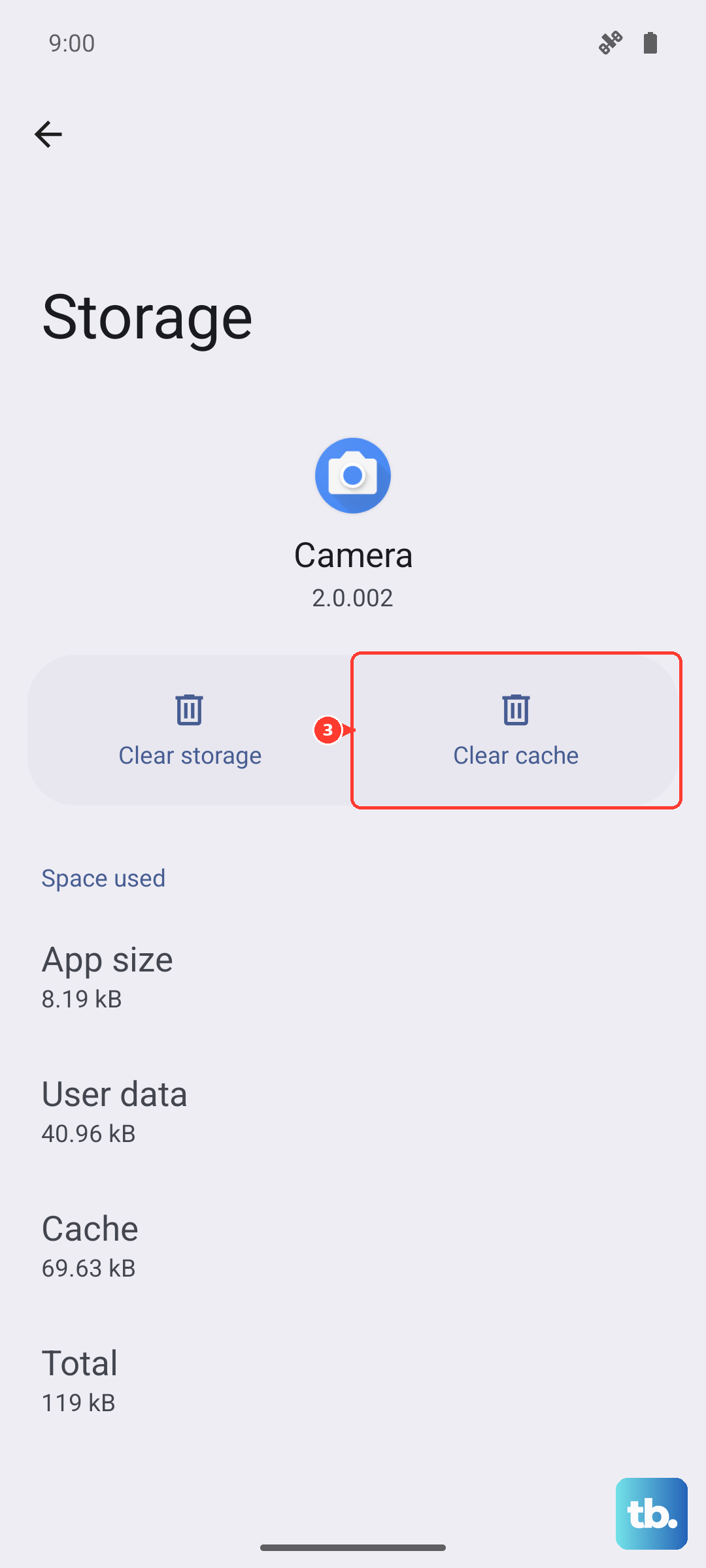
Background system apps that manage the SIM can accumulate corrupted cache data. Go to Settings > Apps > See all apps. Tap the three-dot menu and select "Show system." Now, scroll down and look for "SIM Toolkit" or "STK."
Tap on it, then select "Storage & cache." Tap "Clear cache." This doesn't delete any important data, it just cleans out temporary files that might be causing a conflict.
Switch to an eSIM
The Pixel 9 Pro fully supports eSIM. If your physical SIM card or tray is having persistent issues, switching to a digital eSIM can be a permanent solution. Contact your carrier's support and ask if they support eSIM activation for your Pixel. They can usually guide you through transferring your number to an eSIM profile, which you download directly in your phone's settings under Network & internet > SIMs > Add SIM > Set up an eSIM.
Consider a Factory Reset
This is a last resort for software-related issues. A factory reset will erase everything on your phone, so you must back up your photos, messages, and app data first. Use Google One backup or manually transfer files to a computer.
Once backed up, go to Settings > System > Reset options > Erase all data (factory reset). Follow the prompts. After the reset is complete, set up your phone as new initially to see if the SIM is detected before restoring your backup.