You sent a photo to a friend or got pulled into a lively group chat on your Pixel 9 Pro, and instead of the picture you are staring at a stubborn "Tap to download" button that never finishes, or a blank gray box that refuses to load. Picture messages and group texts ride on a different system than plain texts, so a single wrong setting or a weak signal can leave them stuck. The good news is that almost every MMS download problem on the Pixel 9 Pro traces back to a short list of fixable causes, and you can work through them yourself in a few minutes.
The fixes below are ordered from the quickest and safest to the most involved, ending with the official reset and support path only if everything else fails. Start at the top and retry the stuck message after each step, because most people are back to receiving pictures long before the bottom of the list.
Start With Your Signal and Airplane Mode
MMS needs a working cellular connection to pull a picture or group message down, so the very first thing to confirm is that your Pixel 9 Pro actually has service. The official Messages troubleshooting guidance says to see if you have signal and to check whether you are in airplane mode; if airplane mode is on, turn it off.
Glance at the status bar. If you only have one bar or none, move to an area with better coverage before retrying the download. A photo that refuses to arrive in a basement or an elevator will often drop in instantly once you are back to a stronger signal.
Make Sure Mobile Data Is Switched On
This is the single most common cause of a stuck picture message, and it surprises people. Unlike a plain text (SMS), an MMS picture or group message downloads over your mobile data connection, not over Wi-Fi, so MMS can fail even while your Wi-Fi works perfectly.
The official MMS guidance is to ensure that you have a data connection. Confirm that mobile data is enabled in your Network and internet settings, then open Messages and retry the stuck download. If you are traveling on another network, you may also need data turned on for roaming.
Turn On Auto-Download MMS in Google Messages
If picture and group messages arrive but never download on their own, the auto-download setting may simply be turned off. Google Messages is the default texting app on your Pixel 9 Pro, and it holds the setting that controls whether incoming MMS pull down automatically.
- 1.Open Google Messages.
- 2.Tap your profile photo.
- 3.Go to Settings > Advanced.
- 4.Turn on Auto-download MMS.
- 5.If you are traveling, also turn on Auto-download MMS when roaming.
With auto-download enabled, future picture and group messages should land without that extra tap, and you can retry the current one straight away.
Confirm Google Messages Is Your Default Texting App
MMS only routes correctly through the app set as your default messaging app. If a different texting app somehow took over that role, your picture messages can fail to download even though everything else looks fine.
The official troubleshooting steps say to verify that Google Messages is set as your default texting app. If another app is currently set as the default, switch it back to Messages, then retry the stuck message.
Update Google Messages to the Latest Version
An out-of-date messaging app can carry bugs that block downloads, which is why one of the first official fixes is to make sure you have the most updated version of Google Messages. App updates often quietly repair messaging and carrier-handling issues.
Open the Play Store, search for Google Messages, and install any pending update. While you are there, do the same for Carrier Services, since it works alongside Messages to handle MMS. Once both are current, return to the message and try the download again.
Give Your Pixel 9 Pro a Clean Restart
A restart clears temporary messaging and network glitches that no single setting accounts for, and it is one of the most reliable quick fixes. On the Pixel 9 Pro (Pixel 6 and later), the correct sequence is to press and hold the Power button plus the Volume up button for a few seconds, then tap Restart.
After the phone powers back on, open Messages and retry the MMS. A fresh connection to your carrier's network is often all it takes for a stalled picture to download in full.
Check That Your SIM and Plan Support MMS
Your Pixel 9 Pro supports dual SIM (one physical nano-SIM plus an eSIM), and a SIM problem or a plan limit can quietly stop picture messages. The official checklist says to ensure that a SIM card is inserted properly and to make sure that your carrier supports SMS, MMS, or RCS messaging.
It also advises checking your plan or credit balance to see that you have enough to send and receive messages. Reseat the physical SIM if you use one, and confirm with your carrier that messaging is included on your plan. A prepaid balance that has run dry is an easy thing to overlook.
Reset Your APN Settings to Default
The access point name (APN) is how your phone knows where to route messaging traffic, and wrong carrier APN settings will stop MMS from downloading. This is the official MMS-specific fix when the basics check out.
In your device's Settings app, reset your APN settings to default, then retry the message. Returning the APN to its carrier-provided defaults clears any mismatched values that were quietly breaking the download.
Install Any Pending Android System Updates
Outdated system software can break messaging in ways an app update alone cannot fix, so it is worth confirming your Pixel 9 Pro is fully current. The phone runs Android and receives ongoing version and security updates, which often include fixes for connectivity and messaging.
- 1.Open Settings > System > Software updates.
- 2.Follow the on-screen instructions to download and install any available update.
- 3.Let the phone restart so the update becomes active.
If you want to confirm your current version, you can check it under Settings > About phone > Android version. Once the update is applied, open Messages and try the download once more.
Force Restart a Frozen or Unresponsive Phone
If your Pixel 9 Pro is frozen and a normal restart will not work, a force restart can bring it back. Press and hold the Power button for up to 60 seconds; once your phone begins to reboot and the screen displays the "G" logo, release the Power button.
For a screen that is frozen while still on, the official guidance also notes that you can hold the power button for about 30 seconds to restart. After the phone comes back up, reopen Messages and retry the stuck MMS.
The Last-Resort Reset and Support Route
If you have worked through every step above and picture messages still will not download, a factory reset is the official final on-device step. This is a serious action. Google warns that a factory reset erases all data from your phone, so it should be your last resort.
Before you begin, back up your data first. Make sure the phone is well charged and stays connected to power or a stable network while the reset runs.
- 1.Open Settings > System > Reset options.
- 2.Tap Erase all data (factory reset).
- 3.Confirm and let the phone complete the process.
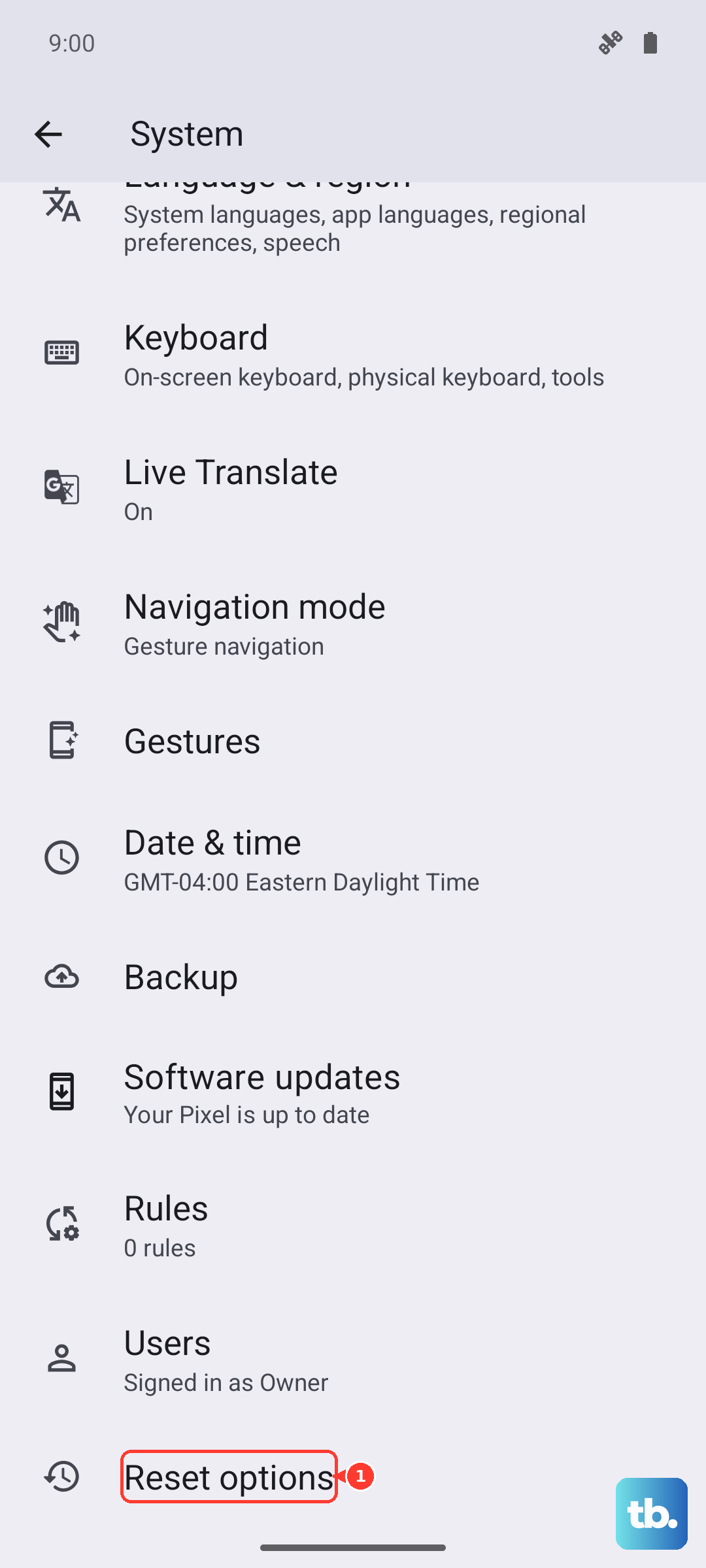
If you cannot reach the menu because the phone is unresponsive, Google documents a manual reset using Fastboot mode. On Pixel 6 and later, press and hold the Volume down and Power buttons at the same time for up to 30 seconds until the Fastboot mode screen appears. Because this also erases all data from your phone, back up first whenever you can. If MMS still fails after a reset, the issue is likely on the carrier side, so contact your carrier or Google Pixel support.
Frequently Asked Questions
Why do my texts work but picture messages will not download on my Pixel 9 Pro?
Plain texts (SMS) and picture or group messages (MMS) use different systems. MMS downloads over your mobile data connection, so even with working Wi-Fi and normal texting, a picture can fail if mobile data is off or if Auto-download MMS is turned off in Google Messages.
Where is the Auto-download MMS setting on the Pixel 9 Pro?
Open Google Messages, tap your profile photo, then go to Settings > Advanced and turn on Auto-download MMS. If you are traveling, also turn on Auto-download MMS when roaming so picture messages pull down while you are on another network.
Does Wi-Fi help my Pixel 9 Pro download MMS?
Not on its own. MMS picture and group messages download over your mobile data connection rather than Wi-Fi, so the official guidance is to ensure you have a data connection. Make sure mobile data is switched on, then retry the message.
Will resetting my APN settings delete anything?
Resetting your APN settings to default only returns your carrier connection values to their defaults. It is not a factory reset and does not erase your messages, photos, or apps. It is a standard, official MMS fix when picture messages will not download.
How do I restart a frozen Pixel 9 Pro?
For a force restart, press and hold the Power button for up to 60 seconds, then release it once the screen shows the "G" logo and the phone begins to reboot. For a screen that is frozen while on, you can also hold the power button for about 30 seconds to restart.