You went to fire off a quick text on your Google Pixel 9 and the message just sat there, stuck with a red exclamation point or spinning without ever leaving your phone. Whether it is a single SMS to one stubborn contact, a group picture message that refuses to send, or every text suddenly failing at once, the cause is almost always something small and fixable. Because the Pixel 9 handles SMS, MMS, and RCS through the Google Messages app, the answer usually lives in your connection, your carrier settings, or the app itself, and you rarely need anything more than the device in your hand.
Work through the fixes below in order. They start with the quickest, safest checks and end with the official reset and support path, so you only escalate as far as you actually need to.
Start With Your Signal and Airplane Mode
SMS and MMS both ride on your cellular connection, so the very first thing to confirm is that your Pixel 9 actually has service. Look at the status bar and make sure you have at least one bar of signal. If you are in a basement, an elevator, or a dead zone, move somewhere with better coverage before you try anything else.
Next, check that airplane mode is not switched on. Swipe down to open Quick Settings and look for the airplane icon, and if it is highlighted, tap it to turn it off. Airplane mode cuts your cellular radio entirely, which silently blocks every text you try to send.
Confirm Your Carrier and Plan Support Messaging
Your phone can only send what your carrier allows. Verify that your carrier and plan support SMS, MMS, and RCS messaging on your line, since not every prepaid or specialty plan includes all three.
It is also worth a quick look at your account. Check your plan or credit balance to see that you have enough to send and receive messages, especially if you are on a pay-as-you-go plan where a depleted balance can quietly stop texts from going out.
Reseat the SIM and Set Messages as Your Default App
If you use a physical SIM card, make sure it is inserted properly. A SIM that has shifted slightly in its tray, perhaps after the phone took a knock, can interrupt the cellular link that texting depends on. Power down, remove and reseat the SIM, then power back on.
You should also verify that Google Messages is set as your default texting app. If a different app grabbed that role, your SMS and MMS may never reach Messages. To set it, open Google Messages and follow the prompt to make it your default, or go to Settings > Apps > Google Messages.
Restart Your Pixel 9
A restart clears temporary glitches in the messaging stack and re-registers your phone on the network, and it fixes a surprising number of texting problems on its own. On the Pixel 9, press and hold the Power button and Volume up button for a few seconds, then tap Restart.
If your phone is frozen and will not respond to that combination, you can force a restart. Press and hold the Power button for up to 60 seconds, and once your phone begins to reboot and the screen displays the "G" logo, release the Power button.
Turn On Mobile Data for Picture and Group Messages
Picture and group messages travel as MMS, which needs a data connection rather than the plain cellular voice channel that ordinary SMS uses. If your basic texts go through but photos and group threads stall, missing mobile data is the likely culprit.
Make sure you have a data connection. Open Settings > Network & internet > Mobile network and confirm that Mobile data is turned on. It also helps to keep your attachments reasonable in size, because an oversized photo or video can fail to send no matter how strong your signal is. If a large file refuses to go through, send a smaller version, lower the image resolution, or reduce the number of recipients in a group message.
Fix Texts to One Specific Person
When everyone gets your messages except one or two people, the problem is tied to those contacts rather than your phone. Run through these checks for the affected contact:
- 1.Confirm you have not accidentally blocked them in Messages.
- 2.Verify that their phone number is entered correctly in your contacts.
- 3.Check whether you need to include a country code, for example +1 for US numbers.
- 4.Try deleting the contact and adding it again to clear any stale contact data.
A missing country code is an especially common reason a single contact never receives your texts, even though everything else works fine.
Deactivate iMessage if You Switched From an iPhone
If you recently moved to the Pixel 9 from an iPhone, your number may still be tied to Apple's iMessage system, which intercepts texts from other iPhone users before they ever reach your Pixel. Make sure you have deactivated iMessage for your number so those messages can flow to your new phone.
On a related note, if you change messaging apps on your phone and stop receiving messages, you may need to turn off RCS chats, since RCS registration can keep routing texts to a place you no longer use.
Update Google Messages and Your Phone Software
An out-of-date app or operating system can carry messaging bugs that newer versions have already fixed. Make sure you have the most updated version of Google Messages by checking for an update in the Play Store.
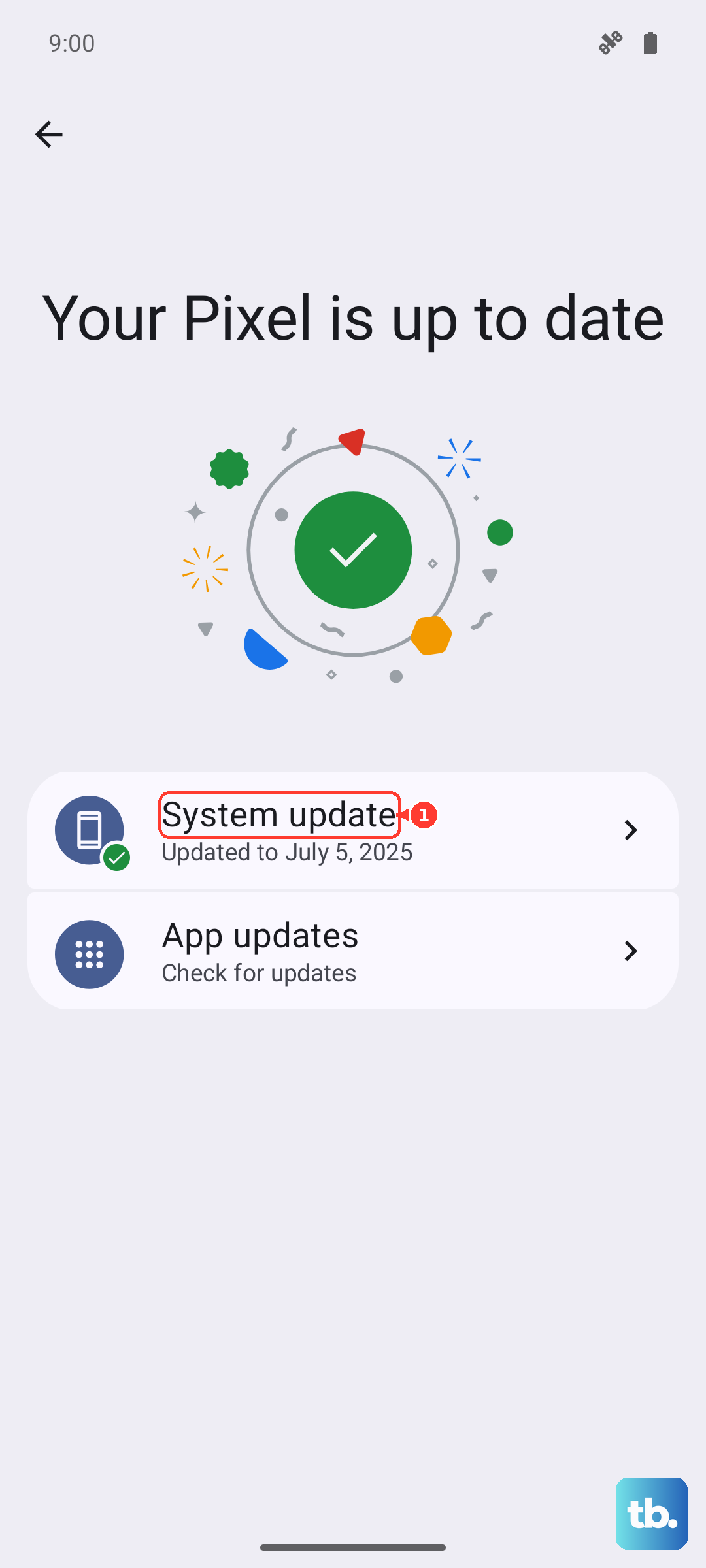
Then check for system and security updates on the phone itself. Go to Settings > System > Software updates (this may be labeled "Software updates" or "System update") and follow the on-screen instructions. You can confirm your current software at Settings > About phone > Android version.
Reset Chat Features and Clear Messaging Storage
If texts are still failing after the steps above, refreshing the messaging apps and your RCS registration often clears the blockage. Follow this sequence exactly:
- 1.Turn on Airplane mode.
- 2.Clear Storage for Android Messages and Carrier Services in the device Settings app.
- 3.Turn off Airplane mode.
- 4.Restart the phone.
If picture messages specifically continue to fail after this, reset your network access point settings. In your device's settings app, reset your APN settings to default, which restores the carrier configuration that MMS relies on.
If you want to confirm RCS chats are switched on afterward, open Google Messages, tap your Profile picture or Initial, then go to Messages settings > RCS chats and turn RCS chats on. Be careful here, because it is not advised to turn RCS chats on and off repeatedly, and if you do, you will be removed from group chats.
Factory Reset and Reaching Official Support
A factory reset is the last resort, reserved for when nothing above has worked, because it wipes the phone clean. Before you start, back up your data and charge the phone to at least 70 percent, since the process can take up to an hour.
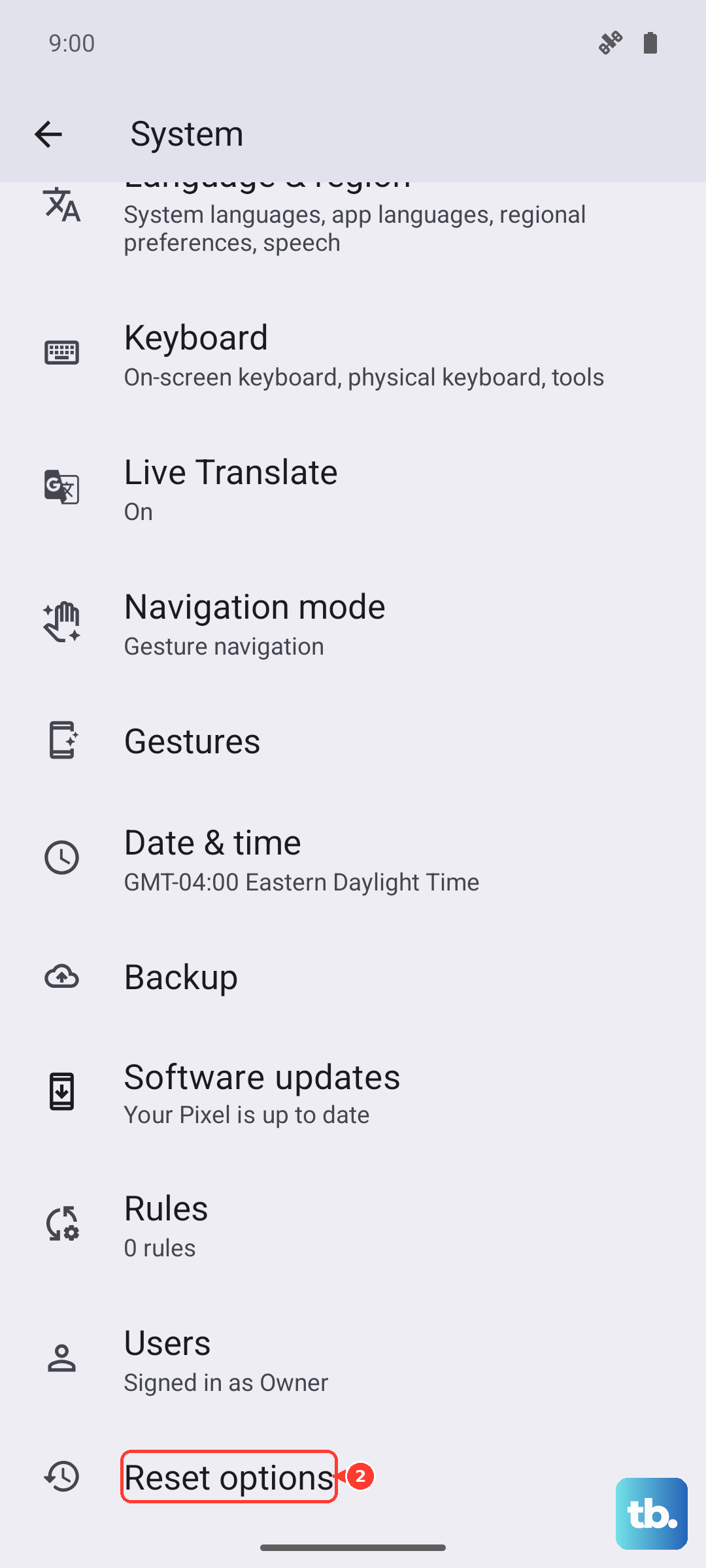
To reset, go to Settings > System > Reset options > Erase all data (factory reset). Be aware of the official warning that a factory reset erases all your data from your phone, so make sure your backup is complete first.
If your texting problem still persists after a full reset, the issue may be with your hardware or your line rather than the software. At that point, contact Google Pixel support or your carrier so they can investigate further.
Frequently Asked Questions
Why do my regular texts send but picture messages fail on my Pixel 9?
Picture and group messages use MMS, which requires a data connection, while plain SMS does not. Open Settings > Network & internet > Mobile network and confirm that Mobile data is turned on. If your attachment is large, try sending a smaller version or lowering the image resolution, since an oversized file can fail to send.
Why can I text everyone except one person?
When only specific contacts are affected, the problem is usually with that contact rather than your phone. Confirm you have not blocked them, verify their number is entered correctly, make sure you have included a country code such as +1 for US numbers, and try deleting and re-adding the contact.
I just switched from an iPhone and some texts never arrive. What is wrong?
Your number is likely still registered with Apple's iMessage, which intercepts messages from other iPhone users. Deactivate iMessage for your number so those texts route to your Pixel 9 instead. If you also changed messaging apps and stopped receiving texts, you may need to turn off RCS chats.
How do I make sure Google Messages is handling my texts?
Verify that Google Messages is set as your default texting app. Open Google Messages and follow the prompt to make it the default, or go to Settings > Apps > Google Messages. If another app took over that role, your incoming SMS and MMS may not appear where you expect them.
Will a factory reset fix my texting problem, and is it safe?
A factory reset can clear deep software issues, but it should only be a last resort because a factory reset erases all your data from your phone. Back up your data first, charge the phone to at least 70 percent, then go to Settings > System > Reset options > Erase all data (factory reset). If the problem remains afterward, contact Google Pixel support or your carrier.