You set up the hotspot on your Google Pixel 9 expecting your laptop or tablet to jump online, but the connection refuses to pass any data, drops constantly, or other devices simply cannot see the network at all. It is a frustrating spot to be in, especially when you are away from home and counting on your phone to keep everything else connected.
The Pixel 9 fully supports a built-in Wi-Fi hotspot, plus USB and Bluetooth tethering, so the feature is there and waiting to work once you clear whatever is blocking it.
The fixes below are arranged from the quickest, safest checks to the more involved resets, with the official factory reset and support path saved for last. Work through them in order and stop as soon as your connection comes back.
Most hotspot problems on the Pixel 9 come down to a plan restriction, a stray setting like Data Saver, or a connection that just needs to be refreshed.
Make Sure Your Plan Actually Includes Tethering
A mobile hotspot shares your phone's mobile data, and not every plan includes that privilege. Google's Pixel hotspot guidance states plainly that some mobile carriers limit or charge extra for tethering, and recommends checking with your carrier.
If tethering is blocked or capped on your plan, the hotspot will not pass data even when it is switched on and shows as active.
Before you spend time on settings, confirm with your carrier that your plan permits tethering and that you have not hit a data cap.
This single step rules out the most common reason a hotspot looks like it is running but never gets your other devices online.
Switch the Wi-Fi Hotspot Off and Back On From the Right Screen
A clean toggle from the correct menu often restarts the feature and clears a one-off glitch. The Pixel 9 hotspot lives in a specific place in Settings, and toggling it from there is more reliable than using a quick-settings tile alone.
Open Settings > Network & internet > Hotspot & tethering > Wi-Fi hotspot.
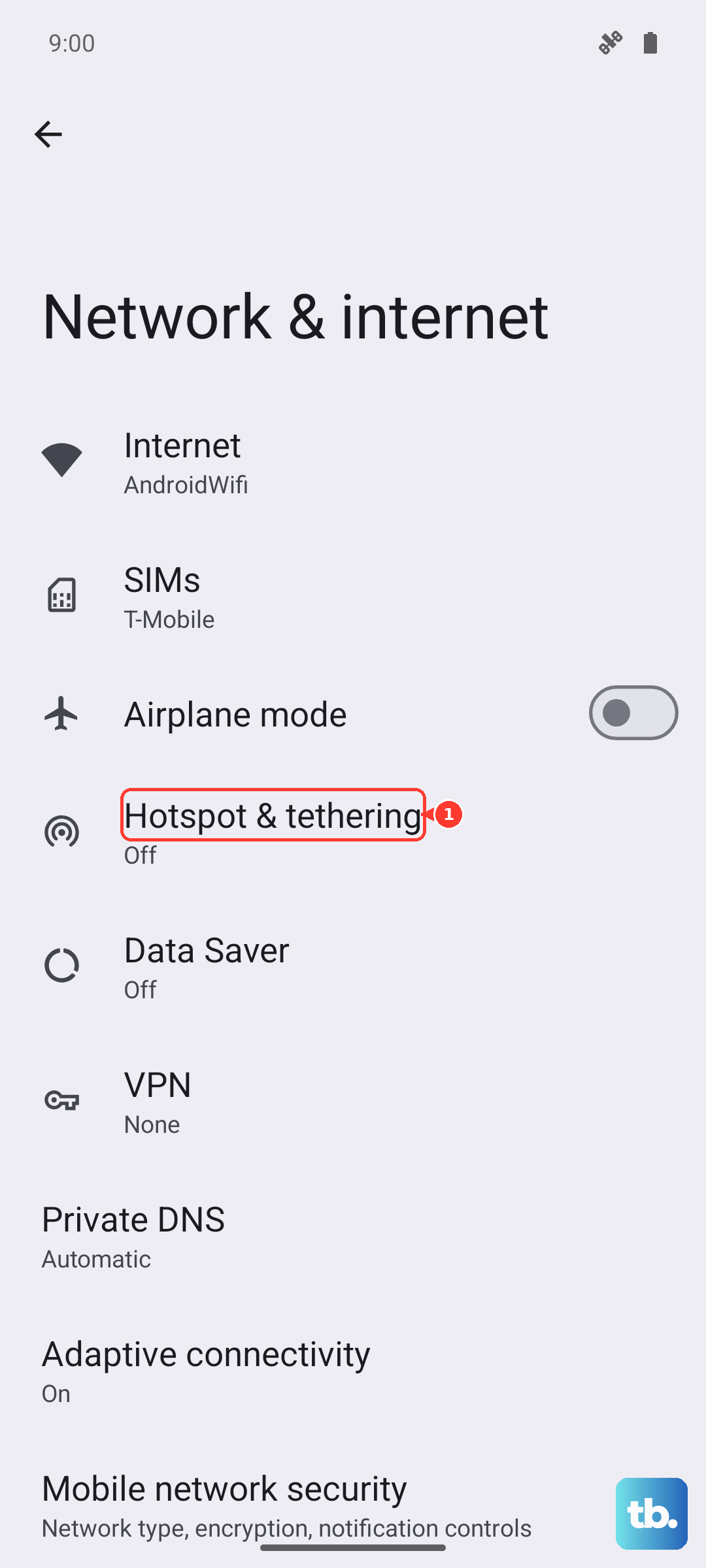
Turn on Wi-Fi hotspot. You can share your phone's mobile data with up to 10 other devices this way.
If it was already on, turn it off, wait a moment, then turn it back on from this same screen.
Restarting the hotspot from its own settings page gives the feature a fresh start without touching anything else on the phone.
Turn Off Data Saver So Tethering Can Work
Data Saver is designed to trim background data, and it can stop the hotspot from working over Wi-Fi. Google's Pixel hotspot help says directly that if you have turned on Data Saver, you should turn it off to tether by Wi-Fi.
If your hotspot turns on but no device can actually load anything, Data Saver is a prime suspect.
Disable it, then try connecting your laptop or tablet again.
Confirm Mobile Data Is On and Working
Because the hotspot shares your cellular connection, your mobile data has to be working in the first place. If the phone itself cannot reach the network, nothing it broadcasts will get online either.
Go to Settings > Network & Internet > SIMs.
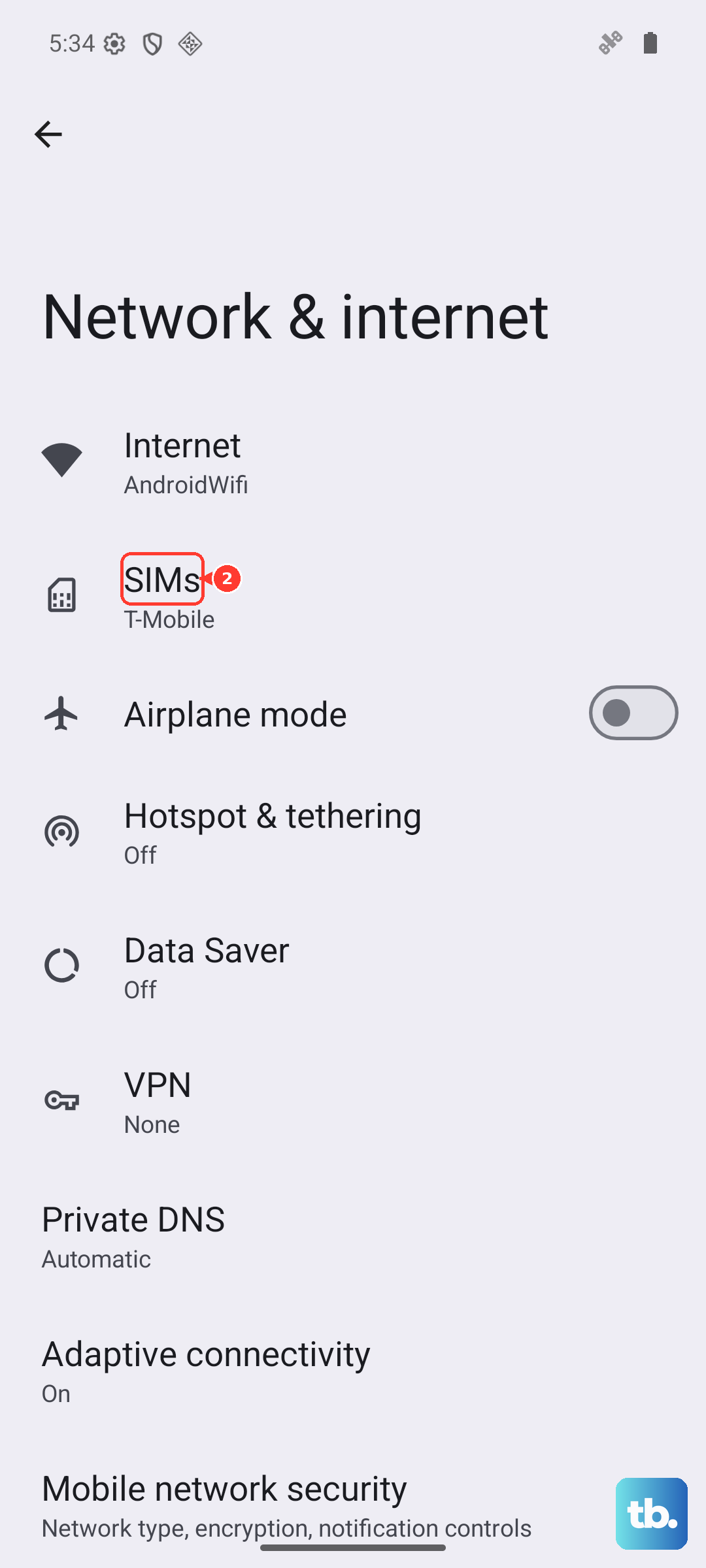
Make sure Mobile data is on.
Tap your carrier name and confirm Use SIM is enabled.
If you see No SIM displayed in gray, check that the SIM tray is seated correctly.
A loose or partially inserted nano SIM will cut off the very connection the hotspot depends on.
Cycle Airplane Mode to Refresh the Mobile Connection
Toggling Airplane mode forces the phone to drop and re-establish its mobile network connection, which is exactly what the hotspot relies on. It is a fast, harmless reset for a flaky signal.
Open Settings > Network & internet > Airplane mode and turn it on, or swipe down from the top of the screen to use the toggle there.
Wait a moment, then turn it back off.
Once the phone reconnects to your carrier, retry the hotspot.
Re-Check the Hotspot Name, Password, and Security Type
If your hotspot is running but other devices cannot join, the network name, password, or security type may be the problem. The Pixel makes these easy to review and change from the hotspot settings.
In the Wi-Fi hotspot settings, to find or change a hotspot setting like the name or password, tap it.
You can also choose a security type under Security, and as a test you can pick None to remove the password requirement temporarily.
If a device connects only when the password is removed, you know the saved credentials were the issue, and you can set a fresh password afterward.
Use USB or Bluetooth Tethering as a Backup
If the Wi-Fi hotspot still will not cooperate, the Pixel 9 can share data two other ways. These are useful both as a workaround and as a way to tell whether the problem is specific to Wi-Fi.
For USB tethering, connect the phone to the other device with a USB cable, then go to Settings > Network & internet > Hotspot & tethering > USB tethering.
For Bluetooth tethering, first pair the phone with the other device, then go to Settings > Network & internet > Hotspot & tethering > Bluetooth tethering.
Two limitations are worth knowing. Per Google, Mac computers cannot tether with Android over USB, and Macs on macOS Monterey and up cannot tether with Android through Bluetooth.
If you are trying to connect a Mac, lean on the Wi-Fi hotspot instead.
Restart the Pixel 9
A normal restart clears the temporary glitches that can quietly break connectivity.
On Pixel 6 and later, which includes the Pixel 9, press and hold the Power button and Volume up button together for a few seconds, then tap Restart.
Give the phone a moment to fully boot and reconnect to your carrier before you turn the hotspot back on.
A simple restart resolves a surprising number of intermittent tethering issues.
Force Restart a Frozen Phone
If the screen is unresponsive and a normal restart is not possible, do a forced restart instead.
On Pixel 6 and later, press and hold the Power button for up to 60 seconds, and once the phone begins to reboot and the screen displays the G logo, release the Power button.
Use this only when the phone is genuinely stuck.
For a responsive phone, the standard restart above is the right choice.
Install Any Pending Software Update
Software updates regularly fix connectivity bugs, including ones that affect tethering. Keeping the Pixel 9 current is one of the easiest long-term safeguards against repeat problems.
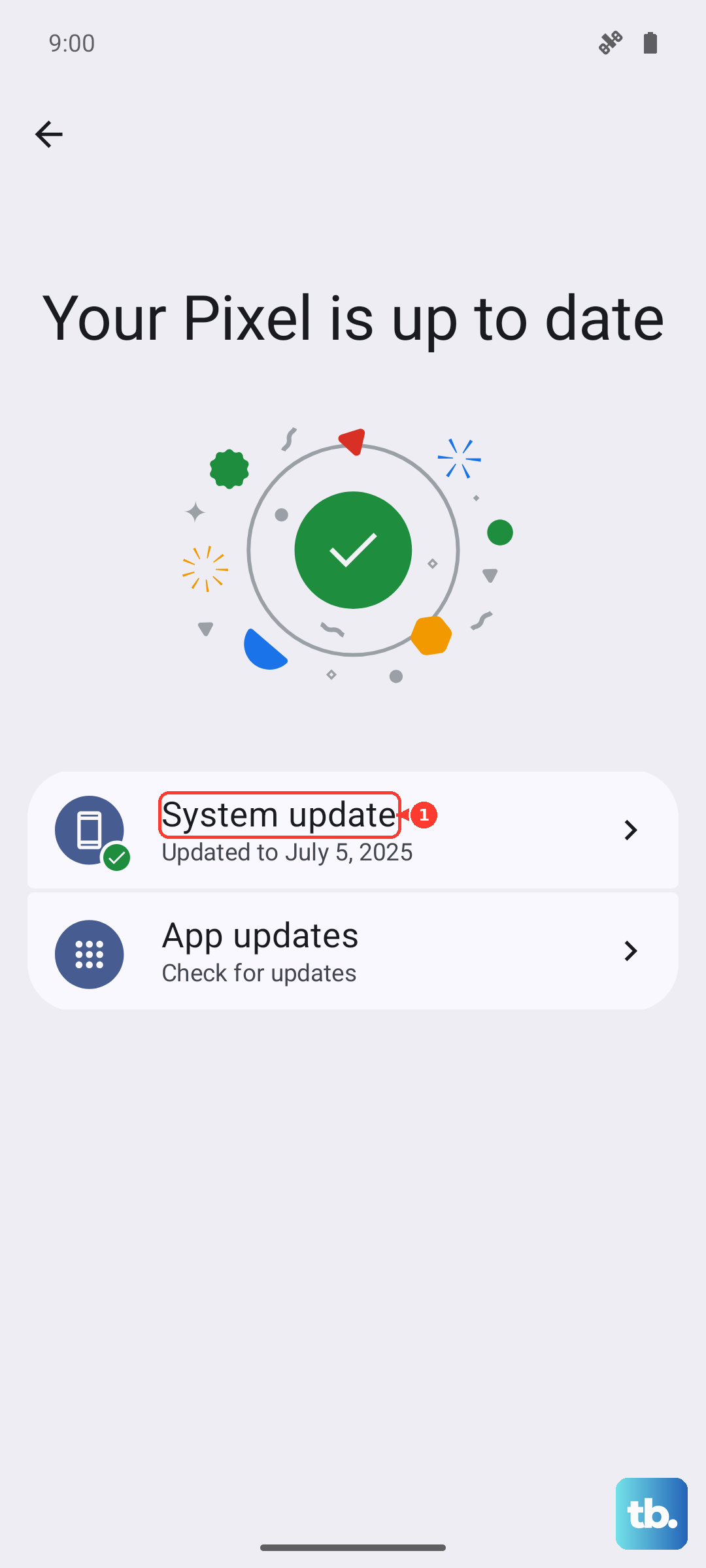
Open the Settings app, tap System and then Software updates, then follow the on-screen instructions.
Your Pixel may label this Software updates or System update.
It helps to be on Wi-Fi and charged before you start, so the download and install finish cleanly.
Reset the Network Settings
When connectivity problems stick around, resetting the radios gives them a clean slate.
This clears saved Wi-Fi networks and Bluetooth pairings, so you will need to reconnect them afterward, but it does not erase your personal data.
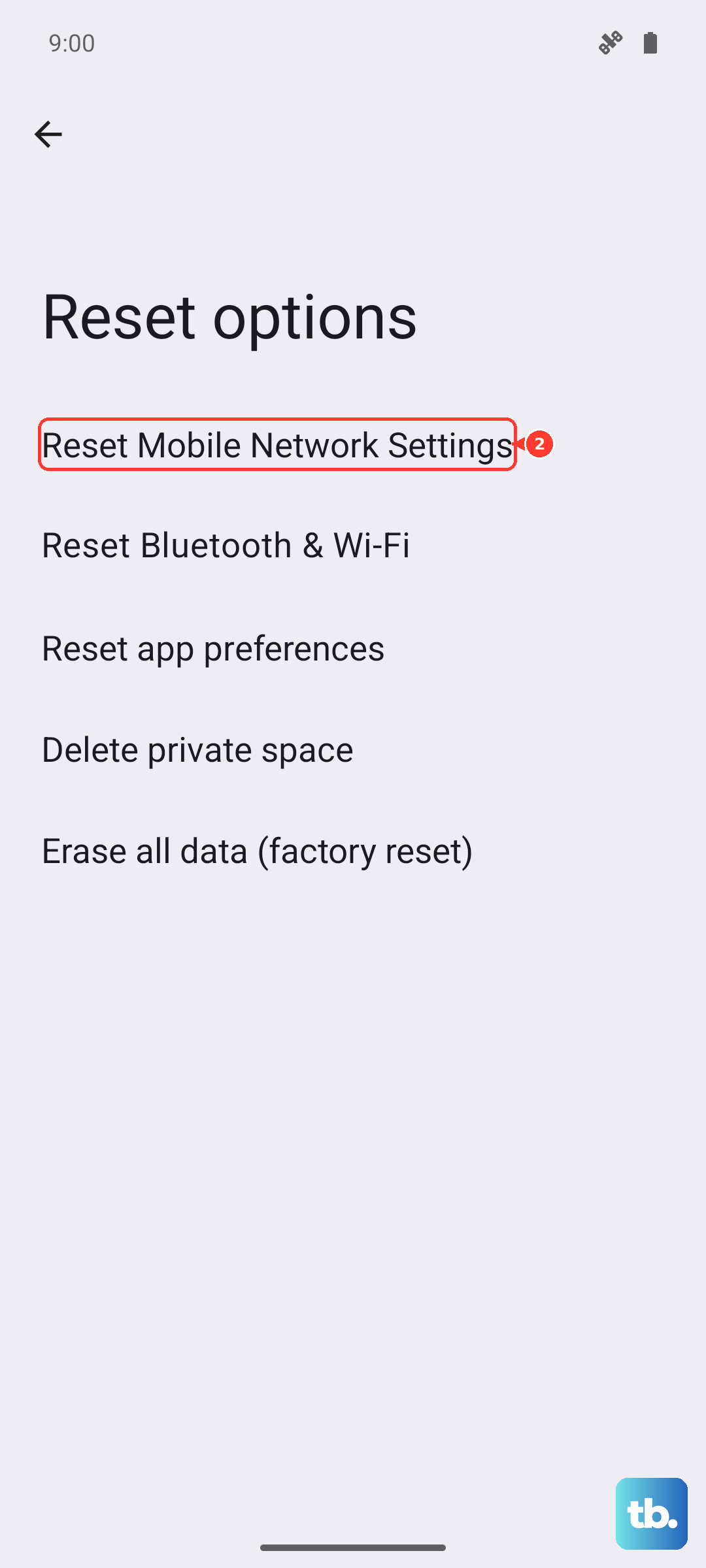
Go to Settings > System > Reset options > Reset Wi-Fi, mobile & Bluetooth.
Tap Reset settings.
For trouble that is specific to the mobile side, you can instead use Settings > System > Reset options > Reset mobile network settings.
Once the reset finishes, re-add your networks and try the hotspot again.
Factory Reset as a Last Resort, Then Reach Out for Help
If nothing above brings the hotspot back, a full factory reset is the final software step.
Important: a factory reset erases all your data from your phone, so back up anything important before you begin.
- 1.Go to Settings > System > Reset options > Erase all data (factory reset).
- 2.Tap Erase all data.
- 3.Enter your PIN if prompted.
- 4.Tap Erase all data again to confirm.
If the hotspot still fails after a clean reset, the issue is most likely with the carrier or plan, or with the hardware.
Contact your carrier to confirm there is no outage and that tethering is active on your account, or contact Google Pixel support for further help.
Frequently Asked Questions
Why does my Pixel 9 hotspot turn on but no device can get online?
This usually points to a plan that does not include tethering, or to Data Saver being switched on. Confirm with your carrier that tethering is allowed on your plan, then turn off Data Saver, since Google notes you must turn off Data Saver to tether by Wi-Fi.
How many devices can connect to the Pixel 9 hotspot at once?
You can share your phone's mobile data with up to 10 other devices through the Wi-Fi hotspot. If you are at that limit, disconnect a device you are not using and try again.
Will resetting network settings delete my photos or apps?
No. Reset Wi-Fi, mobile & Bluetooth clears saved Wi-Fi networks and Bluetooth pairings, so you will need to reconnect them, but it does not erase your personal data. A factory reset is the only step here that wipes everything, which is why it comes last.
Can I tether my Pixel 9 to a Mac?
Not by every method. Per Google, Macs cannot tether with Android over USB, and Macs on macOS Monterey and up cannot tether through Bluetooth. Use the Wi-Fi hotspot to connect a Mac instead.
What should I do if the hotspot still fails after a factory reset?
At that point the problem is likely with the carrier or plan, or with the hardware. Contact your carrier to confirm there is no outage and that tethering is active, or contact Google Pixel support for further assistance.