You reach for the Flashlight tile on your Pixel 9 in a dark room, tap it, and nothing happens. The little icon stays dim, the rear LED never lights, and you are left fumbling. A dead flashlight on the Pixel 9 is usually a software hiccup or a simple conflict over the camera's LED rather than a broken phone, and most cases clear up in a minute or two. The fixes below run from the quickest, safest taps to the official reset and support paths, so start at the top and stop as soon as the light comes back.
Before you begin, it helps to know how the hardware works. The Pixel 9 has an LED flash on its rear dual-camera system, and that same LED is what the built-in Flashlight uses. Because the Camera flash and the Flashlight share one LED, the two cannot run at the same time, which explains a surprising number of "my flashlight won't turn on" moments.
Start by toggling the Flashlight tile off and on
The fastest reset for a stuck flashlight lives right in Quick Settings, which is the official place Google points to for turning settings like this on and off. Swipe down from the top of your screen for the first settings, then swipe down again to see all Quick Settings, and tap the Flashlight tile. Remember that a dimmed tile is off, so watch the icon change as you tap.
If the Flashlight tile is missing entirely, you can add it back. Swipe down twice to open the full Quick Settings panel, tap Edit, then add or rearrange the tiles until the Flashlight tile sits where you want it. Toggling the flashlight off and back on clears a stuck state where the software thinks the light is already on.
Close the Camera app so the LED is free
Because the Pixel 9's single rear LED is shared by the Camera flash and the Flashlight, the flashlight simply cannot turn on while the Camera app is using or holding the flash. If you were just taking photos or recording video, the camera may still have a claim on the LED.
Fully close the Camera app, along with any other app that uses the camera, then try the Flashlight tile again. With the LED no longer reserved by the camera, the flashlight should respond normally.
Let the phone cool down if it feels warm
Heat is a common, overlooked reason the light goes dark. When a Pixel gets too hot, Google says it may automatically turn off the camera's flash and the camera to protect the device, and that protective behavior can make the flashlight unavailable until temperatures drop.
Stop any heavy use such as gaming, video, or navigation, take the phone out of direct sunlight, and pull it off the charger. Turn off the camera flash and give the device time to cool. If the phone turns off on its own, let it cool down, then restart it before you try the flashlight again.
Restart the Pixel 9 to clear temporary glitches
A normal restart wipes out the temporary software glitches that can leave the flashlight unresponsive. On Pixel 6 and later, which includes the Pixel 9, the restart sequence is straightforward.
- 1.Press and hold the Power button + Volume up button for a few seconds.
- 2.Tap Restart.
- 3.Wait for the phone to finish booting, then open Quick Settings and test the Flashlight tile.
Force a restart if the screen is frozen
If the screen is frozen or completely unresponsive and the normal restart will not work, you need a forced restart instead. This is a different sequence, so follow it exactly.
- 1.Press and hold the Power button for up to 60 seconds.
- 2.Once your phone begins to reboot and the screen displays the G logo, release the Power button.
- 3.Let the phone start up fully, then try the flashlight again.
Releasing the Power button at the right moment matters; wait for the G logo before you let go.
Install any pending software updates
A bug fix or a security and OS update can resolve flashlight problems that no amount of toggling will touch. The Pixel 9 launched on Android 14 and is eligible for 7 years of Android OS and security updates, so there is a good chance a relevant fix has shipped.
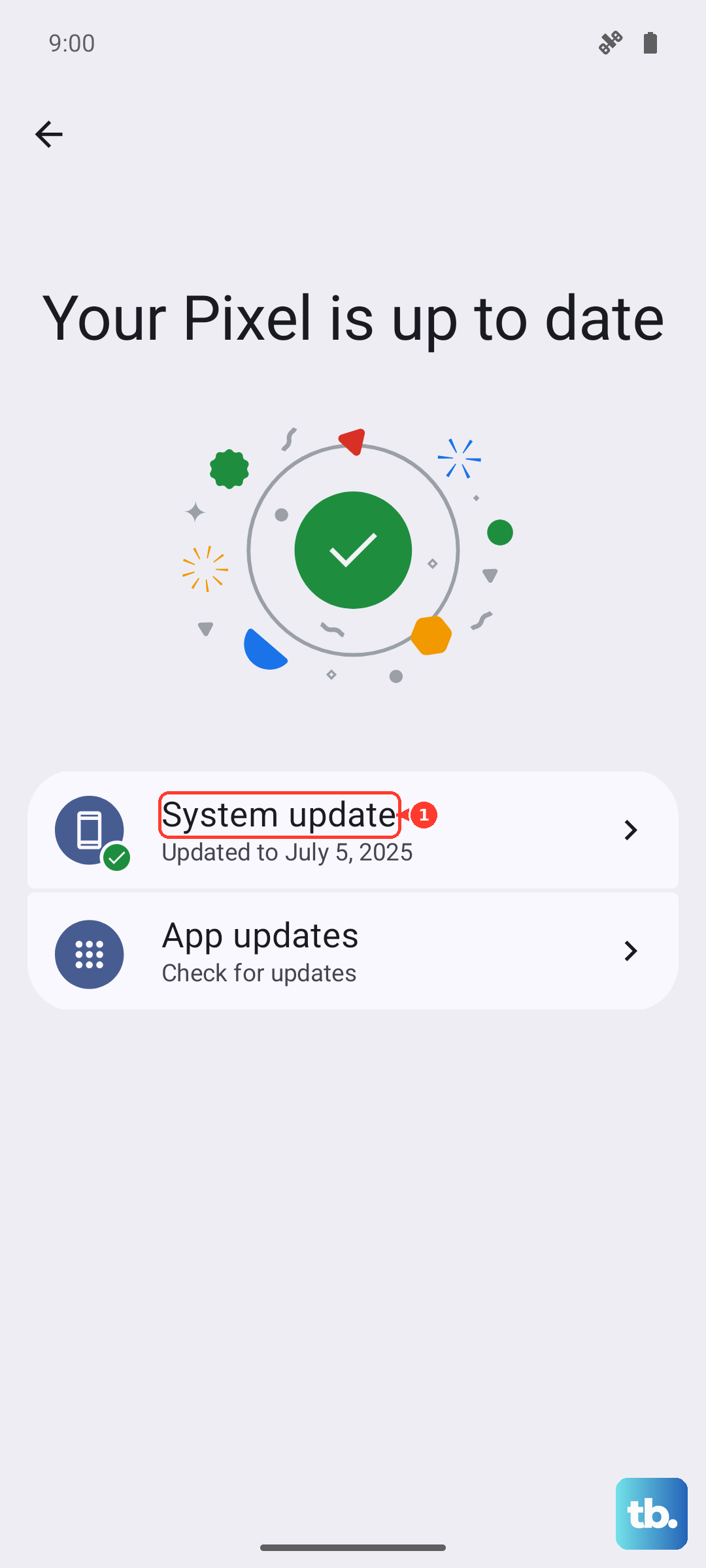
To check, open your device's Settings app, tap System, then tap Software updates (it may appear as Software updates or System update on your Pixel), and follow the on-screen instructions. If you want to confirm which version you are on, go to Settings > About phone > Android version. After the update installs and the phone restarts, test the flashlight once more.
Boot into Safe mode to rule out a downloaded app
A downloaded app, such as a third-party flashlight or camera utility, can quietly hold the flash or interfere with it. Safe mode starts the phone with only the built-in software running, which lets you see whether one of your installed apps is the culprit.
- 1.Press and hold the Power and Volume Up buttons for a few seconds.
- 2.On your screen, tap and hold either the Power off or Restart buttons.
- 3.Tap OK.
- 4.Look for "Safe mode" at the bottom of the screen, then test the Flashlight tile.
If the flashlight works in Safe mode, a downloaded app is the cause. Exit Safe mode by pressing and holding the Power button + Volume up button for a few seconds and tapping Restart, then remove the suspect app, such as a recently installed flashlight or camera tool.
Back up and factory reset as a last resort
If you have worked through every step above and the flashlight still refuses to light, a factory reset is the final software option. This is destructive, so treat it with care, because a factory reset erases all your data from your phone. Back up everything you want to keep before you start.
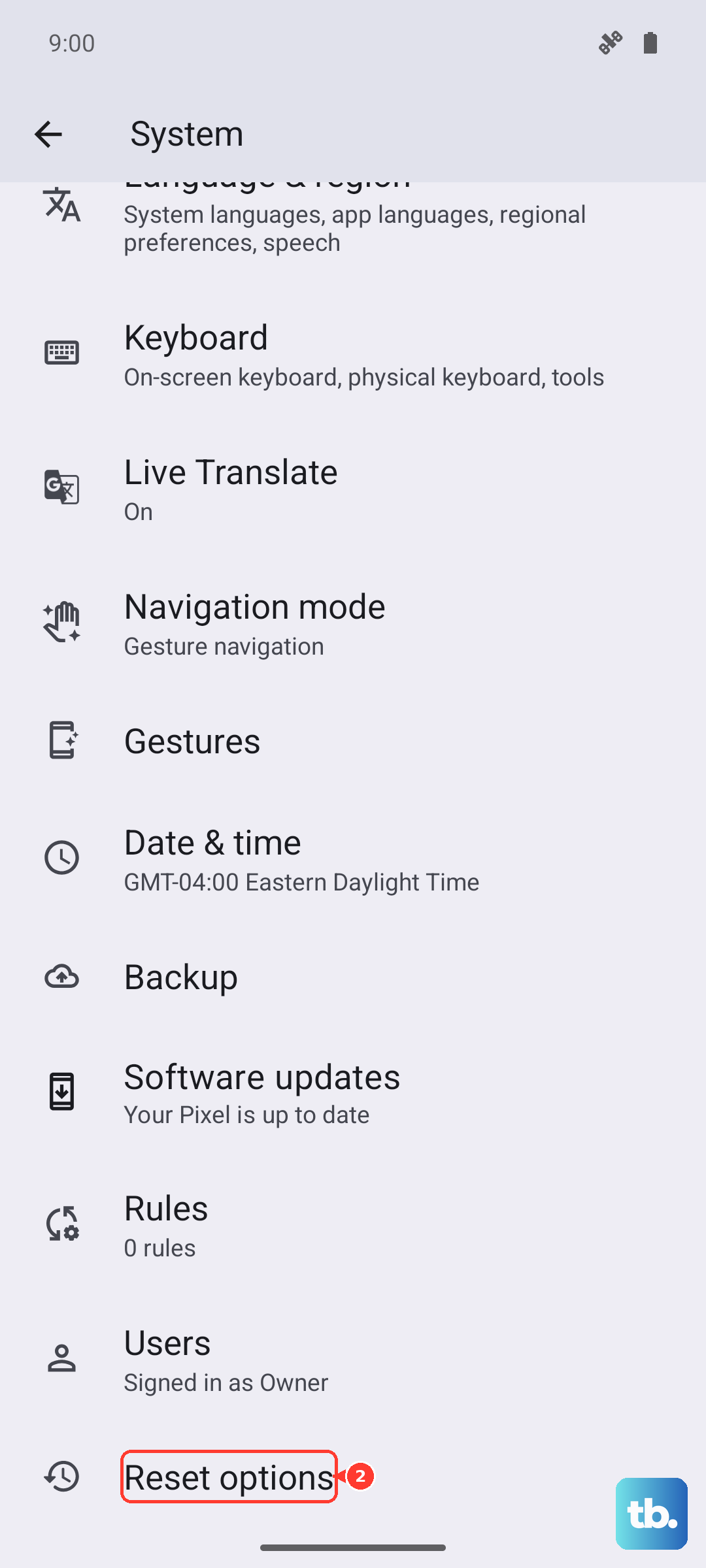
Charge the phone to at least 70% and connect it to Wi-Fi or a mobile network first, because the reset can take up to an hour. When you are ready, go to Settings > System > Reset options > Erase all data (factory reset) and follow the prompts. You will need your Google Account and PIN to set the phone up again afterward, so have those ready.
When to contact Google Pixel support
If the flashlight still will not work after a factory reset, the problem points to the hardware itself, and the LED or camera components may be faulty. At that point, the do-it-yourself steps have run their course.
Use Google's official Pixel support to get help or to arrange a repair for a hardware fault like this one.
Frequently Asked Questions
Why won't my Pixel 9 flashlight turn on while I'm using the camera?
The Pixel 9 has a single rear LED that is shared by the Camera flash and the Flashlight, so the two cannot run at the same time. If the Camera app is open and holding the flash, the flashlight will not turn on. Fully close the Camera app and any other camera-using app, then tap the Flashlight tile again.
Where is the Flashlight tile if it disappeared from my Pixel 9?
Swipe down from the top of the screen twice to open the full Quick Settings panel, tap Edit, then add or rearrange the tiles until the Flashlight tile is back in place. Once it is there, remember that a dimmed tile means the flashlight is off and tapping it turns it on.
Can overheating stop my Pixel 9 flashlight from working?
Yes. When a Pixel gets too hot, Google says it may automatically turn off the camera's flash and the camera to protect the device, which can leave the flashlight unavailable. Take the phone out of direct sunlight, off the charger, stop heavy use, and let it cool. If it powered off, let it cool down and then restart it.
How do I force restart a frozen Pixel 9?
Press and hold the Power button for up to 60 seconds. Once the phone begins to reboot and the screen displays the G logo, release the Power button and let it start up fully.
Will a factory reset fix the flashlight, and will I lose my data?
A factory reset can resolve stubborn software issues, but it erases all your data from the phone, so back up first. Charge to at least 70%, connect to Wi-Fi or a mobile network, then go to Settings > System > Reset options > Erase all data (factory reset). The process can take up to an hour, and you will need your Google Account and PIN afterward.