You raise your Pixel 9, line up the shot, and tap the shutter, only to end up with a photo that looks soft, hazy, or stubbornly out of focus. It is frustrating when a phone with a 50 MP main camera turns out blurry pictures, especially since the cause is usually something small and fixable rather than a broken sensor.
The good news is that most blur on the Pixel 9 comes from a dirty lens, a missed focus point, or a temporary software hiccup, and you can work through these in a few minutes. The fixes below are ordered from the quickest and safest to the most involved, ending with the official reset and Google support paths. Start at the top and stop as soon as your photos come back into focus.
Start by wiping the lens and laser sensor
The very first thing to check is the glass itself. Smudges, fingerprints, and dust on the camera are the most common reason Pixel 9 photos look hazy or out of focus, and they are easy to miss because you do not always see them while shooting.
According to the official guidance, to clean the camera lens and laser sensor, wipe them gently with a soft, clean cloth. On the Pixel 9 the rear camera glass and the small laser focus sensor both sit in the camera bar across the back, so give both a gentle wipe and then take another test shot.
Reposition or remove anything covering the camera
Accessories can get in the way of a sharp photo just as easily as a smudge can. A case or a stick-on lens protector that overlaps the camera glass or the laser sensor can soften your shots or confuse focus.
Look closely at the camera bar across the back and make sure nothing sits over the lens or the laser sensor. If a case edge or a protector overlaps either one, reposition it or remove it, then take a fresh test shot to see whether the blur clears.
Tap the screen to set focus yourself
If the lens is clean and unobstructed but a shot still comes out soft, take control of focus manually instead of leaving it to autofocus. This is the fastest way to sharpen a specific subject in the frame.
Point your camera at the subject, then tap on the subject. A white circle appears and moves on the screen with the subject.
For a subject that keeps moving, you can hold focus in place. To lock the focus and exposure on a subject that moves, tap Lock. That stops the camera from re-hunting for focus every time the subject shifts, which is a common source of blur with action shots or pets.
Get Macro Focus right for close-up shots
The Pixel 9's 48 MP ultrawide camera includes Macro Focus for close-ups, but getting too close to your subject actually makes the photo blur because the lens cannot focus that near. If your detail and product shots look mushy, this is often why.
Follow the intended sequence so the phone switches into the right mode. Move your device close to your subject, then tap the screen to place the focus. When the Macro flower appears, take your photo or video.
If the Macro flower icon does not appear, you are likely too close. Back away slightly until focus locks and the icon shows up, then shoot.
Restart the Camera app, then the phone
When the lens and focus are fine but the camera still behaves oddly, a fresh start usually clears it. Close and reopen the Camera app first, since a single stuck session can leave the preview or autofocus glitching.
If blur persists, restart the whole phone. Press and hold the Power and volume up buttons for a few seconds. Then, on your screen, tap Power off. After it shuts down, press and hold Power to turn it back on.
If the phone is frozen or the camera is completely unresponsive and will not let you tap Power off, you can force a restart instead by holding down the power button for about 30 seconds. Use this 30 second hold only when the phone is unresponsive, not as your normal restart.
Clear the Camera app's cache
A corrupted cache can cause focus or preview glitches that survive a simple restart. Clearing it removes temporary files without touching your saved photos, so it is a safe step to try.
Press and hold the Camera app icon. Tap App info, then tap Storage & cache. Tap Clear cache.
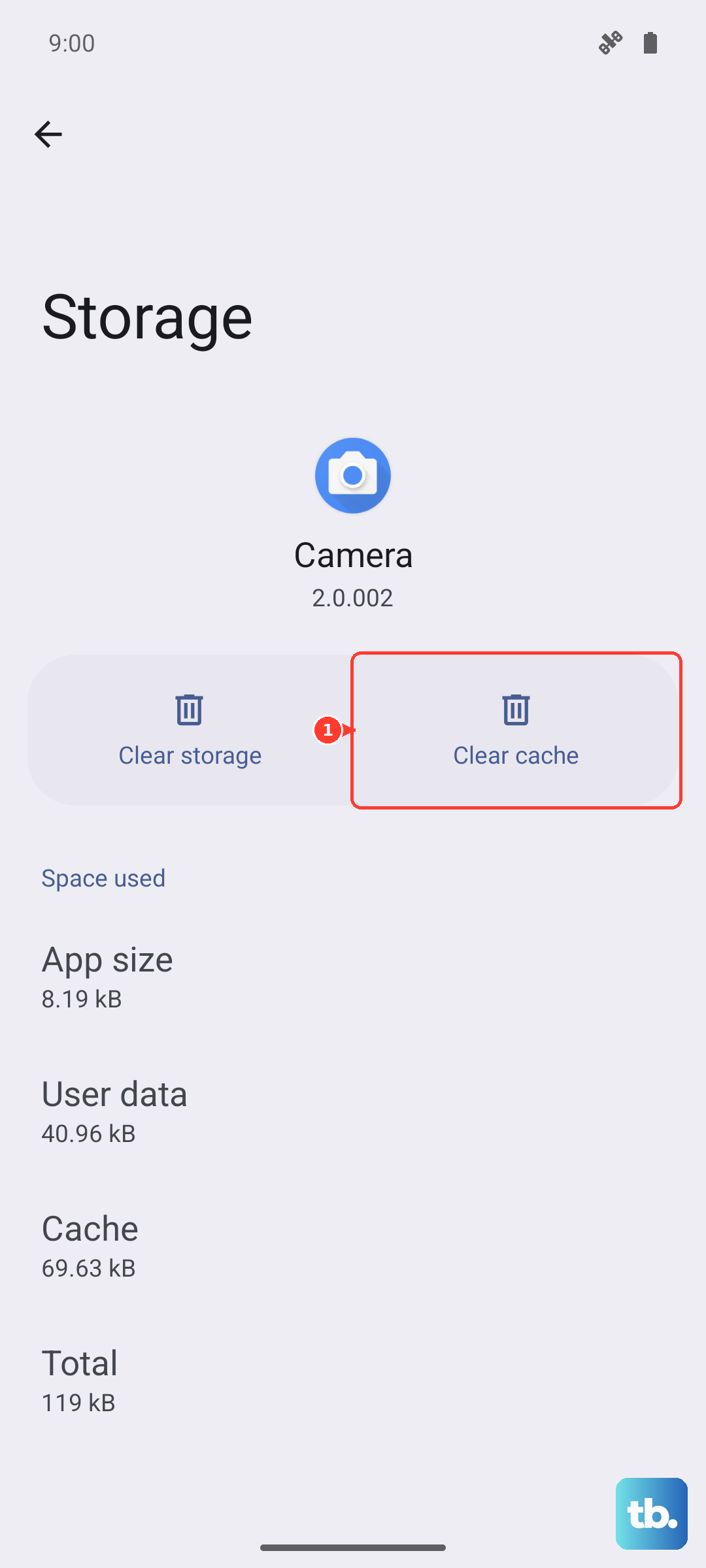
Open the camera again afterward and take a test shot. Clearing the cache often resolves stubborn focus and preview problems that no amount of tapping or restarting fixes on its own.
Update the Camera app and Android software
Out-of-date software can carry camera bugs that newer releases have already patched, so keeping both the app and the system current is worth a few minutes. Start with the camera app.
Open the Google Play Store, then tap your Profile icon. Choose Manage apps & devices, then install any available Pixel Camera updates.
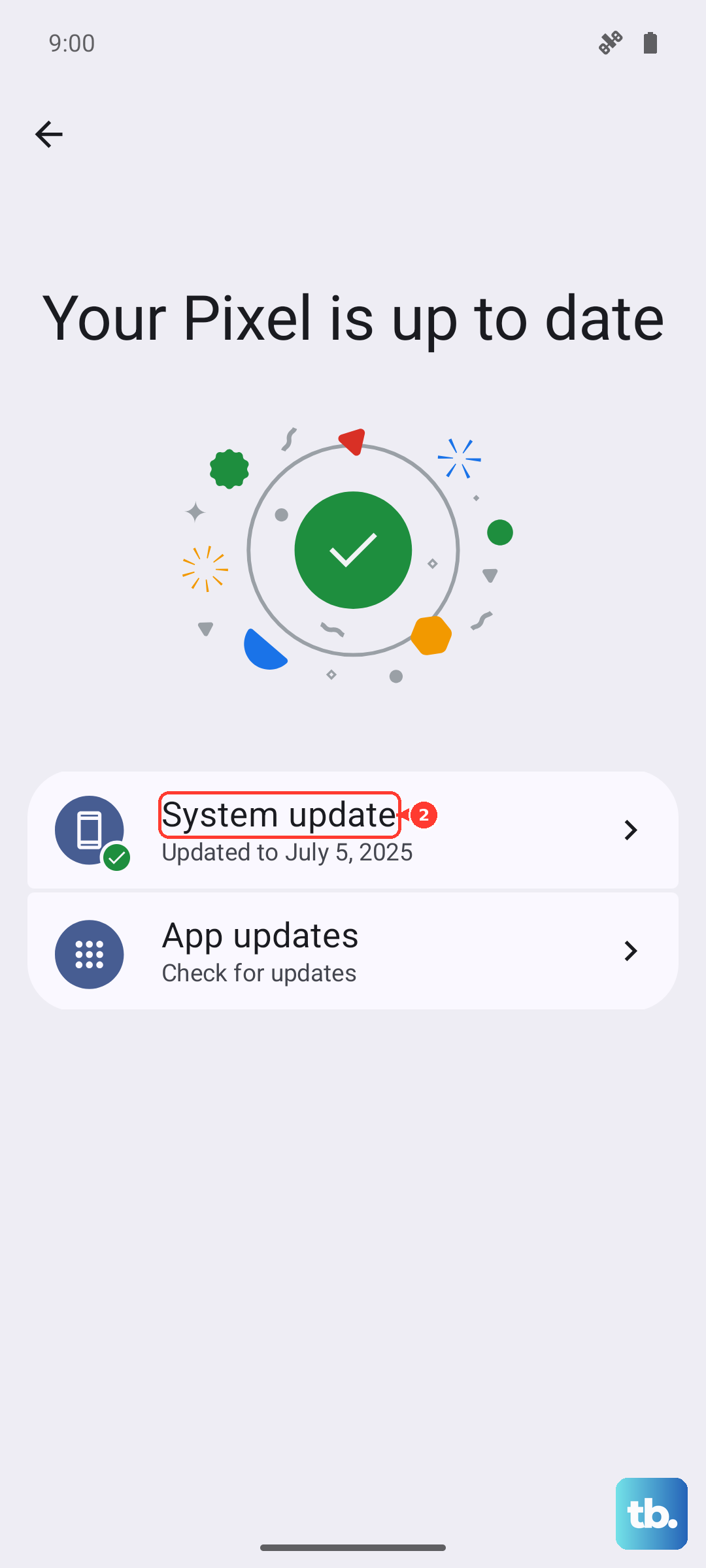
Then update the system itself. Open Settings, tap System, then Software updates (also labeled System update), and follow the on-screen instructions.
The Pixel 9 receives ongoing OS and security updates. It launched on Android 14 and is supported through Android 16 and beyond, so there is usually a relevant fix waiting if you have fallen behind.
Use Safe mode to rule out other apps
Sometimes a downloaded app interferes with the camera, and Safe mode is the clean way to test for that. Safe mode temporarily disables your downloaded apps so you can see whether the blur is caused by something you installed.
With the phone on, do the following. Press and hold the Power and Volume Up buttons for a few seconds. Tap and hold either Power off or Restart. Tap OK.
Wait until Safe mode appears at the bottom of the screen. Now open the camera and check the focus. If your photos are sharp in Safe mode, a downloaded app is the cause.
Exit Safe mode by pressing and holding the Power button and Volume up button for a few seconds, then tap Restart, and uninstall recently added apps one at a time until the blur stops returning.
Back up and factory reset as a last resort
If none of the software steps help, a factory reset clears out deeper software problems and returns the phone to a clean state. This is a last resort because it is destructive, so prepare first.
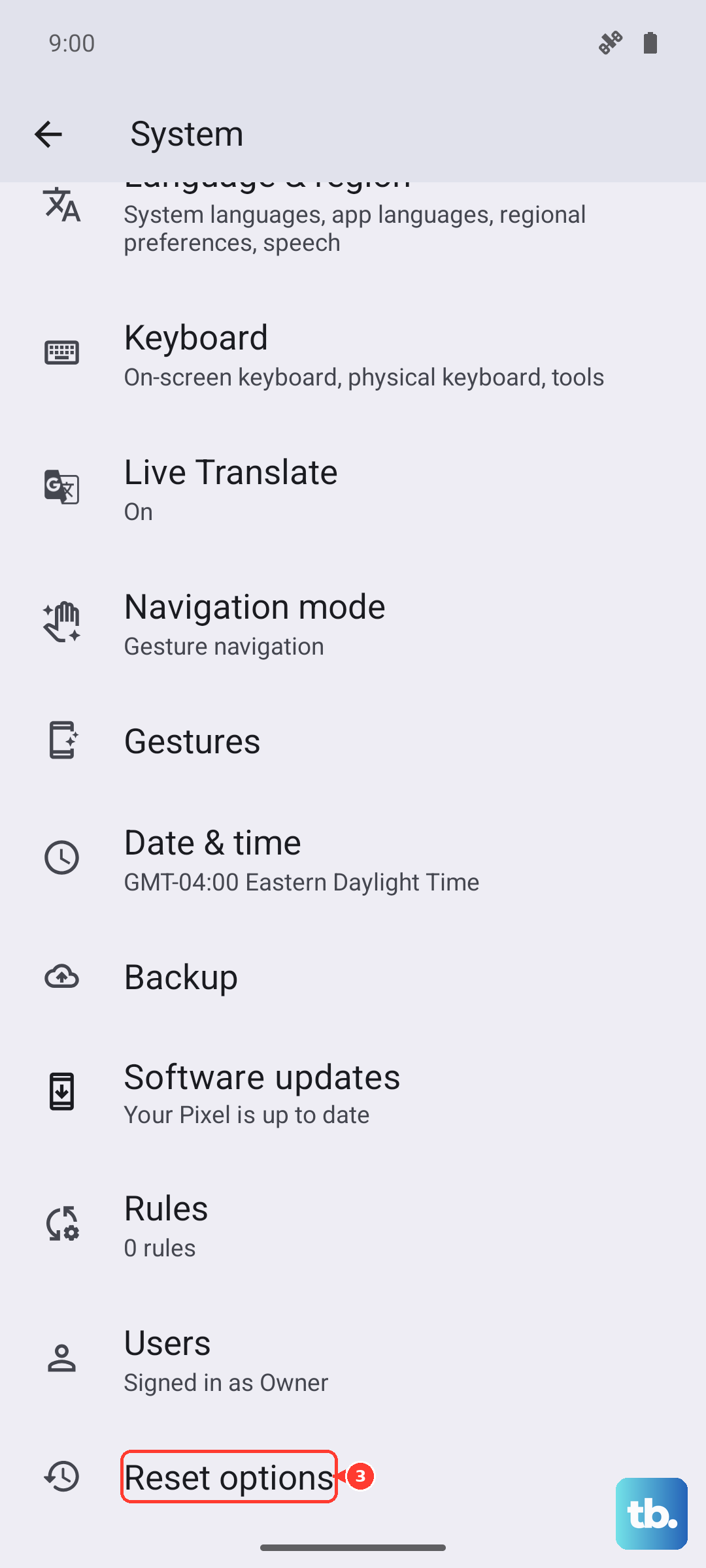
Google warns that a factory reset erases all your data from your phone, so back up everything you want to keep before you begin. Charge the phone to a high level and connect to Wi-Fi first, as the process can take a while. When you are ready:
- 1.Open the Settings app.
- 2.Tap System.
- 3.Tap Reset options.
- 4.Tap Erase all data (factory reset).
After the reset finishes and you set the phone back up, open the camera and confirm whether the blur is gone before restoring all of your apps.
When to contact Google support
If the camera is still blurry after all of these steps, especially if it stays blurry in Safe mode where downloaded apps are disabled, you may be looking at a hardware fault rather than a software issue. A persistent problem that survives a factory reset points the same way.
At that point, use the Contact us or Get help options in Pixel Phone Help to reach Google support or to arrange a repair. Be ready to describe what you have already tried and whether the blur appears in every mode or only some, since that helps them diagnose the fault faster.
Frequently Asked Questions
Why are my Pixel 9 photos blurry even though the lens looks clean?
Even a faint smudge or a case edge over the camera glass or laser sensor can soften photos, so wipe both gently with a soft, clean cloth and reposition any accessory that overlaps them. If it still happens, tap the screen to set focus on your subject, and clear the Camera app's cache to rule out a software glitch.
How do I take sharp close-up photos on the Pixel 9?
The Pixel 9's 48 MP ultrawide has Macro Focus for close-ups. Move close to your subject, tap the screen to place the focus, and take the shot once the Macro flower icon appears. If the flower does not show, you are too close, so back away slightly until focus locks.
What is the difference between restarting and force restarting my Pixel 9?
For a normal restart, press and hold the Power and volume up buttons for a few seconds, then tap Power off and power back on with the Power button. Only when the phone is frozen or completely unresponsive should you force a restart by holding the power button for about 30 seconds.
Will clearing the Camera app cache delete my photos?
No. Clearing the cache only removes temporary files and does not delete your saved photos. To do it, press and hold the Camera app icon, tap App info, then Storage & cache, then Clear cache.
How can I tell if the blur is a hardware problem?
Test the camera in Safe mode, which disables downloaded apps. If photos are sharp in Safe mode, a downloaded app is to blame. If they stay blurry there and after a factory reset, it is likely a hardware fault, and you should use the Contact us options in Pixel Phone Help to reach Google support or arrange a repair.