
When your Google Pixel 8 stops responding to "Hey Google," it feels like you've lost a helpful sidekick. The assistant that's supposed to be hands-free suddenly requires you to tap the screen. Let's get your voice commands working again.
Start With the Quick Fix
First, try a simple restart. Press and hold the Power button for about 30 seconds until you see the Google logo appear. This force restart can clear out temporary software glitches that might be blocking the microphone or Assistant service.
After it boots back up, give the "Hey Google" command a try. If it's still not listening, we'll need to dig a bit deeper into the settings.
Check Your Google Assistant Settings
It's possible a setting got changed accidentally. Open the Google app on your Pixel 8 and tap your profile picture in the top right corner. Go to Settings > Google Assistant.
Here, tap on "Hey Google & Voice Match." Make sure the "Hey Google" toggle is switched on. If it's already on, try turning it off, waiting a few seconds, and turning it back on. You'll be prompted to retrain the voice model, which can often solve recognition problems.
While you're in this menu, also ensure "Personal results" is enabled if you want Assistant to access your calendar, contacts, and other info when your phone is locked.
Look for Software Conflicts
Certain features on your Pixel can interfere with the microphone's always-listening function. A common culprit is Battery Saver mode. When Battery Saver is active, it restricts background processes, which can include the Google Assistant's listening service.
Swipe down from the top of your screen twice to see the full Quick Settings panel. If the Battery Saver icon is highlighted, tap it to turn it off. Test "Hey Google" again immediately after.
Another setting to check is in Settings > Apps > Assistant. Tap on Battery and make sure it's not set to "Restricted." I'd set it to "Optimized" or "Unrestricted" for the best results.
Update Your Pixel's Software
Google frequently releases updates that fix bugs, including ones related to voice recognition and the Assistant. Since your Pixel 8 runs Android 15, it's crucial to stay current.
Go to Settings > System > System update and tap "Check for update." If an update is available, install it. I've seen several firmware updates for Pixel devices that specifically addressed microphone and Assistant responsiveness issues.
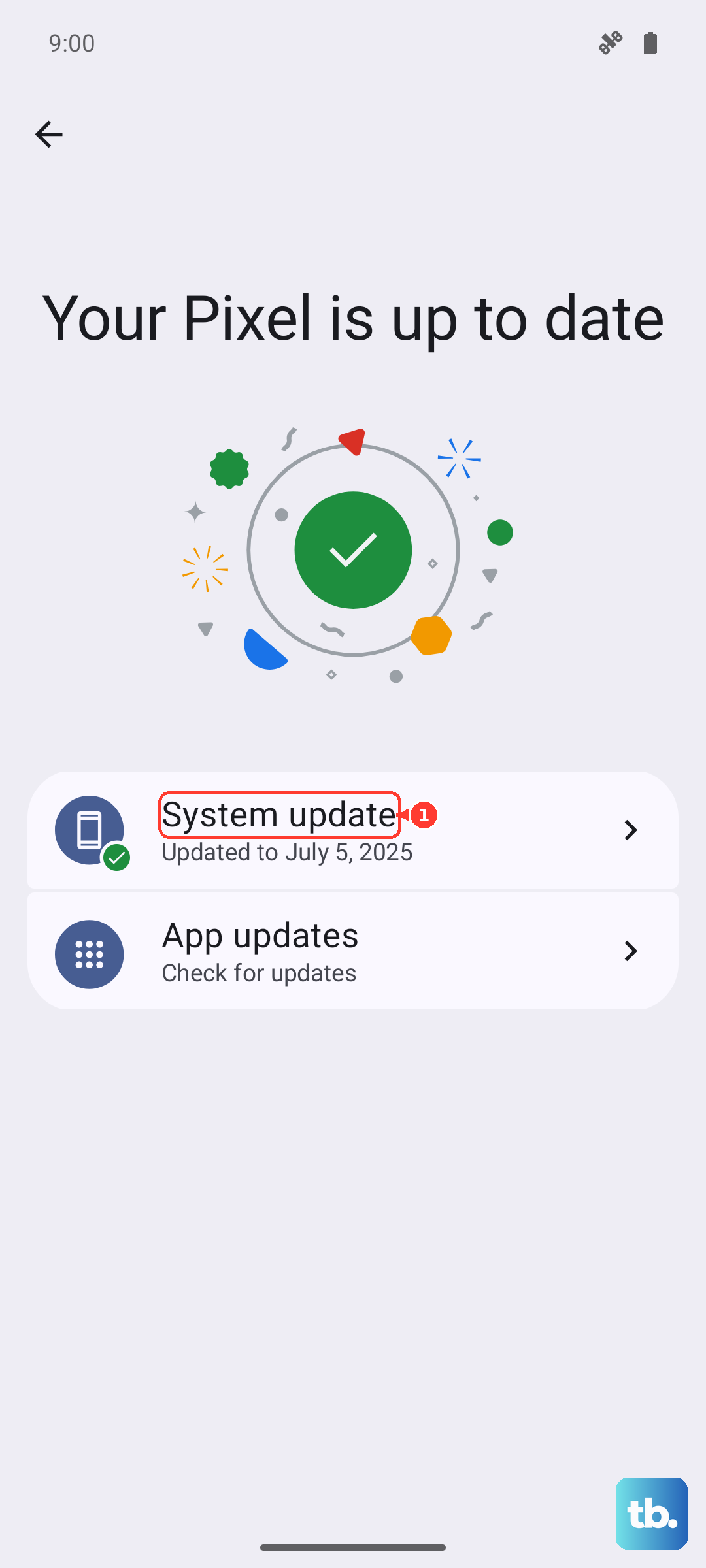
After the update completes, your phone will restart. Give it a minute to settle, then try training "Hey Google" again in the Assistant settings for a fresh start.
Check for Physical Microphone Blockages
The Pixel 8 has multiple microphone ports. If they're covered by a case, dirt, or debris, the phone simply can't hear you well enough to trigger the Assistant.
Inspect the small pinhole microphones. You'll find one at the top of the frame, another at the bottom next to the USB-C port, and often one on the back near the camera bar. Use a can of compressed air to gently blow out any lint, or a soft-bristled brush to clean around the openings.
Also, try removing your phone case temporarily. Some cases, especially rugged ones with thick lips, can muffle sound just enough to prevent the "Hey Google" hotword from being detected reliably.
Review App Permissions and Accessibility
The Google Assistant app needs the right permissions to function. Go to Settings > Apps > Assistant and tap on Permissions. Ensure the Microphone permission is granted.
Also, check any accessibility services you might have enabled. Go to Settings > Accessibility. Some third-party accessibility services can conflict with system-level voice features. Try disabling any non-essential services one by one to see if "Hey Google" starts working again.
Don't forget about Digital Wellbeing. Go to Settings > Digital Wellbeing & parental controls and check your Focus modes. If you have a schedule or mode active that silences notifications, it might also be preventing the Assistant from responding.
Clear the Google App's Cache and Data
If the Assistant is still unresponsive, corrupted data in the main Google app could be the issue. This won't delete your personal account info, but it will reset the app's settings.
Go to Settings > Apps > Google. Tap on Storage & cache. First, tap "Clear cache." This is safe and won't erase any login information. Test the Assistant.
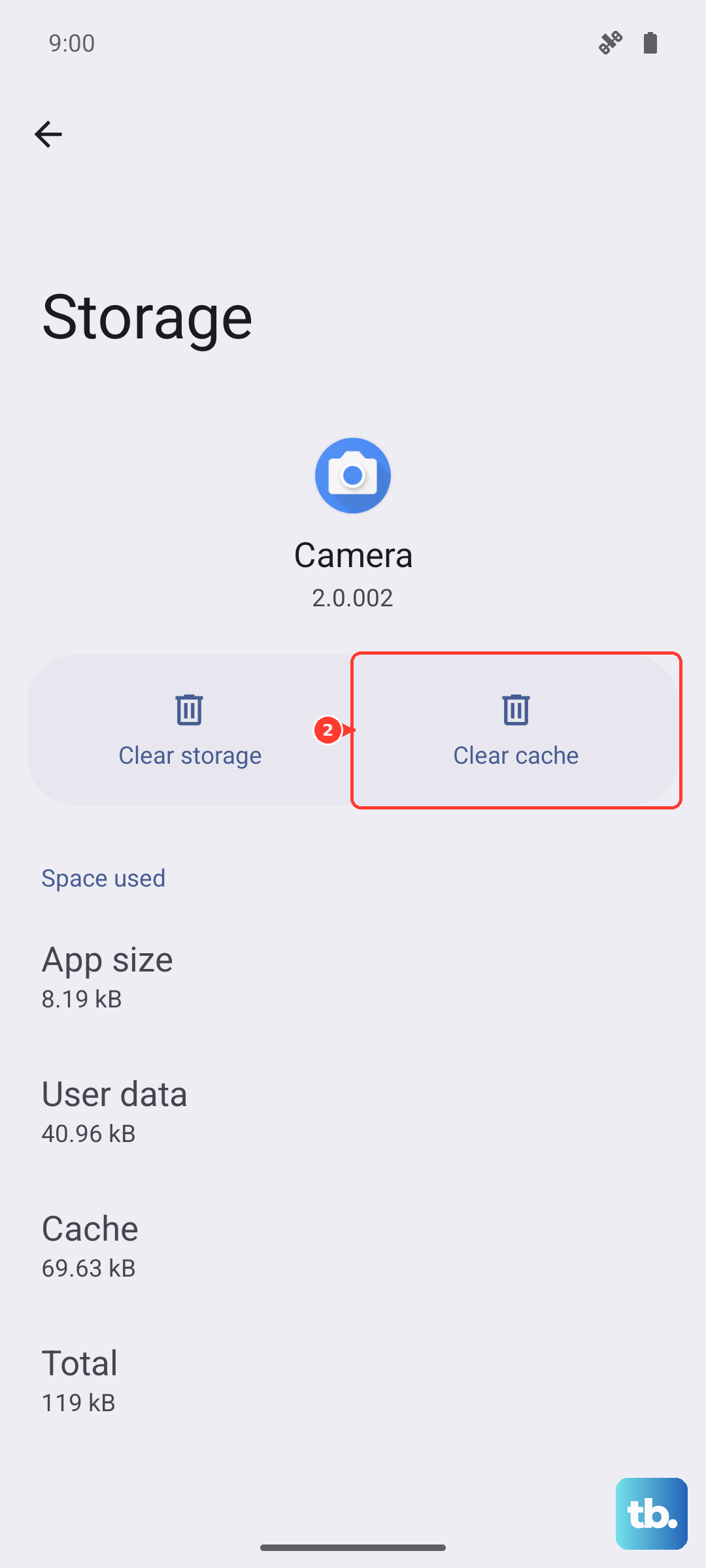
If the problem persists, go back and tap "Clear storage" or "Manage space," then "Clear all data." You'll need to sign back into the Google app and reconfigure some Assistant preferences, but this often resolves stubborn glitches.
Reset All App Preferences
This is a broader reset that won't touch your personal files or accounts, but it will revert all app permissions, notifications, and default apps back to their factory settings. It's a useful step if a deeper system configuration is causing the conflict.
Navigate to Settings > System > Reset options. Tap on "Reset app preferences." Confirm the action. After your phone resets these preferences, you'll need to re-grant microphone access to apps when you use them for the first time again.
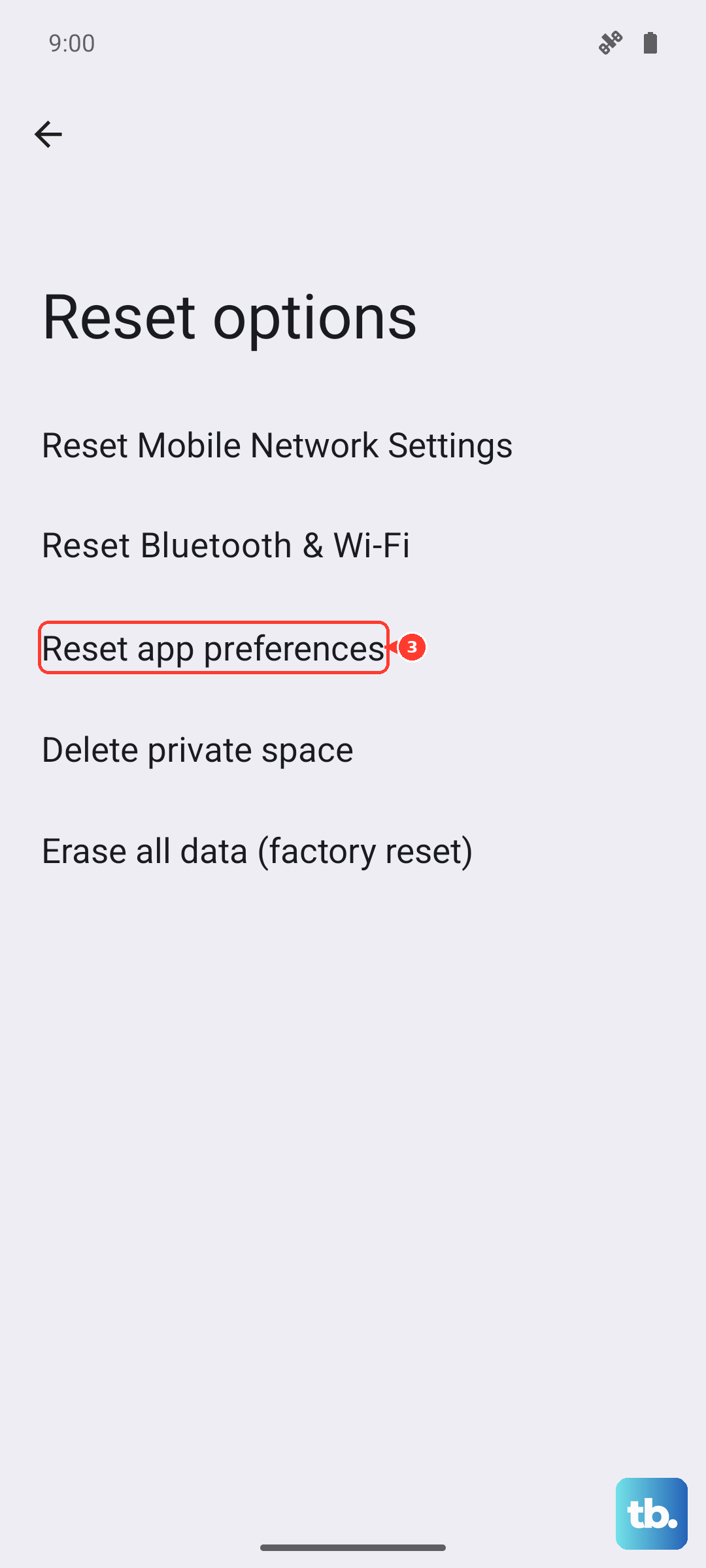
Head back to the Google Assistant settings and retrain your "Hey Google" voice model one final time. This combination of a clean software slate and a fresh voice training session fixes the issue for most people.