
A Google Pixel 8 with a completely unresponsive touchscreen can be incredibly frustrating. The screen might be stuck on an app, the lock screen, or just a black screen. In most cases, this is a temporary software glitch that you can resolve without losing your photos or data.
Force Restart Your Pixel 8
This is the go-to fix for a frozen touchscreen. Simply press and hold the Power button for about 30 seconds. Keep holding it even if you don't see anything happen right away. You'll feel a vibration and see the Google logo appear as the phone restarts. This process doesn't erase any of your personal information.
Let the Phone Finish Its Task
Sometimes your Pixel 8 isn't truly frozen, it's just working hard on something in the background. This could be installing a system update, processing photos after a backup, or a demanding app that's temporarily stuck. If the phone feels warm, that's a good sign it's still active. Give it a solid five to ten minutes before you decide to force restart it.
Plug It Into a Charger
A battery that's completely drained can cause the phone to become unresponsive. Grab your USB-C cable and plug it into a wall outlet, not just a computer. Wait for at least 15-20 minutes. If the battery was critically low, the phone needs to build up a small charge before it can even power on the screen properly.
Close the Problem App
If the touchscreen works everywhere except in one specific app, that app is likely the culprit. Swipe up from the bottom of the screen and hold to bring up your recent apps view. Find the frozen app and swipe it up to close it completely. You can then try reopening it. If the same app keeps causing issues, check the Google Play Store for an update or try uninstalling and reinstalling it.
Check Your Available Storage
Android needs free space to create temporary files and cache data. When your Pixel 8's storage is almost full, it can lead to system slowdowns and freezes. If you can access it, go to Settings > Storage to see how much space you have left. I'd recommend clearing out old downloads, app caches, or unused apps to keep at least 5-10 GB free.
Install the Latest System Update
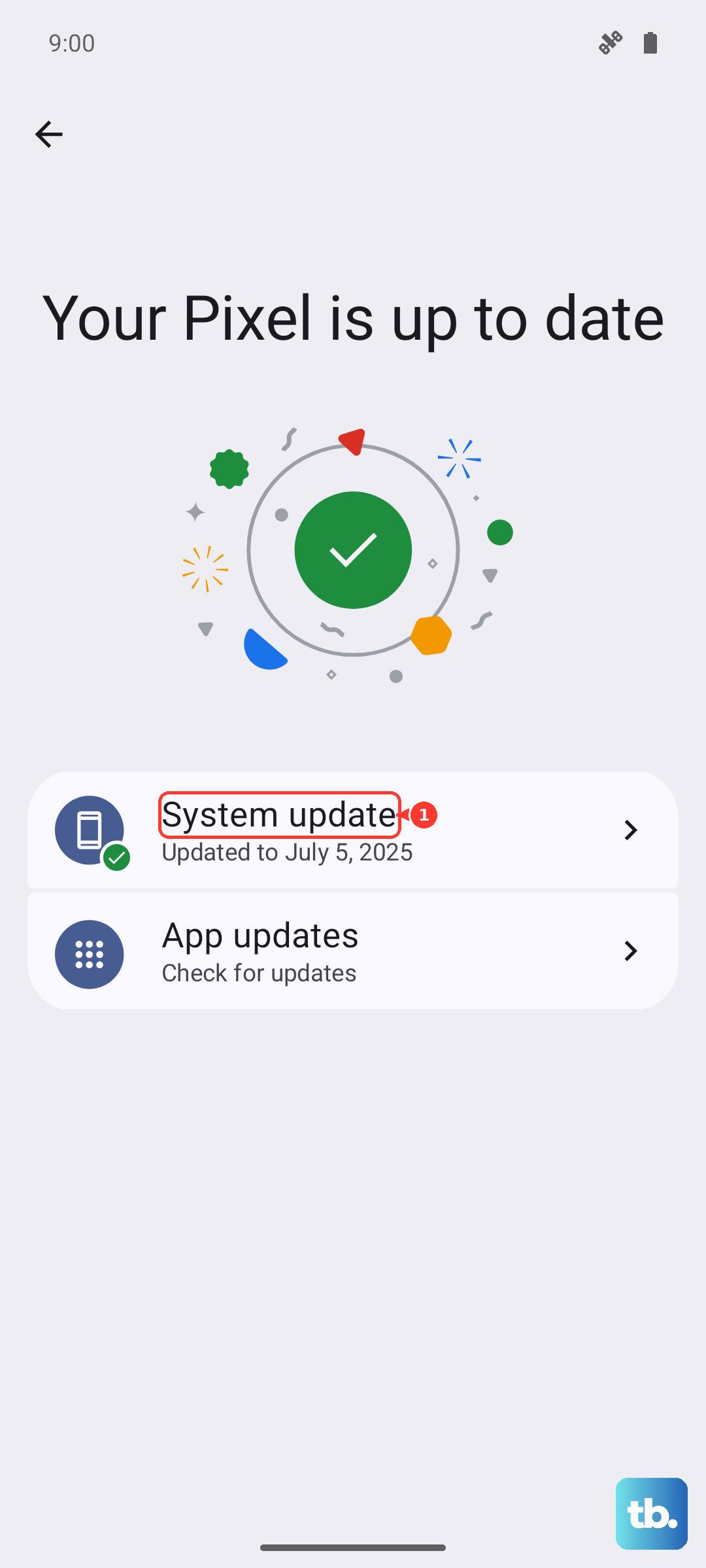
Google frequently releases updates that fix bugs, including ones that might cause touchscreen problems. After restarting your phone, go to Settings > System > System update and tap "Check for update." Install any available update. If your phone freezes during the update process, a factory reset might be the next step, so ensure you have a recent backup.
Reset Your Phone's App Preferences
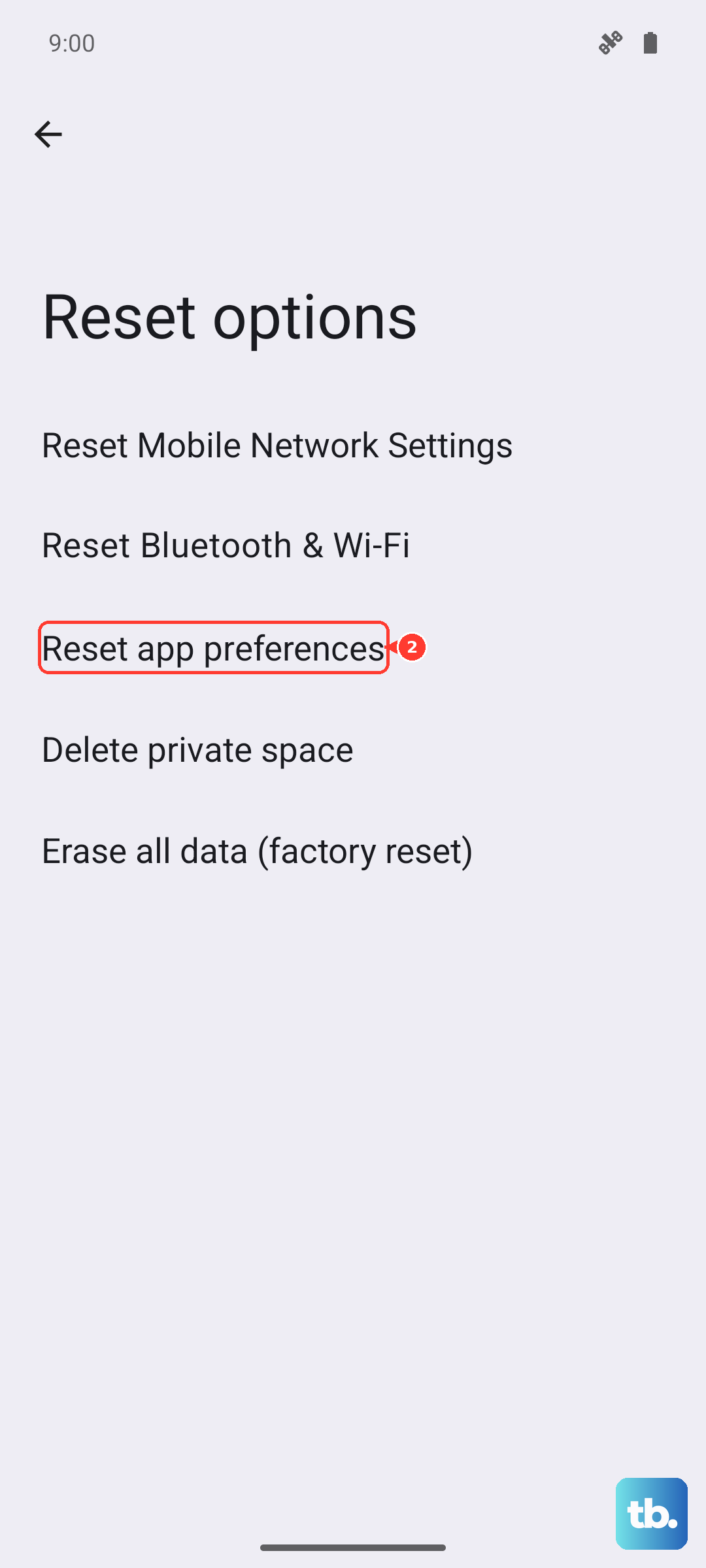
This is a useful middle step that resets system settings related to apps without deleting your data. Go to Settings > System > Reset options > Reset app preferences. This will reset permissions, default apps, and background restrictions. It can clear up conflicts that cause the system to become unresponsive.
Consider a Factory Reset
If the touchscreen remains unresponsive after all other steps, a factory reset may be necessary. Since you likely can't use the touchscreen to navigate settings, you'll need to use the hardware buttons. First, power the phone off. Then, press and hold the Power button and Volume Down button together to boot into recovery mode. Use the volume buttons to navigate to "Wipe data/factory reset" and select it with the power button. Remember, this will erase everything on the phone.
Look for Signs of Overheating
The Pixel 8 can throttle performance or become unresponsive if it gets too hot, which is a known issue during fast charging in warm conditions. If the back of the phone is very warm to the touch, take it out of its case and move it to a cooler spot. Let it sit for 15-20 minutes to cool down before trying to use or charge it again.