
MMS messages stuck on "Sending" or "Not downloaded" is a common headache on the Google Pixel 10a. The picture you're trying to share just spins and never delivers. Here are the specific fixes that work for this device running Android 16.
Force Restart the Pixel 10a
Start with the fastest fix. Press and hold the Power button for 30 seconds, or press and hold Power + Volume Down for 10-15 seconds until the device restarts. This isn't the same as a normal shutdown.
It force-reloads the modem firmware and clears any temporary network glitches. I've seen this single step fix MMS issues on Pixel phones more often than you'd expect. It doesn't delete any of your data, so there's no downside to trying it first.
Check Your Mobile Data Connection
MMS requires an active mobile data connection to send pictures. Go to Settings > Network & internet > Internet and make sure your SIM is turned on with mobile data enabled. The Pixel 10a handles this best on a strong 5G or LTE signal.
If you see a weak signal, try moving to a different spot or stepping outside. You can also tap the gear icon next to your carrier name and switch the Preferred network type to LTE temporarily. Sometimes 5G handoffs cause MMS to hang on Android 16.
Disable Wi-Fi Temporarily
Wi-Fi can actually interfere with MMS delivery on the Pixel 10a. Swipe down from the top of your screen and tap the Wi-Fi icon to turn it off. Try sending your picture again over the mobile network only.
If it goes through, you know the issue was related to Wi-Fi calling or a weak Wi-Fi connection fighting for priority. You can leave Wi-Fi off while you finish sending messages, then turn it back on.
Toggle Airplane Mode
This forces your Pixel 10a to re-register with the cellular network. Swipe down to open Quick Settings and tap the Airplane Mode icon to turn it on. Wait about 10 seconds, then tap it again to turn it off.
You should see the signal bars drop out and come back. Once they're back, open Messages and try sending the MMS again. This clears up temporary registration issues with your carrier's network.
Clear the Messages App Cache
The Google Messages app can get bogged down with corrupted temporary data. Head to Settings > Apps > See all apps > Messages > Storage & cache. Tap Clear cache.
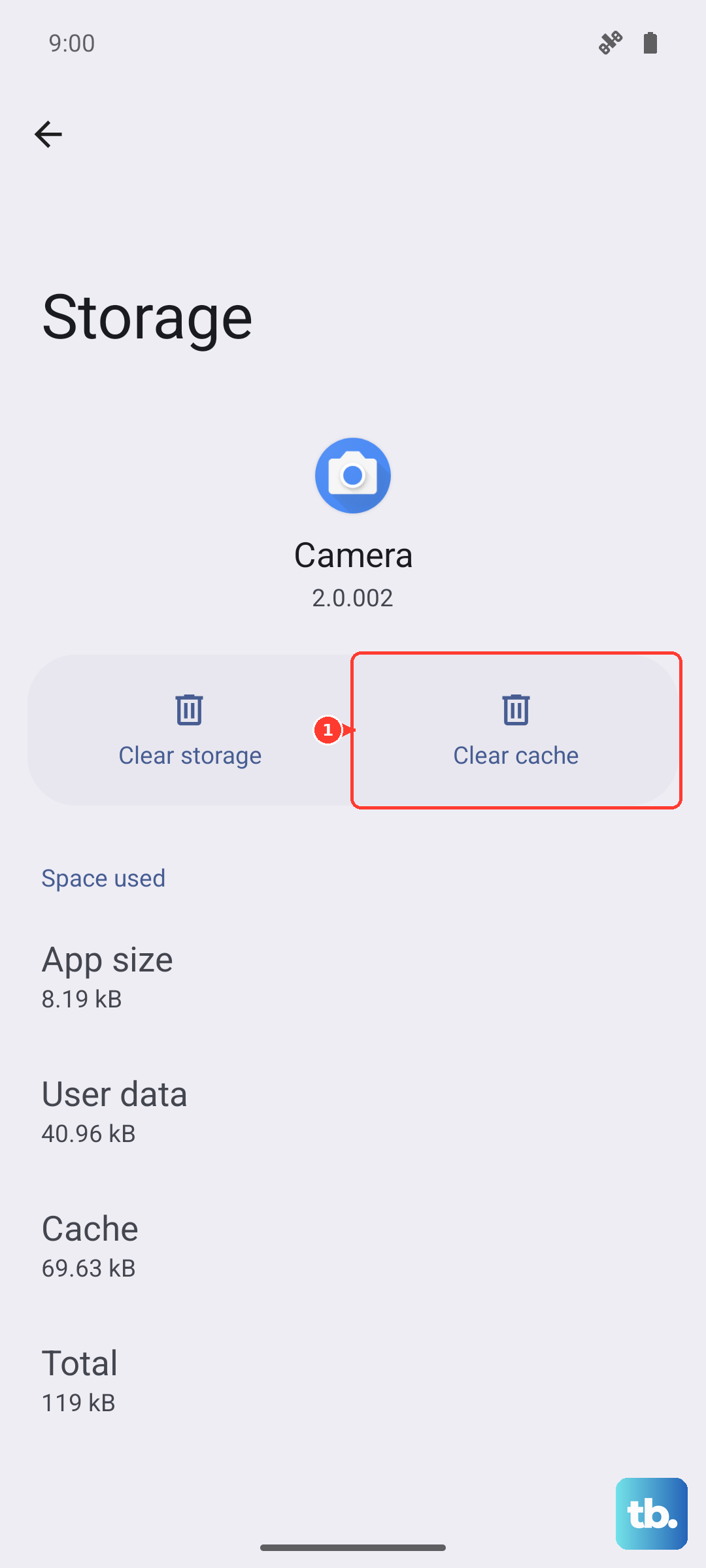
Don't tap Clear storage unless you're okay with losing your message history. Clearing just the cache is safe and often fixes MMS sending issues without any data loss. After you do this, restart the Messages app and try again.
Check Your APN Settings
Access Point Names (APN) control how your phone connects to MMS servers. If these are wrong, pictures won't send. Go to Settings > Network & internet > SIMs > Access Point Names. Tap the three-dot menu and select Reset to default.
If resetting doesn't work, you'll need the exact APN values from your carrier. This is especially common if you recently switched carriers or inserted a new SIM. Google Fi, T-Mobile, Verizon, and AT&T all use slightly different APN configurations on the Pixel 10a.
Turn RCS Chats Off and Back On
RCS is great when it works, but it can sometimes hang on outgoing messages. Open the Messages app, tap your profile picture in the top right corner, and go to Messages settings > RCS chats. Tap Turn off RCS chats.
Restart your Pixel 10a, then come back to this same menu and turn RCS chats back on. This forces Google's servers to re-establish your RCS connection fresh, which often pushes stuck MMS messages through.
Update Carrier Services and Messages
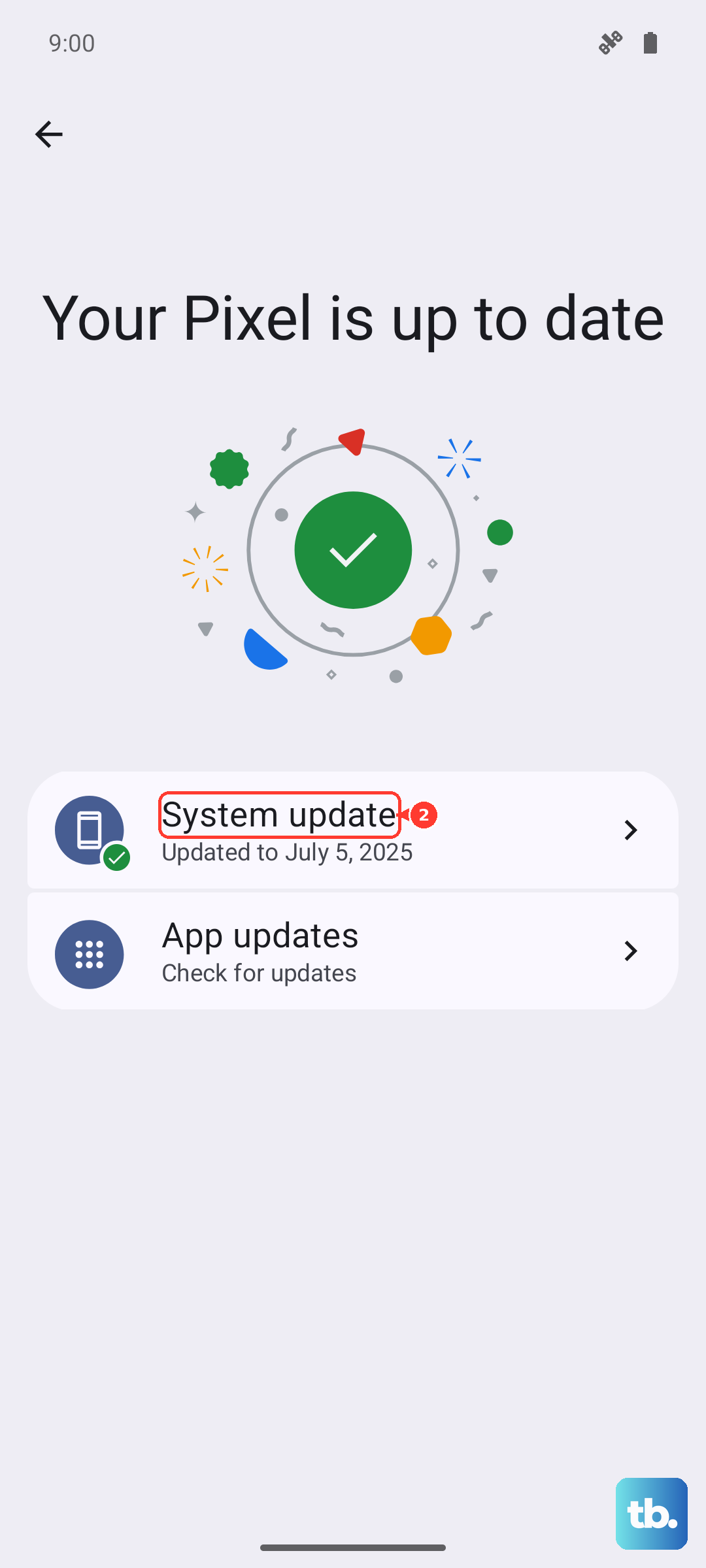
Carrier Services is a separate Google app that handles MMS and RCS on the Pixel 10a. Open the Play Store and search for Carrier Services. If an update is available, install it. Do the same for Google Messages.
These apps receive updates outside of the main Android 16 system updates. An outdated Carrier Services app is a known cause of MMS failures on Pixel devices. Restart your phone after updating to make sure everything takes effect.
Reset Network Settings
This is a bigger step, but it clears up stubborn MMS issues that nothing else fixes. Go to Settings > System > Reset options > Reset Wi-Fi, mobile & Bluetooth. You'll need to enter your PIN or password to confirm.
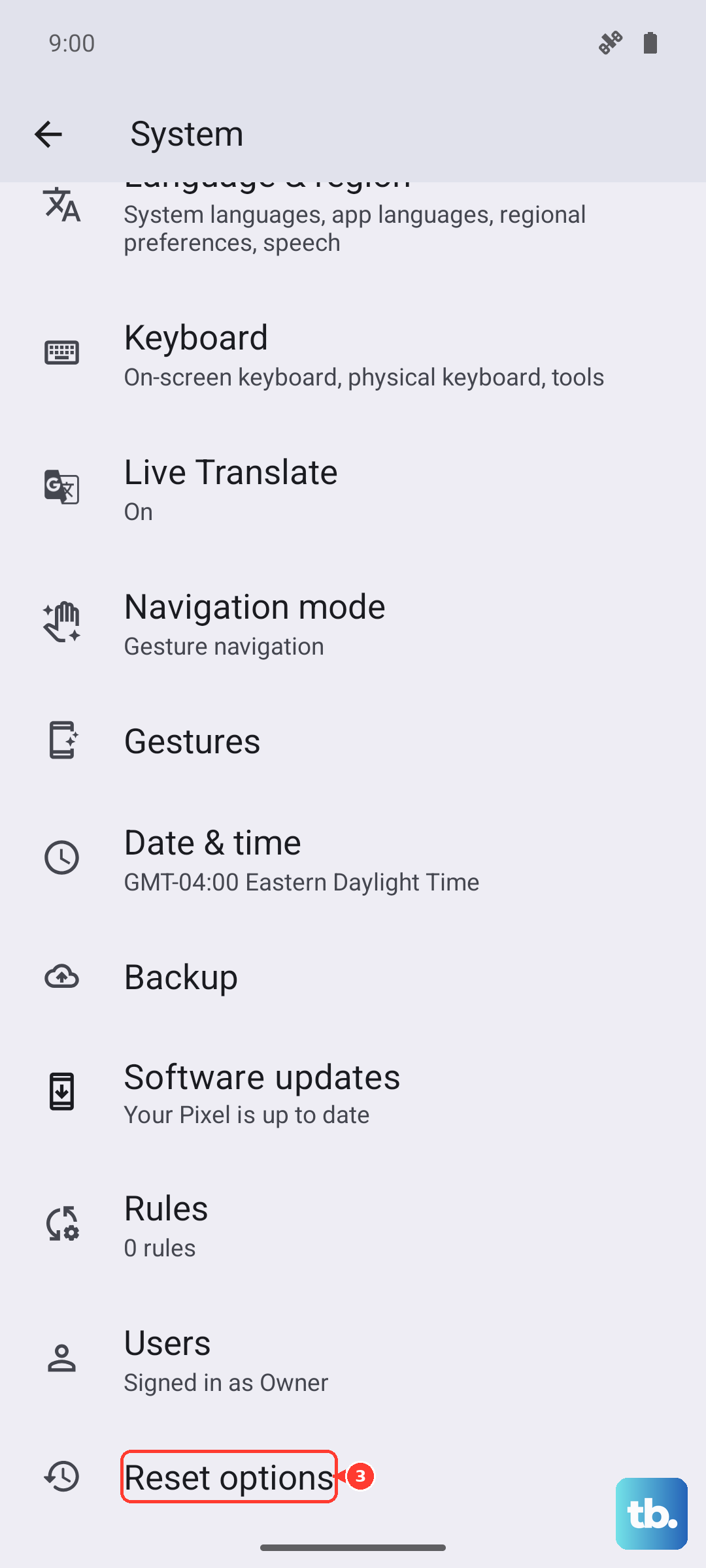
This erases saved Wi-Fi networks and Bluetooth pairings, so you'll have to reconnect to things afterward. It does not delete your photos, messages, or apps. The tradeoff is worth it when MMS is completely broken.
Check Date and Time Settings
Carrier MMS servers are strict about timestamps. If your Pixel 10a's clock is off, even by a few minutes, the server may reject your picture messages. Go to Settings > Date & time and make sure Use automatic time is turned on.
If it's already on and MMS is failing, toggle it off, wait a few seconds, then toggle it back on. This forces a fresh sync with the network time. Try sending your MMS again immediately after the time updates.