Your Pixel 10a's notification sound suddenly stopped working, and you're missing calls and messages. This is a common issue that usually has a straightforward fix. Let's walk through the most likely solutions, starting with the quickest ones.
To separate hardware from software, open a left and right speaker test and play the channel tones. What you hear, or do not hear, tells you which fixes below matter most.
Check the Notification Volume Slider
The simplest fix is also the one that gets overlooked most often. Press the volume rocker on the side of your Pixel 10a and tap the gear icon that appears next to the slider. Make sure the notification volume isn't all the way down or muted. Android 16 lets you control media, alarm, and notification volumes independently, so it's worth double-checking each one.
Is Do Not Disturb Turned On?
Do Not Disturb mode can block sounds from all notifications, even calls from favorites. Swipe down from the top of the screen to open Quick Settings and look for the Do Not Disturb icon. If it's highlighted, tap it to turn it off. You can also go to Settings > Sound & vibration > Do Not Disturb to check the schedule and exceptions.
Per-App Notification Settings
Sometimes the issue is limited to a specific app, like Messages or WhatsApp. Open Settings > Apps, find the app that's giving you trouble, and tap Notifications. Make sure the toggle for showing notifications is on, and that the sound is set to something other than Silent. I've seen apps revert to silent after an update, so this is worth a quick look.
Check Your Sound Profile
Your Pixel 10a might be stuck in Vibrate or Silent mode. Press the volume rocker and look for the bell icon at the top of the slider. Tap it until you see the bell with sound waves, indicating ring mode is active. You can also check Settings > Sound & vibration > Ring mode and make sure it's set to Sound.
Restart or Force Restart Your Pixel 10a
A simple restart clears temporary glitches that can affect sound output. Press and hold the Power button, then tap Restart. If the phone is unresponsive, use the force restart method: press and hold the Power button for 30 seconds, or press and hold Power and Volume Down together for 10 15 seconds until the device restarts. This won't erase any data.
Boot Into Safe Mode
Third-party apps can interfere with system sounds. Safe mode temporarily disables all downloaded apps so you can test if the problem goes away. To enter safe mode, press and hold the Power button, then tap and hold the Power Off option until you see the Safe Mode prompt. Tap OK. Once in safe mode, check if notification sounds work. If they do, a third-party app is the culprit. Restart normally and uninstall recently added apps one by one until you find the offender.
Clear App Cache for Messaging Apps
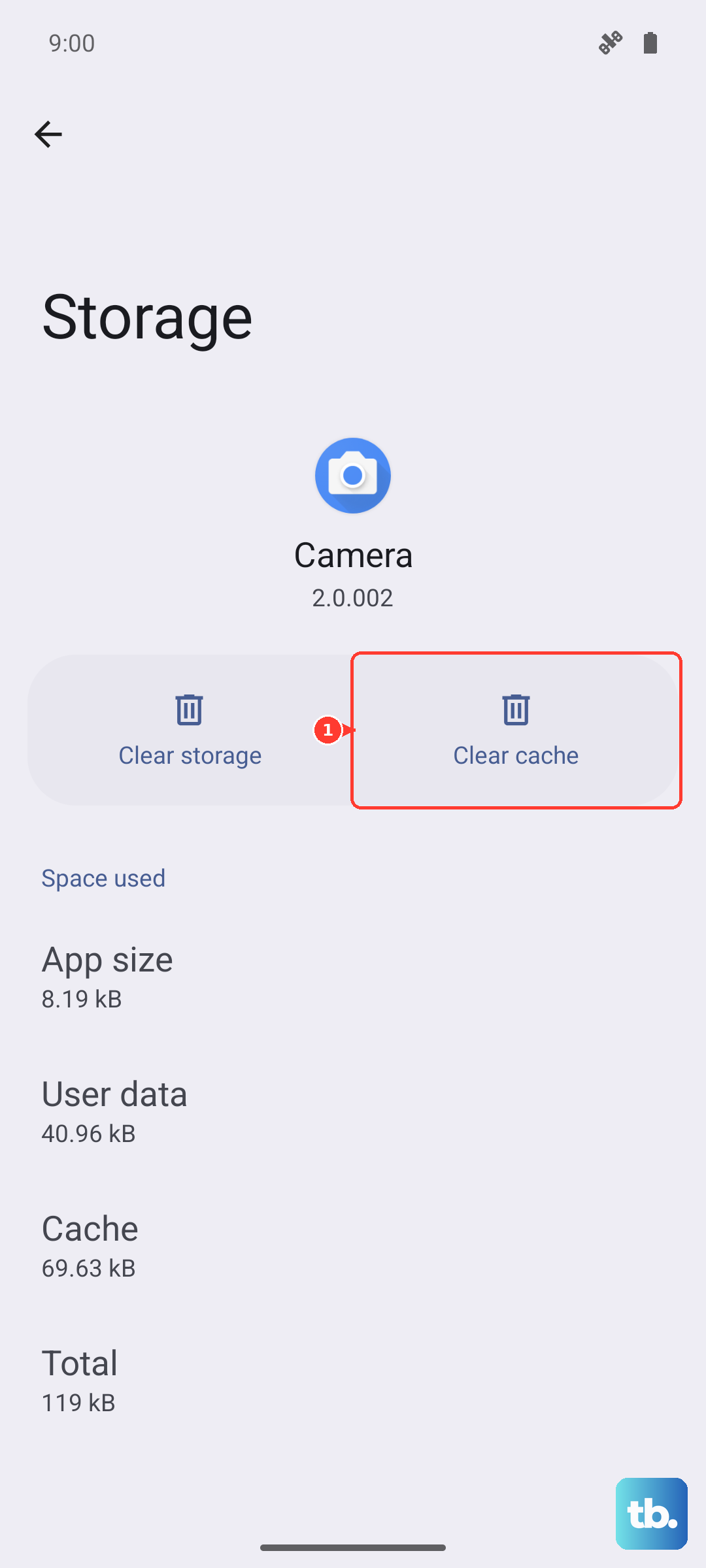
Corrupted cache files in your messaging app can cause sound issues. Go to Settings > Apps, tap the problematic app (like Messages or WhatsApp), then tap Storage & cache. Select Clear cache. This won't delete your messages, just temporary files. Do the same for the Phone app if you're also missing call ringtones.
Update Your Software
Google often patches notification bugs in Android 16 updates. Go to Settings > System > Software update and check for any pending updates. Install them and restart your Pixel 10a. I'd also check the Play Store for app updates , open the Play Store, tap your profile icon, and tap Manage apps & device to update everything.
Reset App Preferences
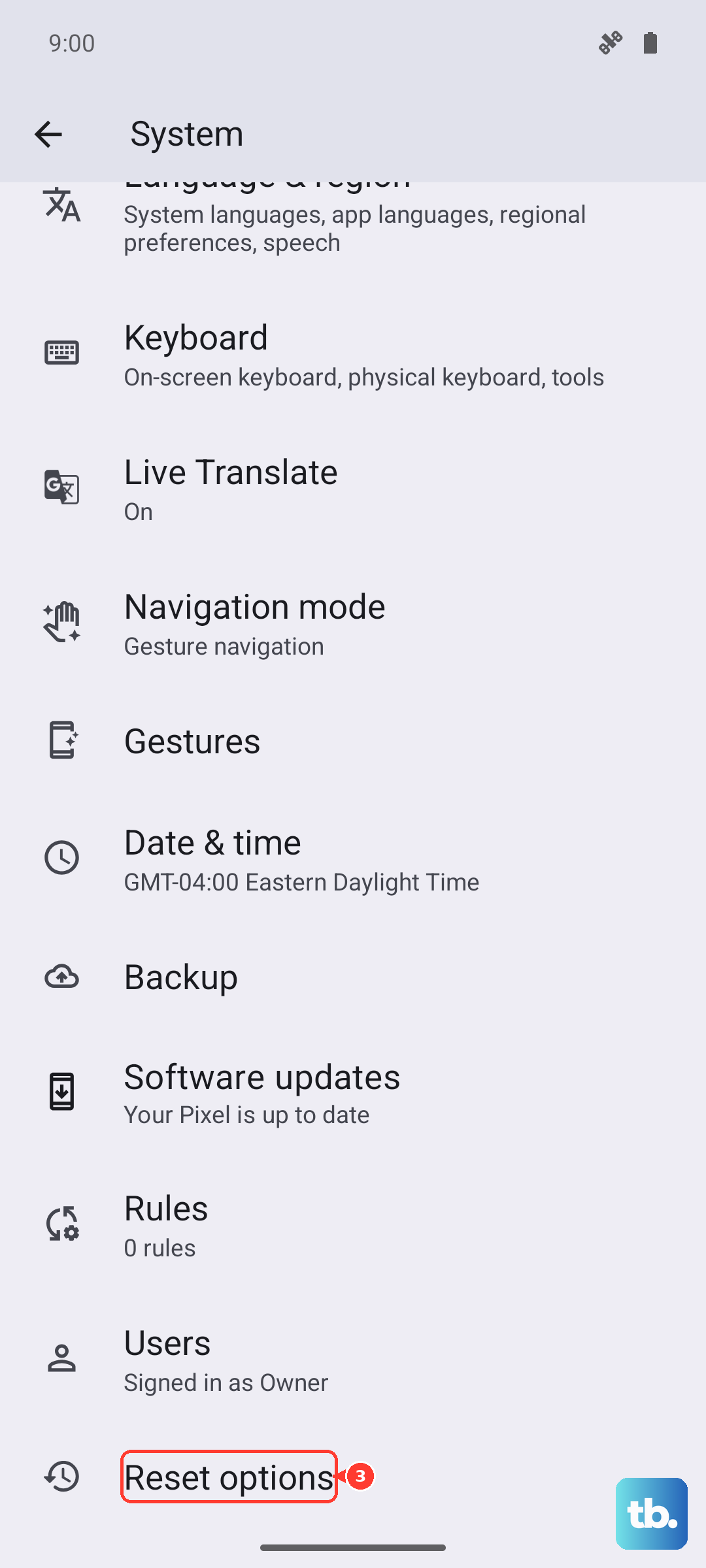
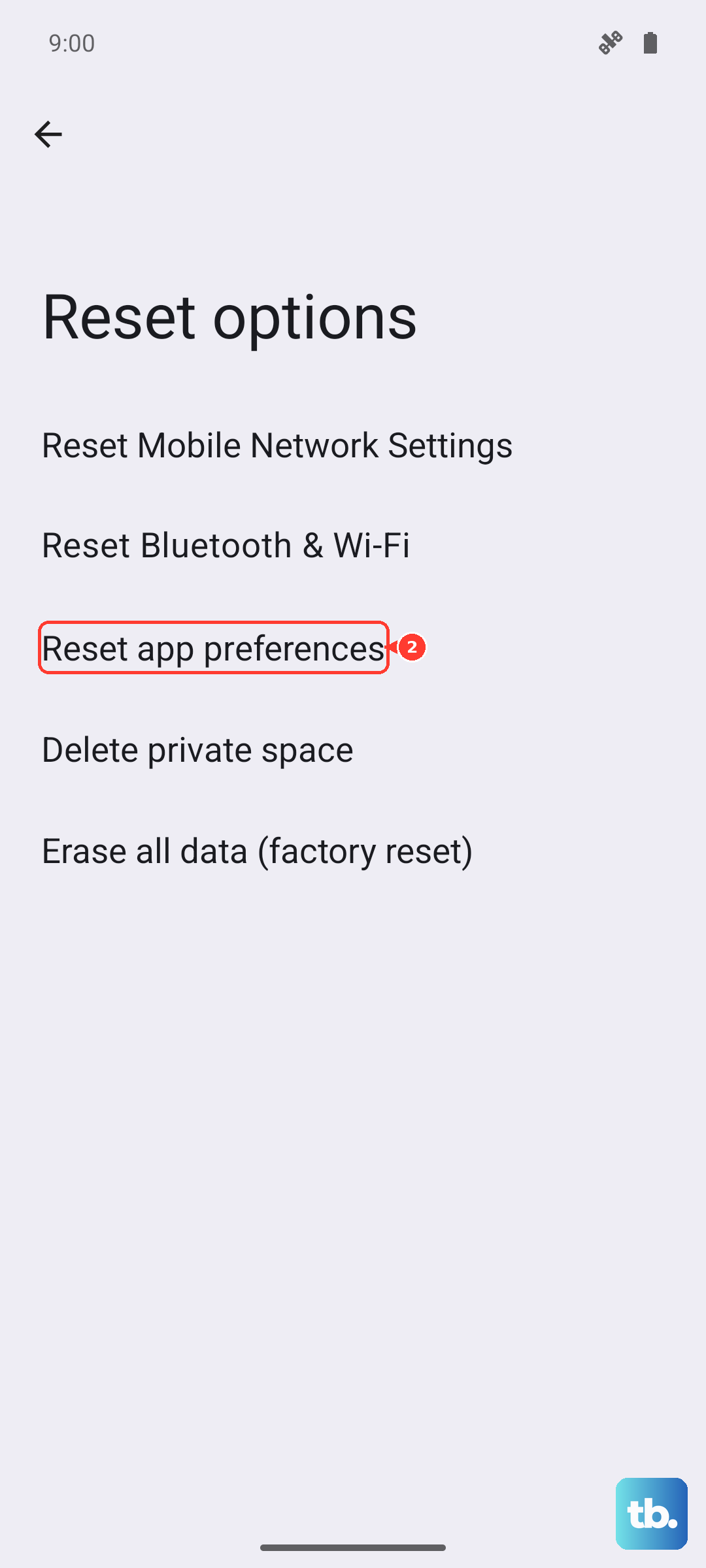
This option resets all app permissions, background data restrictions, and default apps without deleting any personal data. Go to Settings > System > Reset options > Reset app preferences. Tap the button and confirm. This can fix cases where a system app like the notification service got its permissions changed accidentally.
Enable Developer Options and Force Stop Notification Services
If you're still stuck, you can force-stop the system notification service. First enable Developer Options: go to Settings > About phone and tap Build number seven times. Then go back to Settings > System > Developer options. Find Running services (or Services), look for Notification or NotificationListenerService, and tap Stop. After a few seconds, the service should restart automatically. Alternatively, go to Settings > Apps > tap the three-dot menu, select Show system, find Notifications, and tap Force stop. Restart your phone afterward.
Factory Reset as a Last Resort
If none of the above works, a factory reset will wipe your Pixel 10a back to its out-of-box state. This very likely resolves any software corruption affecting sound. Before doing this, back up your photos, contacts, and other data to Google Drive or a computer. Then go to Settings > System > Reset options > Erase all data (factory reset). You'll need to set up the phone again after the reset. This should get notification sounds working.