
Your Pixel 10a feeling sluggish? Most slowdowns come from a few common places and you can fix most of them in a few minutes.
Force Restart Your Pixel 10a
Before diving into settings, give the phone a proper restart. This clears out temporary glitches and stops misbehaving processes.
Press and hold the Power button for 30 seconds, or press and hold Power + Volume Down for 10-15 seconds until you see the Google logo. That's a hard reboot and it wipes the memory clean.
Free Up Storage Space
When your Pixel 10a's storage gets close to full, Android starts slowing down to manage the limited space. You want at least 10% free.
Open Settings > Storage. Tap Free up space and let it scan. Delete old photos, unused apps, and downloaded files. The Files by Google app is also good for finding junk.
Clear App Cache System-Wide
Cached data builds up over time and can cause apps to lag. Clearing it is painless and often helps.
Go to Settings > Apps > See all apps. Pick an app that feels slow, tap Storage & cache, then tap Clear cache. Repeat for apps you use heavily like Chrome, YouTube, and Google Photos.
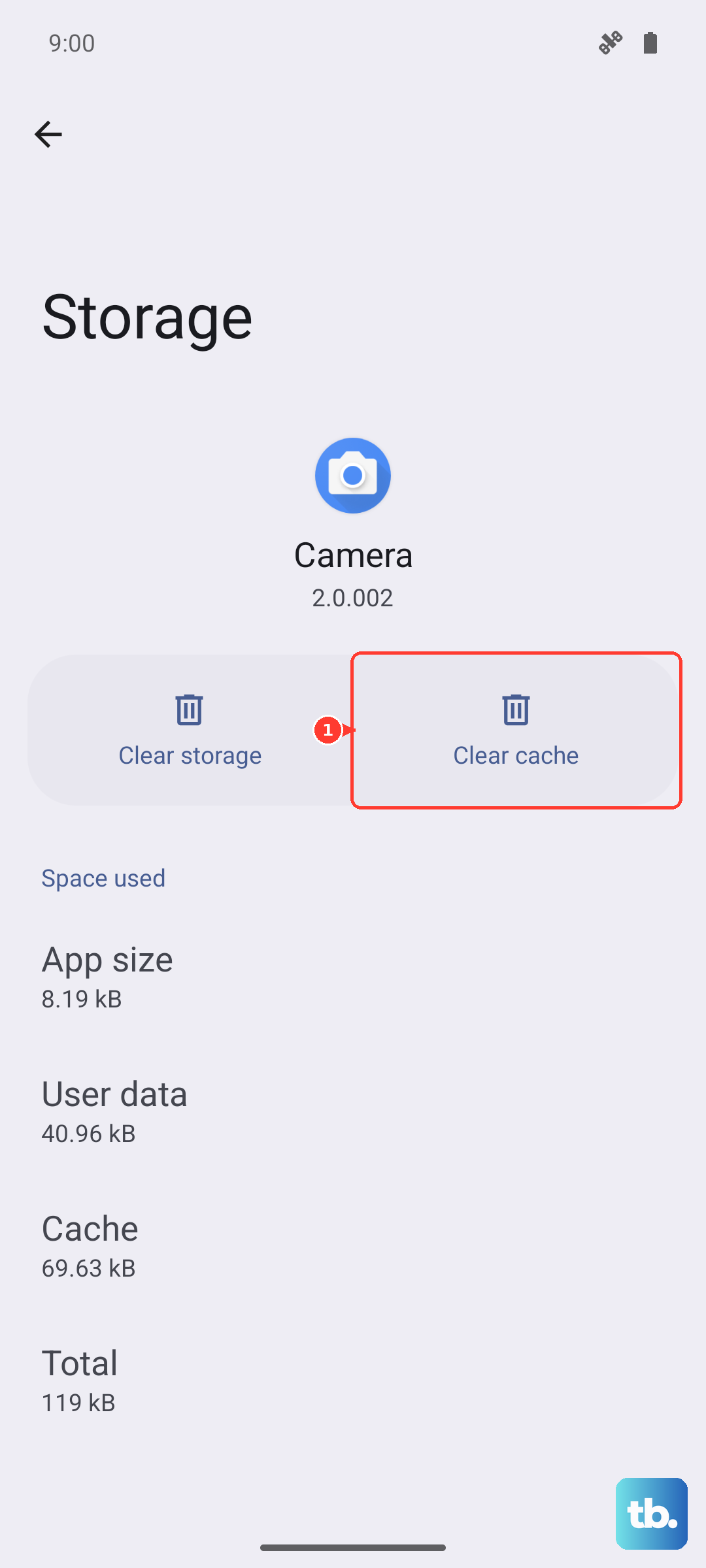
If you want to clear all app caches at once, go to Settings > Storage > Other apps (or Cached data) and confirm. This doesn't delete any personal data, just temporary files.
Update Your Pixel and Apps
Outdated software is a common cause of slowdowns. Google pushes monthly security and performance updates for a reason.
Check for system updates: Settings > System > System update. If one's available, download and install it.
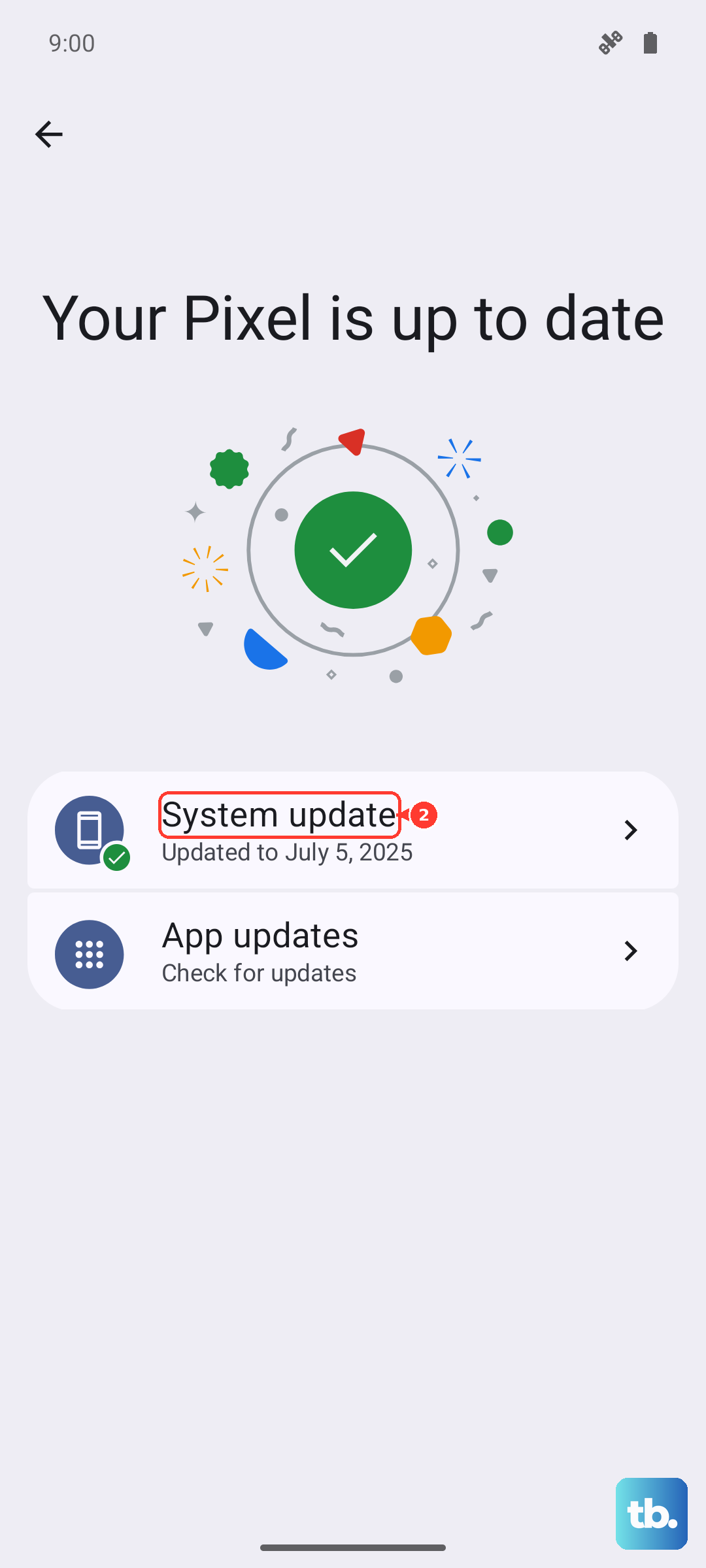
For apps, open the Play Store, tap your profile icon, then tap Manage apps & device > Update all. Keep everything current and most performance issues vanish.
Trim the Animations
Those smooth transitions between apps and menus look nice, but they eat up processor time. Turning them down makes the phone feel snappier.
First, enable Developer options: go to Settings > About phone and tap Build number seven times. Then go back to Settings > System > Developer options.
Under Drawing, you'll see three options: Window animation scale, Transition animation scale, and Animator duration scale. Tap each one and set it to 0.5x or turn them off entirely. Your Pixel 10a will feel much faster.
Check What's Draining Your Battery
A damaged or aging battery can cause the phone to throttle performance to prevent shutdowns. Pixel phones show battery health in Settings > Battery > Battery diagnostics (if available on your model).
You can also check battery usage: Settings > Battery > Battery usage. If an app is using way more power than others, consider restricting its background activity or uninstalling it.
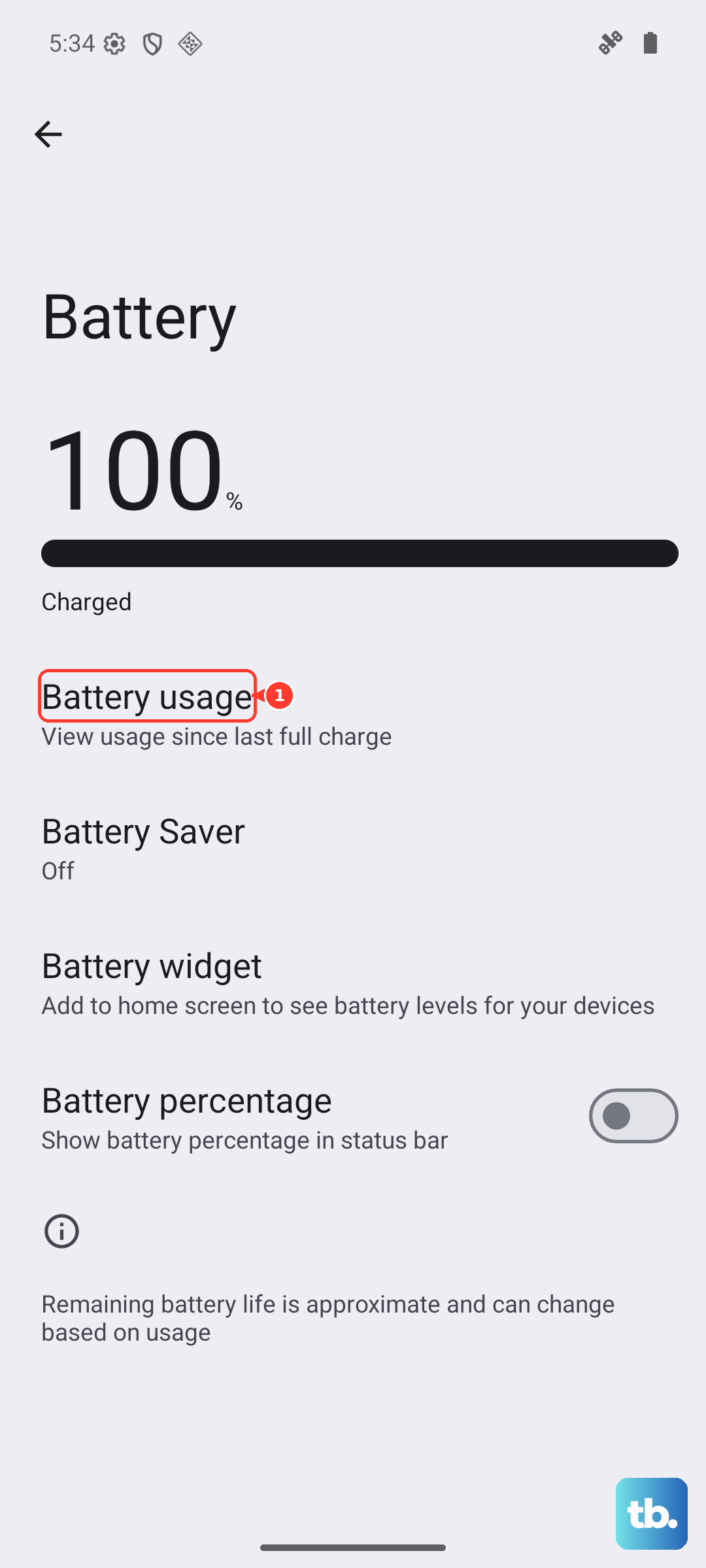
Low Power Mode (Battery Saver) can also slow things down intentionally. Turn it off if you're trying to get peak performance.
Clean Out the Charging Port
This one's specific to Pixel 10a. A clogged USB‑C port can cause charging issues that make the phone behave oddly including slowdowns when it's trying to charge.
Take a look at the port with a flashlight. If you see lint or debris, gently scoop it out with a wooden toothpick. Blow compressed air into it if you have some. Don't use anything metal that could short the pins.
If your wired charger isn't working well, try a Qi wireless charger as a backup. The Pixel 10a supports 10W wireless charging, which is slower but reliable when the port is acting up.
Reset App Preferences
If certain apps are constantly crashing or lagging, resetting app preferences can help. This doesn't delete your data, it just resets permissions, notifications, and default apps.
Go to Settings > Apps > See all apps. Tap the three‑dot menu and choose Reset app preferences. Confirm and restart your phone.
Start with the force restart and storage check, then work through these steps. Your Pixel 10a should feel a lot more responsive after a few of them.