
Your Google Pixel 10a suddenly won't install apps, and you're staring at the Play Store with no luck. It's a jarring problem on a brand-new device, but most of the time it's fixable without a trip to the repair shop. Let's run through the solutions that work on the Pixel 10a running Android 16.
Start With a Force Restart and a Connection Check
Before digging into settings, give the Pixel 10a a proper force restart. Press and hold the Power button for 30 seconds, or hold Power + Volume Down for 10 15 seconds until the phone restarts. This clears temporary glitches that can block downloads.
Also check your internet connection. Swipe down twice to open Quick Settings and make sure Wi‑Fi or mobile data is on and connected. If you're on Wi‑Fi, verify that the network isn't asking you to sign in through a captive portal that often stops Play Store downloads cold.
Fix the Date and Time
Android 16 uses Google's servers to verify app downloads, and if your Pixel's clock is off, the handshake fails. Go to Settings > System > Date & time and make sure Set automatically is toggled on. If it's already on but the time is still wrong, turn it off, set the correct time manually, then turn auto back on. This re-syncs the connection and often gets downloads moving.
Switch Networks Try Mobile Data
Some Wi‑Fi routers block the port (5228) that Google Play uses for downloads. Swipe down, tap the Wi‑Fi icon to disconnect, then enable mobile data. Restart the Play Store and try again. If that works, the issue is with your Wi‑Fi network. You can also try a different Wi‑Fi network entirely.
Clear the Download Manager
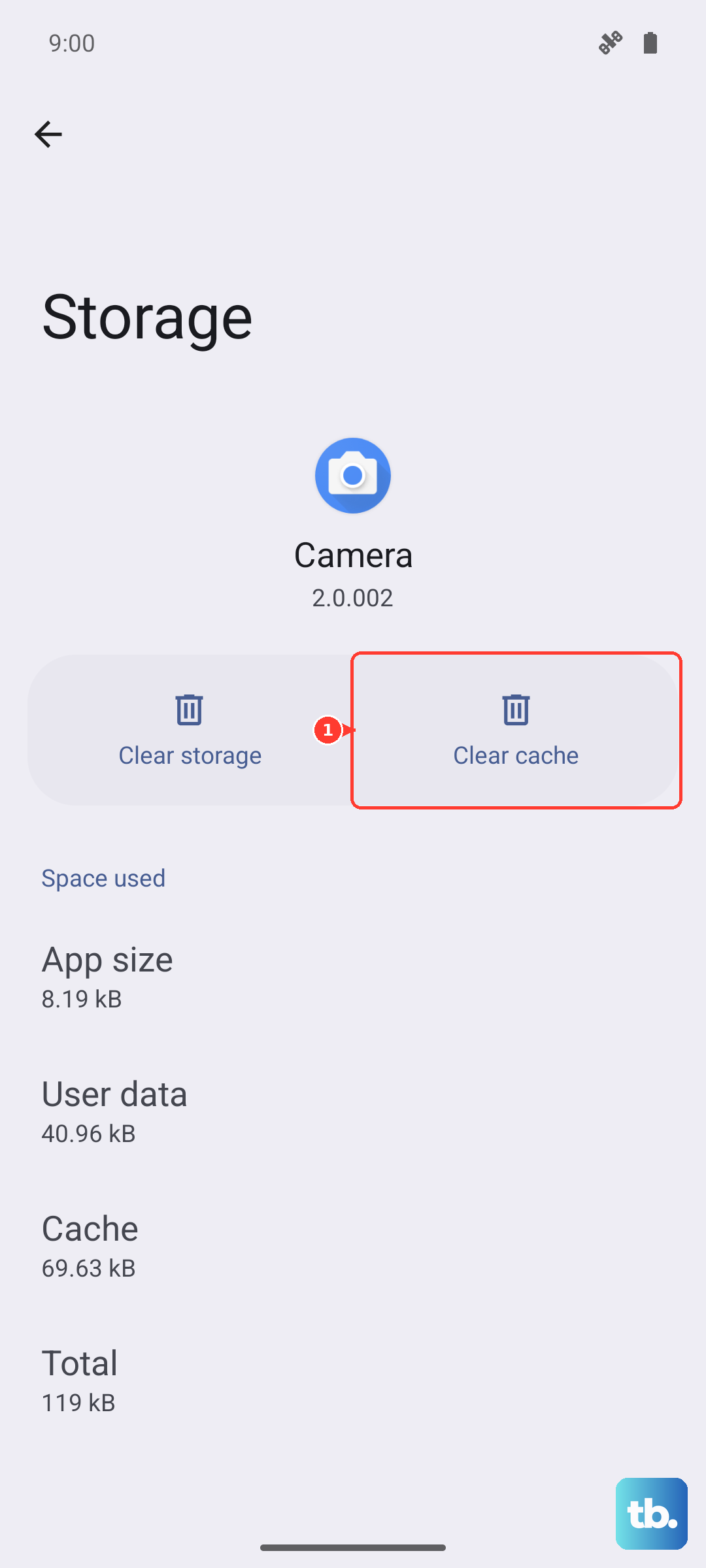
The Download Manager is a system app that handles all file downloads. On the Pixel 10a, go to Settings > Apps > See all apps, tap the three-dot menu, and choose Show system. Scroll to Download Manager, tap Storage & cache, then tap Clear cache and Clear storage. This wipes any corrupted data that might be stuck.
Clear Google Play Store Cache and Data
Corrupted cache in the Play Store itself is a common culprit. Go to Settings > Apps > See all apps and find Google Play Store. Tap Storage & cache, then Clear cache. If that doesn't help, tap Clear storage (which resets the app without deleting your account). Restart the phone and open Play Store again.
Clear Google Play Services Cache and Data
Play Services underpins all Google apps, including the store. Navigate to Settings > Apps > See all apps and find Google Play Services. Tap Storage & cache, then Clear cache. For a deeper clean, tap Manage storage > Clear all data. This resets the service without removing your Google account.
Force Stop Google Play Services
If Play Services is hung up in a bad state, force stopping it can break the logjam. Go to Settings > Apps > See all apps, find Google Play Services, and tap Force stop. Then reopen the Play Store and try again. This is quick and harmless.
Check and Refresh Account Sync
A stale account sync can prevent the Play Store from authenticating downloads. Go to Settings > Accounts > Google and tap your account. Tap Account sync, then the three-dot menu and choose Sync now. If that doesn't help, cancel sync, wait 30 seconds, then turn it back on.
Update Your Pixel 10a Software
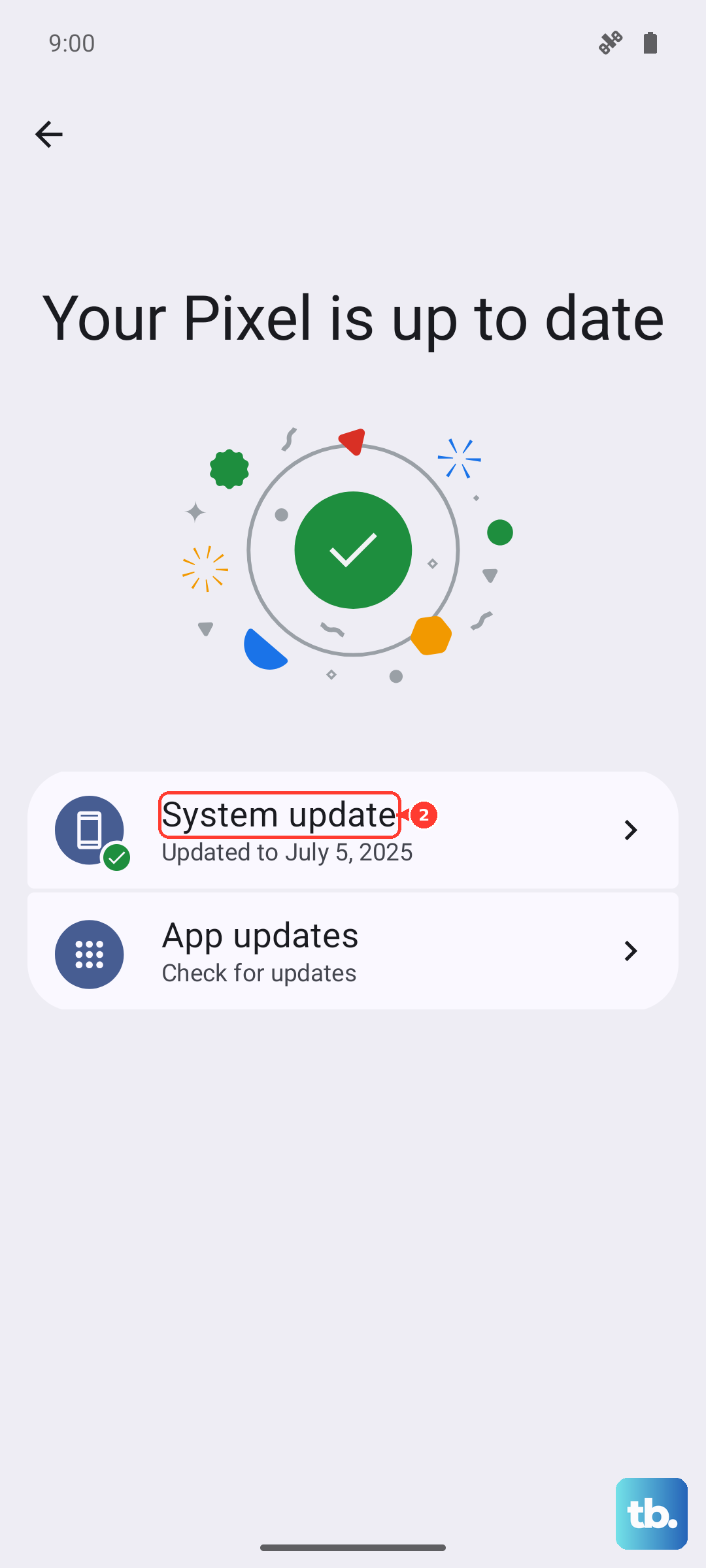
Android 16 receives regular updates that fix bugs like this. Go to Settings > System > System update and check for updates. If one is available, download and install it the phone will restart, and the app issue often resolves itself.
Remove and Re‑Add Your Google Account
If nothing else has worked, removing and re‑adding your Google account can reset the authentication chain. Go to Settings > Accounts > Google, tap your account, then Remove account. Don't worry your data stays on the phone, but some sync settings will need to be redone. Go back to Accounts and tap Add account to sign in again.
Uninstall Google Play Services Updates
A recent Play Services update may have introduced the problem. Go to Settings > Apps > See all apps, find Google Play Services, tap the three-dot menu, and choose Uninstall updates. The service will revert to the factory version. Restart the phone, then let it update again from the Play Store.
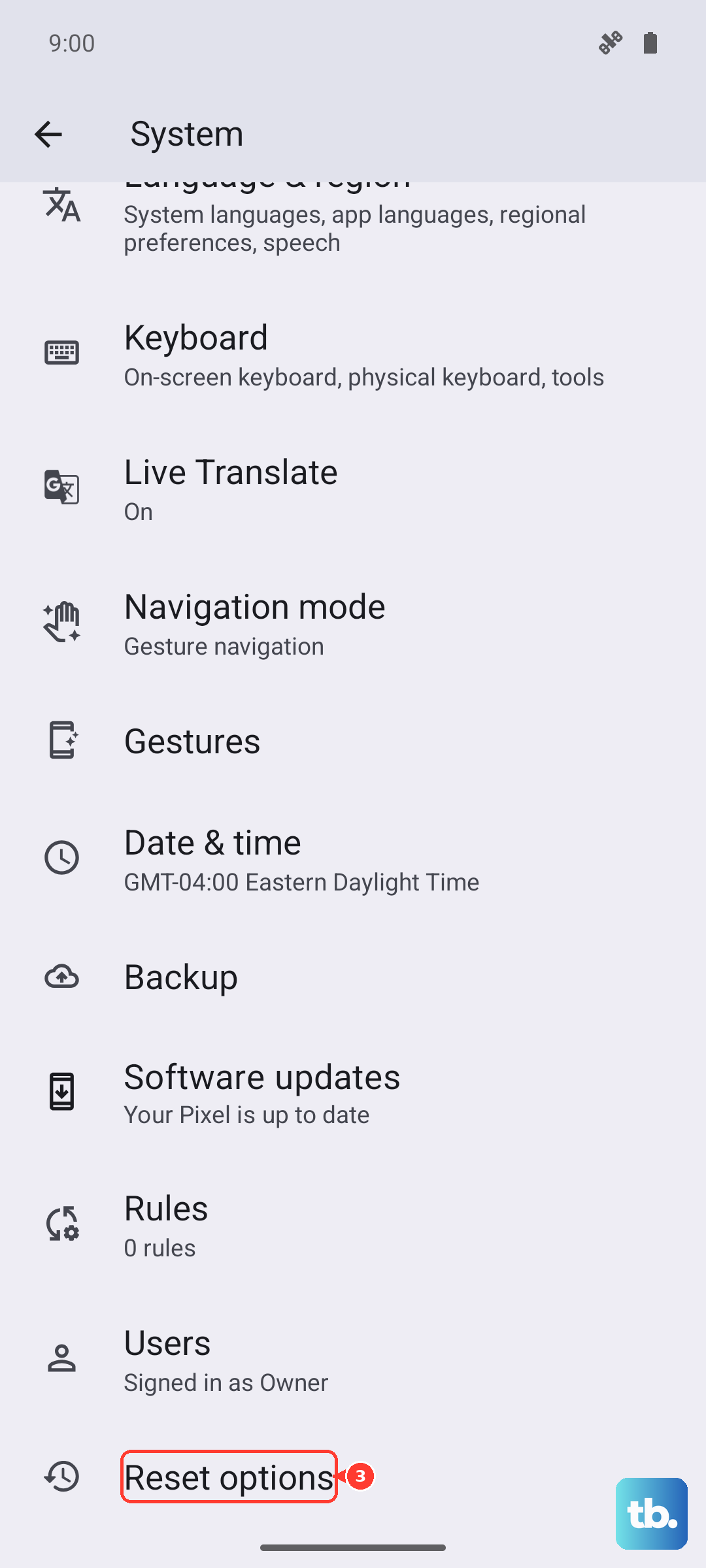
If you still can't download apps after all that, the last resort is a factory reset. Back up your photos, contacts, and files first go to Settings > System > Reset options > Erase all data (factory reset). After the reset, set up the phone fresh and test the Play Store with a single app before restoring everything.
Most app installation problems on the Pixel 10a are quick fixes. Start with the force restart and internet check that alone solves it more often than you'd think.