Your Google Pixel 10 just flashed a "storage full" warning, and now the camera will not save photos, apps refuse to update, and even taking a screenshot feels like a gamble. It is frustrating, especially because the Pixel 10 has no microSD slot, so you cannot just pop in a card and walk away. The good news is that everything on this phone lives in internal storage, which means a handful of built-in tools and Google's first-party apps can win that space back fast. Work through the fixes below in order, starting with the safest and easiest, and you will usually clear plenty of room long before you reach the last resort.
Find out what is actually eating your space
Before you delete a single thing, see where the space has gone. Open the Settings app and tap Storage, then tap a category to see exactly what is using space, such as apps, photos and videos, or downloads. This tells you where to focus your effort instead of guessing.
Because the Pixel 10 has no microSD slot, every photo, app, and download sits in internal storage, so this overview is the whole picture. On the base Pixel 10 that pool is 128 GB or 256 GB depending on which model you bought. Once you know the biggest offender, the rest of these fixes become much more targeted.
Restart the phone to clear a false alarm
Sometimes "storage full" is a temporary glitch rather than a real shortage, and a simple restart clears the leftover clutter and the misreported warning. To restart normally, press and hold the Power button and the Volume up button for a few seconds, then tap Restart.
If your Pixel 10 is frozen or unresponsive and will not let you tap anything, you can force restart it. Press and hold the Power button for up to 60 seconds, and once the phone begins to reboot and the screen displays the "G" logo, release the Power button. Give the phone a moment to settle, then recheck Settings > Storage to see if the number looks healthier.
Clear junk files and app cache with Files by Google
App caches and junk files quietly pile up over time, and the Files by Google app is built to sweep them out. Open Files by Google, tap Menu and then Clean. On the "Junk files" card tap "Clean xx MB," then on the confirmation dialog tap "Clear."
You can also target a single misbehaving app's temporary files directly in Settings. Follow this path:
- 1.Open Settings and tap Apps.
- 2.Tap See all apps.
- 3.Tap the app you want to clean.
- 4.Tap Storage & cache.
- 5.Tap Clear cache, which deletes temporary data.
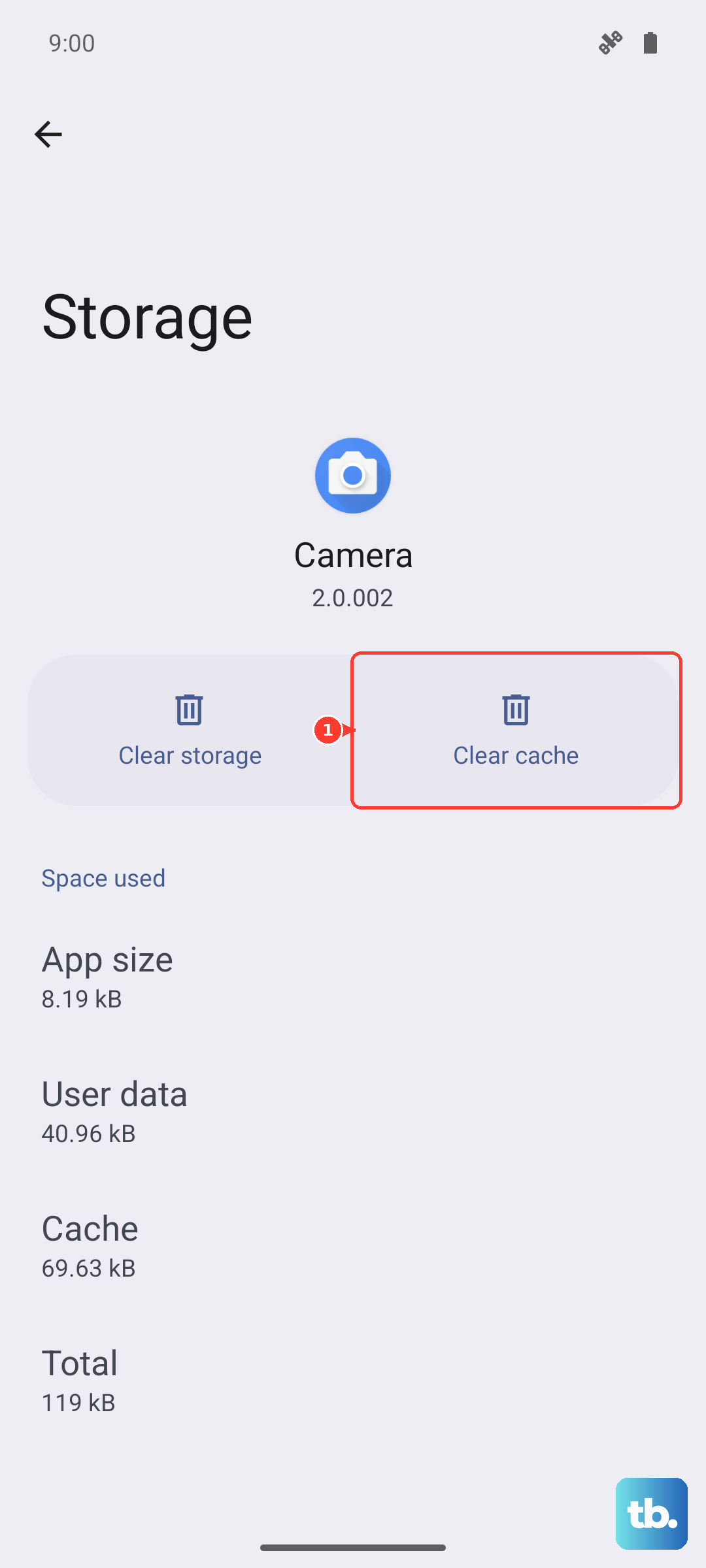
Keep in mind that clearing junk in Files by Google permanently deletes that data, although your app settings are not affected. Clearing cache is safe and does not log you out or remove your saved content.
Offload photos and videos to the cloud
Photos and videos are usually the single biggest space hog on a Pixel, so moving them off the device often frees the most room at once. First make sure backup is turned on, then open Google Photos, tap your account profile photo or initial, and tap "Free up space on this device," followed by "Free up [x] from device."
This removes the on-device copies while keeping them fully available in the Google Photos app and at photos.google.com, so you are not losing anything. The Pixel 10 includes a 6-month Google One Premium trial with 2 TB of cloud storage, which is plenty of headroom for backing up your library before you clear the local copies.
Use Free up space and switch on Smart Storage
The Settings app has a dedicated cleanup screen that surfaces files you can safely remove. Go to Settings > Storage > Free up space, scroll to a category, tap "Select files" (or "Browse"), choose what you no longer need, and tap "Move files to Trash."
If you would rather the phone handle this for you, turn on Smart Storage so it cleans up automatically. The path is Settings > Storage > Free up space > Menu > Settings, then turn on Smart Storage. With it enabled, the phone deletes backed-up photos and videos when storage is almost full, so you are far less likely to hit the wall again.
Remove apps you never open
Apps you rarely touch can hold onto a surprising amount of space, and uninstalling them frees that space immediately. In Files by Google, tap Menu > Clean and use the "Delete unused apps" card. If that card is not shown, scroll to the "Free up more space" card and tap "Search for apps."
Do not worry about losing access to something you might want again. If you uninstall an app and need it later, you can download it again, and you do not have to buy it again if you originally paid for it.
Install any pending Pixel software update
A pending update can fix storage-reporting bugs and reclaim space, so it is worth checking before you take more drastic steps. First confirm your version at Settings > About phone > Android version (the Pixel 10 ships with Android 16).
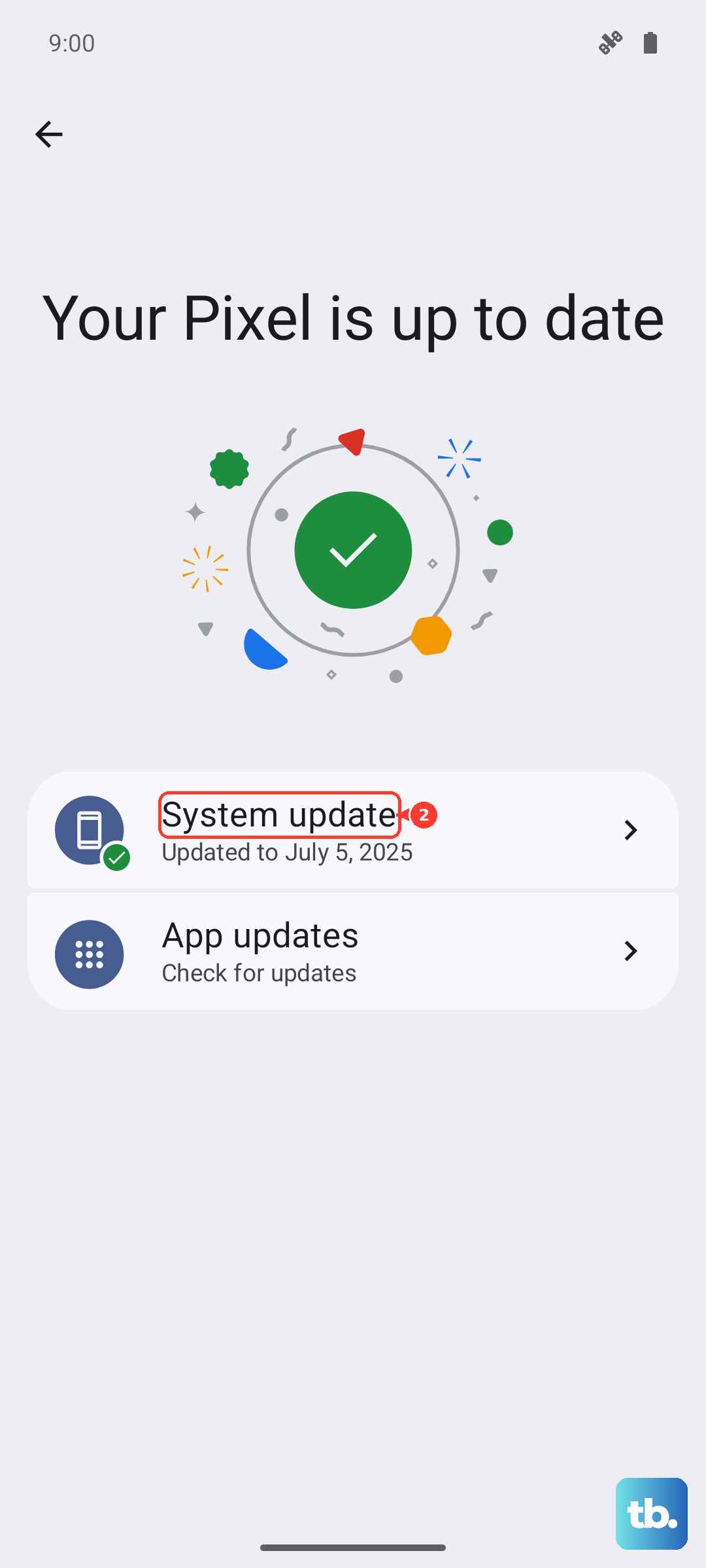
Then install any available update at Settings > System > Software updates, which may also appear as System update, and follow the on-screen instructions. Connect to Wi-Fi and charge the phone first, because updates can be large and you do not want the download to stall or the battery to die partway through.
Move files you want to keep onto a computer
Some files are too important to delete but do not need to live on your phone, and since the Pixel 10 cannot use a memory card, a computer is the official way to offload them. Connect the Pixel 10 to a computer with a USB cable, move the files over, and then delete them from the phone.
This works well for large videos, downloaded documents, or archives you only need occasionally. Once the files are safely copied across, removing them from the phone gives you the space back without any risk of losing the originals.
The last resort and where to get more help
If nothing above has worked, a factory reset is the final option, but be careful, because a factory reset erases all your data from your phone. Before you start, charge to at least 70%, connect to Wi-Fi or a mobile network (you must sign back into your Google Account afterward), and make sure your data is backed up.
When you are ready, follow this exact path:
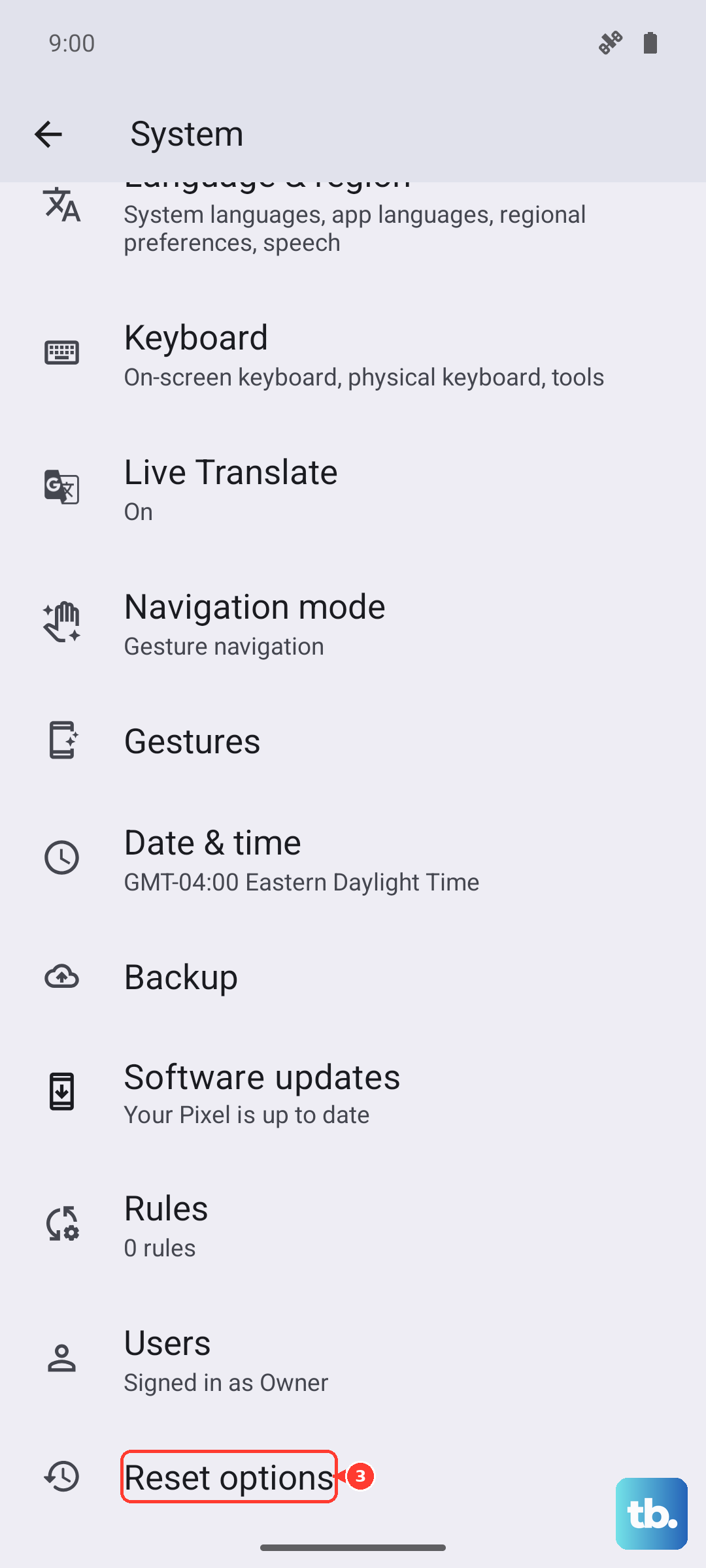
- 1.Open Settings and tap System.
- 2.Tap Reset options.
- 3.Tap Erase all data (factory reset).
- 4.Enter your PIN if prompted.
- 5.Tap "Erase all data."
The reset can take up to an hour, so leave the phone alone while it finishes. If your storage is still wrongly reported as full even after a reset, use the Get help or contact options in Google's Pixel Phone Help to reach official support.
Frequently Asked Questions
Can I add a microSD card to expand my Pixel 10 storage?
No. No Pixel 10 model supports a microSD card or any expandable storage. The only ways to free space are deleting or clearing data on the device, or offloading files to the cloud through Google Photos, Google Drive, or Google One.
Will using Free up space in Google Photos delete my pictures for good?
No. Tapping "Free up space on this device" only removes the on-device copies of photos and videos that are already backed up. They remain available in the Google Photos app and at photos.google.com, so you can still view and download them anytime.
Is it safe to clear an app's cache?
Yes. Clearing cache through Settings > Apps > See all apps > the app > Storage & cache > Clear cache only deletes temporary data. It does not remove your saved content or your settings. Avoid Clear storage unless you intend to wipe the app, since that permanently deletes all of the app's data.
How much cloud storage do I get with the Pixel 10?
The Pixel 10 includes a 6-month Google One Premium trial that comes with 2 TB of cloud storage. That is enough room to automatically back up your photos and videos, which then lets you safely remove the local copies from the phone.
What should I do if the storage still shows full after a factory reset?
If storage is still wrongly reported as full after you have erased all data, the issue may need official troubleshooting. Use the Get help or contact options in Google's Pixel Phone Help to reach support directly.