When your Google Pixel 10 suddenly goes silent, it can throw a wrench in your day. Whether you're missing notifications, can't hear calls, or your videos are playing in mute, the issue is usually a simple software setting or a minor glitch. I'd start with the quickest fixes first, as they resolve the majority of sound problems on Pixel devices.
A browser based quick sound test helps narrow this down fast. If test tones play clearly, the speakers work and the problem lives in an app or setting.
Check Your Volume and Sound Mode
First, press the volume up button on the side of your Pixel 10. If you see a volume slider on screen, drag it all the way to the right. Sometimes the media volume is turned down separately from the ringer volume, so try adjusting it while a video or song is playing.
Next, pull down the Quick Settings panel from the top of your screen twice. Look for a bell icon with a slash through it or the word "Vibrate." Tap it to switch back to "Sound" mode. If you see a moon icon, that's Do Not Disturb, which you can also toggle off from here.
Disconnect Bluetooth and Accessories
Your Pixel might be trying to send audio to a paired device. Swipe down and check if the Bluetooth icon is blue or highlighted. If it is, tap it to turn Bluetooth off completely.
You can also go to Settings > Connected devices to see a list of paired accessories. Tap the settings icon next to any audio device, like headphones or a speaker, and select Forget. Also, remove any USB-C headphones or dongles from the charging port.
Clean the Speaker Grilles
Dust and pocket lint love to clog the slim speaker openings on the bottom edge of the Pixel 10. Grab a soft, dry toothbrush or a clean, dry makeup brush. Gently brush across the speaker grille to dislodge any debris.
You can also use a can of compressed air, but hold it upright and use very short bursts from a few inches away. Never insert anything sharp like a pin or paperclip into the grille, as you'll likely damage the speaker inside.
Review App-Specific Sound Settings
Sometimes the problem is isolated to one app. Open the app that's having sound issues, like YouTube or your phone app. While you're in the app, press the volume buttons again to ensure that app's specific media volume is up.
You can also check the app's notifications. Go to Settings > Apps, select the problematic app, and tap Notifications. Make sure notification sounds are enabled for that app. Some apps also have internal sound settings that can be muted.
Check Accessibility and Sound Balance Settings
Certain accessibility features can affect audio. Navigate to Settings > Accessibility. Look for an option called "Audio adjustment" or "Mono audio." If Mono audio is on, try turning it off.
In the same menu, look for "Hearing aids" or "Hearing device compatibility." If these are enabled, they can sometimes interfere with standard audio routing. Temporarily disabling them can help diagnose the issue.
Perform a Force Restart
A simple force restart clears out temporary software bugs that can cause audio drivers to crash. On your Google Pixel 10, press and hold the Power button and the Volume Up button at the same time.
Keep holding them for about 10 seconds, until you see the Google logo appear on the screen. Then release the buttons and let your phone boot up normally. Test your sound immediately after.
Boot Into Safe Mode
Safe Mode temporarily disables all third-party apps. If your sound works in Safe Mode, you know a downloaded app is the culprit. To enter Safe Mode, press and hold the Power button and Volume Up button together until the power menu appears.
Then, tap and hold the "Power off" option on your screen. A prompt will ask if you want to reboot to Safe Mode. Tap "OK." Your phone will restart with "Safe mode" visible in the bottom corner. Test your speakers here.
To exit Safe Mode, just perform a normal restart by holding the power button and tapping "Restart."
Clear the Cache for Key Apps
Corrupted app cache can cause strange behavior. Go to Settings > Apps and select "See all apps." Find and tap on apps related to sound, like "Google Play services" or "Android System Intelligence."
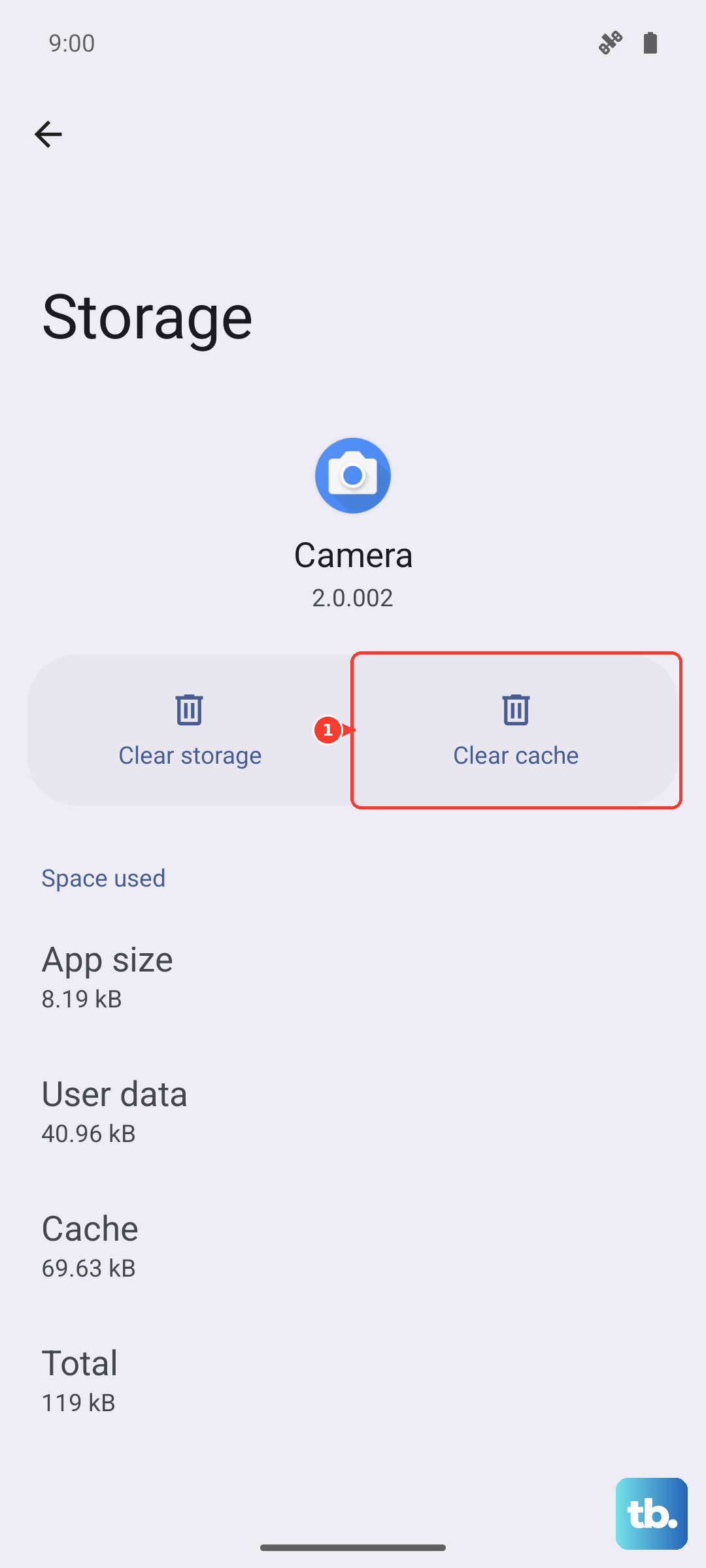
Tap Storage & cache and then tap Clear cache. Do not select "Clear storage" or "Clear data," as this will reset the app. This is a safe step that won't delete your personal information.
Update Your Pixel's Software
Google frequently releases updates that fix bugs, including audio issues. Connect to Wi-Fi and go to Settings > System > System update. Tap "Check for update."
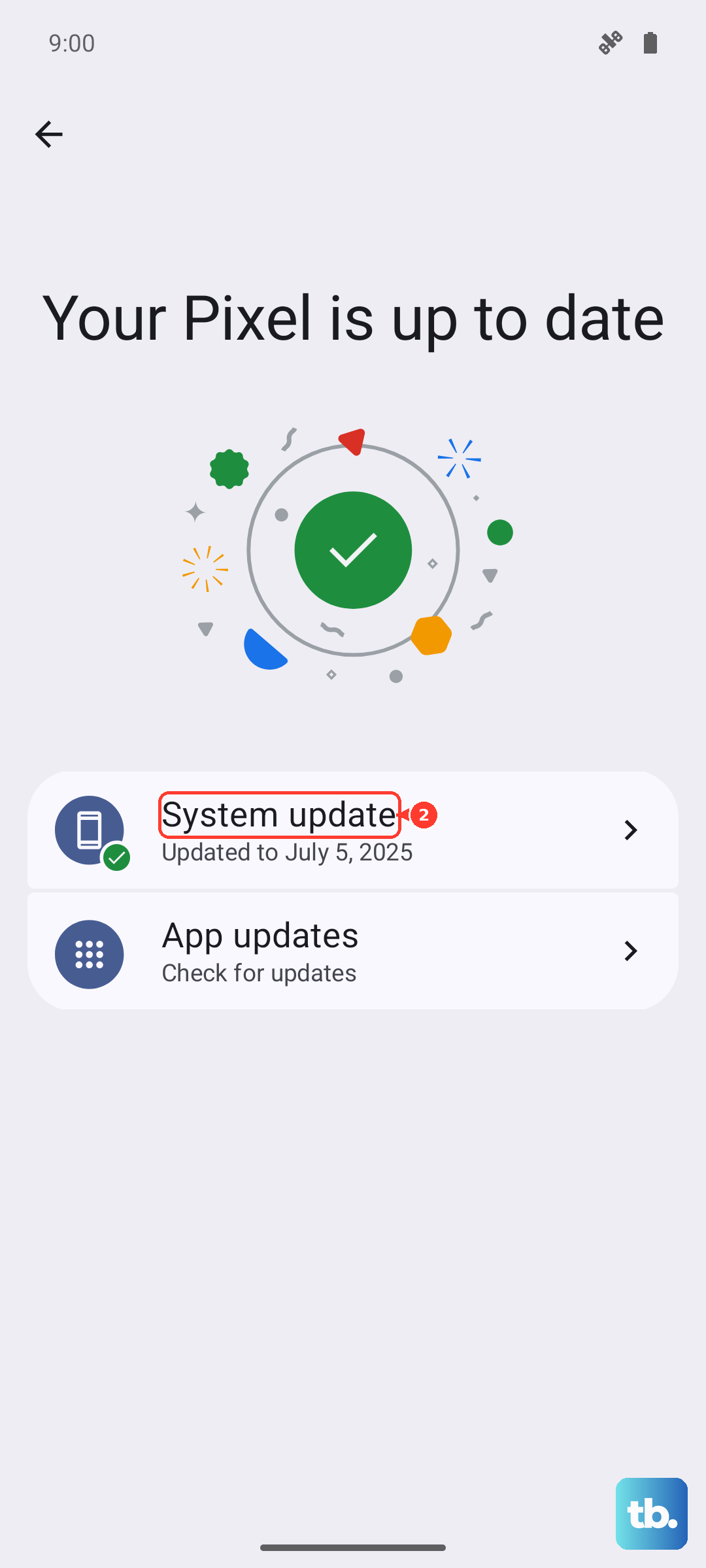
If an update is available, follow the prompts to download and install it. It's best to do this while your phone is charging above 50%. After the update completes, check if your sound has returned.
Reset All App Preferences
This resets permissions, notifications, and background data restrictions for all apps without deleting any of your personal data. It can fix issues where an app's sound permission was accidentally revoked.
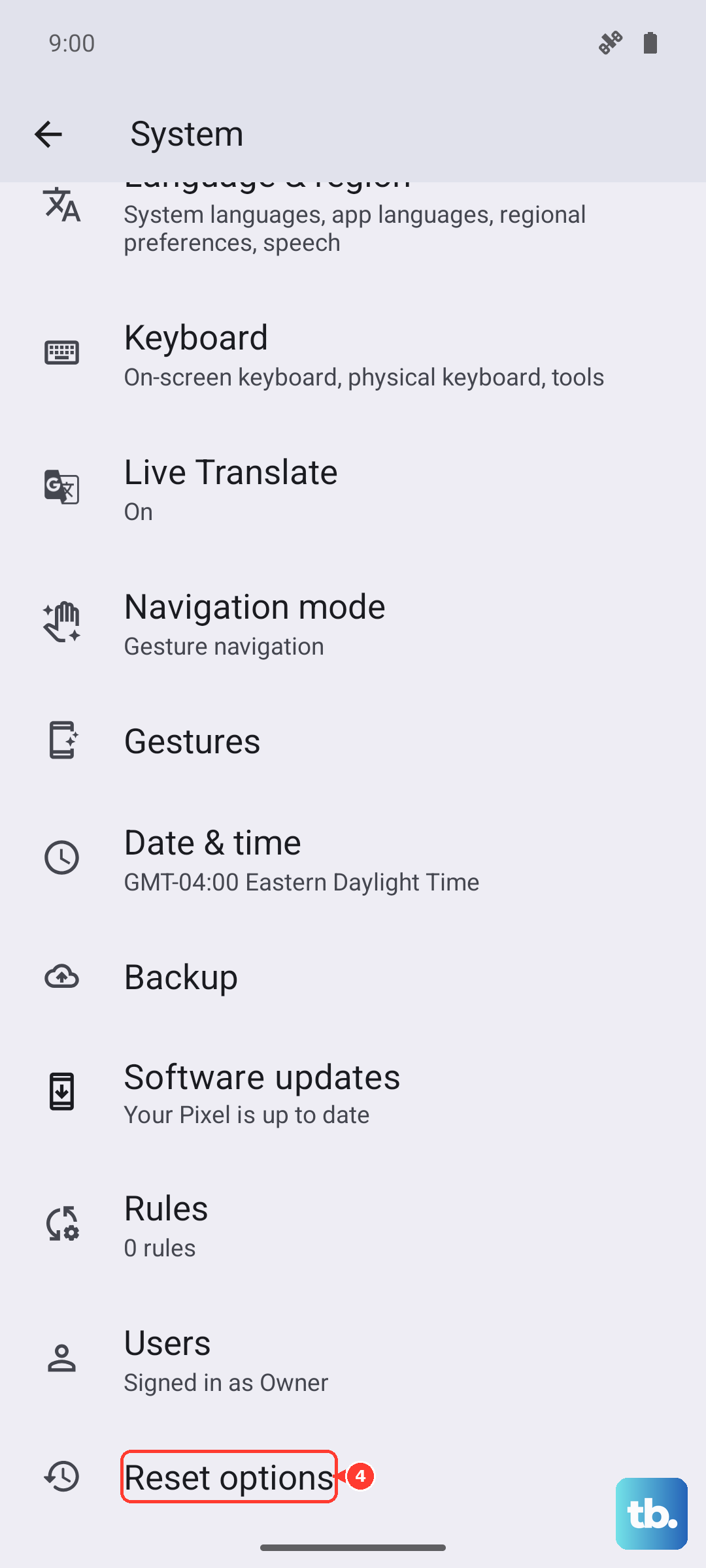
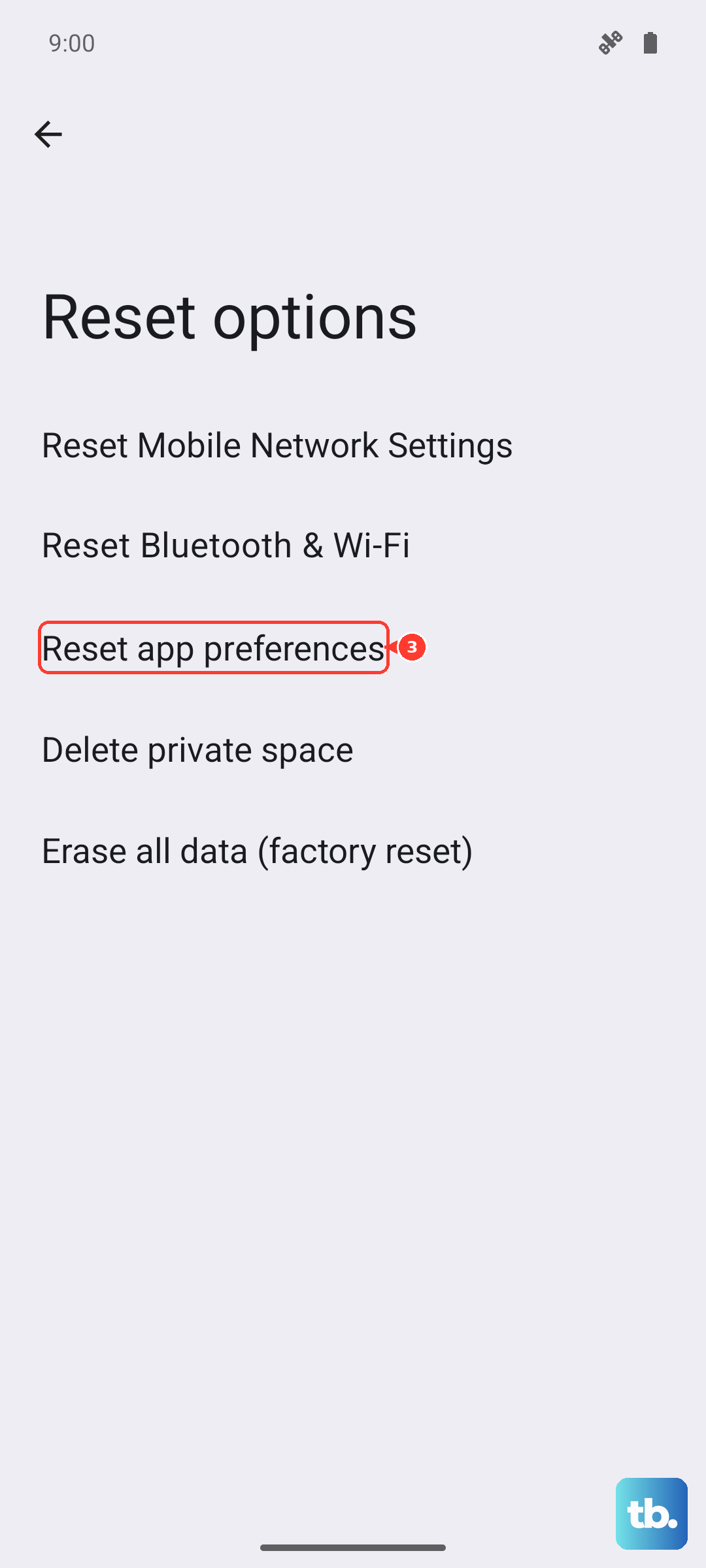
Go to Settings > System > Reset options. Tap Reset app preferences and confirm. You'll then need to re-grant permissions like microphone access when apps ask for them again.
Perform a Factory Reset
This is a last resort if hardware damage has been ruled out. A factory reset will erase everything on your phone, so you must back up your photos, contacts, and files to Google Drive first.
Once backed up, go to Settings > System > Reset options > Erase all data (factory reset). Follow the confirmation steps. After the reset, set up your phone as new to see if the sound issue persists before restoring your backup.