
Screen flickering on your Google Pixel 10 is incredibly distracting, turning a simple task into a frustrating one. You might see the display flash, blink, or show horizontal lines at random. This can be triggered by a software bug, a problematic app, or a hardware fault with the display itself. Let's get it fixed.
Force Restart Your Pixel 10
This is the quickest fix for a temporary software hiccup causing the screen to act up. Press and hold the Power button and the Volume Up button together for about 10 seconds. Let go when you see the Google logo appear on the screen. I've found this resolves a surprising number of random display glitches right away.
Disable Adaptive Brightness
Your Pixel uses a light sensor to adjust screen brightness automatically, and if that sensor gets confused, it can cause flickering. Open Settings and go to Display. Find the Adaptive brightness toggle and turn it off. After that, manually adjust your brightness level using the slider in the same menu and see if the flickering stops.
Check for a Software Update
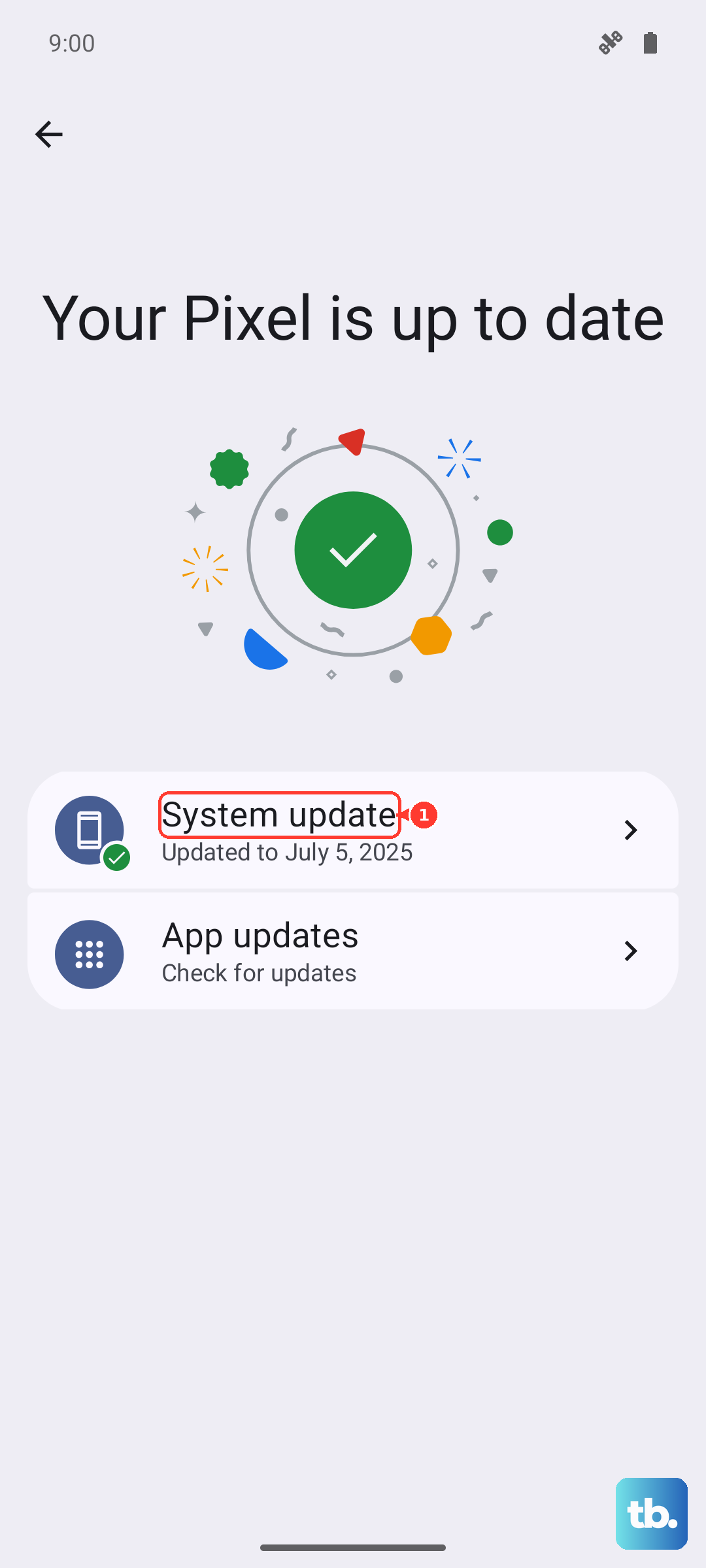
Google regularly pushes out updates that fix bugs, including display-related ones. Go to Settings > System > System update and tap "Check for update." Install any available update. It's a good practice to keep your Pixel 10 on the latest available version of Android to avoid known issues.
Close Problematic Apps
A specific app running in the background could be the culprit. Swipe up from the bottom of the screen and hold to see your recent apps. Swipe up on each app preview to close it. Once they're all closed, use your phone normally for a bit. If the flickering is gone, you can reopen your apps one by one to try and identify which one was causing the trouble.
Boot Into Safe Mode
Safe mode temporarily disables all third-party apps. If the flickering stops in Safe Mode, you know a downloaded app is to blame. To enter Safe Mode, press and hold the Power button and Volume Up button together until the power menu appears. Then, tap and hold the "Power off" option on your screen. You'll get a prompt to reboot to Safe Mode; tap "OK."
Once in Safe Mode (you'll see "Safe mode" in the bottom corner), use your phone. If the screen is stable, restart normally to exit Safe Mode. You'll then need to uninstall recently downloaded apps one at a time to find the offender.
Reset App Preferences
This resets permissions, notifications, and default apps without deleting any of your data. It can clear up conflicts that might affect the display. Navigate to Settings > Apps > See all apps. Tap the three-dot menu in the top right and select Reset app preferences. Confirm the action and restart your phone.
Check for Physical Damage
If the flickering started after you dropped your Pixel 10 or put pressure on it, there could be internal damage. Look closely at the screen for any new cracks, even hairline ones, or areas where the display shows unusual colors or dark spots. A loose internal display connector can also cause these symptoms.
Physical damage typically requires a repair. You can contact Google Support or visit an authorized repair partner to get a professional diagnosis.
Perform a Factory Reset
This is a last resort for persistent software issues. A factory reset will erase all data on your phone, so you must back up everything important first. You can back up to your Google account. Once backed up, go to Settings > System > Reset options > Erase all data (factory reset).
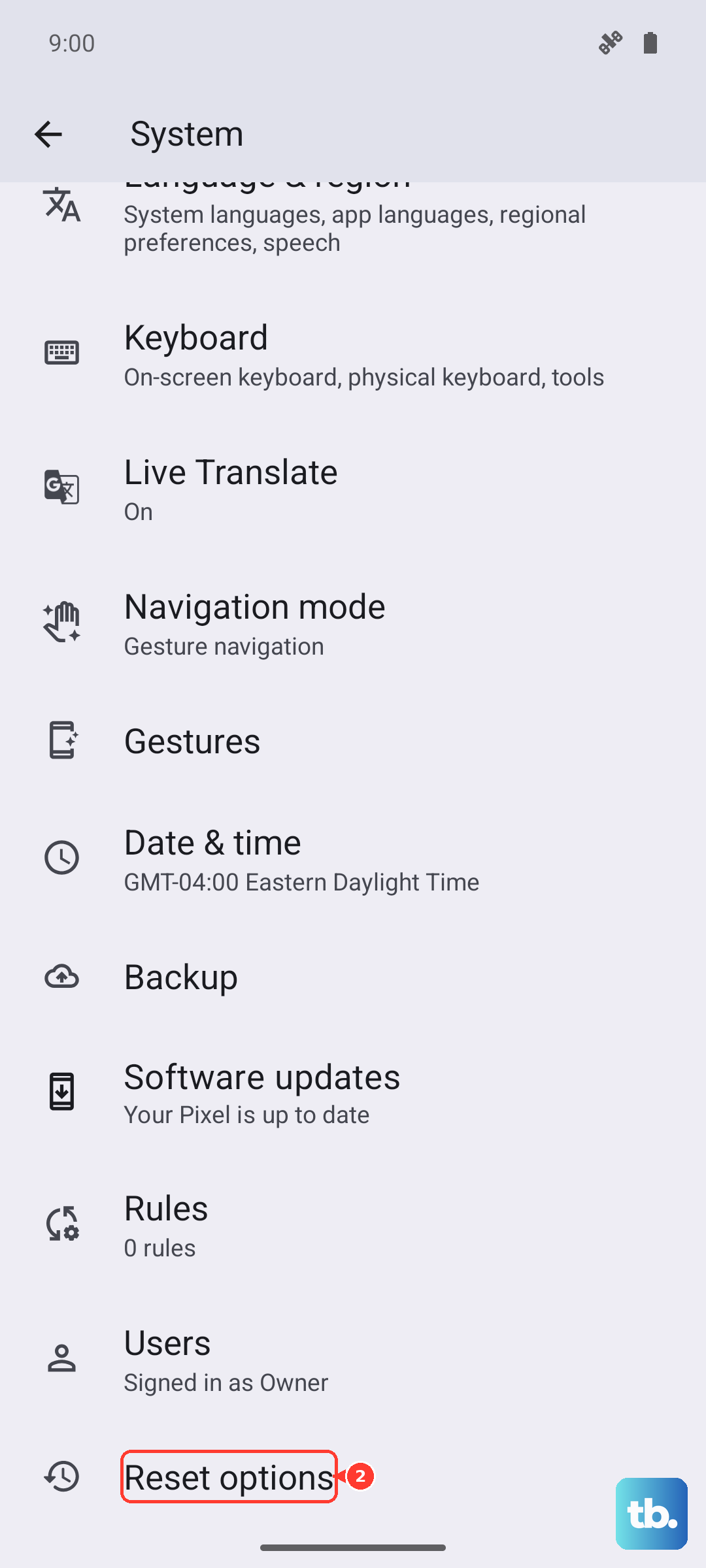
Follow the prompts to reset the phone. If the screen flickering is gone on a completely fresh device, it was a software problem. If the flickering persists immediately after the reset and setup, it's almost certainly a hardware issue that needs professional attention.