
Software updates usually bring fixes and new features, but when they fail, it's a headache. You might see errors like "Update failed," a download that never finishes, or an install that restarts repeatedly. Here's how to get the update running smoothly on your Pixel 10 Pro XL.
Check Your Wi-Fi Connection
Android updates download over Wi-Fi by default, and a weak or unstable connection can cause failures. Make sure you're on a solid network, open a web page or run a speed test. If it's slow, restart your router or switch to a different Wi-Fi network. Public Wi-Fi, hotel networks, and even some home mesh systems can block large downloads.
Free Up Storage Space
Updates need room to download, extract, and install. Go to Settings > Storage and check your available space. A major Android 16 update can require 5-8 GB of free space. Delete old downloads, unused apps, or move photos to Google Photos (then remove local copies). Clearing the cache in Settings > Storage > Free up space can also help.
Delete the Downloaded Update
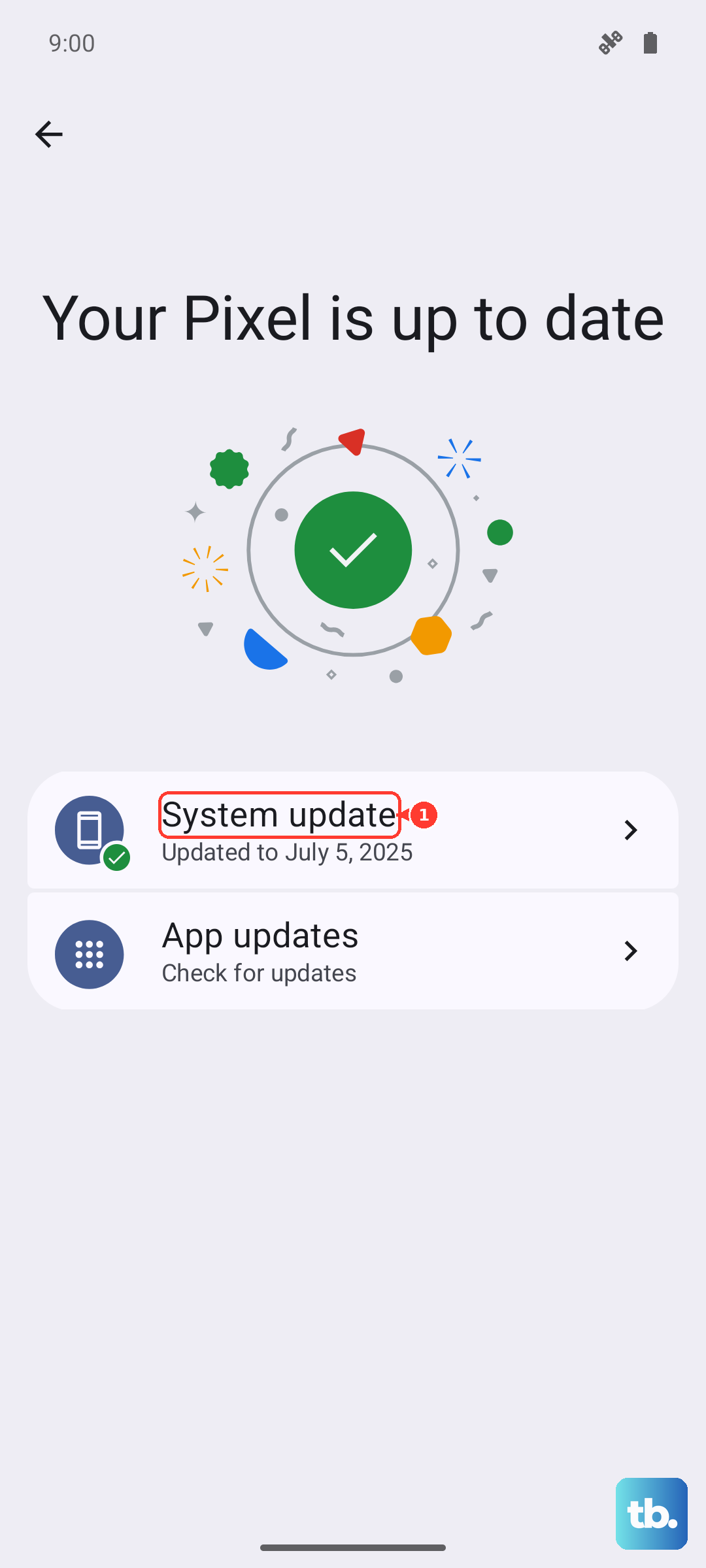
If a previous download got corrupted, it can block new attempts. Go to Settings > System > System update and see if there's a partial download. You can also clear the download by going to Settings > Apps > See all apps > System updates > Storage & cache and tapping Clear storage. Then go back to System update and try again from scratch.
Force Restart Your Pixel 10 Pro XL
Press and hold the Volume up and Power buttons simultaneously for about 10 seconds, then release when the device restarts. This isn't the same as a normal reboot, it clears out temporary glitches that can interfere with the update process. Try the update again after the phone fully boots up.
Reset Network Settings
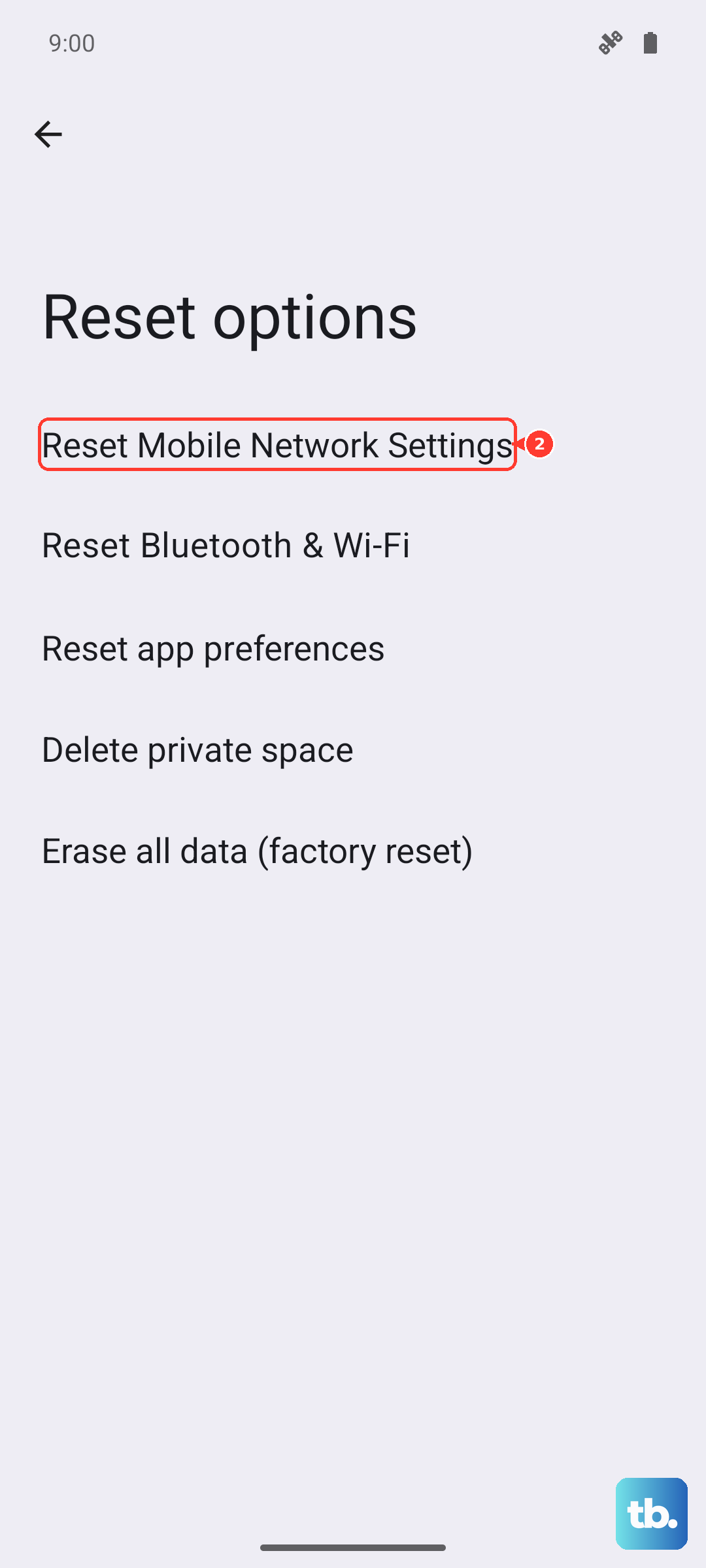
Sometimes your Wi-Fi configuration gets tangled. Go to Settings > System > Reset options > Reset mobile network settings, then Reset Bluetooth & Wi-Fi. This clears saved Wi-Fi networks, Bluetooth pairings, and mobile data settings. Don't worry, your apps and accounts are safe. Reconnect to your Wi-Fi and check for the update again.
Update Using a Computer
Pixel phones support sideloading full OTA updates via ADB. Download the latest OTA image for your Pixel 10 Pro XL from Google's developer site, then connect your phone to a computer. Enable Developer options (tap Build number seven times), turn on USB debugging, and use adb sideload with the OTA file. This bypasses any storage or network issues on the phone itself. If that sounds technical, Google's Android Flash Tool does it all in a browser, just visit flash.android.com on your computer and follow the prompts.
Check Google's Server Status
The problem might not be on your end. During major releases, Google's update servers can get hammered. Check the Google Cloud Status Dashboard or Pixel Phone Help community for outage reports. If there's a widespread issue, wait a few hours or a day and try again.
Try Updating at Off-Peak Hours
When a new Android version drops, millions of Pixel users are downloading it at the same time. Server traffic peaks during the afternoon and early evening. Try initiating the update late at night or early in the morning, you'll often get a faster, more reliable download.
Make Sure Your Phone Is Compatible
The Pixel 10 Pro XL runs Android 16, but future updates might drop support eventually. Google typically supports phones for at least five major OS updates. If you're trying to install a beta or an older version, double-check that it's officially listed for your model. Go to Settings > About phone to see your current build number and Google's compatibility list online.
Boot Into Safe Mode
Some third-party apps, especially VPNs, ad blockers, or battery optimizers, can interfere with the update process. Boot your Pixel into Safe Mode: press and hold the Power button, then press and hold the Restart option on screen. Confirm Safe Mode when prompted. Once in Safe Mode, go to Settings and attempt the update. If it works, you'll know an app was causing trouble. Reboot normally and uninstall the offender.