
If your Pixel 10 Pro XL videos are stuttering, freezing, or lagging during playback, there's usually a straightforward fix. The problem can pop up for a bunch of reasons, from low storage to an overheating phone, but most are easy to solve without any special tools.
Let's walk through the most common culprits and how to get your videos playing smoothly again.
Free up storage space first
Low storage is one of the biggest causes of video lag on any phone, and the Pixel 10 Pro XL is no exception. When Android doesn't have room to write temporary video data, playback gets choppy fast.
Open Settings > Storage and take a look at how much free space you have. If you're below 1GB, it's time to clear things out. Tap the Free up space option to remove old photos, unused apps, and cached files. You can also move your photos and videos to Google Photos with the "Free up device storage" feature.
Check your internet connection
For streaming videos, a weak Wi-Fi or mobile data connection will cause constant buffering and lag. Even videos stored in the cloud can stutter if the network drops.
Try switching between Wi-Fi and cellular data to see if one works better. If you're on Wi-Fi, run a speed test to make sure you're getting enough bandwidth for HD video (at least 5 Mbps). Resetting your router can help if it's been a while.
Force restart your Pixel
Sometimes a simple restart clears out temporary glitches that cause video lag. On the Pixel 10 Pro XL, use the force restart method: press and hold the Volume up and Power buttons simultaneously for 10 seconds, then release when the device restarts. This is more thorough than a regular power off and can fix memory leaks or stuck processes.
Update Android 16 and your apps
Software bugs can mess with video playback. Google often patches these in system updates and app updates. Check for updates in Settings > About phone > Software update. Then open the Play Store, tap your profile icon, and hit Manage apps & device to update all your apps.
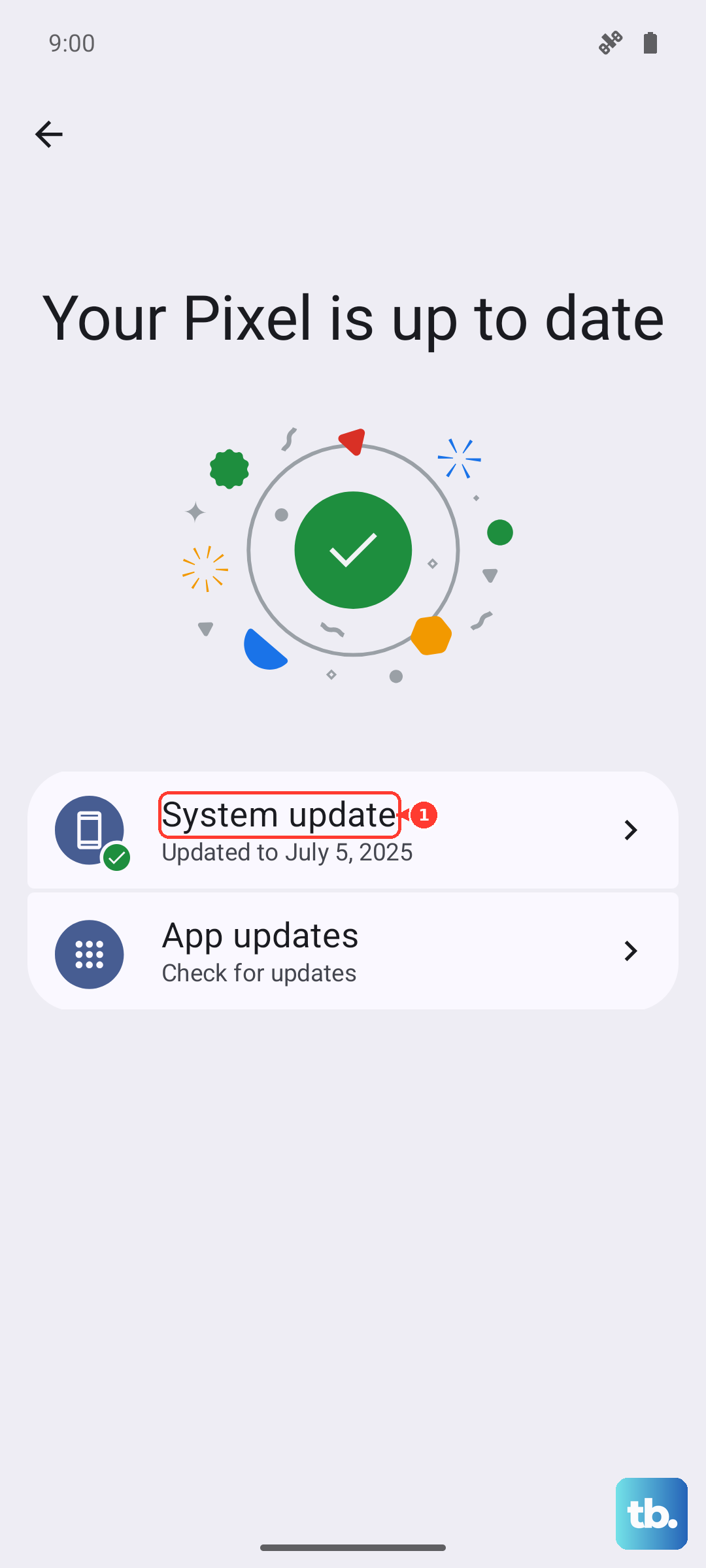
Pay special attention to video players like YouTube, Netflix, or any third-party apps you use. An outdated app is a prime suspect for lag.
Use Pixel's supported performance checks
Use Google's Pixel troubleshooting flow instead of a recovery-cache wipe. Restart the phone, install any update under Settings > System > Software update, then check Settings > Storage and free space if storage is low.
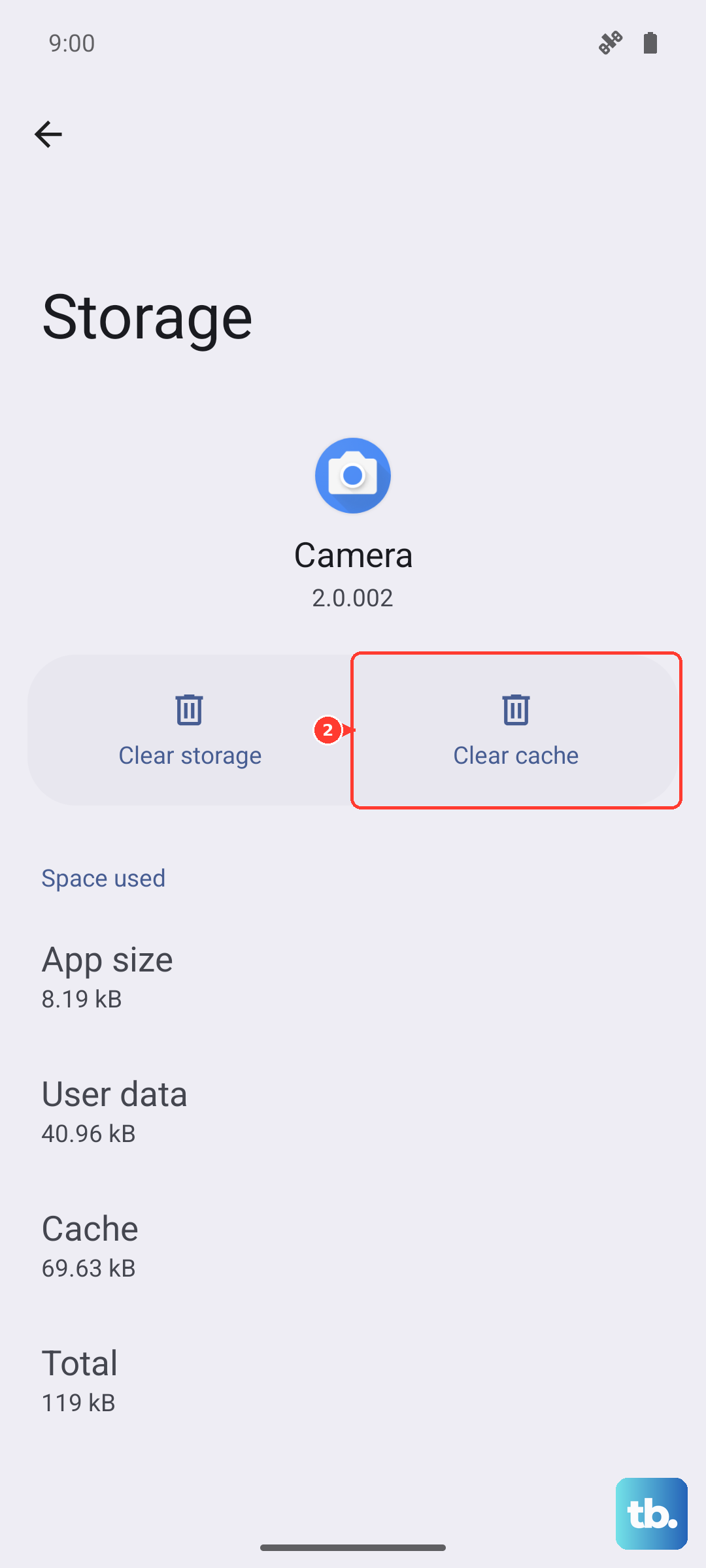
If the lag happens in one app, open Settings > Apps > See all apps, choose that app, then tap Storage & cache > Clear cache. If the issue continues, update the app and test in Safe mode to rule out a downloaded app conflict.
Keep the phone cool during charging
The Pixel 10 Pro XL is known to overheat and shut off while charging, and that can cause performance throttling that leads to video stutter. If you're watching videos while the phone charges, try removing the case first. Cases trap heat and make overheating worse.
Also, use a 30W+ USB-C PPS charger for the fastest wired charging without excessive heat. For wireless charging, center the phone precisely on the Qi2 pad, alignment is finicky on this model, and poor contact can cause slow charging that heats up the battery more than it should.
If you notice the phone getting hot during video playback, stop charging and let it cool down. The frame rate should return to normal once the temperature drops.
Check for a defective charging port
It sounds weird, but a bad charging port can cause erratic system behavior including video lag. Some Pixel 10 Pro XL units shipped with a defective USB-C port that intermittently shorts out, making the phone think it's charging and not charging in rapid succession. This constant power state switching can confuse the OS and cause performance issues.
If your phone acts sluggish while plugged in, try using wireless charging instead. If that fixes the lag, you might have a port issue that needs a repair.
Factory reset as a last resort
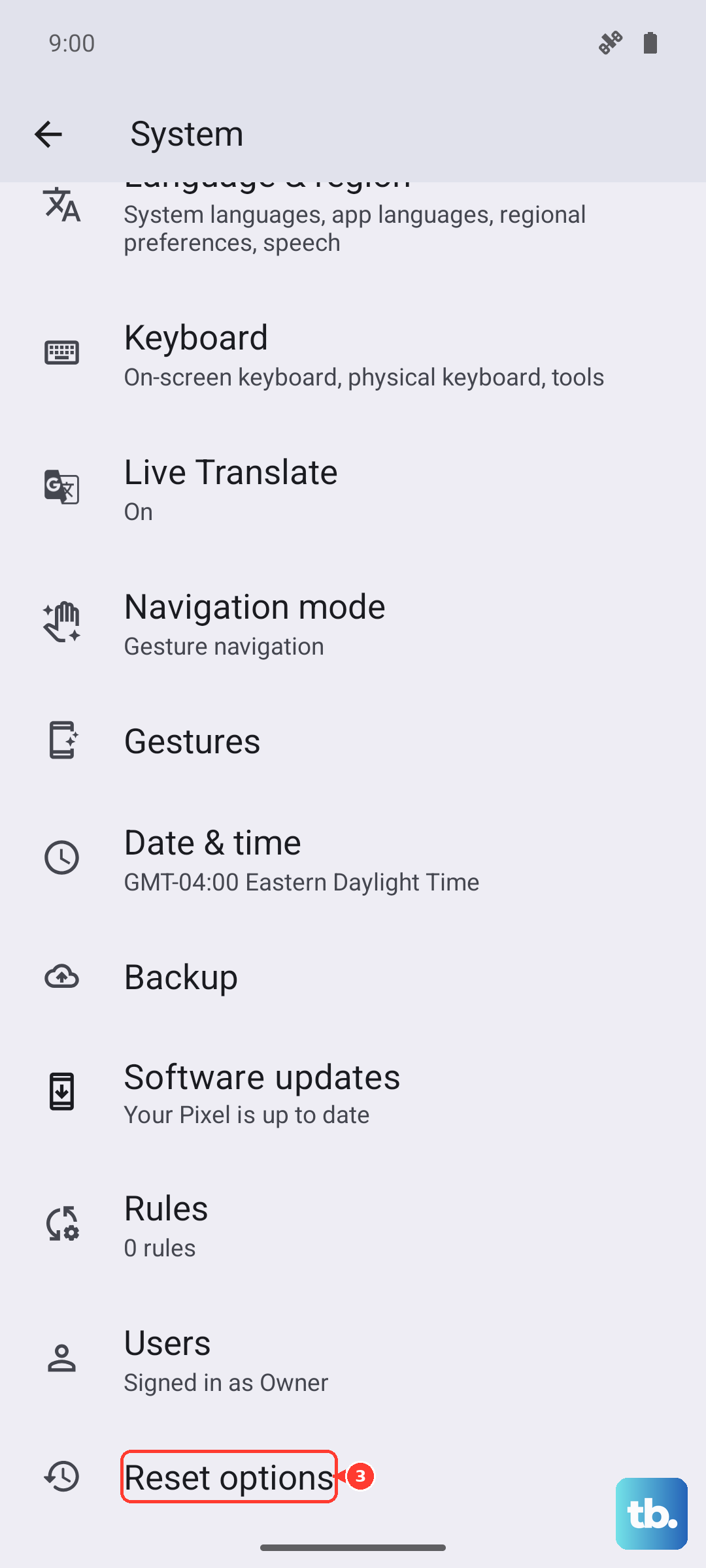
If nothing else has worked, a factory reset can wipe out persistent software problems. Back up everything first, photos, contacts, and anything else you don't want to lose. Then go to Settings > System > Reset options > Erase all data (factory reset). This will restore your Pixel to its out-of-box state.
After the reset, test video playback before restoring your backup. If the lag is gone, a backup might have carried over the problematic settings or app data. You can then restore selectively.