
The flashlight on your Pixel 10 Pro XL is one of those features you don't think about until it stops working. Maybe the toggle in Quick Settings does nothing, or the icon is grayed out entirely. Here's how to track down the problem and get the light back on.
Swipe Down for Quick Settings
The most common reason a flashlight won't turn on is a simple UI glitch. Swipe down twice from the top of your screen to expand the full Quick Settings menu. Tap the Flashlight tile once to turn it off, wait a second, then tap it again to send a fresh command to the LED. If the tile isn't showing, tap the edit icon (the pencil) at the bottom and drag the Flashlight tile onto your active panel.
You can also press and hold the Flashlight tile to adjust the brightness level. If it was set to the lowest setting, it might not look like it's working in a bright room.
Is the Camera App Still Open?
The camera and the flashlight share the same LED hardware on the Pixel 10 Pro XL. If the Camera app is open, or even sitting in the background, the flashlight won't activate. Open your recent apps menu and swipe away any camera-related apps. Third-party apps like Snapchat or Instagram can also lock the camera hardware, so close those out too. Try the flashlight again once the camera is fully released.
Force a Restart
If a simple toggle doesn't fix it, a full restart will reset the software state that controls the LED. Press and hold the Volume up and Power buttons simultaneously for 10 seconds, then release when the device restarts. This works as a hardware-level reset on the phone and clears most temporary bugs affecting system functions like the flashlight.
Cool It Down and Remove the Case
Overheating is a known issue on the Pixel 10 Pro XL, especially during fast charging or extended gaming sessions. When the internal temperature gets too high, Android 16 automatically disables power-hungry features, including the flashlight. If your phone feels warm to the touch, take the case off immediately. Plastic and silicone cases trap heat and make the problem worse. Let the phone sit idle for 10 to 15 minutes in a cooler spot. The flashlight should become available again once the temperature drops back to normal.
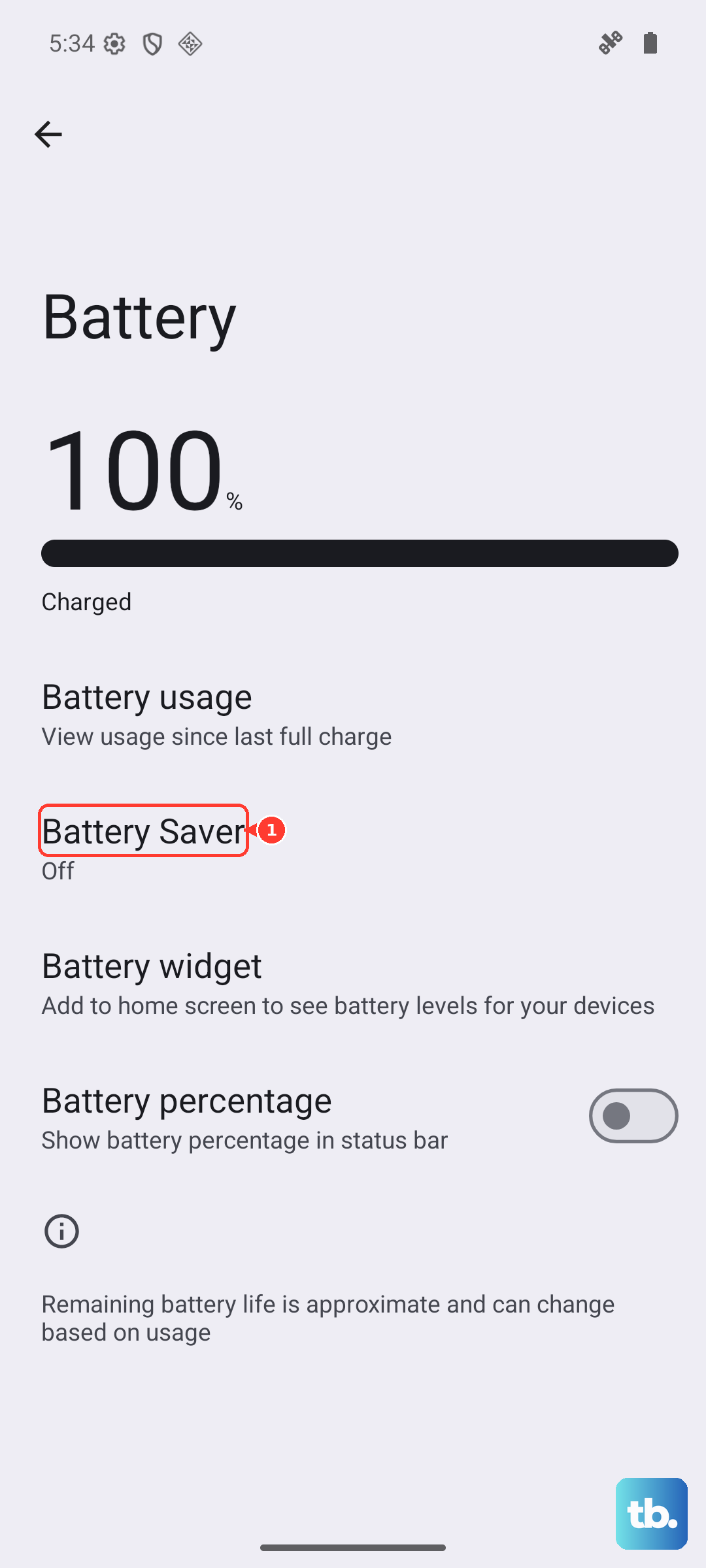
While you're at it, check if Battery Saver mode is on. Go to Settings > Battery > Battery Saver and turn it off if it's active. Battery Saver can restrict background functions that the flashlight depends on.
Let Google Assistant Toggle It
If the Quick Settings toggle is broken but the hardware is fine, Google Assistant can usually bypass the glitch. Say "Hey Google, turn on the flashlight." If it turns on, say "Hey Google, turn off the flashlight" and then try the Quick Settings toggle again. This can reset whatever UI state was preventing the manual toggle from working.
Check for an Android 16 Update
Google regularly fixes bugs through Android 16 updates and Pixel Feature Drops. A known flashlight bug might already be patched on a newer software version. Go to Settings > System > Software Update and check for any pending updates. If there's an update, install it and test the flashlight afterward. This is especially worth checking if the issue started after a recent system change or app install.
Reset App Preferences or All Settings
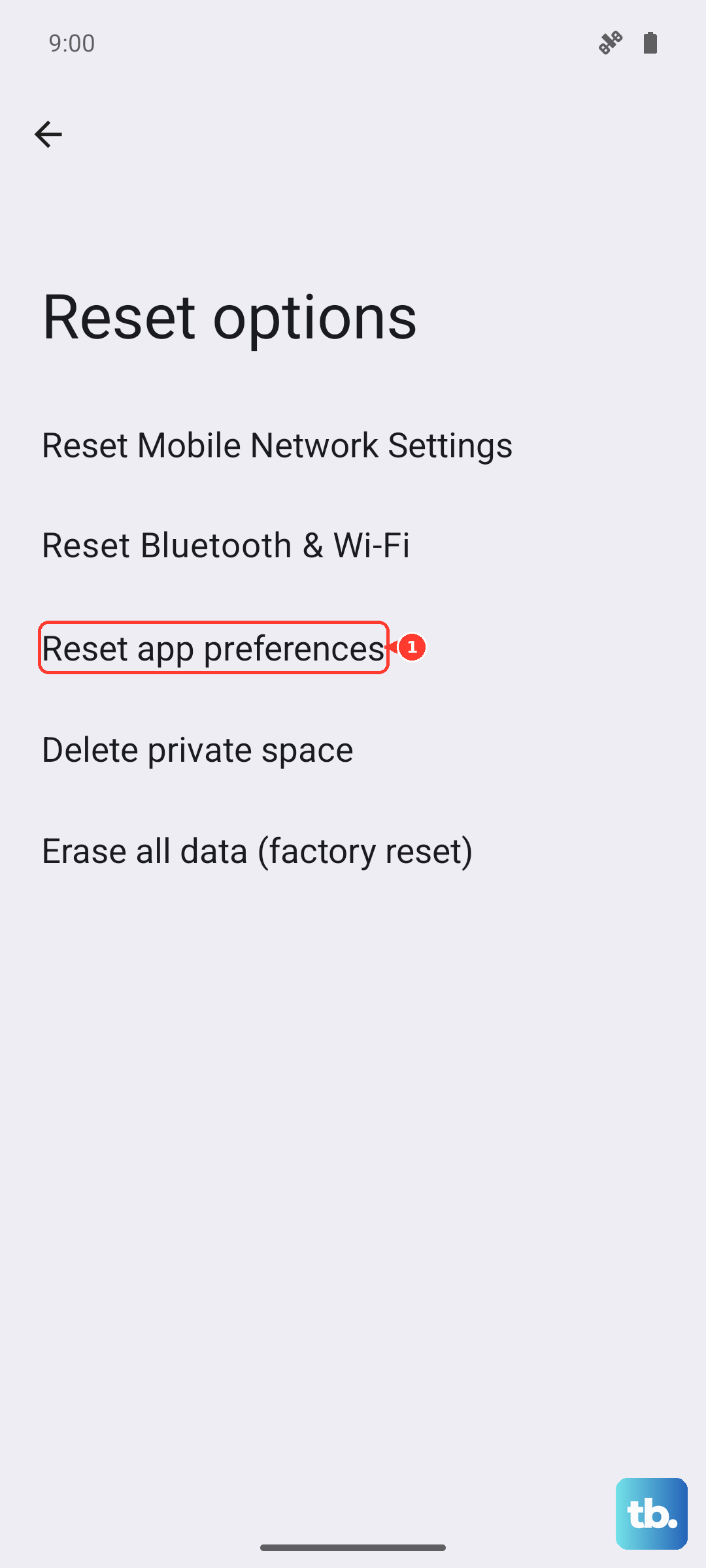
Before you give up on software fixes, try resetting the system configurations that might be interfering. Go to Settings > System > Reset options. Tap Reset app preferences first. This resets disabled apps and notification permissions without deleting any of your data. If that doesn't do the trick, tap Reset all settings. This clears Wi-Fi networks, Bluetooth connections, and customized system settings, but it leaves your photos, contacts, and installed apps completely untouched.
When Hardware Is Likely the Culprit
Open the Camera app and try to take a photo with the flash enabled. Tap the flash icon in the top corner and set it to On or Torch. If the camera flash doesn't fire, the LED module itself is faulty. The Pixel 10 Pro XL uses a single LED for both the flashlight and the camera flash, so if one is dead, the other won't work either. At this point, there isn't a software fix that will help. You'll need to have the hardware serviced or replaced.