You went to shoot a video or install an app on your Google Pixel 10 Pro and got hit with a "storage full" or "storage almost full" warning instead. It is frustrating, especially on a phone that ships with anywhere from 128 GB up to 1 TB of storage. The good news is that the Pixel 10 Pro gives you full control over its internal storage right from the Settings app, plus Google's own Photos and Files tools to offload and clean things up.
Work through the fixes below in order, starting with the safest ones, and you can usually reclaim plenty of room without losing anything you care about.
One thing to know up front is that the Pixel 10 Pro has no microSD card slot and no expandable storage. That means there is no memory card you can pop in to add space. The only ways to free room are deleting or offloading data, or moving files to the cloud or a computer.
Everything below is built around exactly that.
Find Out What Is Actually Eating Your Space
Before you delete a single thing, see where your storage is going. Guessing wastes time and risks removing something you want to keep.
The Pixel 10 Pro shows you a clear breakdown by category so you can target the biggest offenders first.
Open the Settings app and tap Storage to see how much space is used and how much is free.
Next, tap a category (such as Photos and videos, Apps, or Files) to see what is taking up the most room.
This single screen usually tells the whole story. Most often, photos and videos are the largest category, which is why the cloud-offload fixes below tend to recover the most space.
Once you know where the bulk is hiding, you can act with confidence instead of deleting at random.
Let Smart Storage Clear Backed-Up Photos Automatically
If your photos and videos are already backing up to your Google Account, the phone can clear the on-device copies for you when space runs low. This is the easiest hands-off fix because you keep the cloud copies and only the local duplicates get removed.
It is built right into the Pixel 10 Pro.
Go to Settings, Storage, then Free up space.
From there, tap the Menu, then tap Settings.
Turn on Smart Storage.
With Smart Storage on, the phone clears backed-up photos and videos automatically when your device storage is almost full.
You keep your cloud copies and the phone quietly frees itself up over time, so you are less likely to hit the wall again.
Reclaim Big Space in Google Photos Right Now
If you do not want to wait for Smart Storage to kick in, you can free up space in Google Photos on demand. This is usually the single most effective fix on a camera-heavy phone like the Pixel 10 Pro, since high-resolution photos and videos add up fast.
It only removes copies that are already safely backed up.
Open the Google Photos app.
Then tap your account profile photo or initial.
Tap Free up space on this device.
Confirm Free up the listed amount from device.
This deletes the on-device copies of photos and videos that are already backed up to your account.
You can still view them in the app whenever you are connected to the internet, so nothing is truly gone.
It is one of the fastest ways to reclaim a large amount of room.
Manually Delete the Files You No Longer Need
Sometimes the space hog is not photos at all. It is downloads, old documents, or large files you forgot about.
The Pixel 10 Pro lets you browse by category and remove these directly. This puts you in full control of what stays and what goes.
Go to Settings, Storage, then Free up space.
After that, scroll to the category you want.
Tap Select files, or Browse if nothing is listed.
Choose the files you want to remove.
Tap Move files to Trash.
This clears out large or old files directly from the phone.
Take a moment to review before you confirm, since this removes the items from your device.
Targeting a few big files here can often free more space than deleting dozens of small ones.
Clear App Cache, Reset App Data, or Remove Apps You Skip
Apps quietly build up cache files and saved data over time, and some of them get surprisingly large.
Clearing the cache is a safe first step because it only removes temporary files.
Clearing storage goes further and resets the app, so save that for apps that are genuinely bloated.
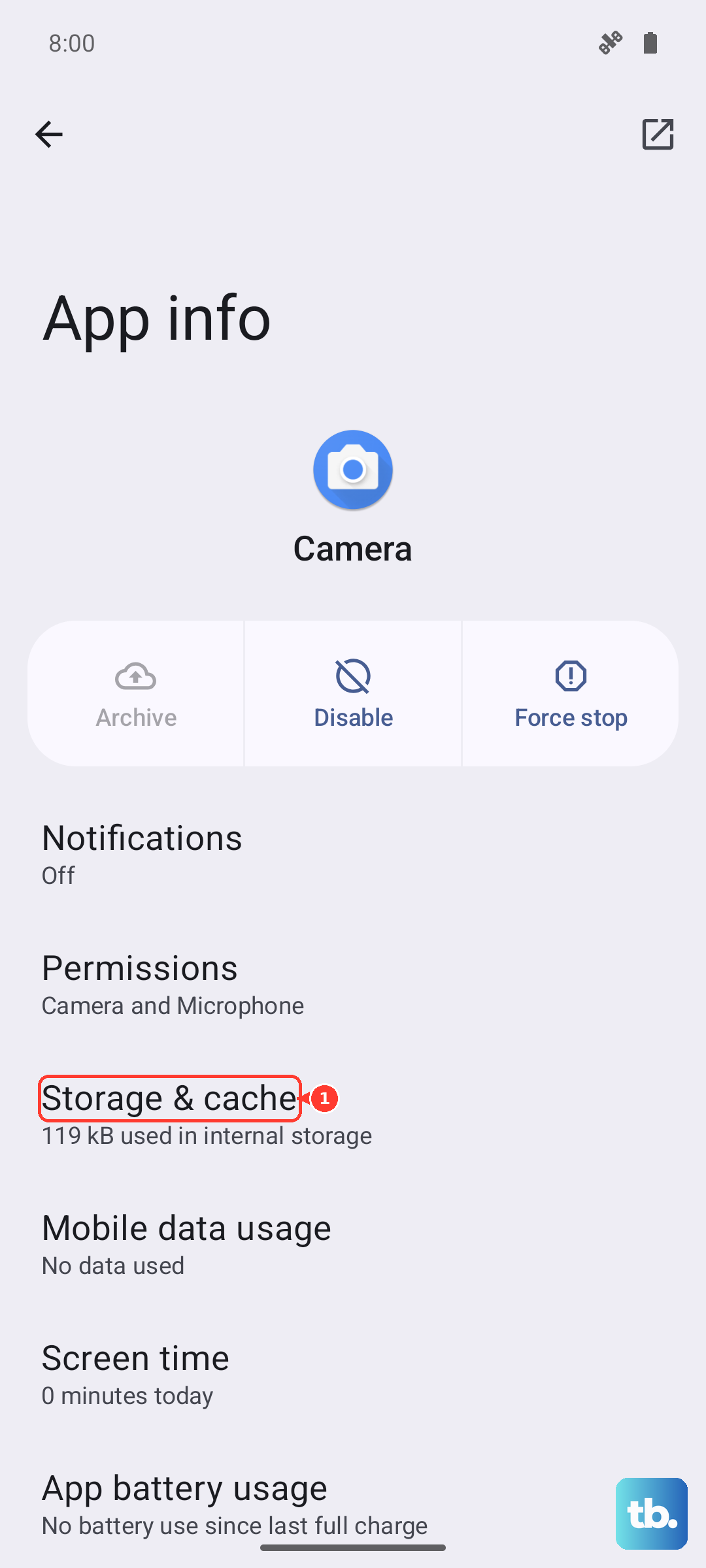
Go to Settings, Apps, then See all apps.
Tap an app.
Tap Storage and cache.
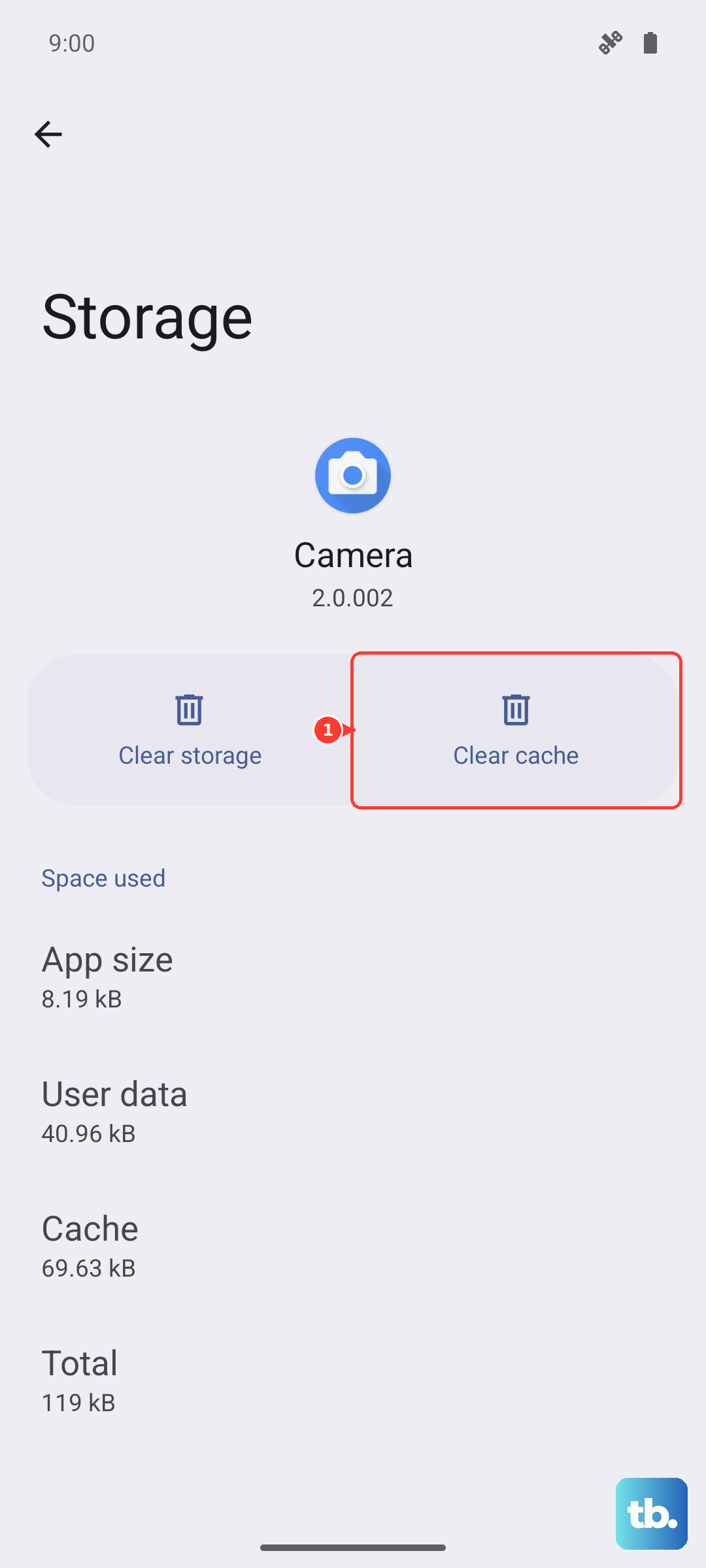
Choose Clear cache to free temporary files, or Clear storage to reset the app data.
You can also uninstall apps you simply do not use anymore, which removes both the app and its stored data.
If you paid for an app, do not worry, because you do not have to buy it again to reinstall it later.
Between clearing caches and removing dead-weight apps, the Apps category can free up a meaningful chunk of room.
Restart the Phone if It Feels Stuck After Cleaning Up
After deleting files or clearing app data, the storage figures or the phone itself can occasionally feel slow to catch up.
A restart clears that out and lets the system settle.
The Pixel 10 Pro, like other Pixel 6 and later models, has a specific restart sequence worth getting right.
For a normal restart, press and hold the Power button and Volume up button for a few seconds, then tap Restart.
If the phone is frozen or completely unresponsive, use the force restart instead.
Press and hold the Power button for up to 60 seconds, and once it begins to reboot and the screen shows the G logo, release the Power button.
Install Any Pending Software Update
Software updates sometimes include bug fixes that affect how storage behaves, so it is worth making sure your Pixel 10 Pro is current.
The phone launched on Android 16 and receives ongoing Pixel Drops along with OS and security updates.
Before you start, connect to Wi-Fi and charge to at least 75 percent.
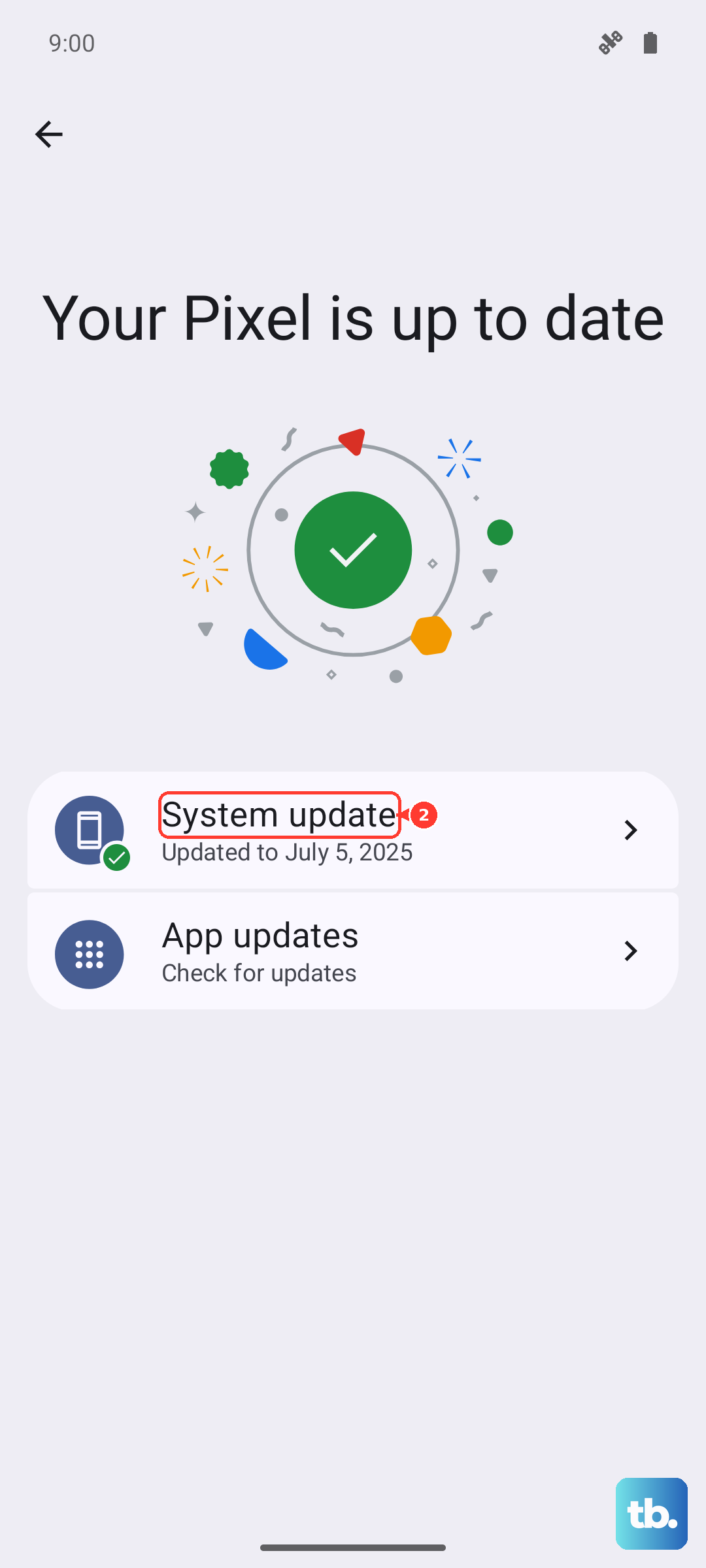
Go to Settings, System, then Software updates. The Pixel may show System update.
Follow the on-screen instructions.
If you want to confirm exactly what version you are running, check Settings, About phone, then Android version, which also shows your security update status.
Keeping the phone updated is good practice anyway, well beyond just storage.
Back Up and Factory Reset as a Last Resort
If storage problems still will not clear up after everything above, a factory reset is the final option.
This is a serious step and should only be used once the simpler fixes are exhausted.
Read the warning carefully before you proceed.
WARNING: a factory reset erases all your data from your phone, and apps and their data are uninstalled.
Back up your data to your Google Account first so you can restore it afterward.
Before resetting, charge to at least 70 percent and connect to Wi-Fi or a mobile network.
The reset can take a while, and you will need your Google Account credentials to sign back in.
- 1.Back up your data to your Google Account.
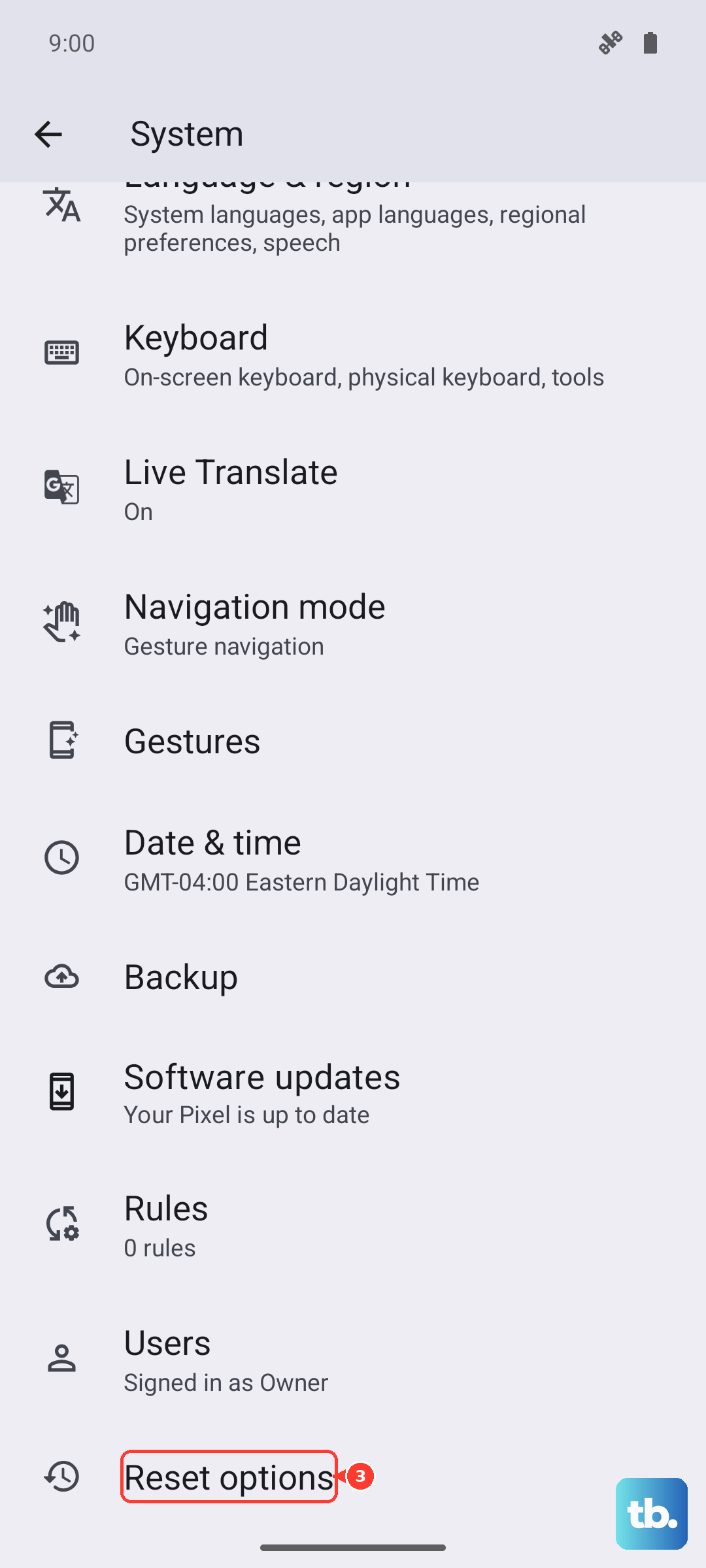
- 2.Go to Settings, System, then Reset options.
- 3.Tap Erase all data (factory reset).
- 4.Follow the prompts and sign back in with your Google Account afterward.
If a reset does not resolve the problem, contacting official Google support is the right next step, since a persistent storage issue after a full reset may point to something that needs a closer look.
Frequently Asked Questions
Can I add a microSD card to my Pixel 10 Pro for more storage?
No. The Pixel 10 Pro has no microSD card slot and no expandable storage, so you cannot add a memory card. The only ways to free space are deleting or offloading data, or moving files to the cloud or a computer.
Will freeing up space in Google Photos delete my pictures permanently?
No. The Free up space on this device option only removes the on-device copies of photos and videos that are already backed up to your account. You can still view them in the Google Photos app whenever you are connected to the internet.
What is the difference between Clear cache and Clear storage for an app?
Clear cache removes only temporary files and is the safer option, while Clear storage resets the app data entirely. Start with Clear cache, and reach for Clear storage only when an app is taking up a lot of room and you are willing to reset its saved data.
How do I keep my storage from filling up again?
Turn on Smart Storage at Settings, Storage, Free up space, Menu, then Settings so the phone automatically clears backed-up photos and videos when storage is almost full. Pairing that with regular backups in Google Photos keeps cloud copies safe while freeing the phone over time.
Does a factory reset fix storage problems?
It can, but it is a last resort because a factory reset erases all your data from your phone and uninstalls apps and their data. Back up to your Google Account first, charge to at least 70 percent, connect to Wi-Fi or a mobile network, and allow enough time for the reset to finish.