
When your Google Pixel 10 Pro's auto-suggest feature stops working, it can really slow you down. You might notice word predictions disappearing, autocorrect becoming unreliable, or the suggestions just feeling off. The good news is this is usually a quick software fix, and I'd start with a simple restart.
Press and hold the Power button and Volume Up button together for about 10 seconds until you see the Google logo. This force restart can clear out any temporary glitch that's interfering with Gboard's learning.
Check Your Gboard Settings
First, let's make sure the core features are actually turned on. Open any app where you can type and tap to bring up the keyboard. Look for the gear icon in the top row of the keyboard and tap it to go directly to Gboard settings.
If you don't see the gear icon, you can also go to Settings > System > Languages & input > On-screen keyboard > Gboard. Once you're in the Gboard settings, tap on Text correction.
Here, you'll want to ensure a few key toggles are enabled. Make sure Show suggestion strip and Next-word suggestions are both switched on. You can also try toggling them off and back on to refresh the feature.
Clear Gboard's Cache and Data
If the suggestions are still broken, the next step is to clear the app's temporary files. Corrupted cache data is a common culprit for these kinds of issues. Go to Settings > Apps > See all apps.
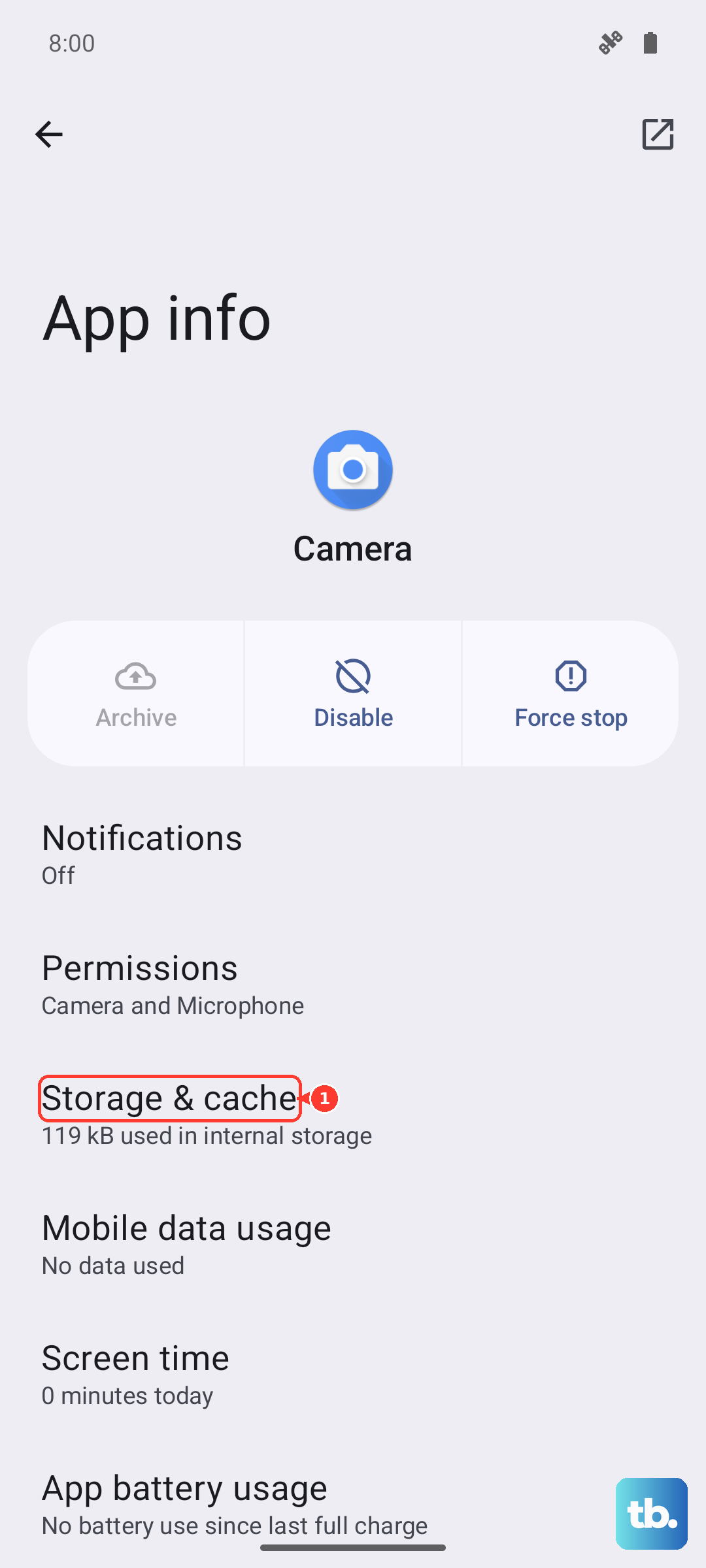
Find and tap on Gboard in your app list. Then, tap Storage & cache. Tap Clear cache first. This only removes temporary files and won't affect your personal dictionary or settings.
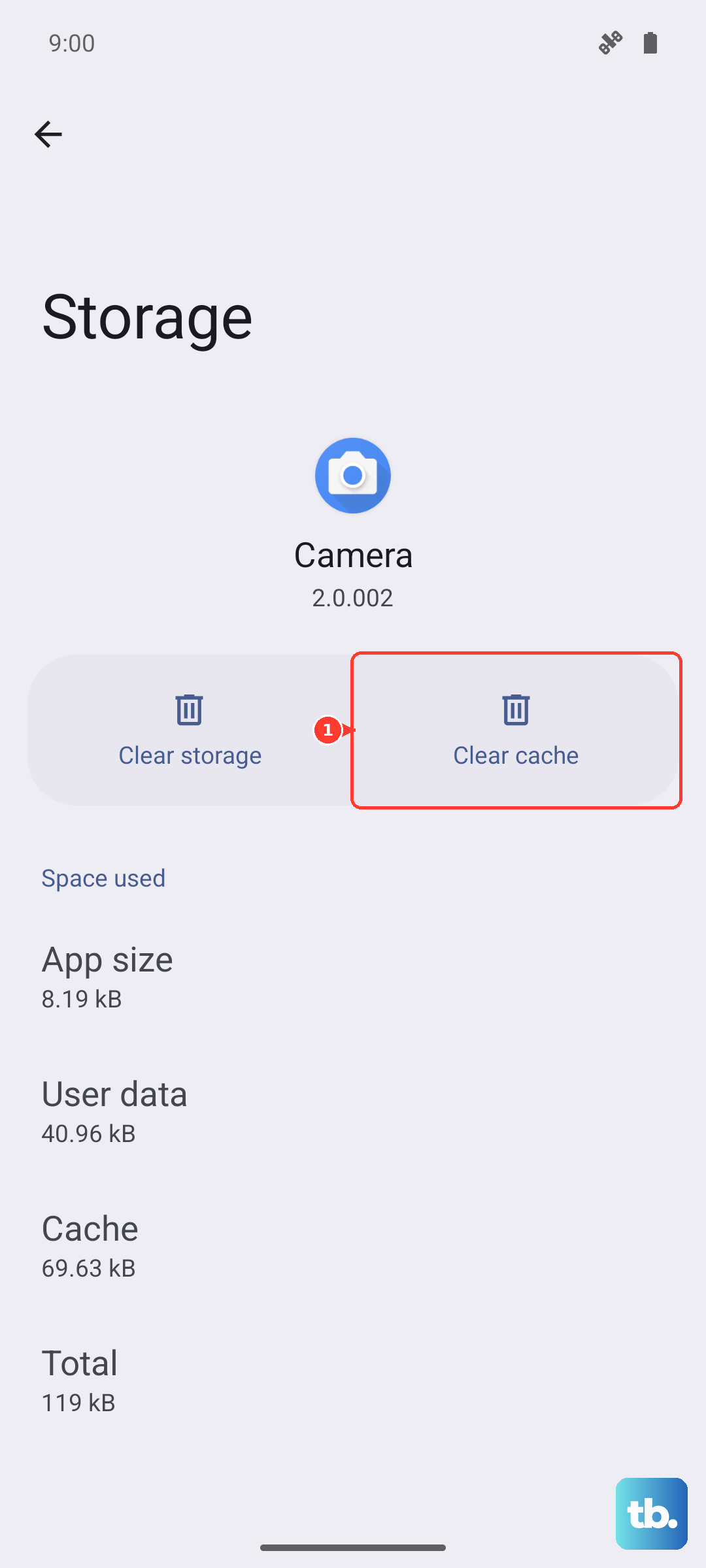
If clearing the cache doesn't help, you can try the more thorough step of clearing the app data. From the same Storage & cache screen, tap Clear storage or Manage space, then Clear all data.
Be aware that this will reset Gboard to its default state. You'll lose any custom dictionary words you've added and your personalized theme, but it often resolves persistent prediction problems.
Update Gboard and Your System
An outdated version of the keyboard app can have bugs that break predictions. Open the Google Play Store, tap your profile picture, and go to Manage apps & device.
Under the "Updates available" section, look for Gboard. If it's listed, tap Update next to it. It's also a good idea to check for a full system update, as Android 15 updates can include fixes for the keyboard framework.
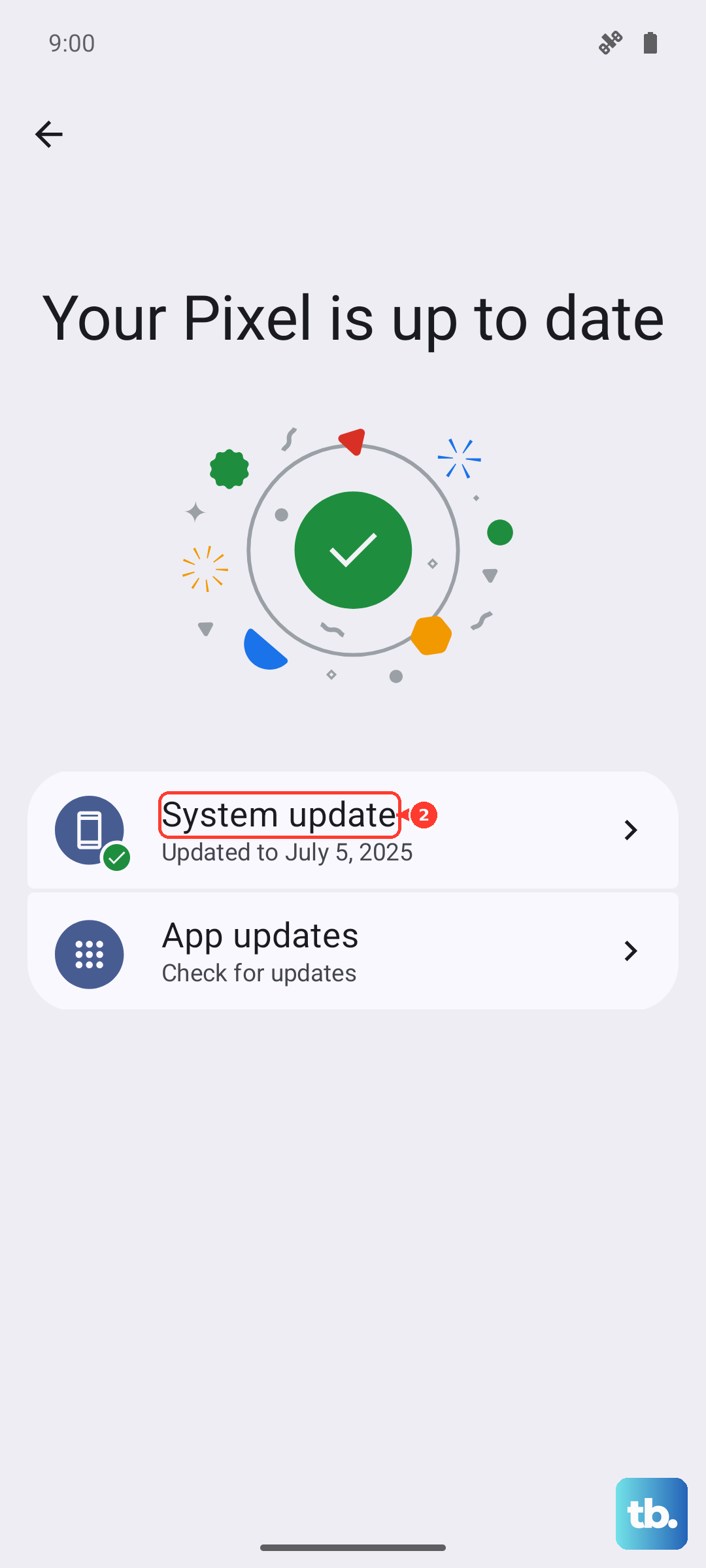
Go to Settings > System > System update to check for and install any available OS updates. Installing updates with your phone plugged into its official 30W charger can help the process go smoothly.
Verify Your Language and Input Settings
Sometimes the issue is that the keyboard isn't fully synced with the system language. Go to Settings > System > Languages & input.
Tap on Languages and make sure your primary language (like English - United States) is at the top of the list. Then, go back and tap On-screen keyboard. Ensure Gboard is selected as your default keyboard.
If you have multiple keyboards enabled, like a third-party one, it can sometimes cause conflicts. You can manage them from this screen to keep things simple.
Reinstall or Roll Back Gboard Updates
If the problem started after a recent Gboard update, you can try rolling it back to the factory version. Go to the Gboard page in your Settings > Apps list.
Tap the three-dot menu in the top right and select Uninstall updates. This will revert Gboard to the version that came with your Pixel 10 Pro. Your phone will likely prompt you to update it again from the Play Store, which you can do after testing if the older version works.
As a last resort within the app itself, you can try uninstalling Gboard completely and reinstalling it. Since it's a system app, you'll only be able to "uninstall" it back to the factory version, which is essentially the same as the step above. This clean reinstall can clear out deep-seated corruption.