
When your Google Pixel 10 Pro's hotspot stops working, it leaves your laptop or tablet stranded without internet. Whether other devices can't see the network, fail to connect, or get dropped, you can usually get back online with a few straightforward checks.
Toggle the Hotspot Off and On
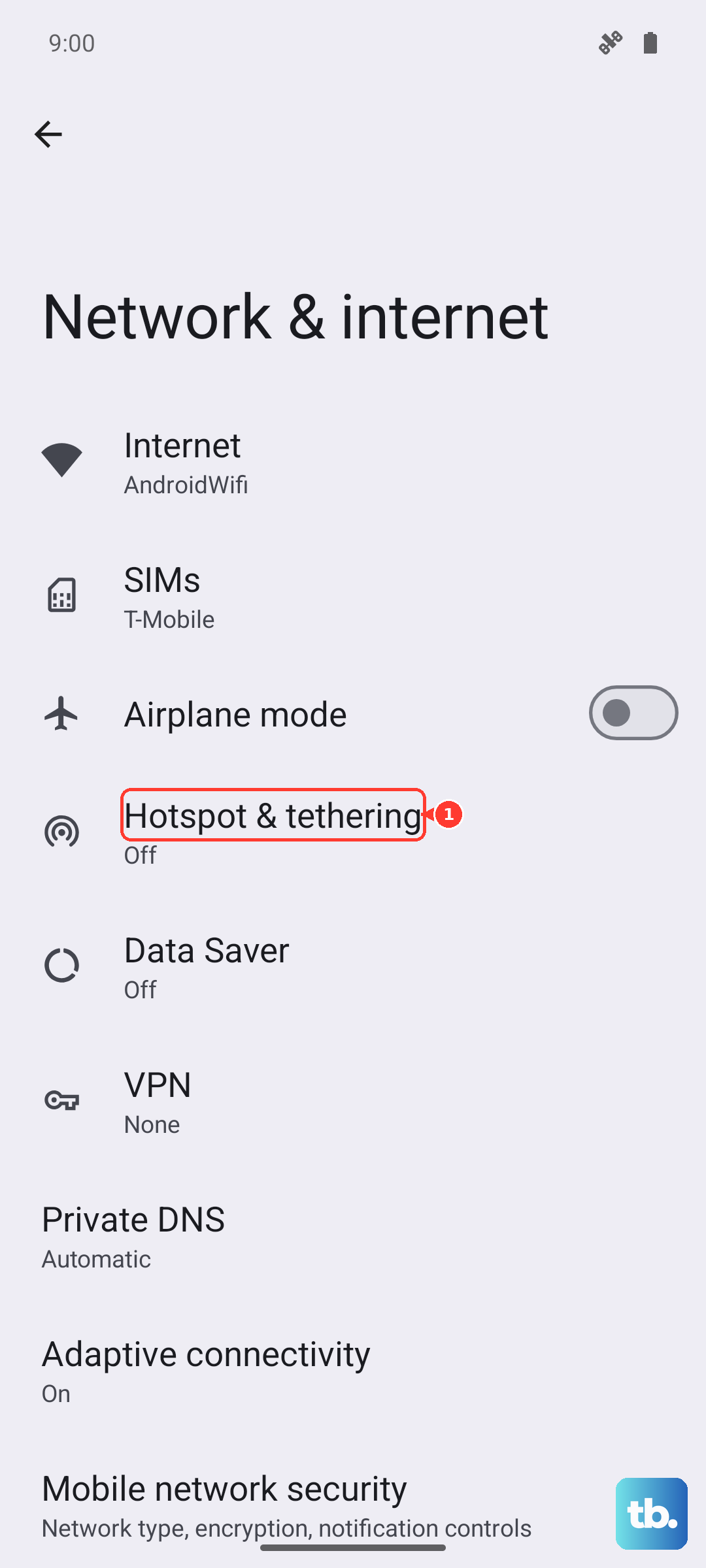
Pull down the Quick Settings shade and tap the Hotspot tile to turn it off. Wait a moment, then tap it again to turn it back on. You can also go to Settings > Network & internet > Hotspot & tethering and toggle the main switch. This quick reset often clears a temporary software hiccup that's preventing the service from starting properly.
Restart Your Pixel 10 Pro
Press and hold the Power button and Volume Up button together for about 10 seconds until you see the Google logo. This force restart is more thorough than a standard reboot and can resolve deeper system processes that might be interfering with the hotspot feature.
Verify Your Mobile Data Connection
Your hotspot relies entirely on your phone's cellular data. Check that you have a strong signal and that mobile data is enabled by looking in your status bar or going to Settings > Network & internet > Internet. Also, double-check with your carrier that your specific plan includes mobile hotspot or tethering, as some budget plans restrict this feature.
Reset Your Network Settings
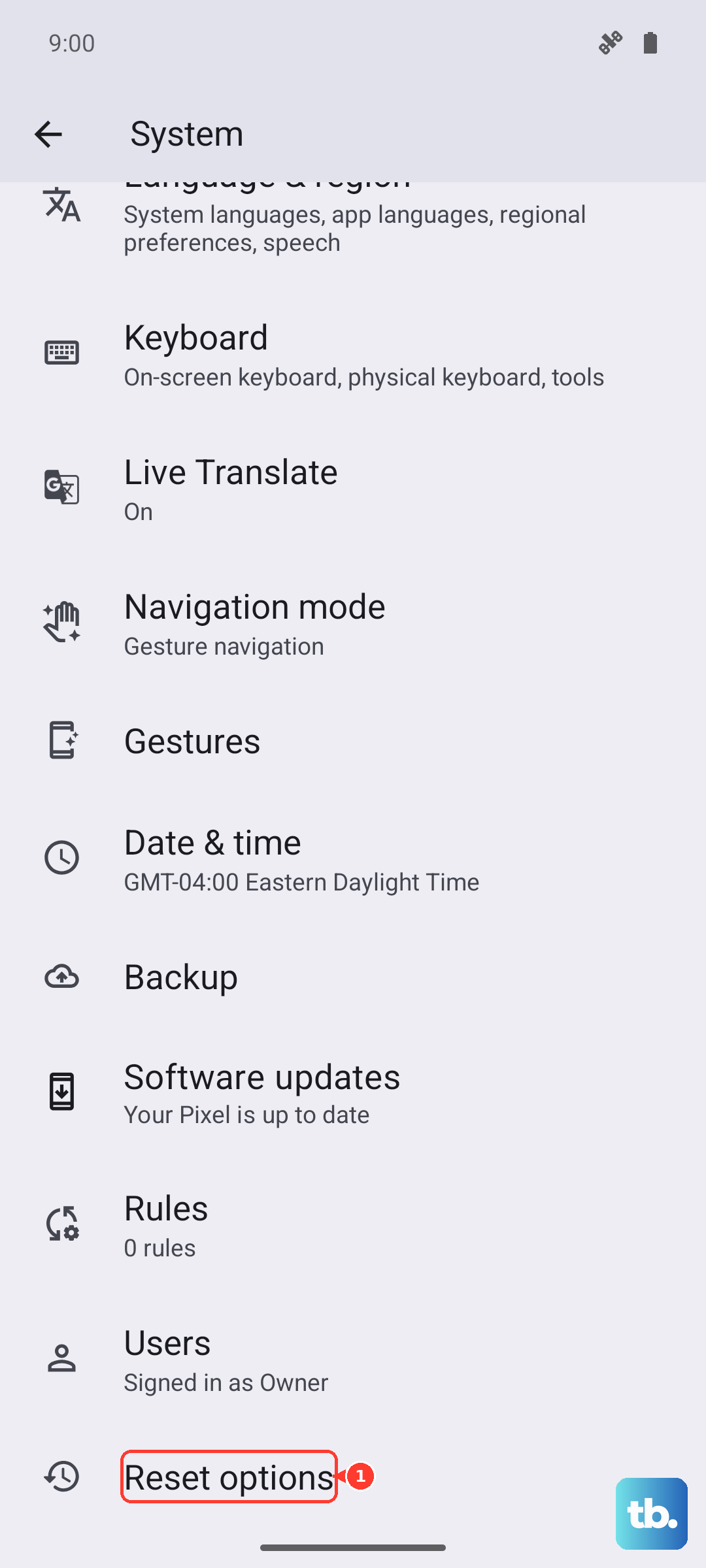
Navigate to Settings > System > Reset options > Reset Wi-Fi, mobile & Bluetooth. This will erase all saved Wi-Fi networks, paired Bluetooth devices, and cellular network preferences. You'll need to reconnect to your Wi-Fi and re-pair accessories afterward, but it's a powerful fix for persistent connectivity problems on Android 15.
Update Your Carrier Services
Carrier-specific updates can resolve tethering bugs. Open the Google Play Store, tap your profile icon, and go to Manage apps & device > Manage > Updates available. Look for an app called "Carrier Services" and update it if it's listed. These background updates are crucial for network features.
Forget the Network on the Connecting Device
On the laptop or tablet that won't connect, go into its Wi-Fi settings and find your Pixel's hotspot name. Choose to forget or remove that network. Then, scan for Wi-Fi networks again, select your Pixel, and enter the password fresh. This eliminates any corrupted connection data stored on the other device.
Change Your Hotspot's Name and Password
Go to Settings > Network & internet > Hotspot & tethering > Wi-Fi hotspot. Tap on Hotspot name (SSID) to change the network's broadcast name, then tap on Password to set a new one. Saving these changes forces a completely fresh network identity for other devices to discover.
Try USB or Bluetooth Tethering Instead
If the Wi-Fi hotspot is being stubborn, use a direct connection. Connect your Pixel 10 Pro to your computer with a USB-C cable, then on your phone, go to Settings > Network & internet > Hotspot & tethering and enable USB tethering. For Bluetooth, pair the two devices first, then enable Bluetooth tethering on the same settings page.
Check for a System Update
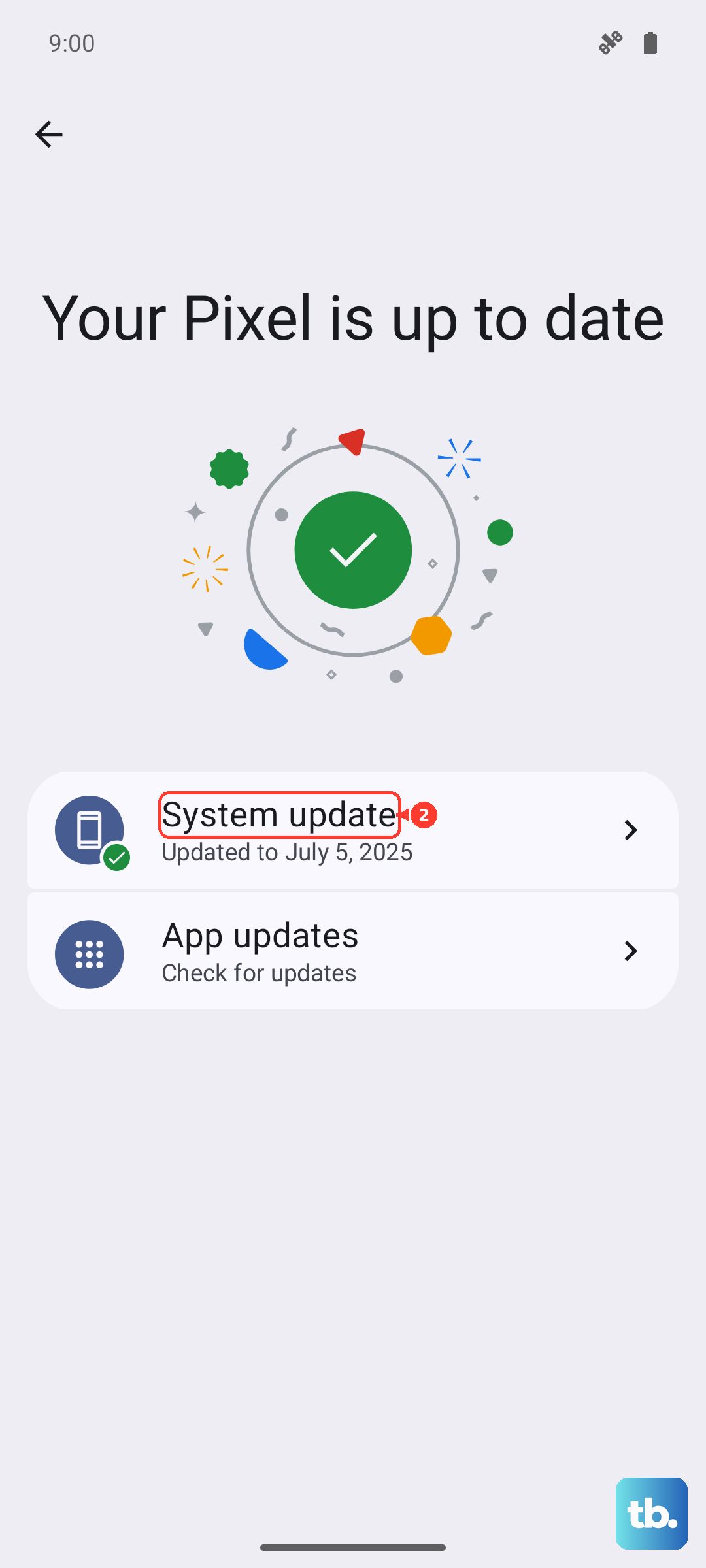
Google frequently patches connectivity issues in system updates. Go to Settings > System > System update to check for and install any available updates for Android 15. I've seen updates specifically mention "improvements to network stability," which often includes hotspot performance.
Review Your Carrier Account
If you've tried everything and the hotspot still won't activate, the issue might be on your carrier's end. Log into your account on your carrier's website or app to verify hotspot is enabled on your line. Sometimes, a simple call to customer support can refresh the feature on their network side.