You lined up the perfect shot on your Google Pixel 10 Pro, tapped the shutter, and got back a soft, hazy image that just will not snap into focus. Maybe every photo looks slightly smeared, maybe only your close-ups are fuzzy, or maybe the phone keeps insisting your lens is dirty when you just wiped it.
Blurry results on a camera this capable are almost always fixable, and most of the fixes take seconds. Work through the 10 fixes below in order, starting with the easiest and safest, and stop as soon as your shots come back sharp.
Start With the Glass and the Laser Sensor
The single most common cause of soft, hazy photos is something on the lens, not a fault inside the phone. Fingerprints, smudges, sunscreen, or pocket lint on the rear camera bar (or on the small laser sensor next to it) scatter light and rob your shots of sharpness. Before you change a single setting, clean the hardware.
Google's guidance is short and specific. To clean the camera lens and laser sensor, wipe them gently with a soft, clean cloth. Avoid abrasive paper or your shirt, which can leave new smears or fine scratches. The Pixel 10 Pro can even pop up an on-screen alert when it senses the lens is dirty, so treat that warning as a prompt to grab a microfiber cloth.
Clear the Lens Path and Let the Phone Focus
A case lip, a stick-on lens protector, or a screen film that overlaps the camera bar can partially block or fog the lens and wreck your focus without you noticing. Take any of those off and try a shot again. Accessories that look like they clear the camera often shift slightly over time and intrude on the field of view.
Once the lens path is clear, let the phone lock onto the right subject. To focus on the subject of your photo, point your camera at the subject, then tap on the subject. A white circle appears and moves on the screen with the subject. Tapping the exact part of the scene you want sharp fixes most shots where the camera focused on the background or the wrong object.
Getting Sharp Close-Ups With Macro Focus
If only your close-up photos are blurry while everything else looks fine, the problem is usually distance. The regular lens cannot focus when you hold the phone too close, so the Pixel 10 Pro switches to a dedicated close-up mode. This feature is available on Pixel 7 Pro, Pixel 8, Pixel 8 Pro, Pixel 9 and later, which includes your Pixel 10 Pro.
Open your Camera app. Move your device close to your subject. Tap the screen to place the focus. When the Macro flower appears, take your photo or video.
To turn Macro Focus on or off manually, tap the flower icon. If your close-ups still will not sharpen, back off a few centimeters and let the phone find the focus distance again before you press the shutter.
Silencing a False Dirty Lens Warning
Sometimes the Pixel keeps warning that the lens is dirty even after you have cleaned it thoroughly. If you have confirmed the glass really is clean and the alert is just noise, you can switch it off.
Open your Camera app. At the bottom left, tap Settings. Tap More settings. Tap Advanced.
Turn off Show dirty lens warning. Only do this once you are certain the lens is spotless. The warning exists to flag genuinely smudged glass, so silencing it on a dirty lens just hides the real cause of your blurry photos.
Refresh the Camera App by Clearing Its Cache
A glitchy Camera app can produce blurry or stuck previews even when the lens and focus are perfect. Clearing its temporary files often resets that behavior without touching any of your saved photos.
Press and hold the Camera app icon. Tap App info. Tap Storage & cache.
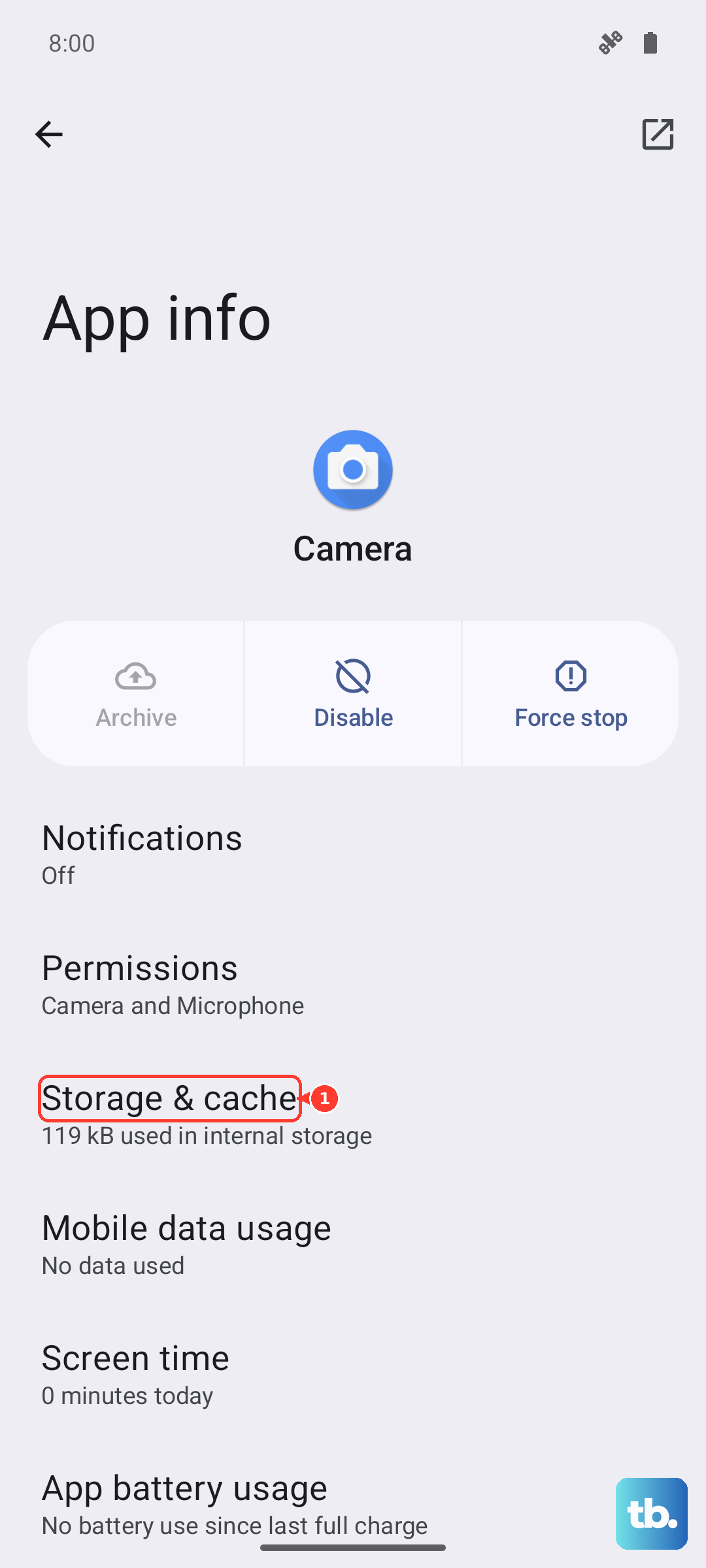
Tap Clear Cache.
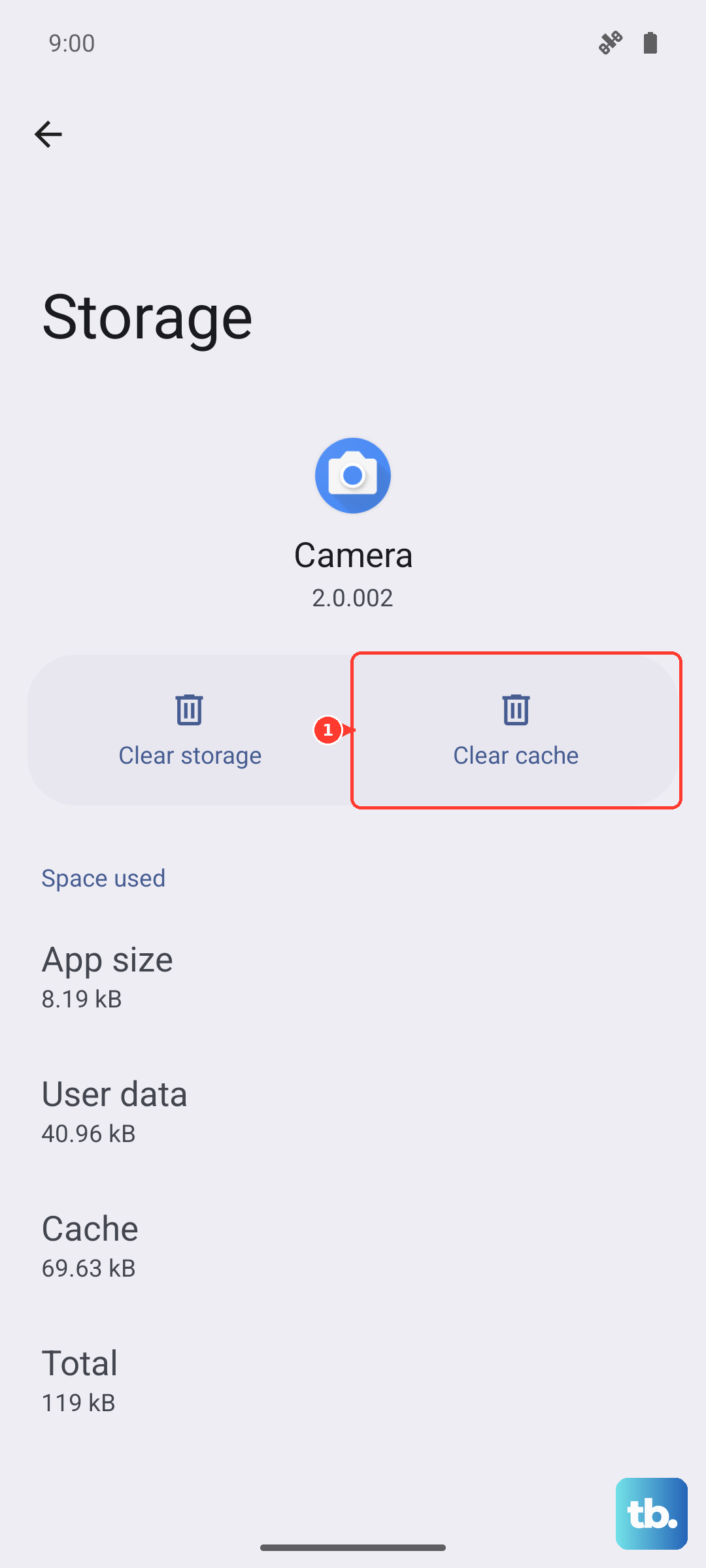
Open the camera afterward and shoot a test frame. This is Google's official fix for a misbehaving Camera app, and because it only clears temporary data, your gallery stays intact.
Give the Phone a Clean Restart
A simple restart clears temporary software faults that can quietly affect the camera. On the Pixel 10 Pro, press and hold the Power button and Volume up button for a few seconds, then tap Restart.
If the screen is frozen and will not respond to that gesture, you can force a restart instead. Hold down the power button for about 30 seconds to restart the phone. Once it boots back up, open the camera and check whether your shots are sharp again.
Update the Pixel Camera App
An outdated Pixel Camera app can carry focus or quality bugs that a newer version already fixes, so make sure you are running the current release.
Open the Google Play Store. Tap your Profile icon. Tap Manage apps & devices.
Install any update listed for Pixel Camera. Once the app updates, reopen the camera and shoot a test frame to see whether the blur clears.
Install the Latest Android System Update
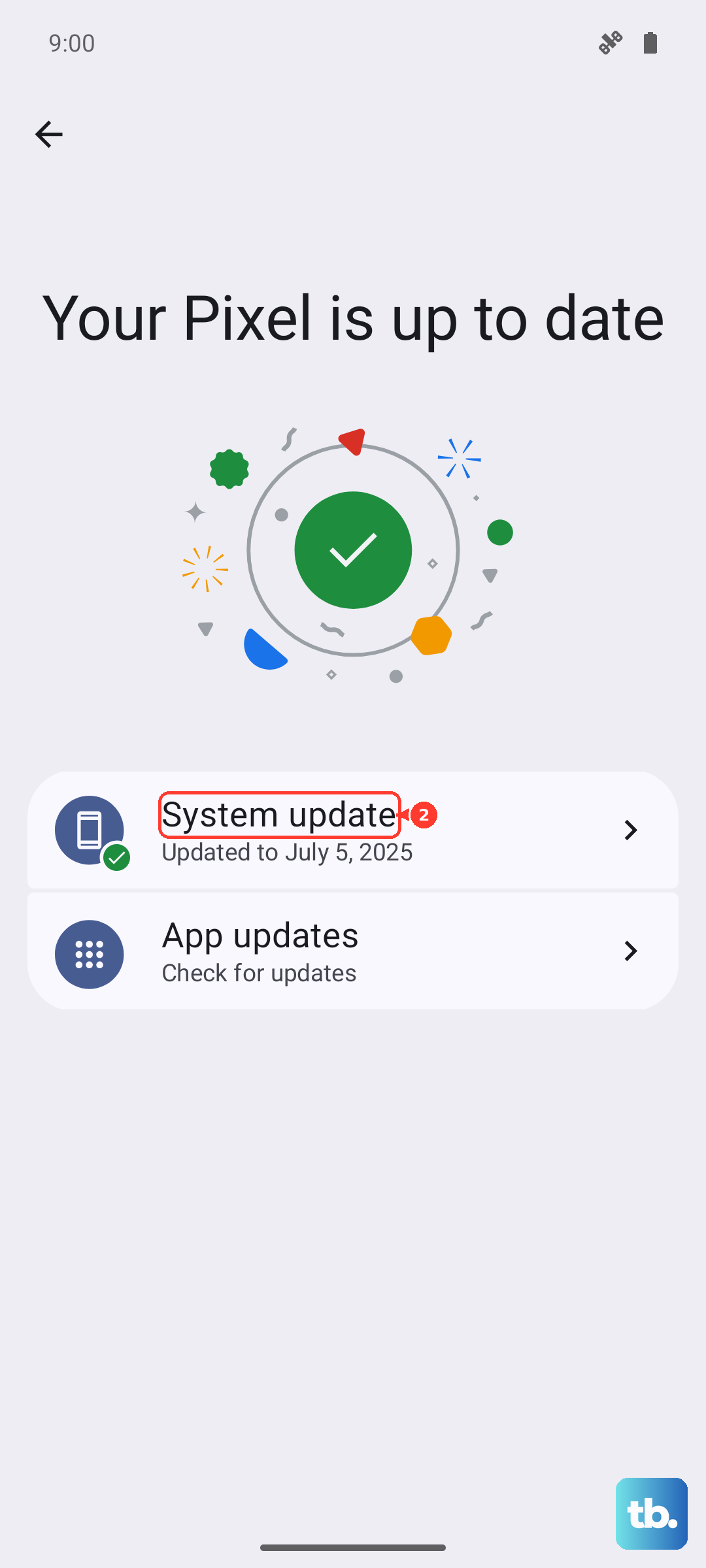
Google also ships camera and stability fixes inside system updates, so bring the whole phone current after updating the app. Go to Settings > System > Software Updates > System update, then tap Check for update and install anything available. Keeping both the app and the operating system up to date resolves a surprising number of intermittent focus problems.
Rule Out a Misbehaving Third-Party App
A downloaded app, such as a third-party camera or AR app, can interfere with focus or take over the lens in ways that leave your shots blurry. Safe mode loads the phone with only its built-in software, so it is the cleanest way to test that theory.
Press and hold the Power and Volume up buttons for a few seconds. On your screen, tap Power off. After your phone turns off, press and hold the Power button until it turns back on.
Now open the camera in Safe mode. If it focuses fine here, a downloaded app is the likely cause, so uninstall anything you added recently and test again. Restart the phone normally to leave Safe mode.
When a Factory Reset Is the Last Option
If nothing above helps, a factory reset wipes deep software problems that ordinary troubleshooting cannot reach. Be aware of the cost first. A factory reset erases all your data from your phone, so back up everything you want to keep before you begin.
To prepare, charge your phone to at least 70 percent and connect your phone to Wi-Fi or your mobile network. Then run the reset.
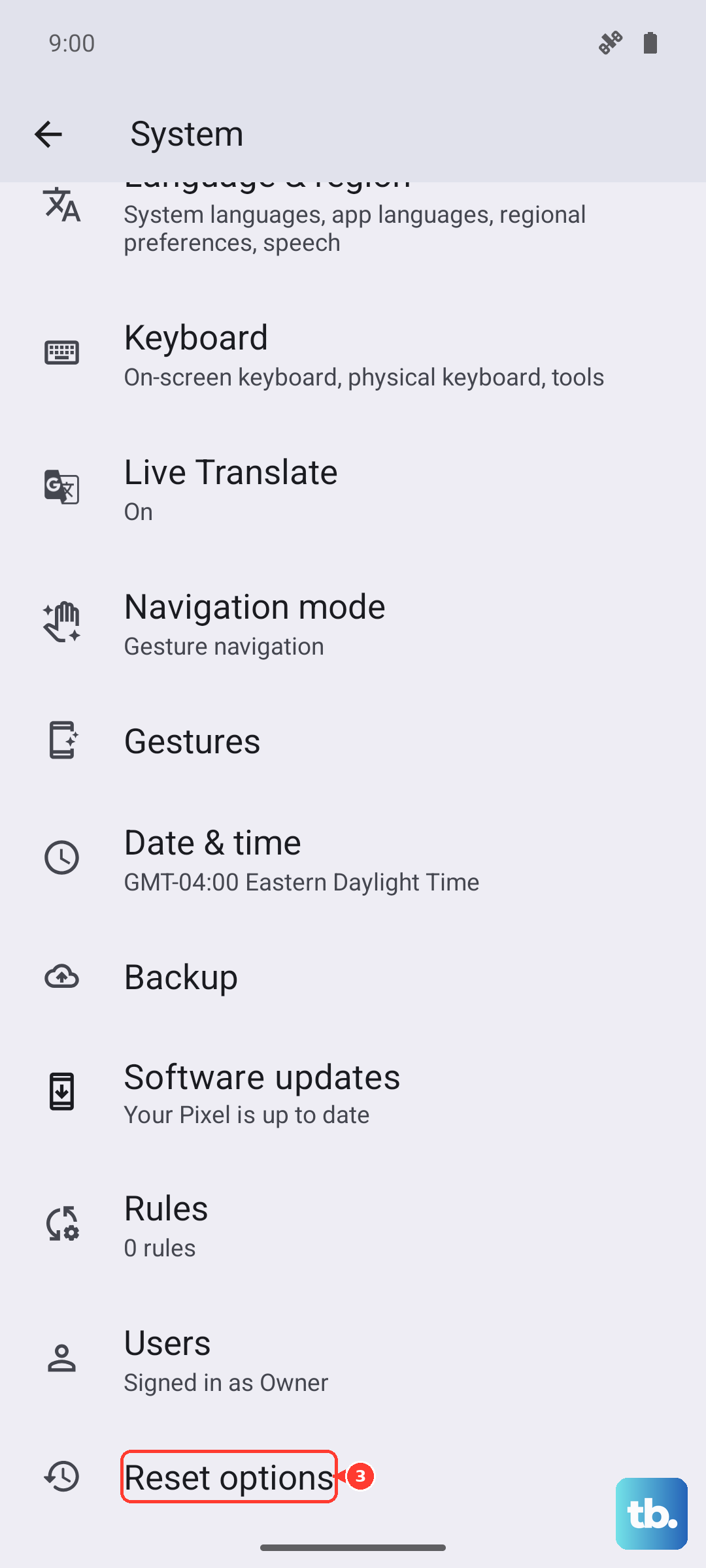
- 1.Go to Settings > System > Reset options > Erase all data (factory reset).
- 2.Tap Erase all data.
- 3.Enter your PIN if prompted.
- 4.Tap Erase all data again.
If the camera is still blurry after a full reset, the lens hardware itself may be faulty. At that point, contact Google Pixel support for further help.
Frequently Asked Questions
Why are only my close-up photos blurry on the Pixel 10 Pro
You are most likely holding the phone too close for the regular lens to focus. Use Macro Focus. Open the Camera app, move close to your subject, tap the screen to place the focus, and shoot when the Macro flower appears. You can also tap the flower icon to turn Macro Focus on or off.
My Pixel keeps saying the lens is dirty even though I cleaned it, what should I do
First confirm the lens really is clean by wiping the camera lens and laser sensor gently with a soft, clean cloth. If the warning persists on genuinely clean glass, you can switch it off in your Camera app under Settings > More settings > Advanced by turning off Show dirty lens warning.
Will clearing the Camera app cache delete my photos
No. Clearing the cache (press and hold the Camera app icon > App info > Storage & cache > Clear Cache) only removes temporary files. Your saved photos and videos stay in your gallery.
How do I restart the Pixel 10 Pro if the screen is frozen
For a normal restart, press and hold the Power button and Volume up button for a few seconds, then tap Restart. If the screen is frozen and unresponsive, hold down the power button for about 30 seconds to force the phone to restart.
What if the camera is still blurry after a factory reset
If a full reset does not fix the blur, the lens hardware may be faulty rather than the software. Contact Google Pixel support so they can help diagnose a possible hardware issue.